Blocks: your own design for any collection
Write a small piece of HTML once and every entry in a collection is drawn through it. Plus a new Blocks guide, and Writing a Tool.
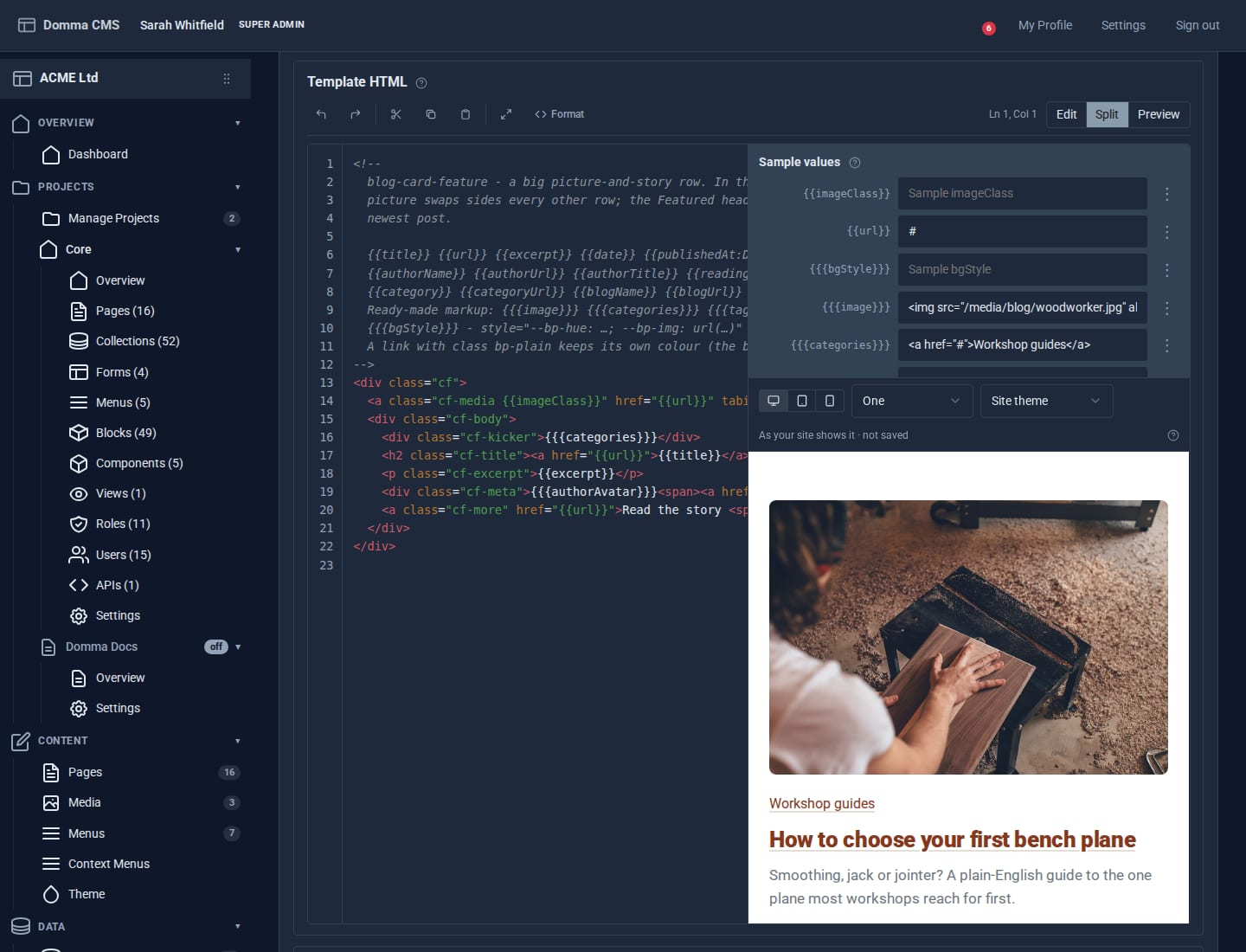
Your design, your data
Collections hold your data: team members, products, testimonials, events. The built-in displays (table, cards, list, accordion, timeline, carousel and list group) cover most pages. When you want a design of your own, use a block.
A block is a small piece of HTML you write once, with a placeholder for each field. Put it on a page with a collection, and every entry is drawn through it:
[collection slug="team" display="block" block="team-card" cols="3" /]
Inside the block, a field's name in double curly braces is filled in from each entry. Add :D MMMM YYYY to format a date. That is the whole template language. There is no build step, and the data stays where anyone can edit it. Add a person to the collection and a new card appears on the page. Change the block and every card changes with it.
Where you can use a block
- Every entry of a collection, as above, with
colsfor a grid. Filters, sorting, limits,scope="mine"and per-entry buttons all still work. - Every row of a View, so a block can show joined, filtered or calculated data.
- Each slide of a carousel or each row of a list group: add
block="…"to those displays. - On its own, with values you type into the shortcode. Every block can also be written with its own name as the shortcode.
Visitors can still right-click any card to filter, sort, group or export, just as on the built-in displays.
Styled on its own
Each block can carry its own CSS. The CMS scopes it to that block, so .photo { … } in your team card can never restyle a photo anywhere else. Use the theme's colours (var(--dm-primary)) and the block follows your theme and dark mode.
Built in the admin
Data > Blocks lists every block, with what it is for and where it is used. The editor shows a live preview inside your own site's page, with your theme, fonts and CSS. You can view it at mobile width, three to a grid, or in another theme, using sample values you type in. Blocks export to a file and import on another site.
Read the guide
There is a full Blocks chapter in the admin under Documentation > Usage > Blocks, with a worked team page from start to finish. The Blocks screen has a book button that opens it.
Writing your own Tools
The plugin tutorial is now Writing a Tool. Anything you build appears in the sidebar beside the built-in Tools, with the same banner. This release adds a section on giving yours the same finish: a place in the sidebar, a hotkey, a count badge with its popover, buttons in the banner, help on each control, and a block that site owners can restyle. Open it from the book button on the Marketplace screen.
Domma CMS 1.6.48.
Keep reading

Meet Domma Celebrations: twenty ways to bring your website to life
Take a visual tour of all twenty Domma Celebrations themes, from Christmas and Halloween to summer gardens and personal sparkler greetings, with screenshots and a quick setup guide.
Projects: group your site without moving a thing
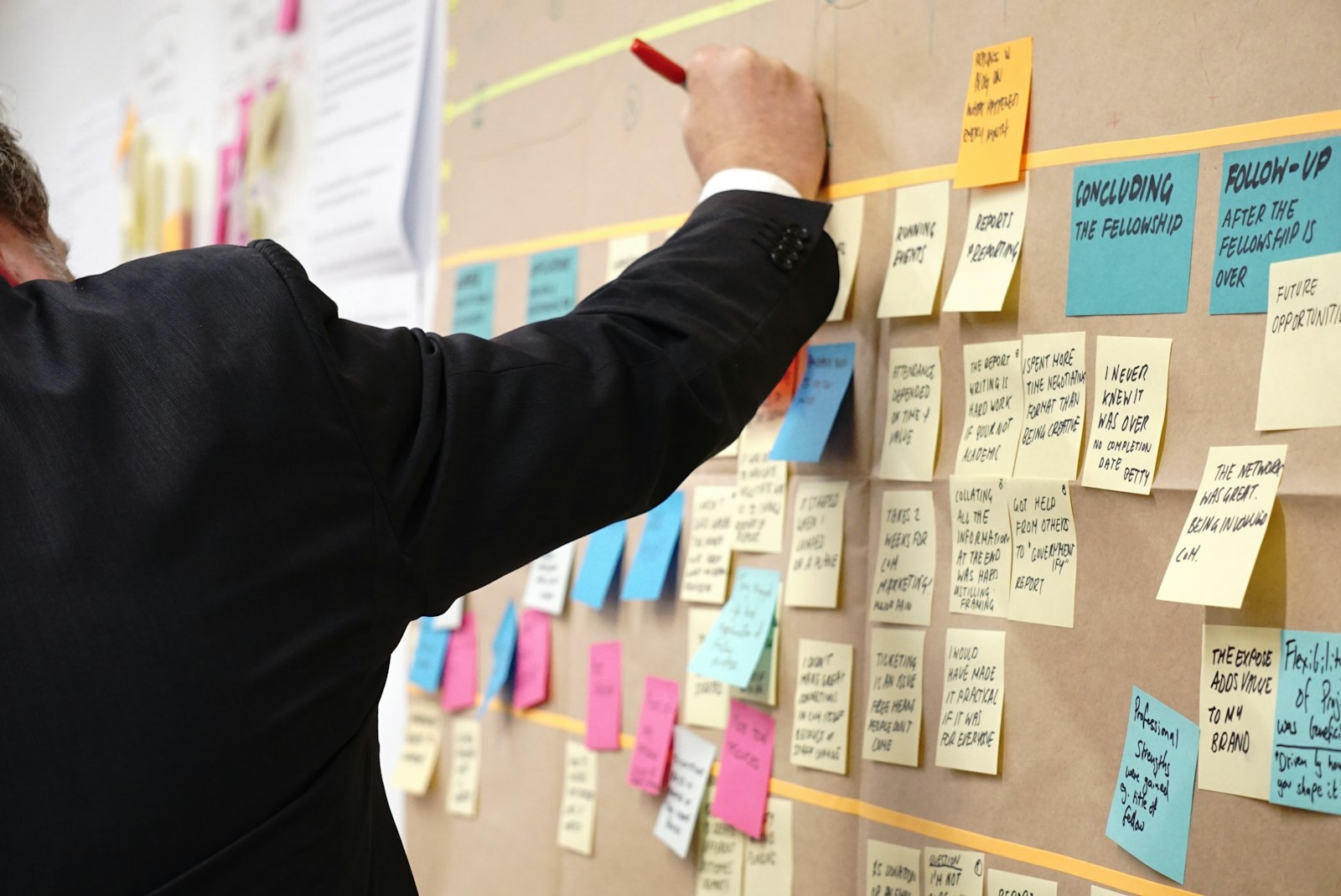
A project gathers the pages, collections, forms and people for one job under one name. Nothing moves: every address, file and link stays where it is - the project is a label.
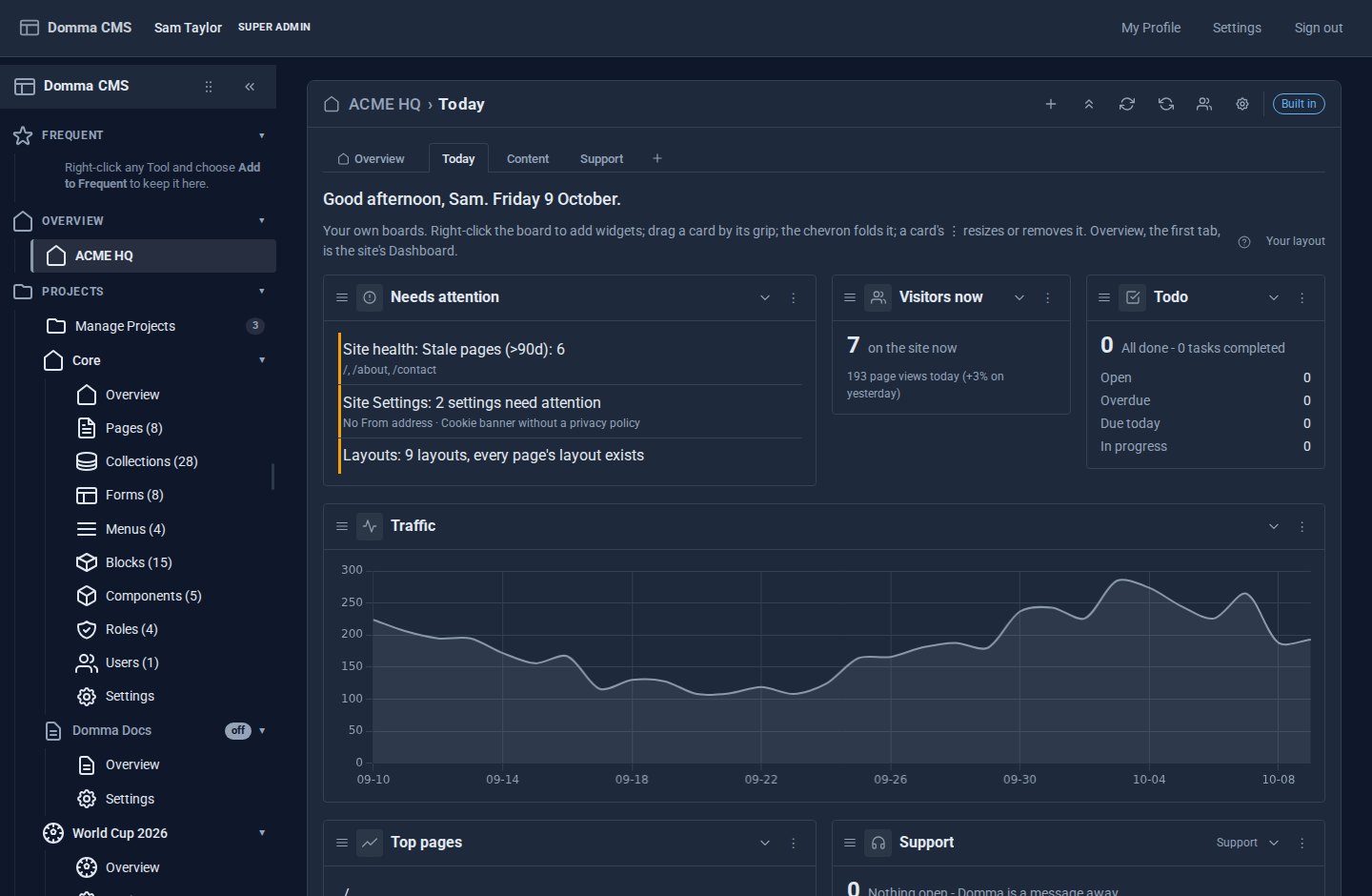
A morning at ACME HQ
A showcase: one morning at ACME Ltd with Dashboard Pro - the Overview first, everyone's own boards after it, and every Tool with widgets in the gallery automatically.