Menus are content, not configuration.
Build as many as you like. Put them where you want. Bind one to a section of the site and it takes over only there.
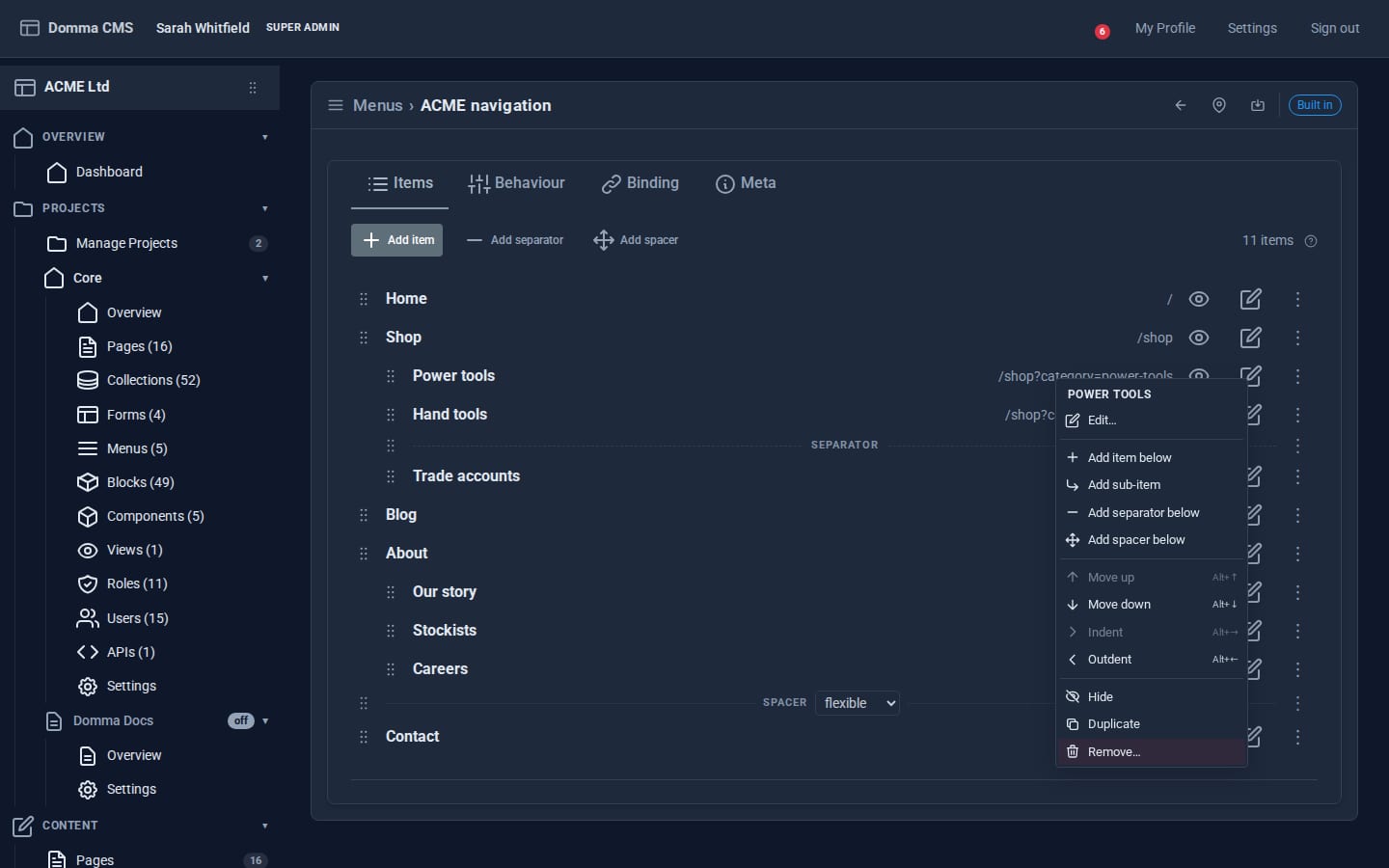
Drag the grip to move or nest. Right-click any item for everything else, with a keyboard shortcut for each move. Separators and spacers are real items, not markup you fake.
One menu, placed exactly where you mean.
A menu is a named tree of items. A slot is a place a menu can appear: the navbar, either footer row, the admin sidebar, or a floating overlay panel. Mapping is a separate step, so swapping the navigation on a whole site is one change, not a rewrite.
A binding narrows that further: claim a slot for one section of the site and the rest of it keeps the default. Documentation gets its own sidebar; the marketing pages do not.
Horizontal, vertical, or floating free.
Floating panels are the visitor's, not yours.
A floating menu can be collapsed, dragged and resized. Your configuration is the starting position, not a cage: where a visitor moves a panel and what size they leave it at is theirs, and it survives the next page load.
Radius, blur, shadow and offset are all yours to set.
Horizontal Vertical Sticky Transparent
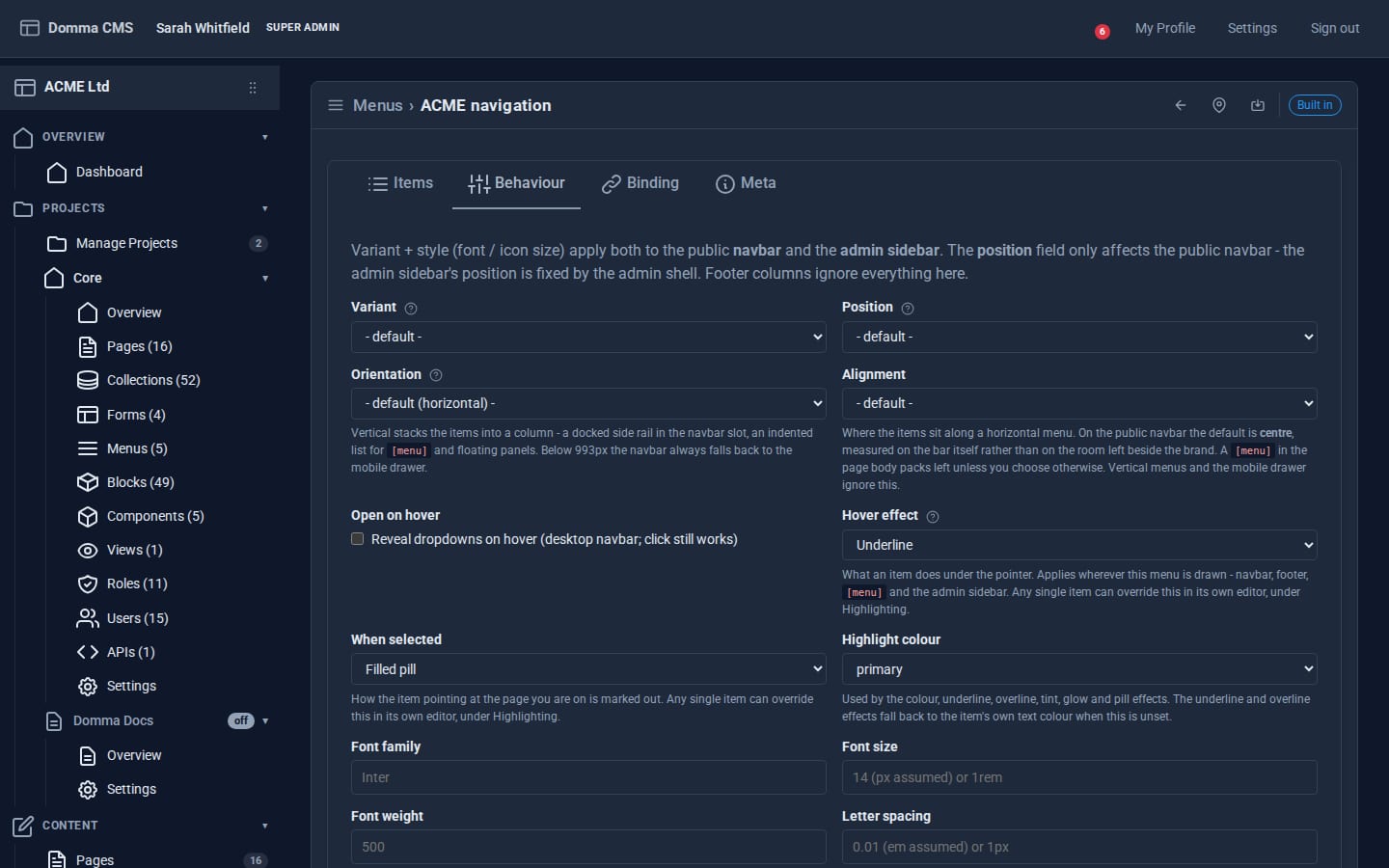
One tab decides how the menu behaves everywhere it is drawn, and every field explains what it does.
What an item does, and when.
Underline, glow, lift, fill, or nothing at all. Set it for the whole menu, or on a single item that needs to behave differently from its neighbours.
Items pointing at the page being viewed are marked automatically, with their own effect and accent. Visitors always know where they are.
Left, centre, right or spread, per menu, with font size, weight, letter spacing and icon size in the same editor.
The [menu] shortcode.
Any menu renders into any page body, not just its slot. Same tree, same highlighting, same icons.
[menu slug="main" /]
Useful for a sitemap page, a section index, or a footer that needs more structure than a list of links.
The sidebar is menu data.
The admin sidebar is built from the same menu system, so it is editable rather than fixed. Move any Tool into any folder, group Tools, drag them into place in Arrange mode, or hide what a particular role never uses.
Count pills show how many menus, context menus and theme overrides are configured, so the sidebar reports the shape of your site back to you.