Every Tool, a keystroke away
Domma CMS 1.6: press G then a letter to open any Tool, G then 1-9 for your Frequent ones, Ctrl+K to find anything by name, and ? for the list.
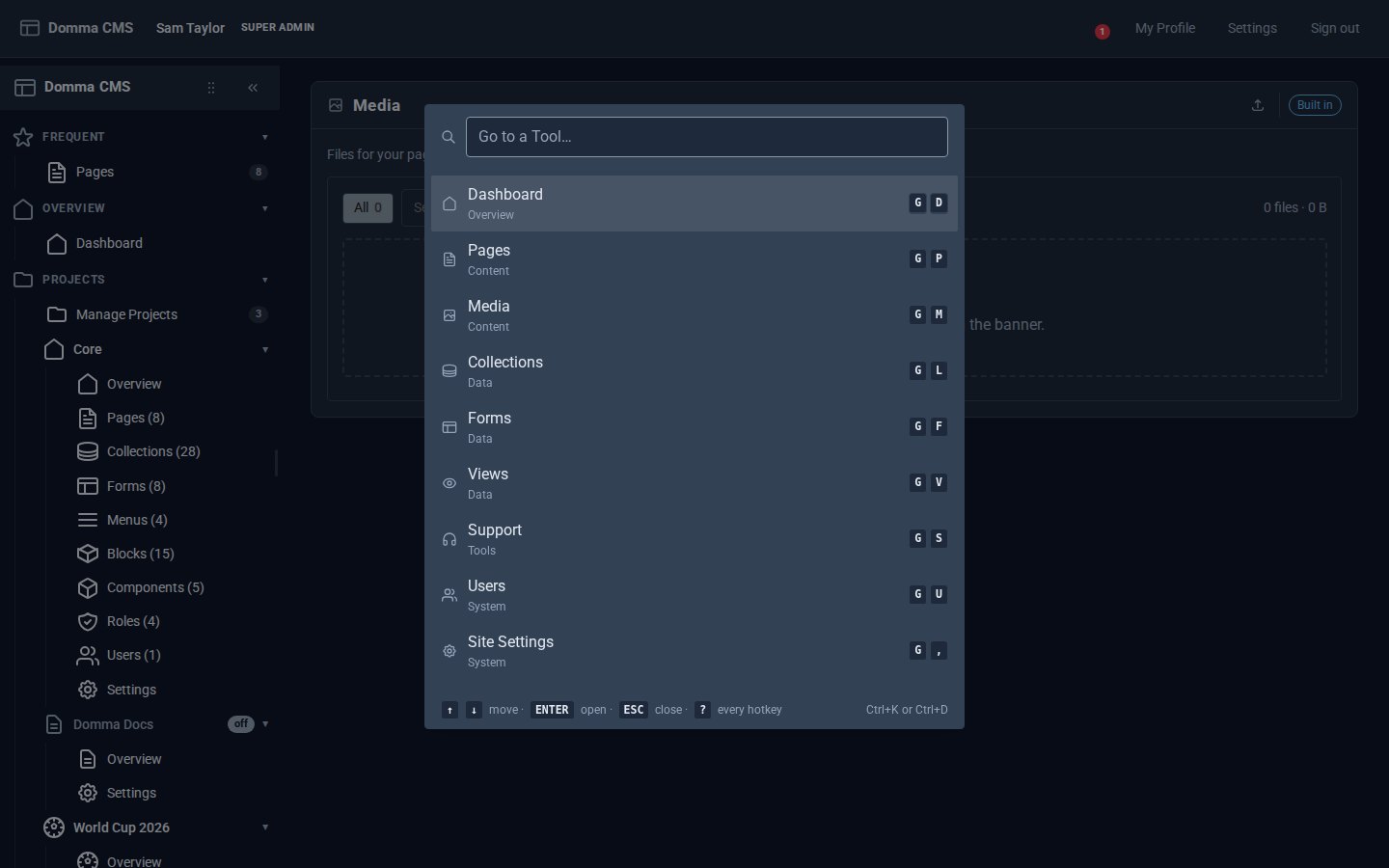
Some people live in the sidebar. Others would rather never touch the mouse. Domma CMS 1.6 is for the second group: every Tool is now a couple of keystrokes away, from anywhere in the admin.
G, then a letter
Press G, let go, then the Tool's letter. G E opens Email. G D opens Dashboards. G P is Pages, G K Booking, G , Site Settings.
The letters are what you would guess wherever we could manage it:
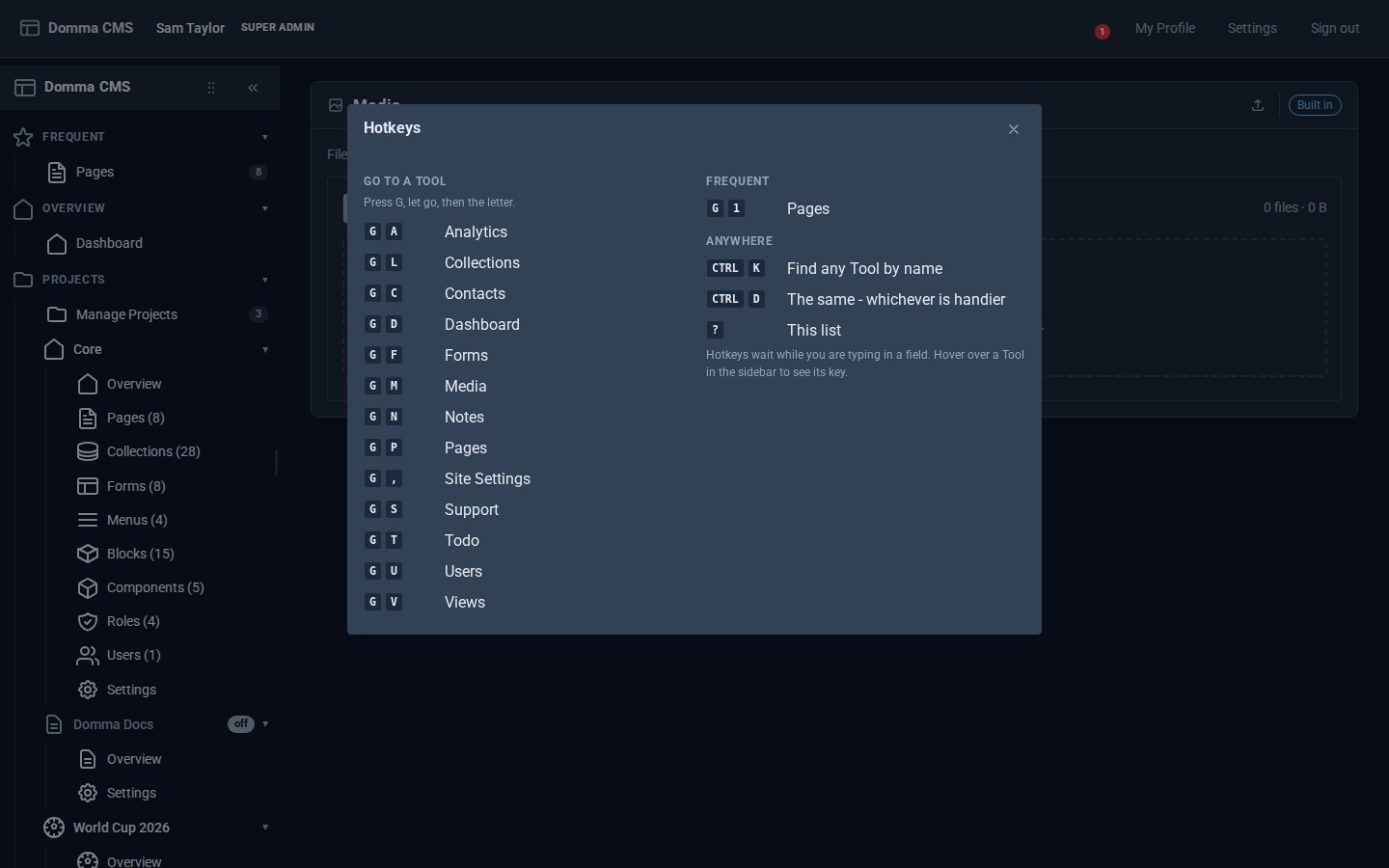
- Built in: D Dashboards, P Pages, M Media, L Collections, F Forms, V Views, U Users, A Analytics, N Notes, T Todo, C Contacts, and the comma for Site Settings - the Mac's own "settings" key.
- Tools: E Email, R Mail Reader, B Blog, K Booking, Y Calendar, O Docs, I Invoices, H Shop, Q Surveys, W Waypoint, J Job Board, S Support.
A Pro Tool keeps its Tool's letter: Blog Pro is B, Contacts Pro is C.
Not sure of a letter? Hover over any Tool in the sidebar and it tells you - "Email - G then E". It is beside Open in the Tool's right-click menu too. And ? shows the whole list:
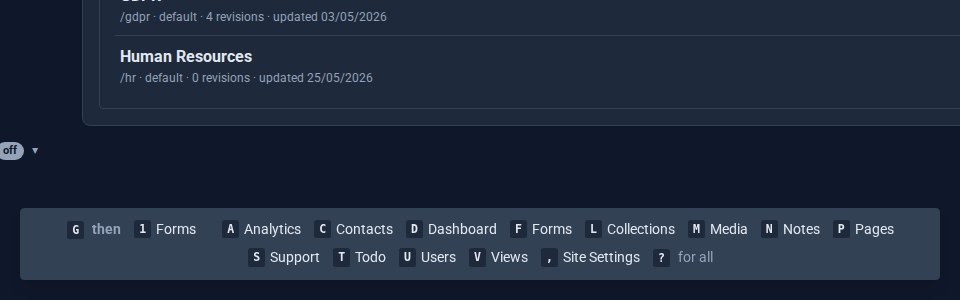
Or just press G and pause. A small hint appears at the foot of the screen with what comes next - your Frequent numbers first, then the letters - and goes the moment you press one. Type G E quickly and you never see it at all.
Your favourites get numbers
The Frequent folder at the top of the sidebar already holds the Tools you use most. Now its first nine are numbered: G 1 opens the first, G 2 the second, in the order you arranged them. Rearrange Frequent and the numbers follow - your own keys, for your own favourites.
Ctrl+K: find anything by name
Some Tools will never have a letter - there are more Tools than the alphabet has room for. For those, and for anyone who would rather type a name, press Ctrl+K (⌘K on a Mac). A search box opens; type a few letters and press Enter.
It matches the start of a name, any word in it, initials ("ab" finds API Builder) and the folder a Tool lives in. Every result shows its hotkey, so the palette quietly teaches you the letters as you go.
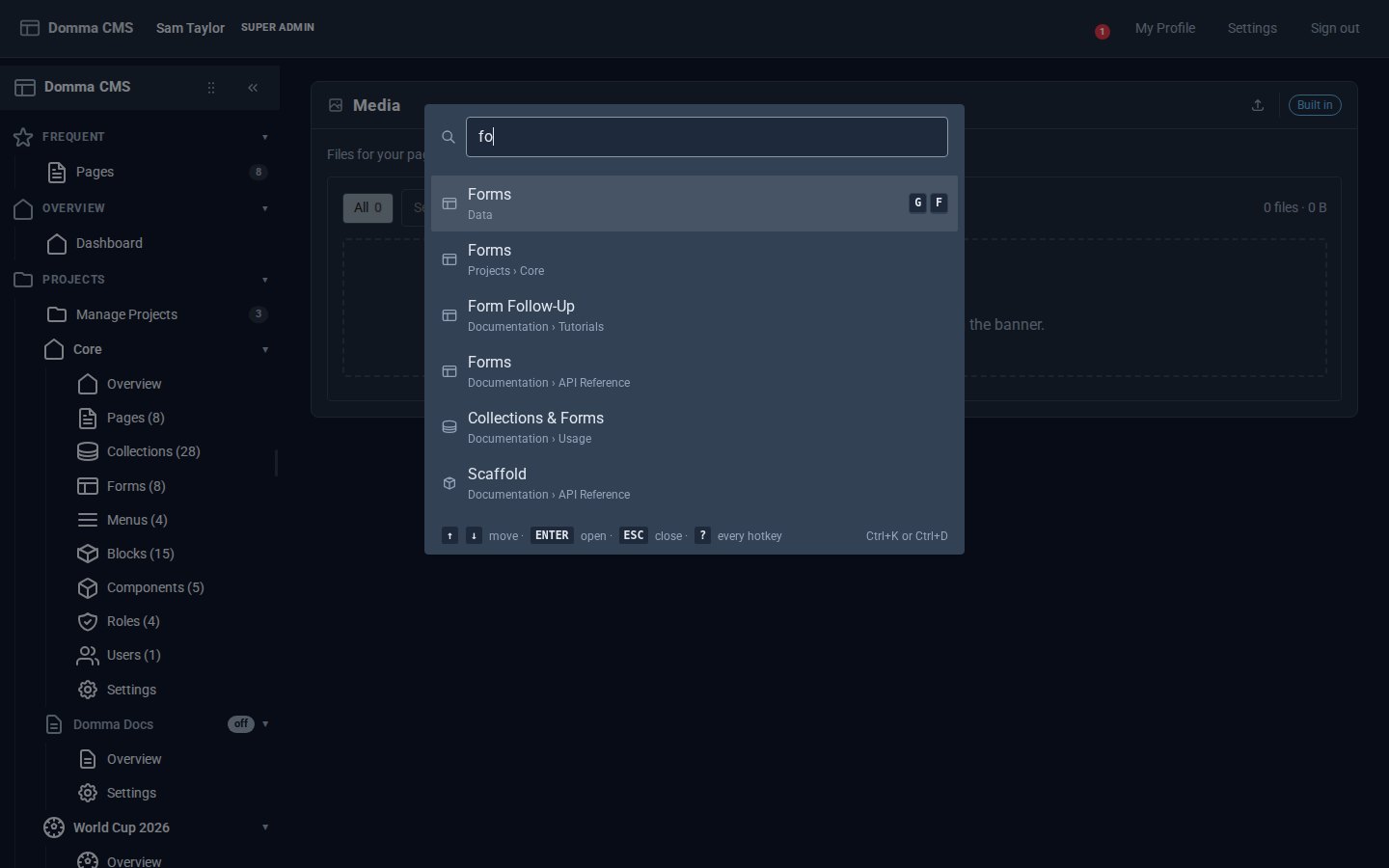
Ctrl+D opens it too, for anyone whose fingers find D first. In the admin that replaces the browser's "bookmark this page" key - bookmark with the star in the address bar instead.
Why it works this way
Why not Ctrl+E for Email? Because the browser already owns it - Ctrl+E jumps to the address bar's search in Chrome, Edge and Firefox, and nearly every other Ctrl+letter is taken too. Some, like Ctrl+W, a page is not even allowed to override. Alt+letter opens the browser's menus on Windows, and types é on a Mac. A sequence - G, then the letter - fights nothing, works the same on every computer, and is what Gmail and GitHub have taught a generation of people already.
Typing is never a hotkey. In a text field, an editor or the page editor, keys are just keys. The palette's Ctrl+K gives way inside the code and rich-text editors, which have their own use for it.
Tools keep their own keys. Email's single-letter shortcuts - S to star, R to reply - carry on as before. Press G then S inside Email and you go to Support; the S never stars a message on the way. And ? inside Email still shows Email's own list, which now points to this one.
Only what you can open. The letters, the numbers and the palette cover exactly the Tools in your sidebar. A Tool your role cannot open has no key for you.
Every Tool can have one. A Tool declares its letter in its own manifest - one line. The built-in Tools claim theirs first; after that, the first Tool to ask for a letter keeps it. Letters cannot be changed yet; that is next.
Try it
Hotkeys are in Domma CMS 1.6 on every site, free and Pro alike. Open your admin and press ?. The User Manual's Built-in Tools chapter has the full list.
The screens above are from a demo site; Sam Taylor is made up.
Keep reading
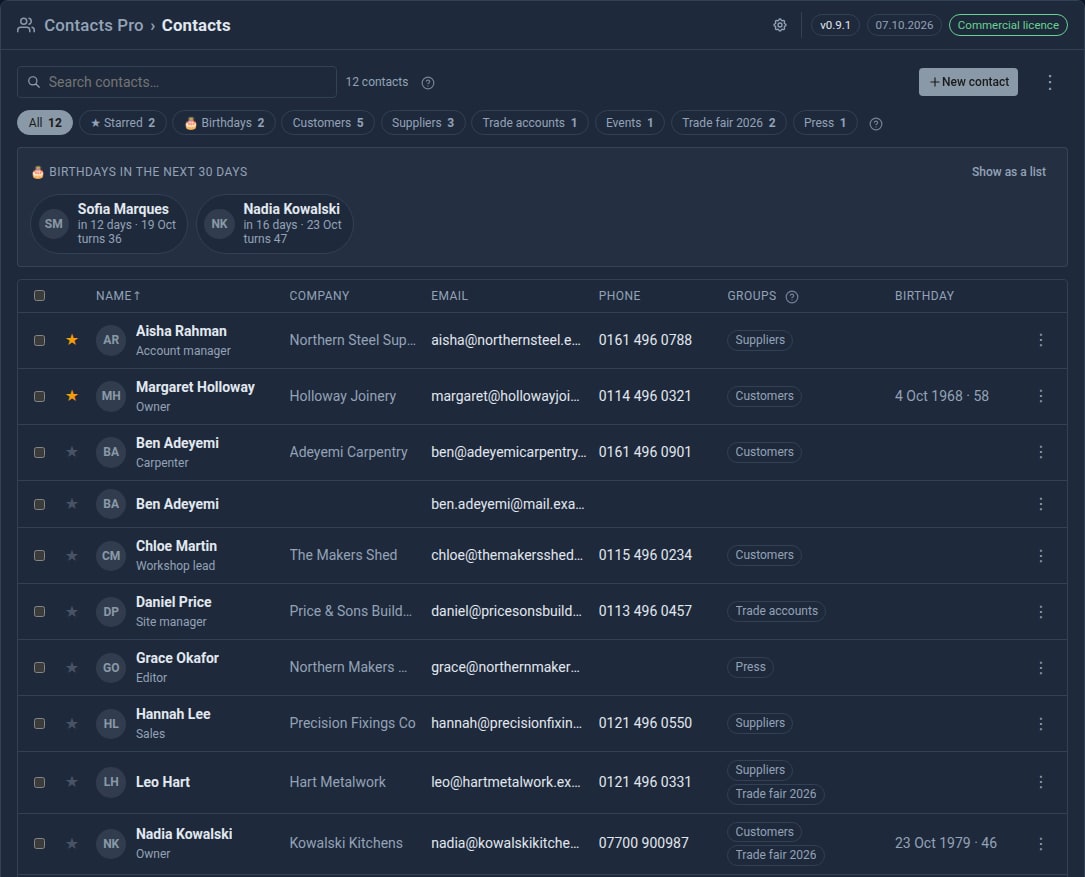
Bring your contacts in from Google
Contacts Pro 0.9 imports your address book from Google, a phone or Outlook - and merges the people you already have instead of doubling them up.
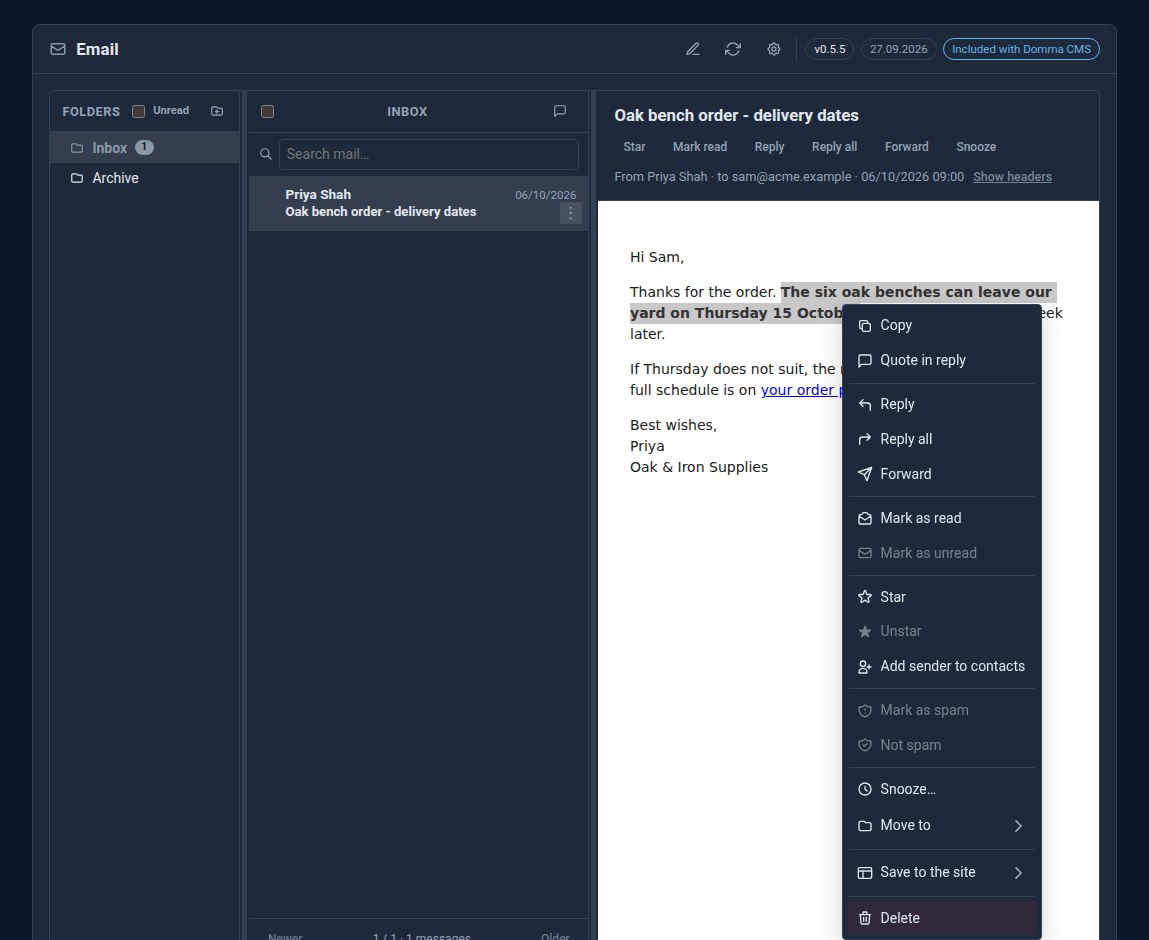
Right-click the email itself
Right-click an open email in Domma CMS for Reply, Reply all, Forward and the message's other actions - or select a sentence and quote just that in your reply.

Every Pro Tool price, on the Pricing page
The Pricing page now lists every Pro Tool and its monthly price, read live from the page you buy on.