A cleaner admin: the new top menu
Every admin section now sits in one menu bar across the top, with your Frequent shortcuts, live counts and account menu, so your work gets the full width of the screen. The side menu is now a switch.
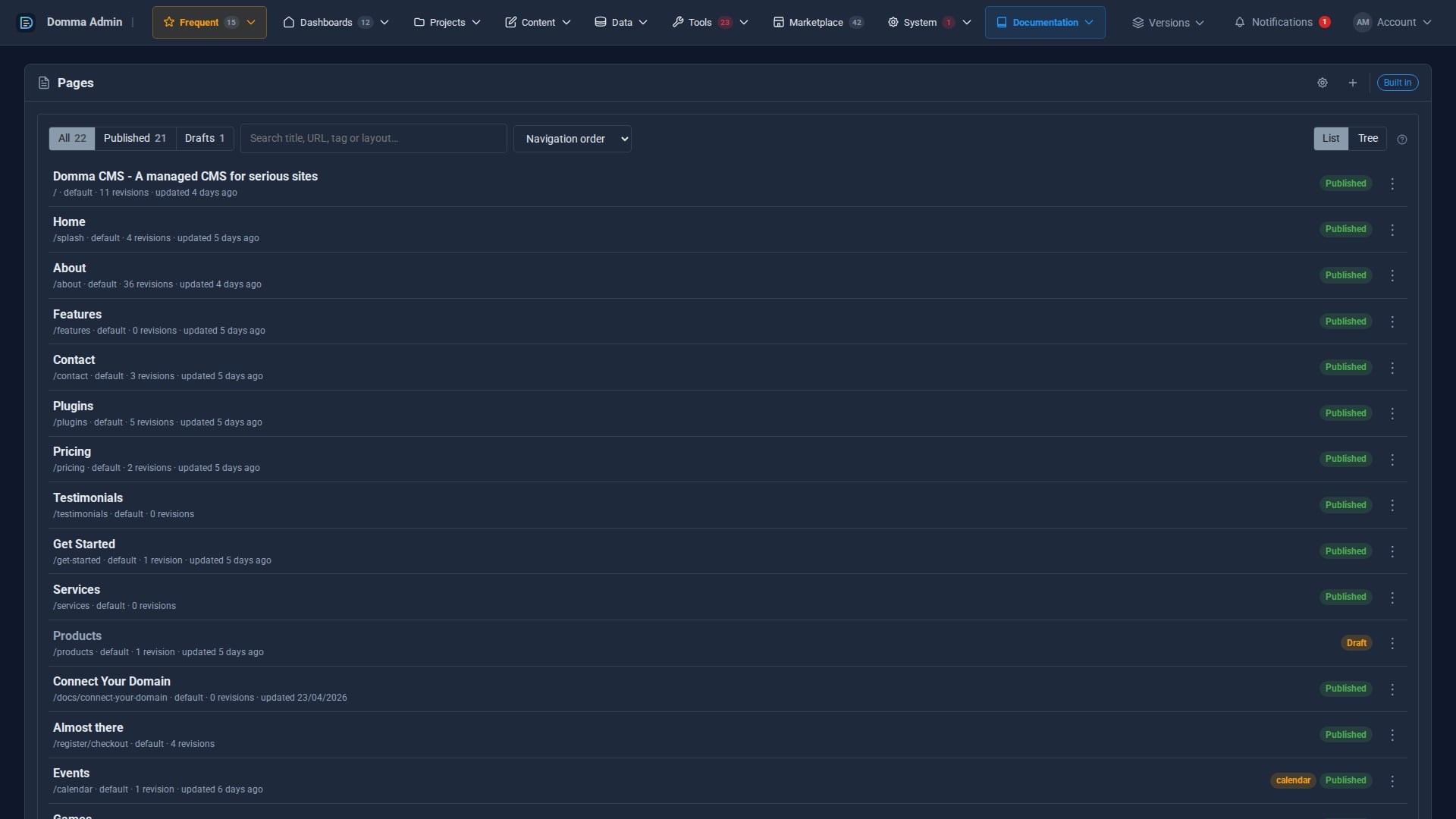
The Domma CMS admin has a new layout. Every section now sits in one menu bar across the top of the screen, so the page you are working on can use the full width of the window. The side menu is still there for anyone who prefers it. It is now a switch you can turn on or off.
One menu bar, everything in folders
The top bar holds the same folders as the side menu: Frequent, Dashboards, Projects, Content, Data, Tools, Marketplace, System and Documentation. Click a folder to open it. Folders inside folders open to the side as you move over them, so even a site with many Tools stays two or three clicks from anything.

The numbers you know from the side menu come along too. Each item shows its own count, such as new messages, bookings or unread notes. A folder adds up the counts inside it, so you can see at a glance where something is waiting. A red count means something needs you.
The menu works from the keyboard as well. Press the down arrow on a folder to open it, use the arrow keys to move, and press Escape to close it.
Frequent: your own shortcuts
Frequent is the first folder, picked out in gold, and it holds the Tools you use most. Right-click any item in the menu and choose Add to Frequent, or Remove from Frequent to take it out again. The same right-click menu opens an item in a new tab or copies its link.

Frequent belongs to you alone, so everyone on your team can build their own. You can also open the first nine Frequent items from the keyboard: press G, then a number from 1 to 9.
The side menu, if you want it
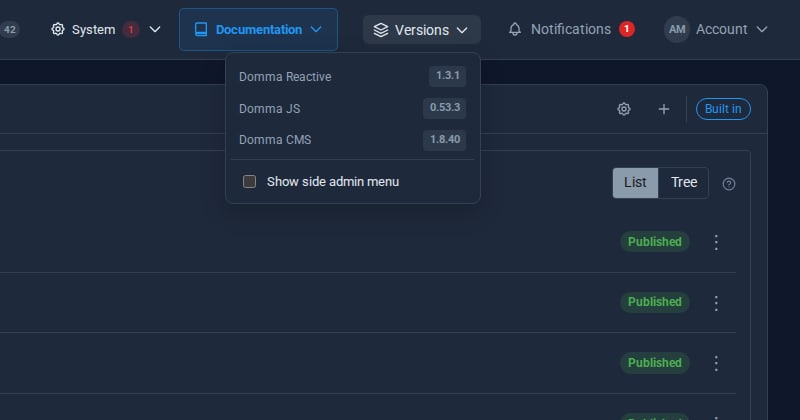
Some people like a menu down the side of the screen, so it has not gone away. Open Versions in the top bar and tick Show side admin menu. The same panel shows which versions of Domma Reactive, Domma JS and Domma CMS your site runs.
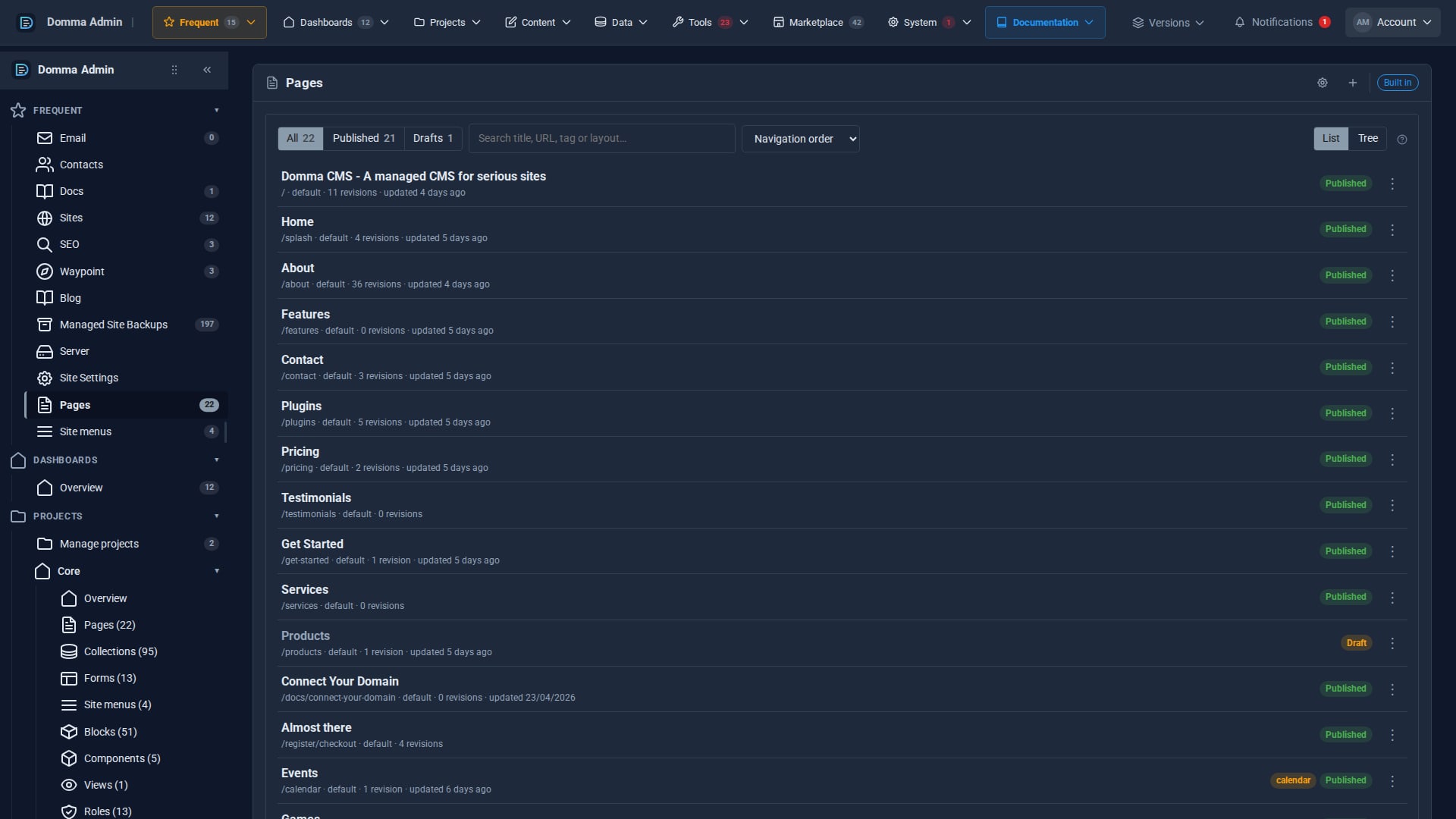
With the switch on, you get both: the top bar, plus the side menu with every folder open on the left. The choice is remembered for each person on the browser they use, so one admin can work with both menus while another keeps the screen clear.
Your account in one place
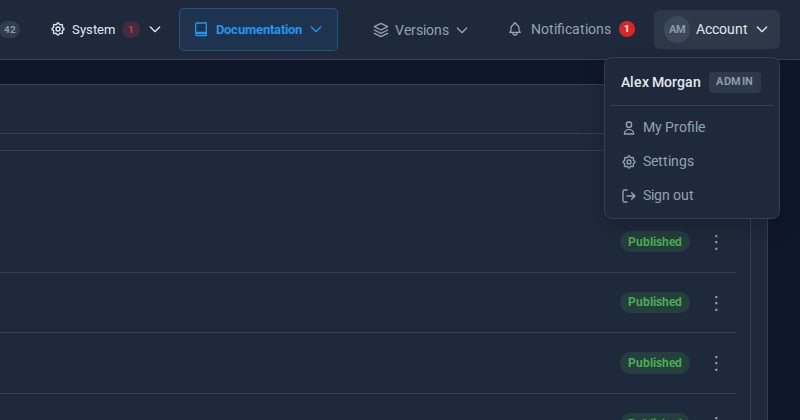
My Profile, Settings and Sign out have moved into the Account menu at the top right. It shows your picture, or your initials if you have not added one, with your name and role.
A few smaller changes came in the same update:
- The current project shows as a badge in the top bar while you work inside a project.
- Clicking the Domma Admin name takes you to your admin home page.
- Site Settings has been arranged into paired cards. General, Branding, Favicon and Footer settings sit side by side, so there is less scrolling.
- Page navigation on your public site can now show a Go to Bottom button to match Back to Top. Each has its own settings, they stack neatly, and both respect visitors who ask for less motion.
Getting it
The new admin came in Domma CMS 1.8.38, and every managed site is now on 1.8.40, which includes it. If your admin was already open, refresh the page to see the new menu.
Keep reading
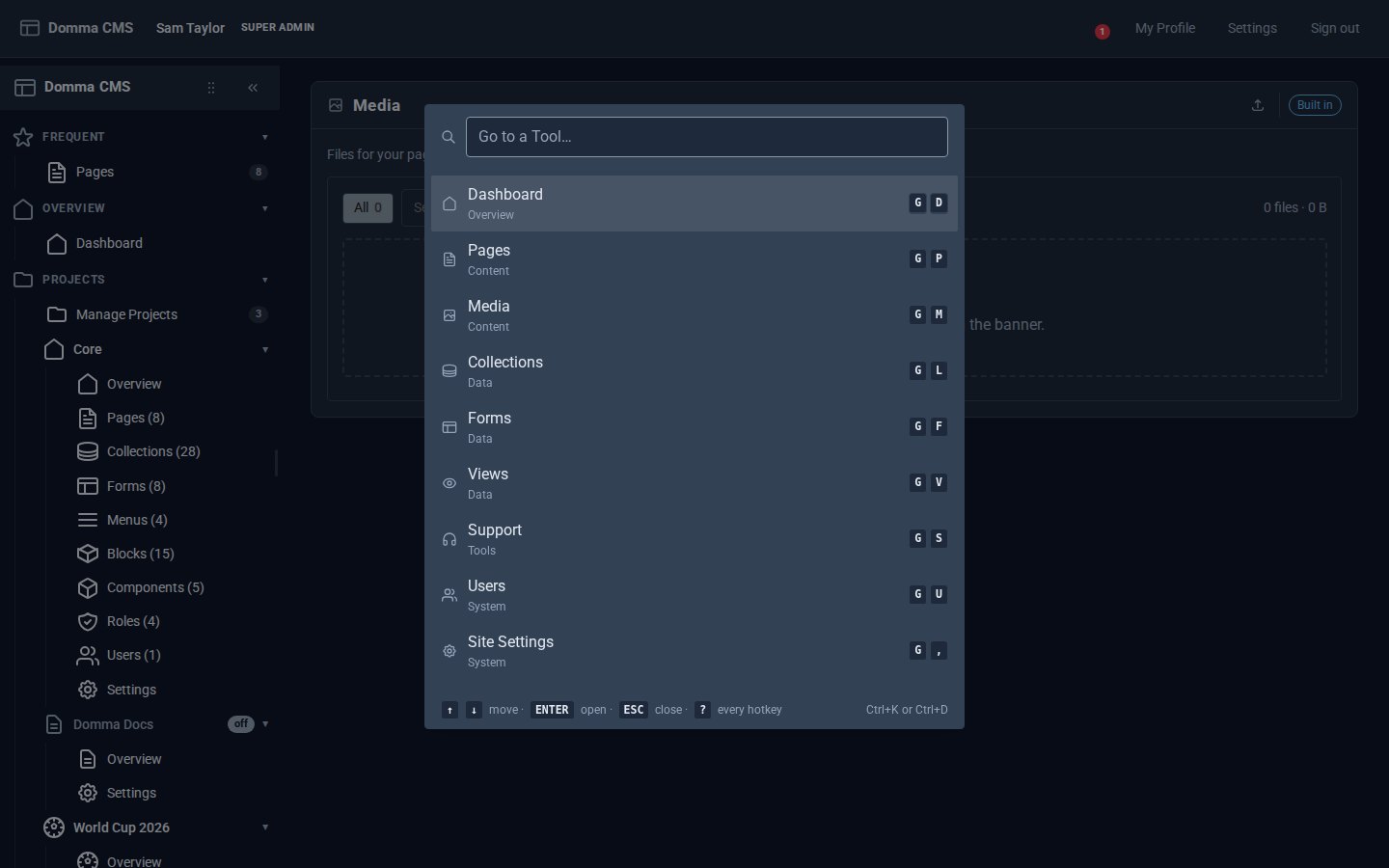
Every Tool, a keystroke away
Domma CMS 1.6: press G then a letter to open any Tool, G then 1-9 for your Frequent ones, Ctrl+K to find anything by name, and ? for the list.
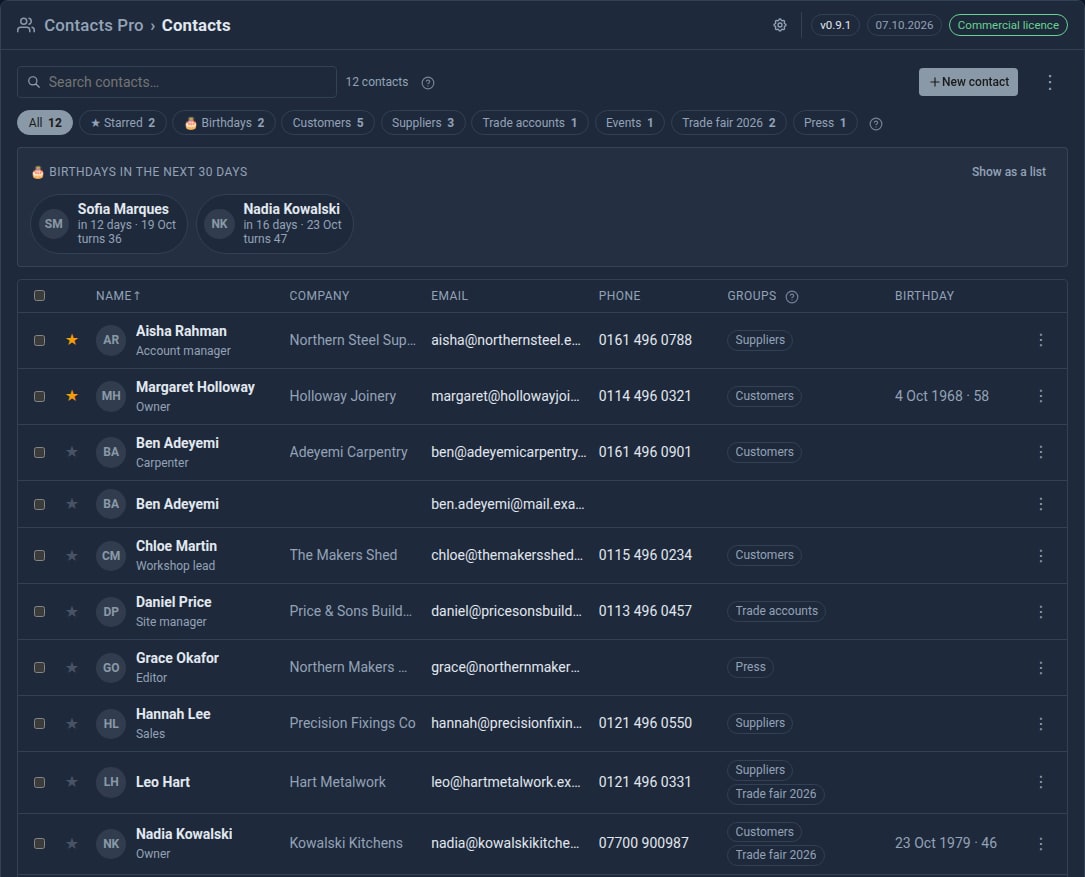
Bring your contacts in from Google
Contacts Pro 0.9 imports your address book from Google, a phone or Outlook - and merges the people you already have instead of doubling them up.
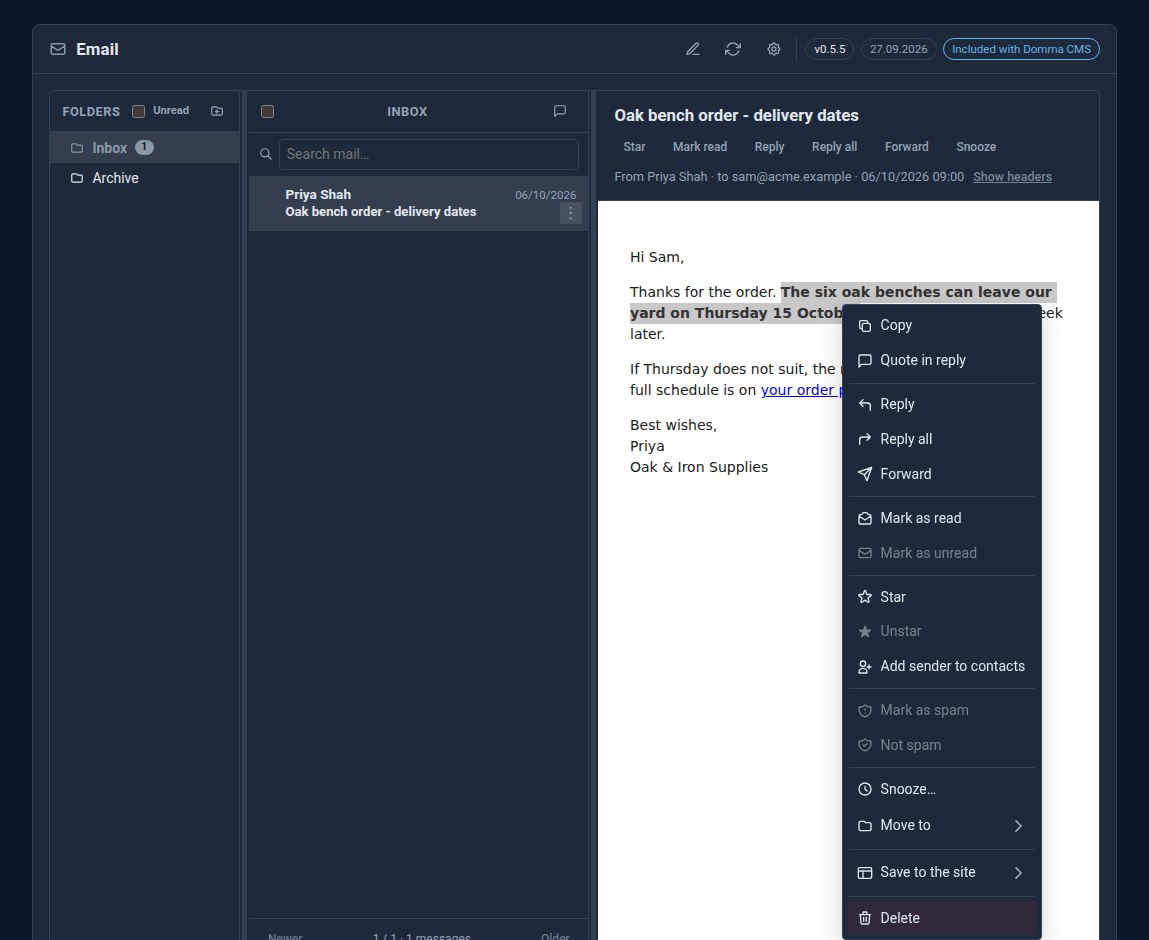
Right-click the email itself
Right-click an open email in Domma CMS for Reply, Reply all, Forward and the message's other actions - or select a sentence and quote just that in your reply.