Tool Builder
What it does
Meet Daisy, your Tool Builder. Daisy makes a Tool of your own from what you ask for in plain words: an equipment log, a register, a tracker, a simple stock list. It writes the Tool, checks it on a test copy of a site, and shows you a picture of how it looks. When you are happy, you send it to Domma. A person at Domma reviews every Tool, and once it is approved it appears in your sidebar like any other Tool.
Asking for a Tool
- Open Tool Builder and choose New Tool.
- Give it a name, and say what it should do: what it keeps, who uses it, and what they do with it.
- Choose Build it. It works for a few minutes; you can leave the screen and come back.
If something is unclear it asks you one short question. Answer it below the conversation and it carries on.
Changes
While it is with you, ask for changes the same way ("Add a phone number", "Show the oldest first"). Each change is checked again.
Sending it to Domma
When the checks have passed, choose Send to Domma for review. You cannot change it while Domma has it. A person at Domma reviews it by the next working day. If it is approved it appears on your site, in the sidebar; if Domma sends it back, the reason appears in the conversation and Tool Builder works on it with you.
Your allowance
You can start two new Tools a month. Changes to Tools you already have are included and do not count. The allowance starts again on the 1st of the month.
Versions
Every version Domma approves is kept. If a new version causes a problem, ask Domma to put the previous one back; your Tool's information stays as it is. Changes you ask for after that start from the version on your site.
Who owns what
The idea and everything your Tool keeps (your information) are yours, and you can export the information like any Tool's. Domma writes, holds and licenses the Tool's code: it is not exported, and it runs on your site under your plan.
What it cannot do
A Tool keeps its own information and has its own screen. It cannot change how the rest of your site works, reach other Tools' information, or connect to other websites unless Domma agrees. If you ask for something like that, it says so.
It does not make a Tool Domma already has, such as a blog, a shop, invoices, bookings or a quiz. Ask for one and it tells you which Tool does that job, so you can switch it on or ask Domma to add it to your plan. Tool Builder only builds Tools: it will not answer general questions or write things that are not part of your Tool.
What it looks like
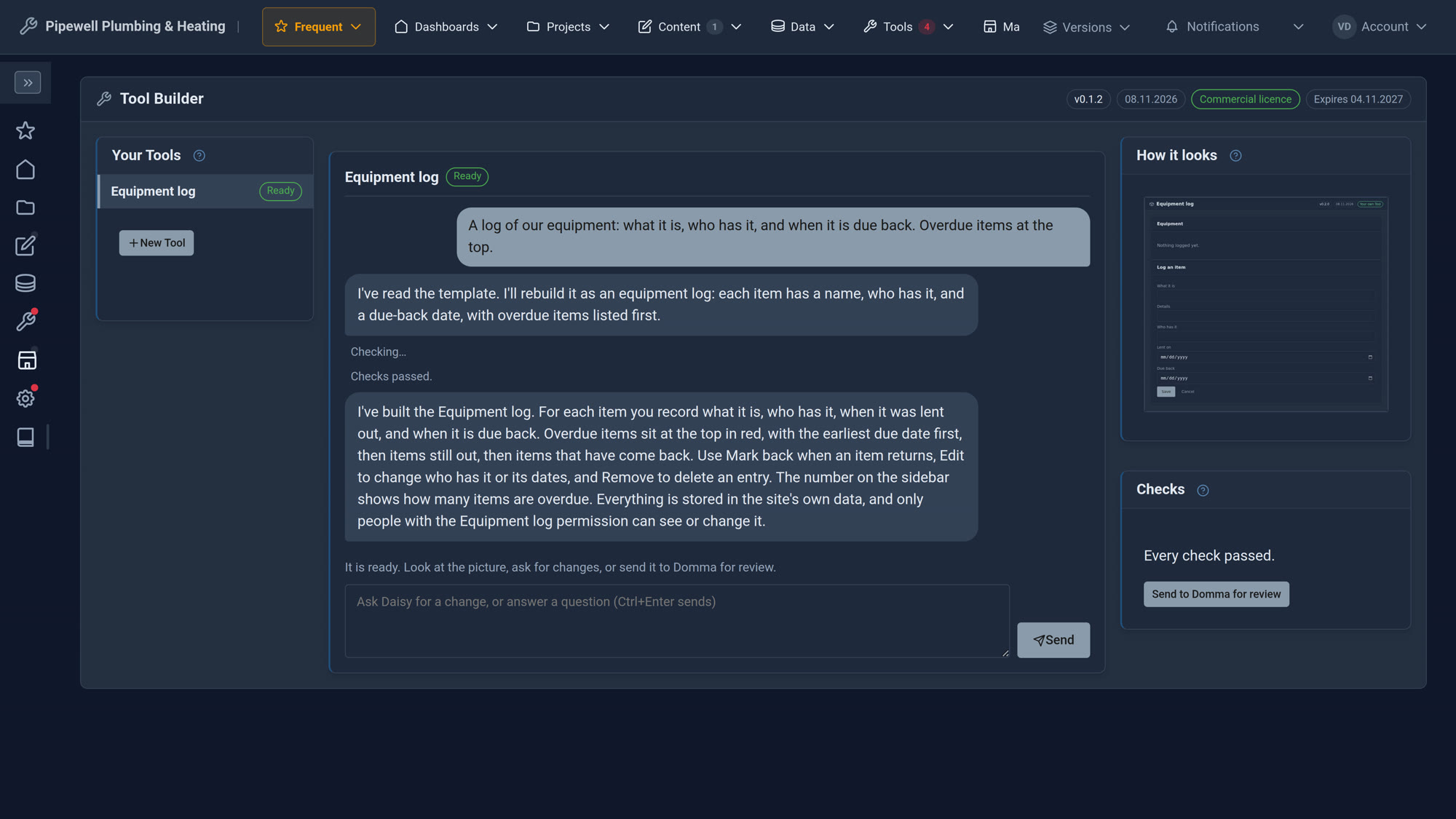
Built, checked and ready to send for review.
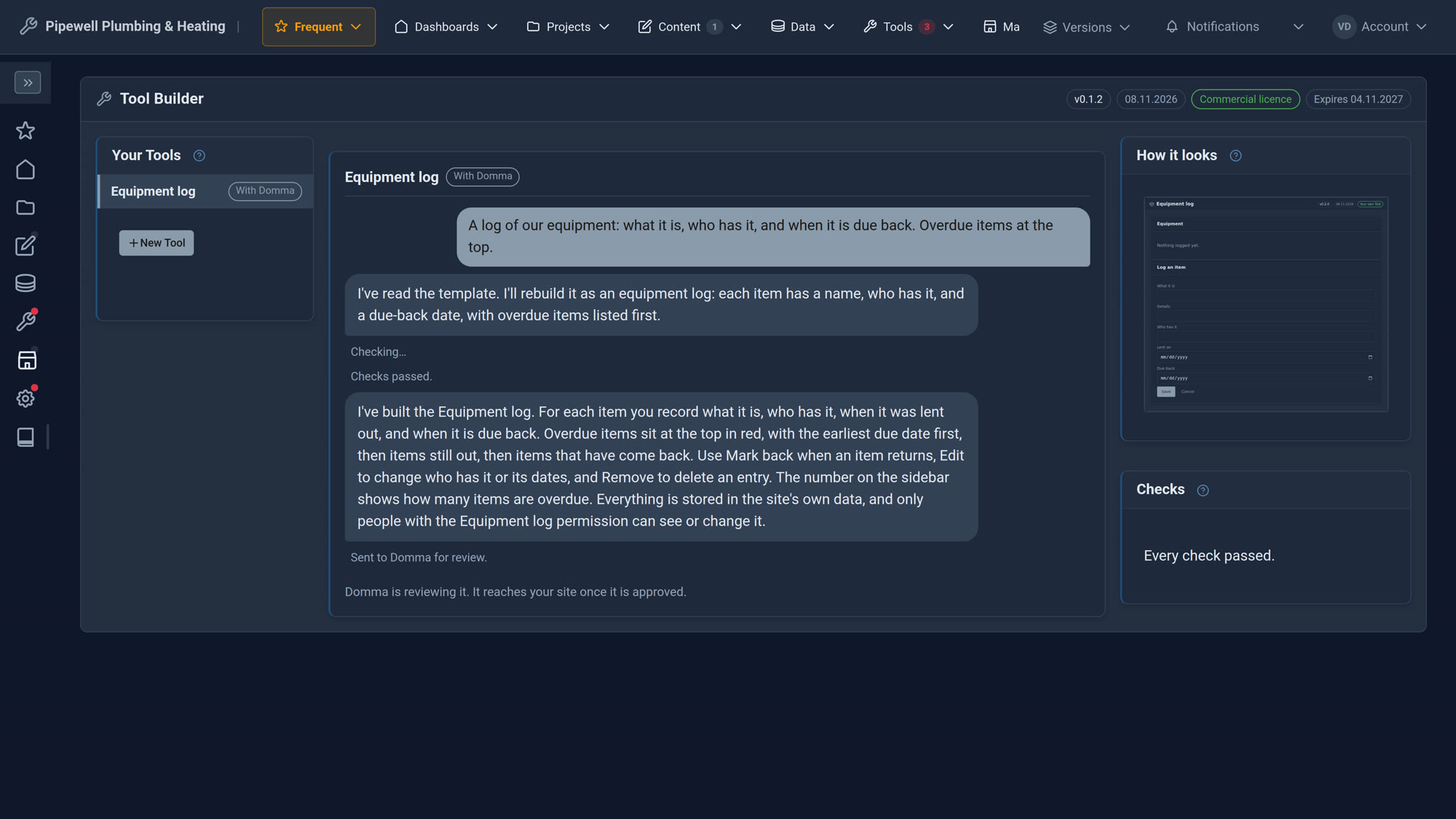
With Domma, for a person to review.
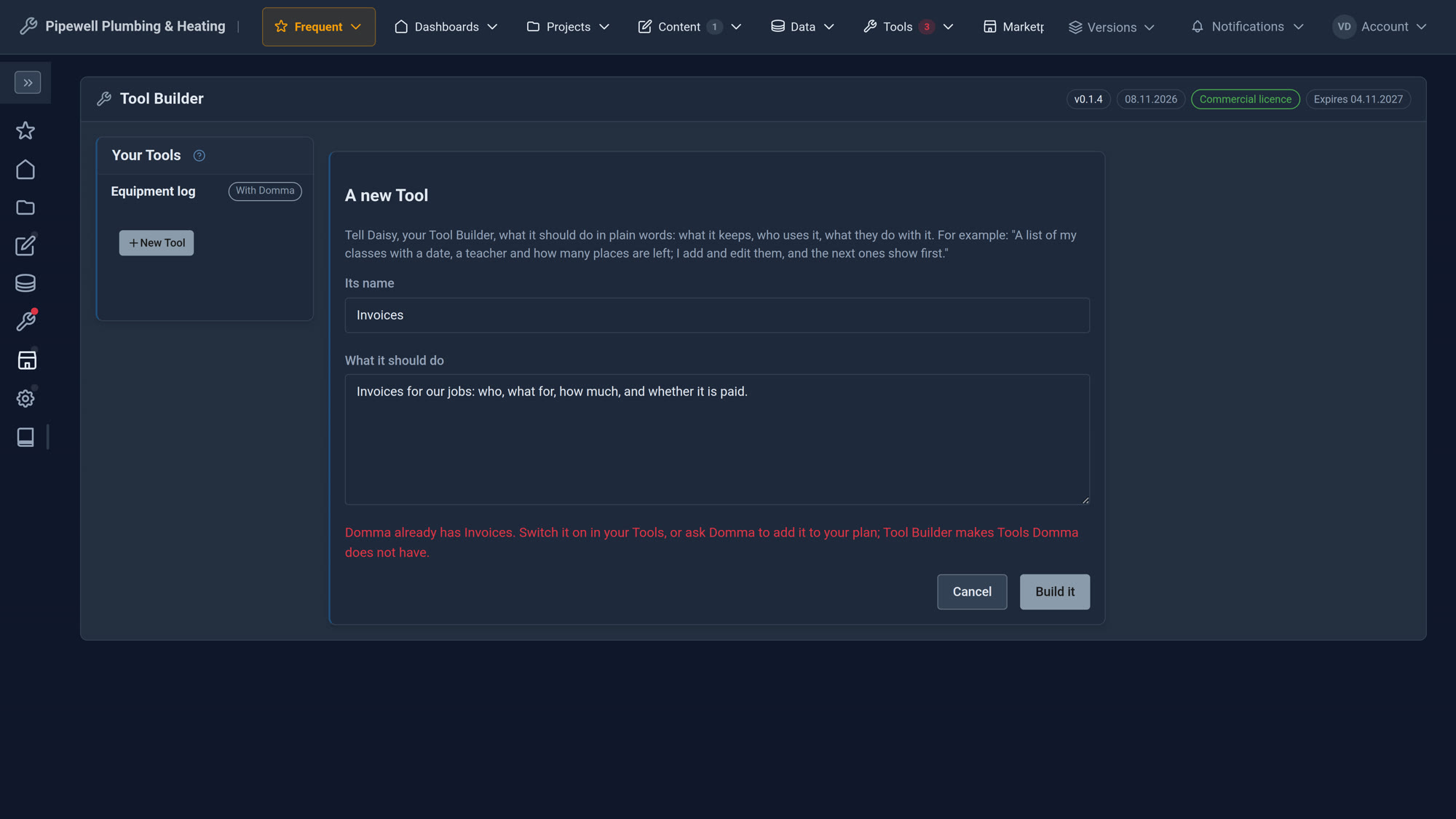
Ask for Invoices and it points you to the real thing.
Screens from our ACME Ltd demo site. Every name in them is made up.