Calendar
Calendar includes appointments and every feature formerly in Booking and Booking Pro. Open Calendar for your diary, Availability for working hours and holidays, Booking for appointments and services, and Connections for Google Calendar.
Calendar keeps your events in the admin and shows the public ones on your site, with a page per event, an RSVP form and an iCal feed. Events can be one-off or repeating, all day or timed, public or private, and shared with people in your team.
What it does
- Month, Day and List views of your events in the admin.
- One-off, all-day and repeating events (daily, weekly on chosen days, monthly, yearly).
- Event types with their own colours.
- Public events on the site: a month grid or list at
/calendar, a page for each event, and an iCal feed people can subscribe to. - RSVPs on public event pages, with an optional limit on places.
- Private events for your team, shared with everyone, whole roles or named people (read-only for them).
- Private links, so you can send an event page and its RSVP form to people without putting it on the site.
- Reminders for the organiser before each date.
- To-dos and birthdays from other Tools shown alongside your events, in the admin only.
Getting started
- Open Calendar from the admin sidebar.
- Click New event in the banner (or press N).
- Enter a Title, then set Starts and Ends. The quick buttons (Today, Tomorrow, +1 hour and so on) fill these in for you.
- Pick a Type.
- Under Who sees it, set On the site to Public - on the site's calendar if the public should see it.
- Turn on Take RSVPs if you want people to sign up.
- Click Create event (or press Ctrl+Enter).
- Visit
/calendaron your site to see it.
Screens
The sidebar Calendar item opens the shared workspace. Calendar shows events and your Google calendar. With Booking enabled, Availability manages staff hours and holidays and Booking contains appointments, services and the booking diary. Connections manages the shared Google connection. RSVPs remains available from the sidebar and event menus. Calendar settings are behind the banner cog.
Events
Choose Month, Day or List at the top left. Filter by type, and by Public or Private. List view also has a search box.
- Month - the whole month. Use the arrows or Today to move. Click an event to edit it.
- Day - a small month on the left and one day's events on the right, with New event on this day.
- List - every event, one row each. A repeating event is one row.
Keys: left and right arrows change month, T goes to today, N starts a new event.
Right-click an event (or use the three-dot button, or Shift+F10) for:
- Edit... (or View (read-only)... for an event someone shared with you)
- RSVPs... - the event's RSVPs in a side panel
- Email attendees - opens your email program addressed to the contacts and groups invited to the event
- View on the site, Copy its address, Copy private link
- Duplicate...
- Cancel event... - cancels its upcoming dates and removes it from the public calendar. Past dates and their RSVPs are kept.
In Month and Day, right-click a single date to get Cancel this date only.... The other dates of a repeating event stay.
Right-click a day in Month for: New event on this day..., New all-day event..., Open this day, Copy the day's list and Clear this day... (cancels the dates on that day that you are allowed to cancel).
To-dos, birthdays and other Tools' dates show as outlined entries. Switch each one on or off with the buttons beside the filters. They never appear on the public site.
From an email
In Email or Mail Reader, right-click a message (or use its menu) and choose Schedule with (name).... A new event opens called "Meeting with (name)", with the email's subject in the description. If the sender is one of your contacts, they are already invited. If not, you are told: add them to your Contacts from the email, or pick them under Invited from Contacts.
Online meetings
Call someone now. With the Calendar installed, a contact's menu and an email's menu offer Call Sam now…: a video call with that one person, starting now, that is not an event. Pick who, tick Email them the link if you like, and click Start the call; you are the host and let them in. These calls belong to the CMS, and stay while the Calendar, Contacts Pro or Booking Pro is running.
Call now. For a call straight away, click the video camera in the Calendar's banner (next to New event). It makes a private online meeting starting now, for an hour, opens the call in a new tab with you as host, and shows the guest link to copy or email. The people you send it to type their name and wait until you let them in.
Tick Online meeting in the event editor to hold the event as a video call on your own site. No Zoom, no accounts, nothing to install: it runs in the browser.
- You are the host. Open the event (or right-click it, or one of its dates) and choose Start the call. People who join wait until you let them in.
- Guests join from the Join the call button on the event's page. That page is public for a public event, or reached through its private link. Use Copy guest link, or Email attendees, which puts the next date's link in the email.
- Your team: people it is shared with see Join the call on it in the Calendar.
- Add people while the call runs. As the host, click Add people: search your contacts and the team, or type a name and email, and send each their own link for this date - by email, and for team members also as a notification and a message in Messages. They knock and you let them in. Copy link makes a new link for one more person, to pass on yourself.
- Each date is its own call. It opens 10 minutes before the start and closes an hour after the end. Up to 6 people can be in a call.
- In the call: mute, camera on or off, share your screen, and chat. The chat is kept: open the event to see Chat from the last call, which only you (the organiser) and calendar admins can read.
- Recording, when you tick The host may record the call: you record from your own browser, and the file is saved on your computer, never on the site. Everyone is told when they join, and sees a red Recording notice while it runs.
- Untick Online meeting, or cancel the event, and any call in progress ends.
The event editor
The editor opens in a side panel.
| Field | What it does |
|---|---|
| Title | Required. |
| All day | Dates, not times - a holiday, a deadline. Shows at the top of each day it covers. |
| Starts / Ends | Date and time. For all-day events these become On and Until. |
| Type | One of your event types. |
| Where | An address, a room, or a video link. |
| Description | Shown on the event's public page. It is a small editor: bold, italic, underline, bullet and numbered lists, and links. Descriptions written before the editor arrived stay as they are and still show correctly. |
| Address | The last part of the event's public page address. Made from the title until you change it. |
| Repeats | Turn on, then choose How often (Daily, Weekly, Monthly, Yearly), Every (for example every 2 weeks), the days for weekly, and an optional Until date. |
| On the site | Not on the site or Public - on the site's calendar. |
| Private link | For events not on the site: Make a private link, then Copy, New link (the old one stops working) or Turn off. |
| Your team | Share with Everyone on the team, whole Roles, or named People. They see it read-only. |
| Invited from Contacts | Add contacts one at a time, or a whole group. Needs the Contacts Tool to be on. |
| Notes | Attach your own notes (an agenda, minutes). Needs the Notes Tool to be on. Others only see that there is a private note. |
| Take RSVPs | Adds an RSVP form to the event's public page. |
| Places per date | The RSVP limit, per date. Leave blank for no limit. |
| Remind me | No reminder, 15 minutes, 30 minutes, 1 hour, 2 hours or 1 day before each date. The reminder is a notification to you, the organiser. |
Each repeat of a repeating event is stored as its own date, so one date can be cancelled and each keeps its own RSVPs. Saving the event keeps its dates: a new title, place or limit is copied onto them. Changing the pattern or the time keeps every date that is still in it, with its RSVPs and any cancellation, and removes only the dates the new pattern no longer has; past dates stay as they were.
Existing events open with Save instead of Create event. If you leave the screen with unsaved changes, you are offered them back next time.
Event types
Click the tag button (Event types) in the banner, or Manage types... under the editor's Type field. Calendar admins can add a type with a name and colour (Info, Warning, Success, Danger, Primary, Secondary), rename it, change its colour, reorder it, archive it or delete it.
A new calendar starts with Meeting, Interview, Public event, Webinar and Other. An archived type stays on the events that use it but is no longer offered. To delete a type that is in use, you choose another type to move its events to first.
RSVPs
Everyone who has said they are coming, newest first.
- Filter by All, Confirmed or Cancelled, pick one event date, or search names and emails.
- Right-click a row for Cancel RSVP or Confirm RSVP, Copy email address, Email them, Open the event and Delete.... A cancelled RSVP frees its place; a deleted one is gone for good.
- Export CSV in the banner downloads what the filters show.
Organisers see RSVPs for their own events only. Calendar admins see them all.
On the event page, a visitor gives their name and email and clicks Register. They are told straight away whether they are registered, already registered with that email, or too late because the event is full. When the site can send email (and Email a confirmation to people who RSVP is on in the settings), they also get a confirmation with the date to add to their calendar. The form works with JavaScript switched off too.
The public calendar
These pages are served under the calendar's public address (default /calendar):
| Address | What it shows |
|---|---|
/calendar | A month grid, shown in the visitor's own time zone. |
/calendar?view=list | A list of upcoming events, paged. |
/calendar/event/<address> | One event's page, with the RSVP form when RSVPs are on. |
/calendar/feed.ics | An iCal feed to subscribe to in Google Calendar, Outlook or Apple Calendar. |
Every one of these pages carries its events in the page itself, not only through JavaScript, so search engines and AI crawlers that run no scripts can read them: the month page lists that month's events under the grid, the list shows title, date and time, place and a link to each event's page, and an event's page shows its date, place and description. Visitors with JavaScript see the dates and times in their own time zone. Each public event's page is listed in the site's sitemap.xml; private events and cancelled ones are not.
Only public, active events appear. Visitors RSVP with their name and email. The form has spam protection and accepts up to 10 sign-ups per 10 minutes from one address. When an event date is full, the page says so and takes no more. Each person who signs up gets a confirmation email with the date attached, unless you turn that off in Calendar settings.
Settings
Open Calendar settings from the cog in the banner. Only calendar admins can view or change the settings.
| Setting | What it does |
|---|---|
| Public address | Where the public calendar lives. Changing it needs a server restart. |
| Events per page | Events per page on the public list, and the default number for the [calendar] shortcode. |
| Opens in | The view the admin Events screen starts in (Month, Day or List) until you pick another. |
| Repeats generated ahead (days) | How far ahead the dates of repeating events are made. More are added as the date approaches. Default 365. |
| iCal feed length | How many upcoming events the feed carries. Default 50. |
| Take RSVPs on the site | Off hides the RSVP form on every public event page, whatever each event says. |
| Add people who RSVP to the organiser's contacts | Someone who signs up is found in the organiser's Contacts by email, or added, and listed on the event. Only shown while the Contacts Tool is on. |
| Email a confirmation to people who RSVP | On by default. Someone who signs up gets an email with the event's name, date, place and a link to its page, plus the date as an event.ics file that adds it to their own calendar (Outlook, Google, Apple). Needs the site's email set up; without it nothing is sent. Takes effect at once. |
Shortcodes
Show upcoming public events on any page:
[calendar /]
[calendar limit="5" /]
[calendar limit="3" type="webinar" /]
Show a month grid on any page:
[calendar view="month" /]
[calendar view="month" month="2026-12" type="public-event" /]
| Attribute | What it does |
|---|---|
limit | How many upcoming events to list. Default: the Events per page setting. |
type | Only events of this type. Use the type's key, for example meeting or public-event. |
view | month for a month grid instead of a list. |
month | For the month grid, the month to open on, as YYYY-MM. |
Both shortcodes put their events into the page as plain HTML, so readers without JavaScript (and search engines) see them; the month grid is drawn over that list in the browser.
Calendar also adds a block called upcoming-events (the next three events) and three views: Upcoming Events, Past Events and My Events.
Permissions and roles
Permissions appear in System > Roles under the Calendar group:
| Permission | Actions | What it allows |
|---|---|---|
Calendar events (calendar-events) | View, Organise, Edit, Cancel | Organise lets a user create events and change and cancel their own. |
Calendar dates (calendar-occurrences) | View, Add, Edit, Cancel | The individual dates of events. |
Calendar RSVPs (calendar-rsvps) | View, Change, Delete | Replies to events. |
Calendar settings (calendar-settings) | View, Administer | Administer makes a user a calendar admin: settings, types, and every event, date and RSVP. |
All four are granted to the Admin role. Calendar also adds two roles:
- Calendar Organiser - creates events and manages their own.
- Calendar Admin - everything, including settings, types and all RSVPs.
Any signed-in user can open the calendar and see events shared with them. Without Organise they cannot create events, and the New event button is hidden.
Calendar: own calendar only (calendar-restricted) is for accounts from outside your team, such as a Job Board's candidates and companies. A role with it keeps its own private calendar. It sees only the events it organises, and nothing shared with it, even with everyone. It sees no list of people and cannot share. Its events and dates never go on the site: no public dates, private links or RSVPs. It cannot invite Contacts groups, and its online meetings send no invitations from the site, though it can copy the guest link. It sees its own to-dos, birthdays and Job Board interviews on the calendar. It is never a calendar admin. The event editor hides what does not apply. It changes nothing for someone who also has a role that organises events without it. The Job Board gives it to its own accounts.
Sidebar badge and notifications
- The Calendar sidebar item shows how many events are on today, and highlights while one is on now. With nothing on today it shows how many events you have coming up. Hover it for today, on now, the next 7 days and RSVPs this week.
- The organiser gets a notification for each new RSVP, and for each Remind me reminder.
Cards for events
With the Cards plugin installed, right-click one of your events (or press ⋮) and choose Send a card…. Pick a design and write the card; it then goes on each of the event's dates, to the contacts and groups linked to the event. Cards you have scheduled show on the calendar as their own Cards layer, which you can hide like any other.
Tips
- Give people a private link when an event is for invited guests only. It opens the event page and its RSVP form, and search engines are told not to index it.
- Use Duplicate... for a similar event instead of starting from scratch.
- Cancel a single date of a repeating event rather than editing the pattern.
- Subscribe your own phone to
/calendar/feed.icsto see public events there.
Limitations
- No email is sent to people who RSVP. They get no confirmation or reminder email. Only the organiser is notified, in the admin. If you want to confirm by email, use Email them on the RSVPs screen.
- Cancelling is not deleting: cancelled events and dates are kept, and their RSVPs stay.
- Changing the public address needs a server restart.
- Events set to Not on the site, to-dos and birthdays never appear on the public calendar or in the iCal feed. Sharing an event with your team does not make it public.
Google Calendar connections
Open Calendar > Connections. Follow the collapsible setup cards in order. Existing Booking Google connections are reused, including their encrypted credentials and return address. For a new Calendar-only site the return address is /api/plugins/calendar/google/callback; copy the exact address shown in the card. If Booking is later disabled, existing Google access continues; add the newly shown return address in Google before reconnecting.
Connect your team account, choose a Google calendar, then expand What syncs?:
- Show Google events in Calendar displays your external events in Month, Day and List. Only the linked CMS user sees them. They are read-only and excluded from public pages and feeds.
- Copy my Domma Calendar events to Google copies dates of events you organise. This starts off until you enable it. Edit these events in Domma.
- Copy my bookings to Google is available with Booking and starts on. Google busy events block booking slots regardless of display or copy choices.
Turning a copy option off keeps existing Google entries. With Booking installed, link each person to their CMS user in Availability so their Google events appear in the correct user's Calendar. Weekly hours, today's hours and holidays remain on that person's availability record; no bookings are moved by changing hours.
Set up Calendar with a personal Gmail account
An ordinary personal Google account can connect its calendar. Google Cloud is the settings console where you register this website's permission app; the website stays on its existing hosting. Set up one app for the site, then let each person connect their own calendar. Google Business Profile is a separate feature.
The same walkthrough appears inside Calendar > Connections, with copy buttons for this site's return address and both permissions. Keep Domma open in one tab and Google in another. Every Google link below opens a project-specific settings page: check the project selector at the top each time so all settings belong to the project you create.
Prepare the account and website. Open Google Calendar and check the account picture at the top right shows the Google account whose calendar you want. Set Site Settings > Site URL to your site's full HTTPS address and open the admin at that address. Include
wwwif that is how your site is configured.Create the project. Open Google Cloud Manage resources. Sign in with the account you use for Calendar and complete any first-time welcome prompts. Click Create project at the top of Manage resources. In the New project form, enter
Domma Bookingin Project name and leave the generated Project ID unchanged. Choose No organization for Organisation or Location if offered for your personal account. Click Create at the bottom and wait for completion. Click the project selector beside the Google Cloud logo, then choose Domma Booking. If you cannot find Create project, open the New project form directly. Google's project creation help.Enable Calendar. Open the Google Calendar API page, check the selected project and choose Enable. Manage means the API is already enabled. Return to the Domma tab and click Continue to open the app setup card.
Register the permission app. Open Google Auth Platform > Branding. Use the Open app setup button in Domma, or from the Calendar API page open the top-left navigation menu and choose Google Auth Platform > Branding. Check that your project is still selected. If setup has not started, choose Get started. Name the app
Your site name - Booking, use your Gmail address for support, then continue. Choose External for the audience of a personal Gmail account, even if you are its only user. Enter an email address you monitor for contact information, review Google's policy and accept it if you agree, then finish creating the app. For an existing app, go to Audience. While the status is Testing, use Test users > Add users to add the exact Google address you will select at sign-in. Include your own address and each staff account that will test it. Google's consent configuration help.Declare the permissions. Open Data access and choose Add or remove scopes. Select the two complete values below. If absent from the list, enter them in the manual scopes box, one per line, and add them. Choose Update, then save if offered. The events permission allows checking and changing events; the calendar-list permission allows choosing a calendar. Google's permission reference.
https://www.googleapis.com/auth/calendar.events
https://www.googleapis.com/auth/calendar.calendarlist.readonly
Create and save the website credentials. Open Clients, choose Create client, select Web application and name it
Domma Booking website. Under Authorised redirect URIs (also spelled Authorized), choose Add URI and paste the exact return address shown in Domma's setup guide. Keep HTTPS, the correct hostname and the full/api/plugins/booking/google/callbackpath. Leave Authorised JavaScript origins empty. Leave any optional AI-agent choice unselected. Choose Create. Before closing Google's creation window, copy both the Client ID and the full Client secret into the matching Domma boxes and choose Save Google app. The ID usually ends in.apps.googleusercontent.com; the secret is a separate value, not a Gmail password. Google shows the full secret only when it is created. Google's client and secret help.Connect and test. Find your team account below the setup cards, choose Connect Google and approve both Calendar permissions. Choose your Google calendar and click Use calendar. Return to Calendar: your Google events appear in the Google Calendar layer. To copy your Domma events to Google as well, enable that choice under What syncs? and click Save choices, then Sync now.
A blank Client secret field preserves the saved value if the Client ID is unchanged. Domma clears the secret box after saving and does not include credentials in browser drafts. Use a separate client from Email or Business Profile. Existing connections keep their app credentials if you change the setup for future connections.
Testing and ongoing use
An External app in Testing needs reconnecting after seven days for these Calendar permissions. Only its listed test accounts can connect. Booking withholds availability while it cannot check a linked calendar. Google's token expiry explanation.
For ongoing use, open Audience, find Publishing status, choose Publish app and confirm Google's prompts. Return to Domma and Reconnect Google for fresh authorisation. Publishing the permission app does not publish your calendar. It removes the Testing-specific expiry rule; Google can still expire or revoke access for other reasons. Publishing and verification are separate steps.
Google documents a personal-use exception for apps with a limited number of users, fewer than 100. Eligible unverified apps can still show a warning. A personal Gmail address alone does not make a business or client-facing app exempt. If the app is offered to other Google users and no exception applies, its owner must complete Google's verification before public use. Customers making bookings on the website do not sign in to this Google permission app. See Google's verification exceptions and its app-state comparison.
For an eligible unverified personal app that you just created and whose website you recognise, Google may offer Advanced > Go to [your app] (unsafe). Review the warning and only continue for your intended app. An Access blocked error is different and should be fixed using the relevant step below.
Setup troubleshooting
| What you see | What to do |
|---|---|
| Access blocked or the app has not completed verification | If the app is in Testing, open Audience and add the exact Google address used at sign-in to Test users. Check the selected project. A Workspace policy block needs the organisation's administrator. |
redirect_uri_mismatch | Open Clients, edit the Web application client and compare the redirect URI with Domma's return address. Match HTTPS, hostname including www if present, and the entire callback path. Save and start Connect Google again. |
| The client secret is hidden or only four characters are visible | Open the client's secret settings and create a replacement secret. Copy the full value when it is shown, save it in Domma and reconnect. The masked suffix cannot be used as a secret. |
| No calendars are offered | In Google Calendar, check that the signed-in account has a calendar it can edit. Reconnect with the correct account. A read-only shared calendar cannot be selected. |
| It worked last week | Check Audience > Publishing status. If it is Testing, follow the ongoing-use guidance and reconnect. Revoked access also needs reconnection. |
Direct links: Audience and test users, Clients and redirect URIs, Google Calendar.
Advanced booking
Classes with limited places, waiting lists, linked people and rooms, repeat bookings, booking-form questions, daily limits and online appointments are included in Calendar. They need no separate Booking or Booking Pro installation. Existing booking collections, settings, customer links and Google authorisations retain their original identifiers.
WhatsApp calls
With WhatsApp Calling enabled and permission to make calls, you can open its caller inside this tool. Contacts offers it in the contact menu and editor; Calendar offers it in the banner, attendee menu and RSVP menu; Email Pro offers Call sender on WhatsApp in a message menu. Email addresses are matched only to contacts you can read. Choose a number when there are several, or enter one when no match exists. The panel keeps your current page open. Opening it never dials automatically; Meta setup and recipient permission are still required.
What it looks like
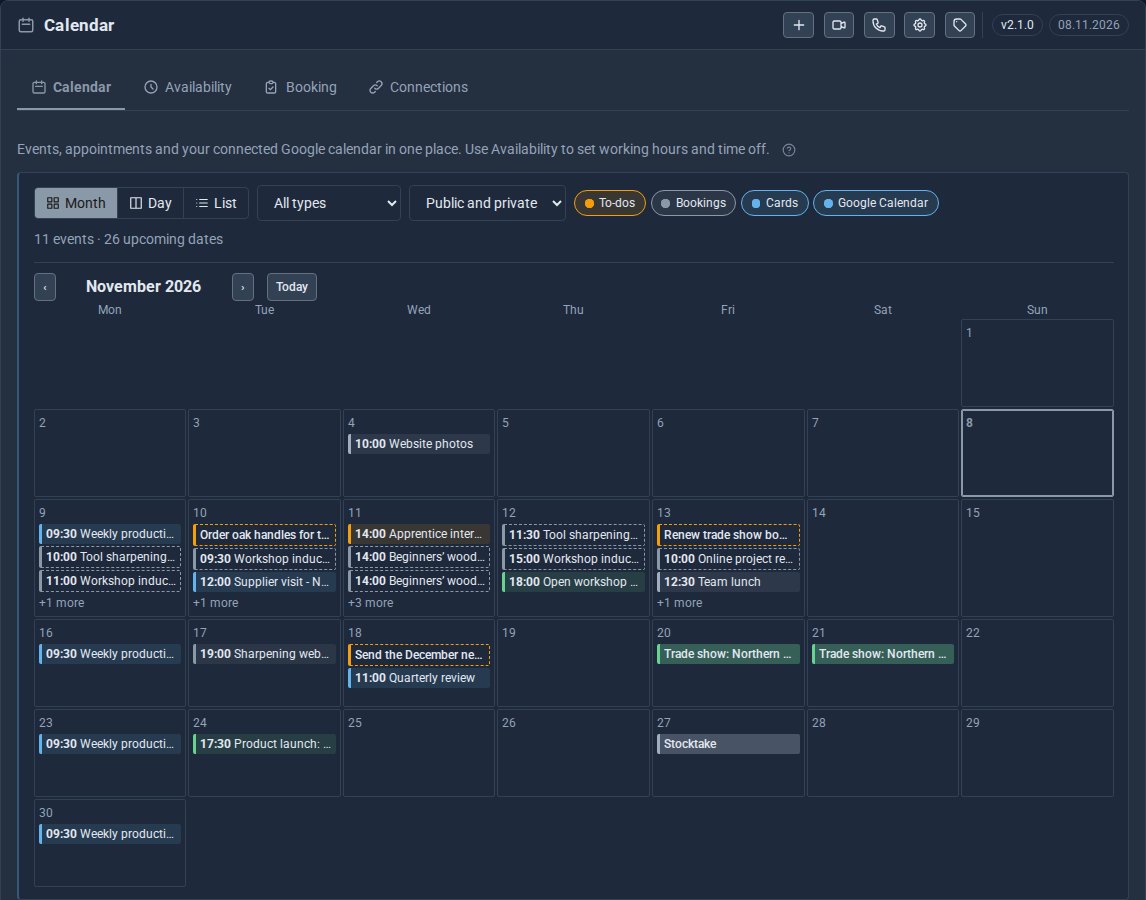
The month view: events in their type colours, with to-dos and bookings alongside and layers you can switch off.
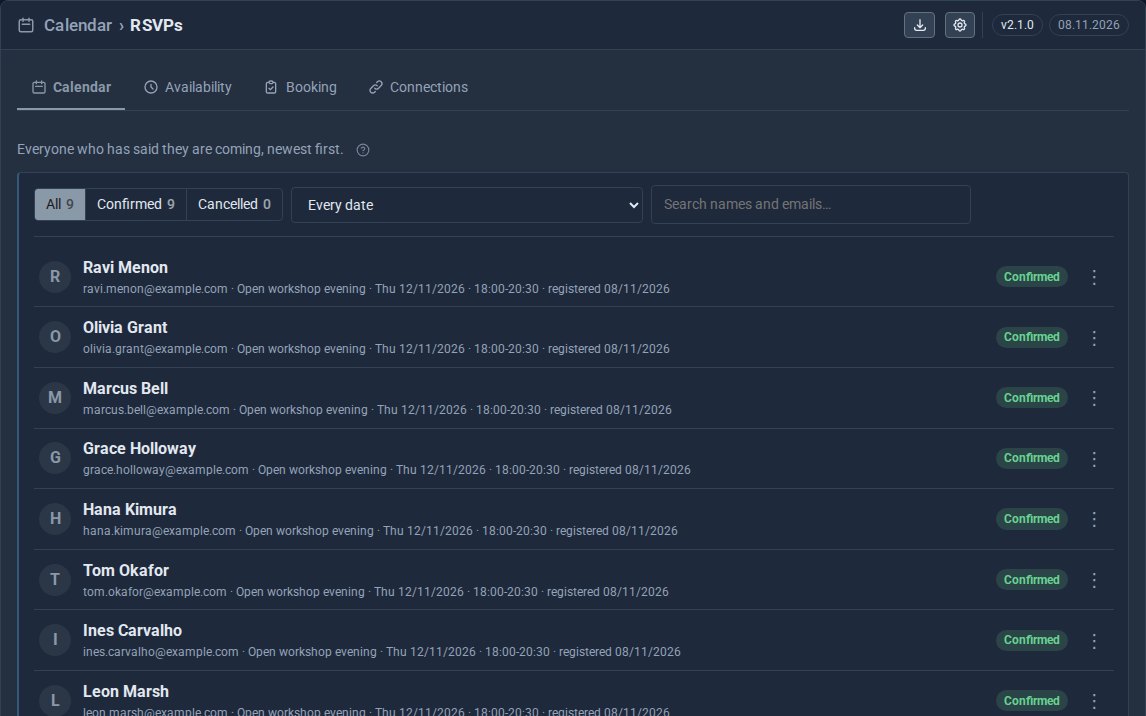
RSVPs: everyone who is coming, filtered by date or status, ready to export.
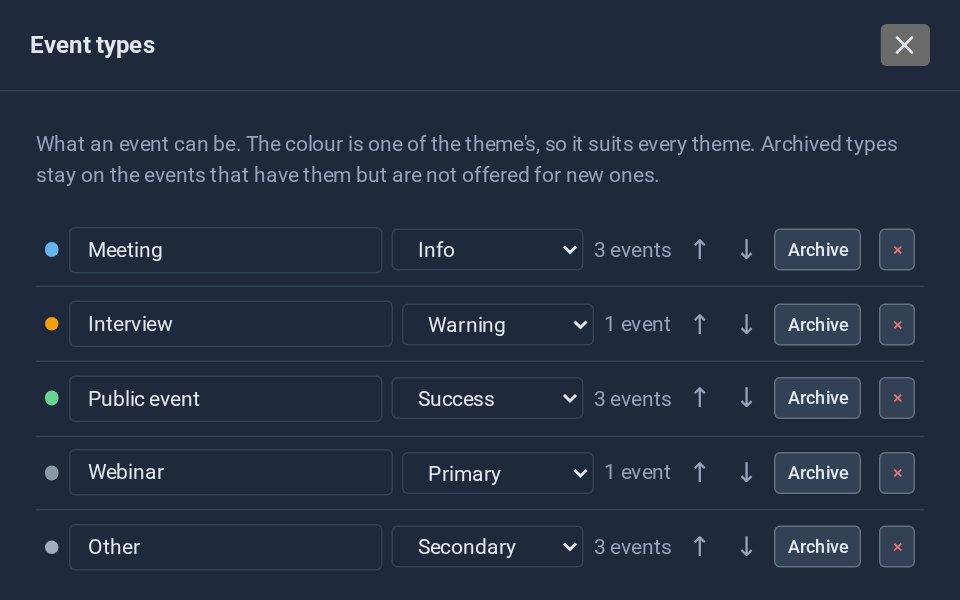
Event types: name them, pick a colour, reorder or archive them.
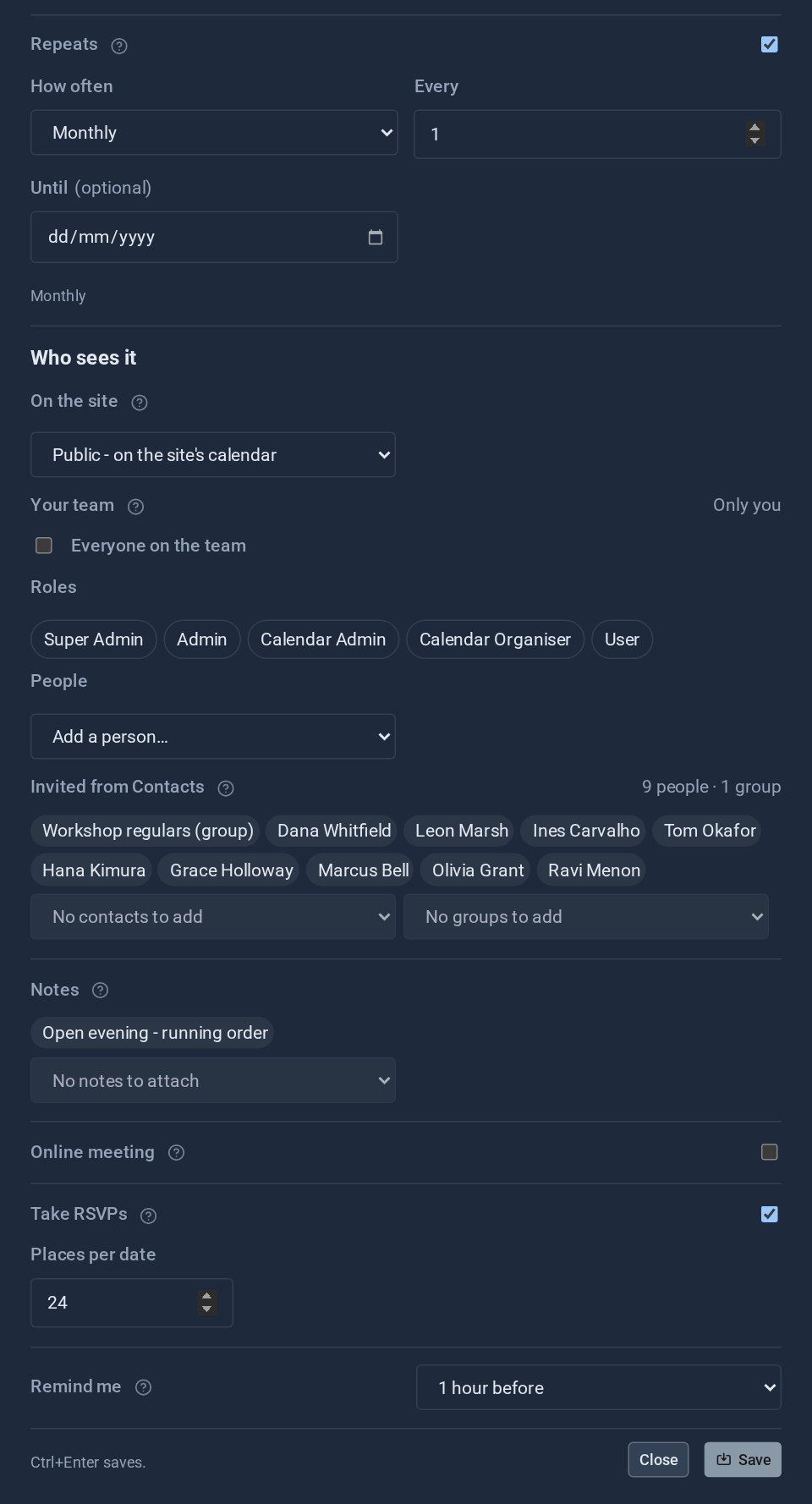
The event editor: a monthly repeat, public on the site, a contact group invited, a note attached, RSVPs with a place limit and a reminder.
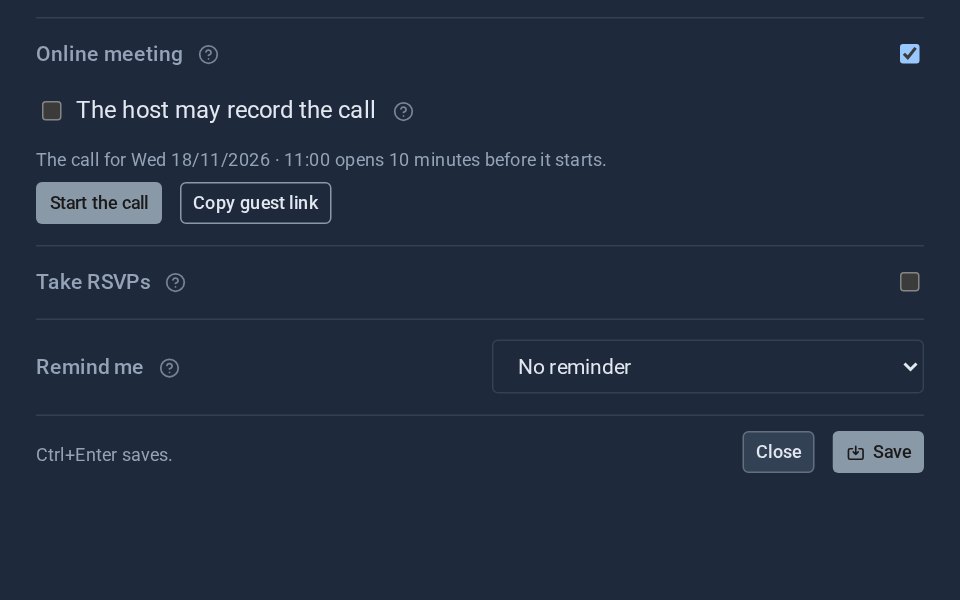
An online meeting: start the call as host, or copy the guest link to send.
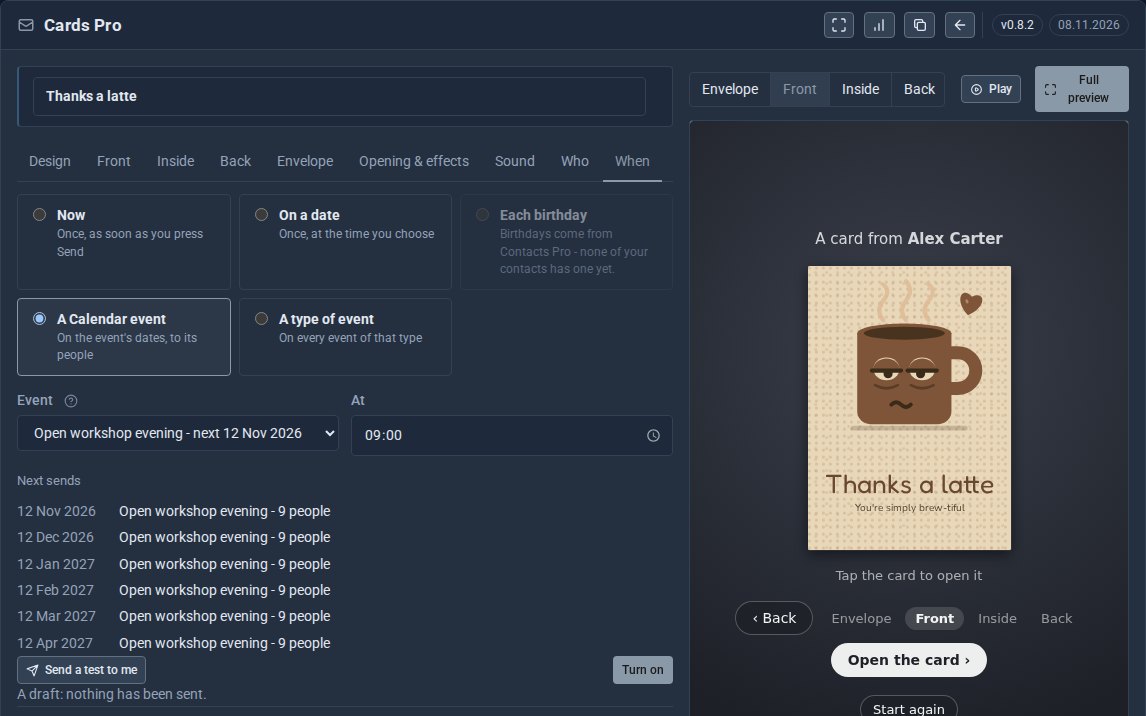
Send a card on an event: it goes on each of the event's dates to the people invited.
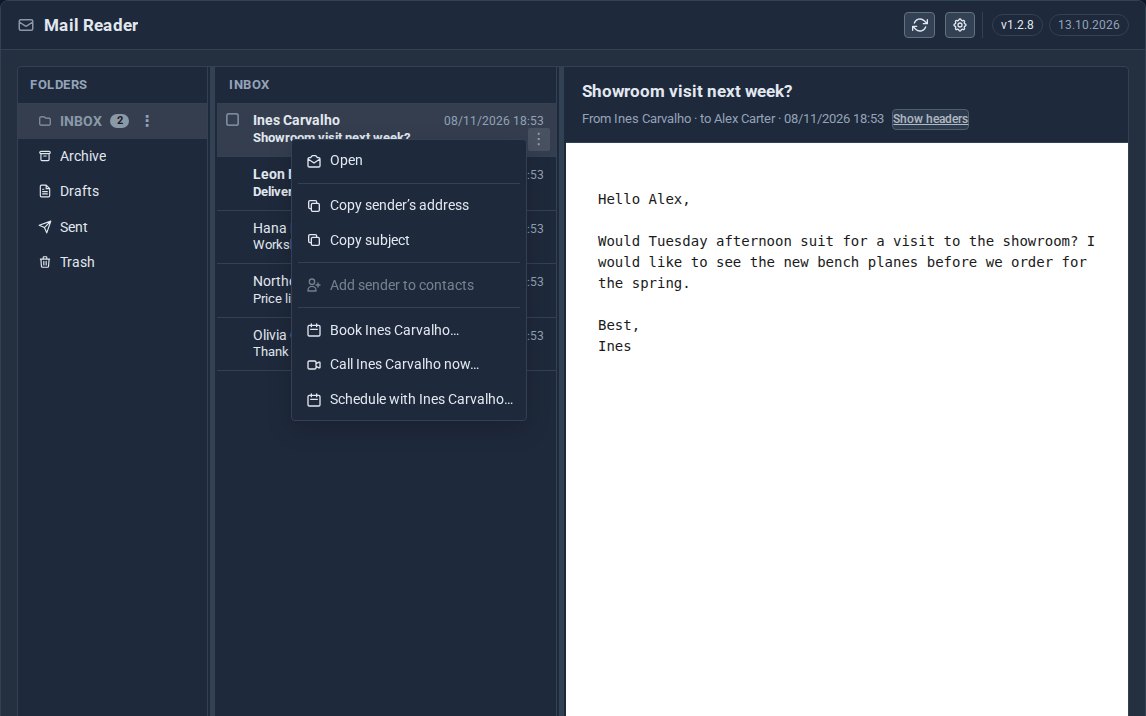
From an email: Schedule with (name) makes a meeting with the sender, already invited.
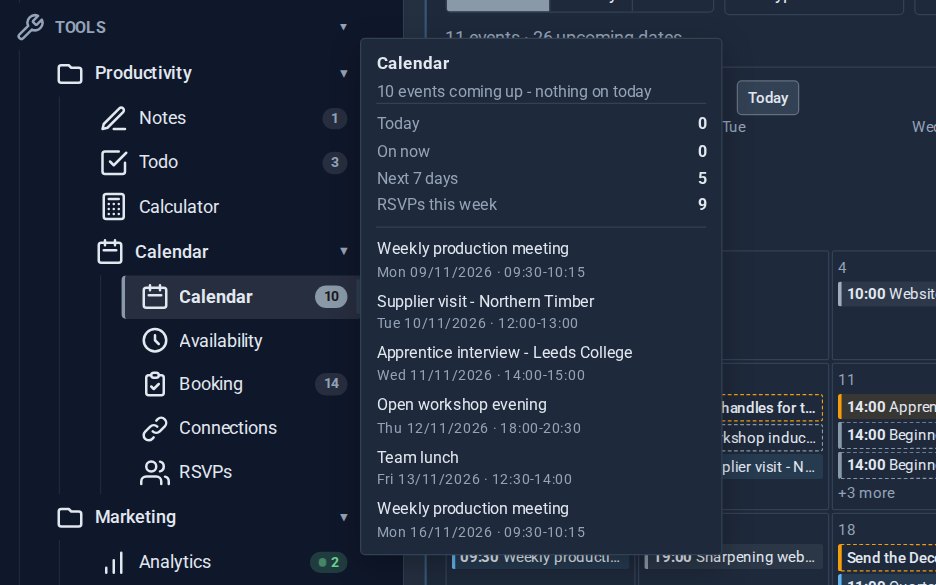
The sidebar badge: hover it for today, on now, the next 7 days and this week's RSVPs.
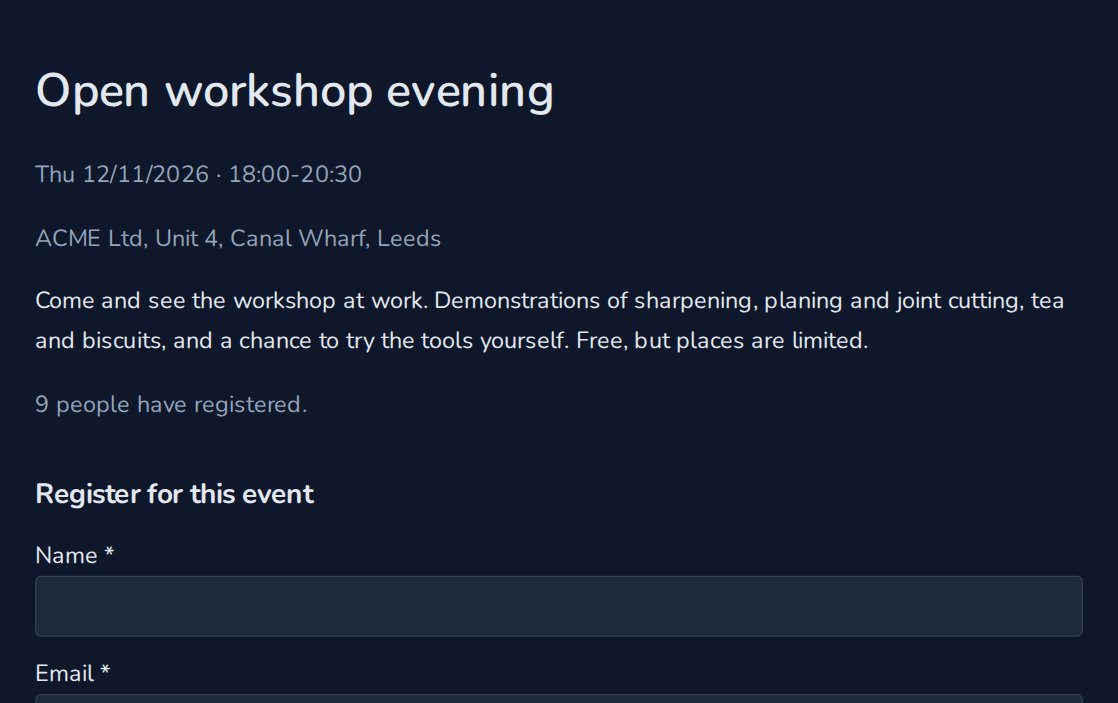
An event's page on your site, with its RSVP form.
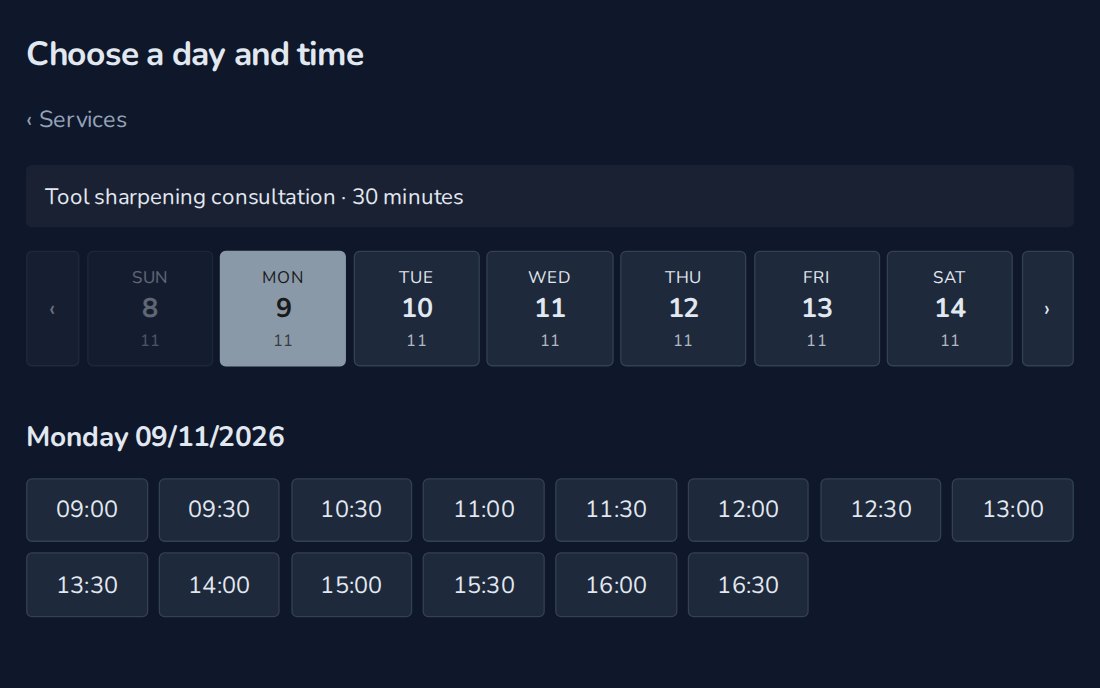
The booking form on your site: pick a day, then a free time.
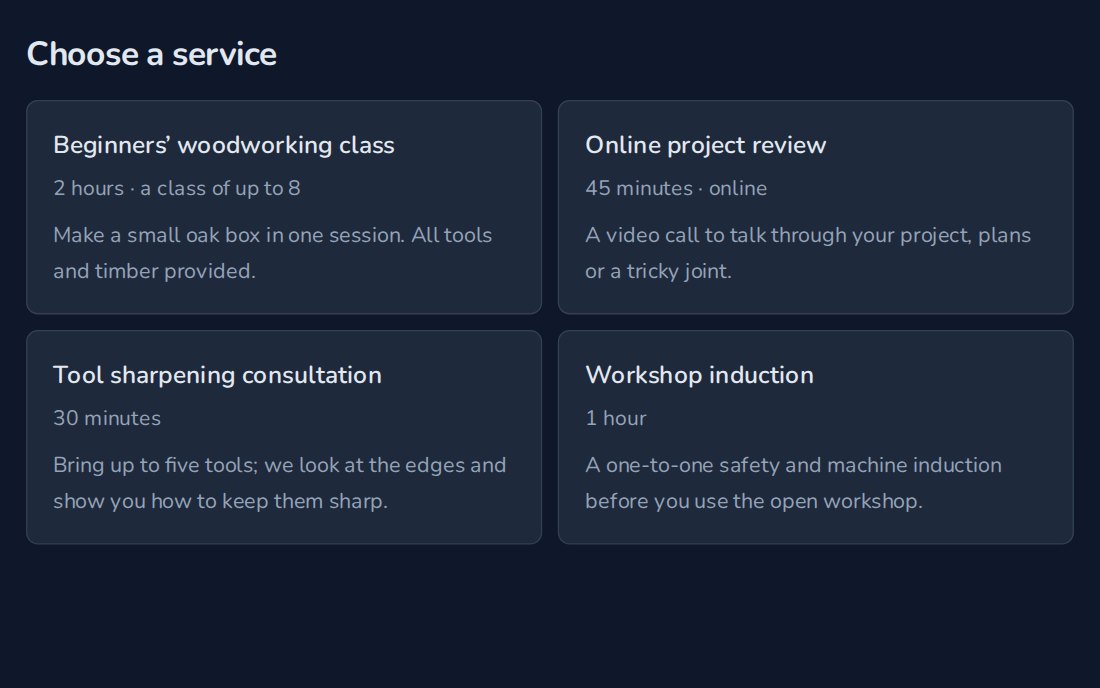
Booking step one: customers choose what to book, with its length, class size or online shown.
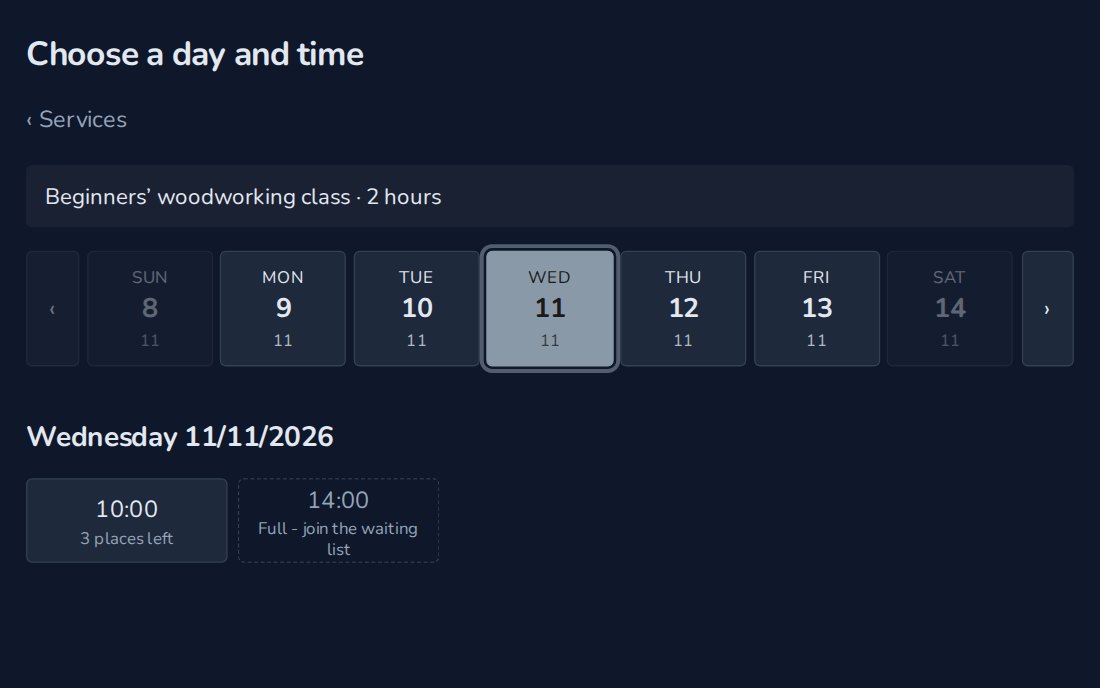
A class shows the places left at each time. A full one offers its waiting list.
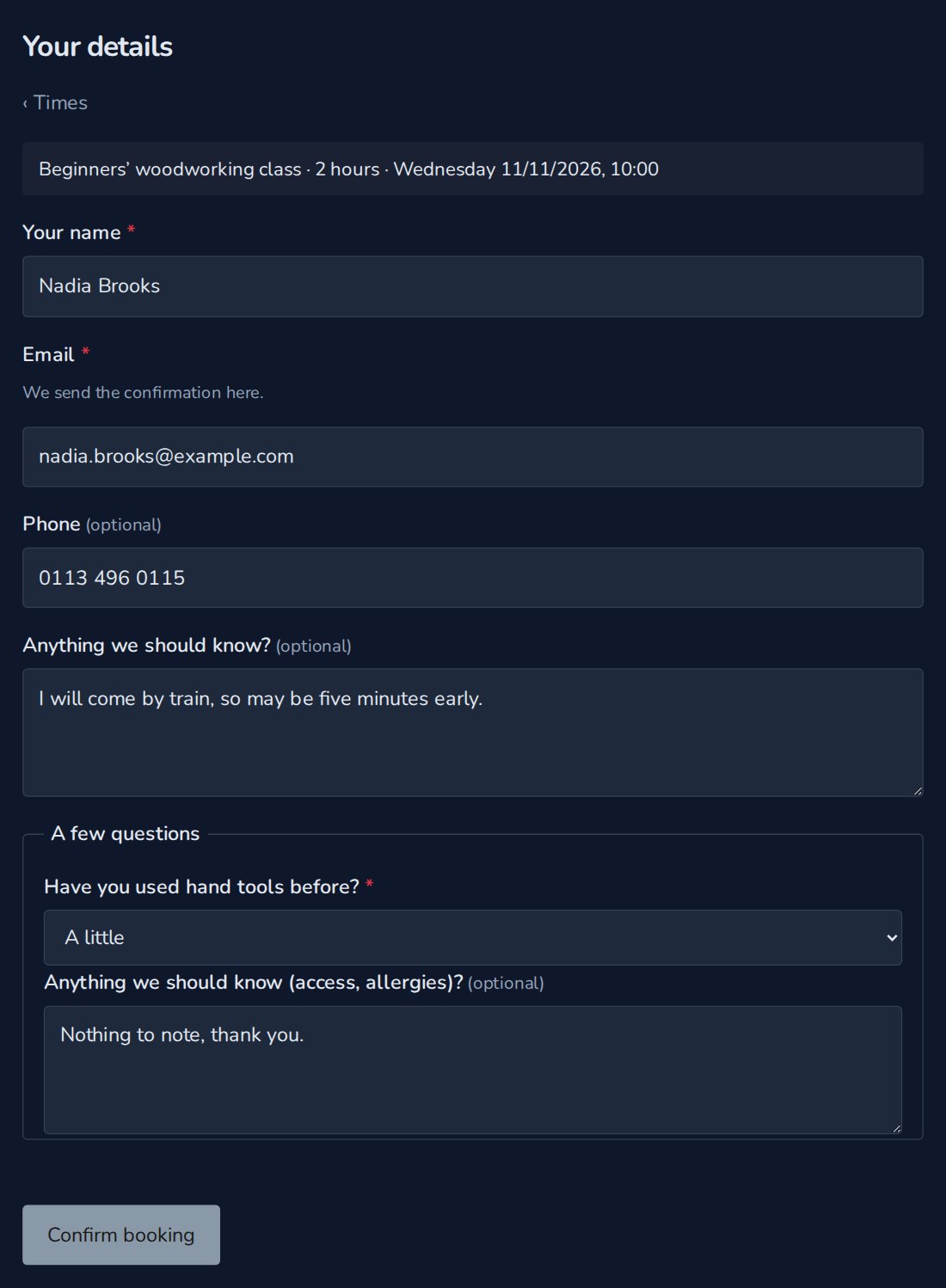
The details step: name, email and phone, plus the questions you set for this class.
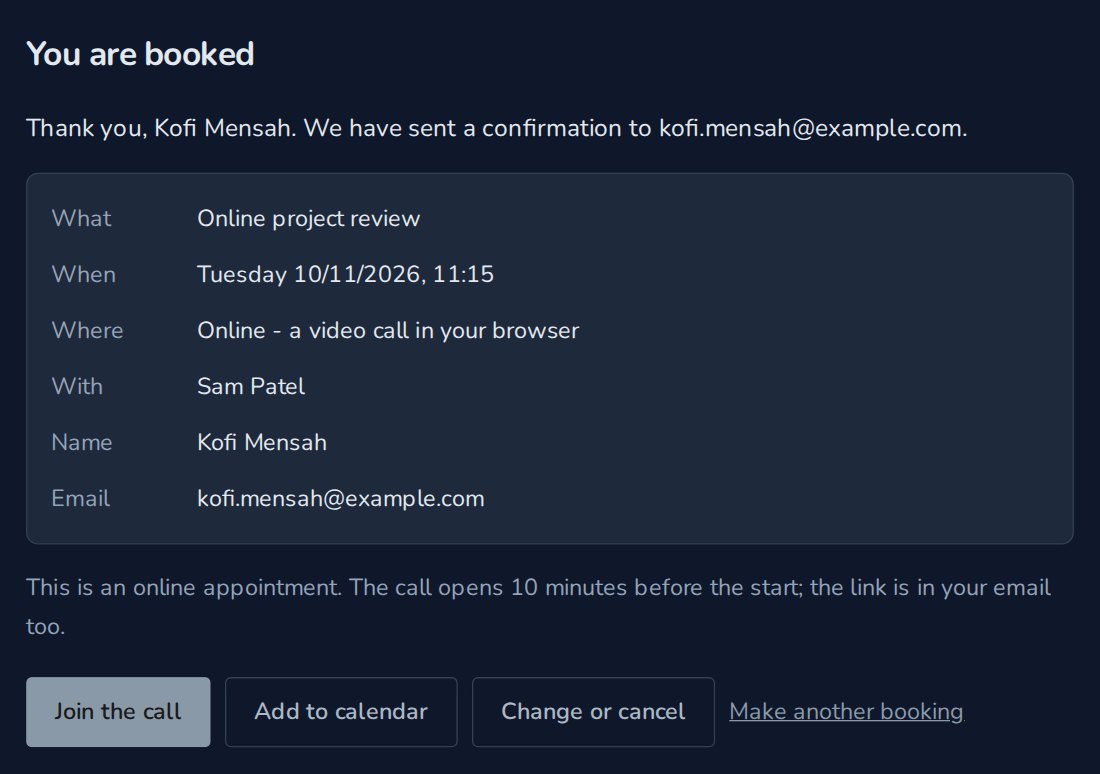
Booked: an online appointment confirmed on screen, with Join the call, Add to calendar and Change or cancel.
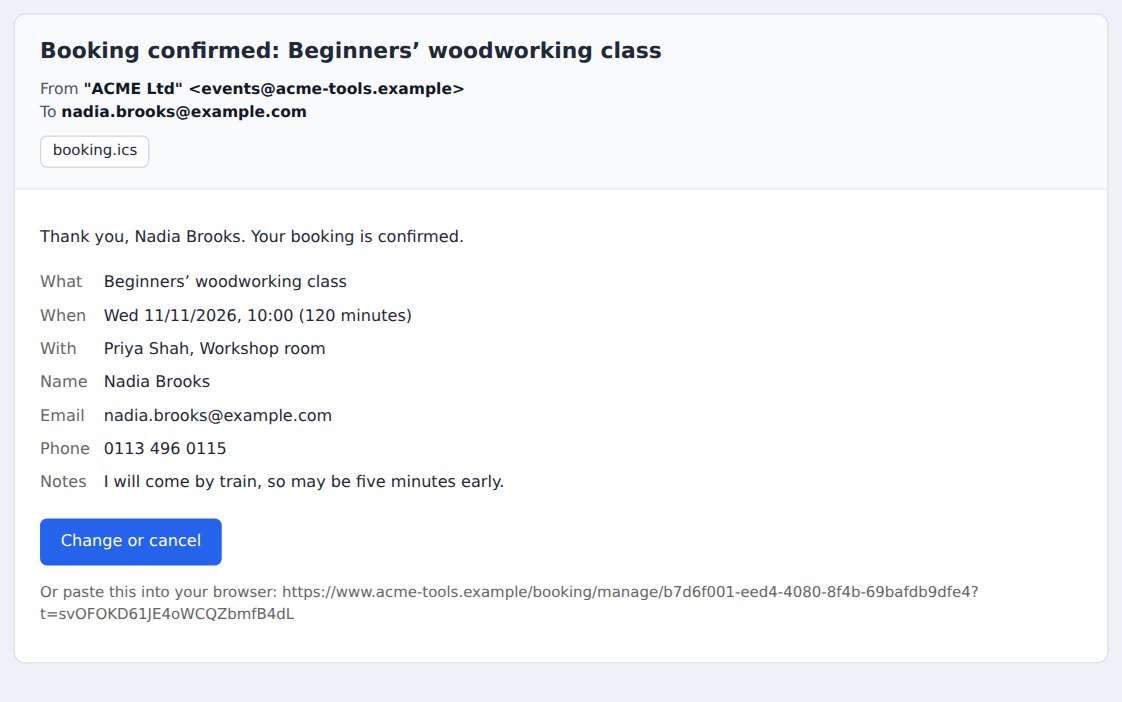
The confirmation email: the booking's details, a calendar file and the customer's own Change or cancel link.
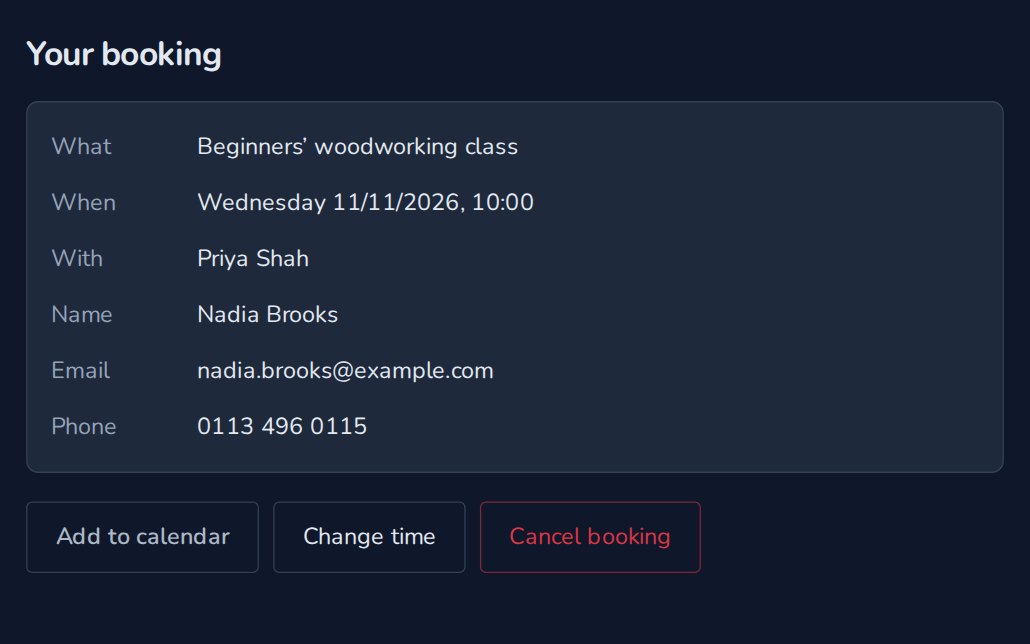
From the link in their email, customers change the time or cancel, up to the notice you set.
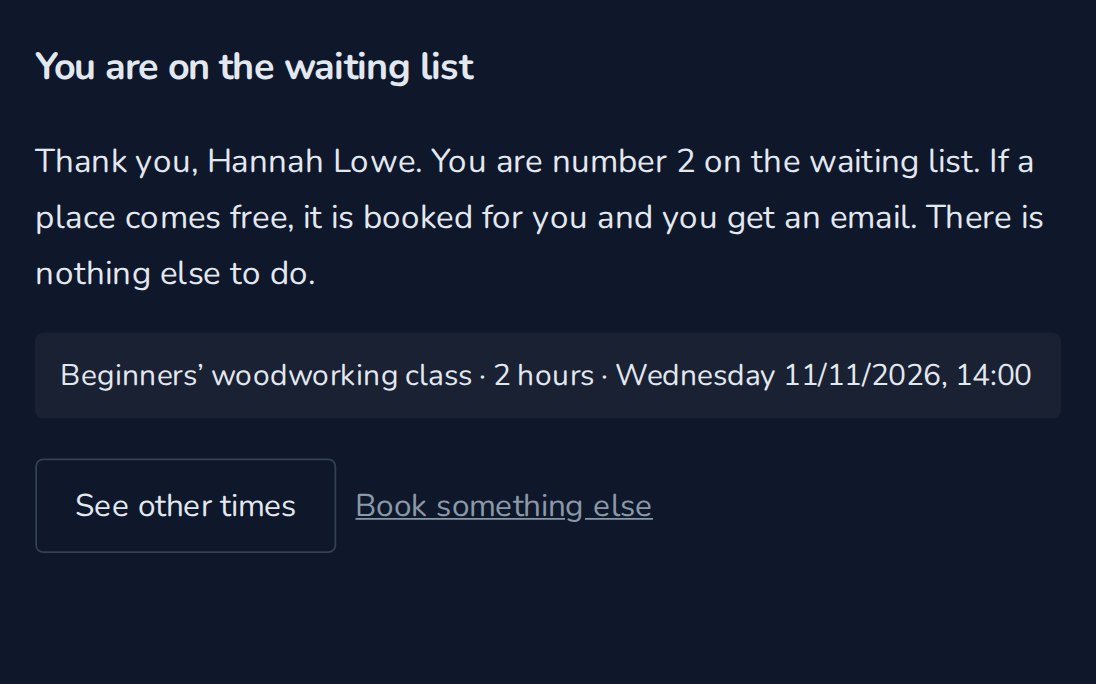
On the waiting list: if a place comes free, it is booked for them and they are emailed.
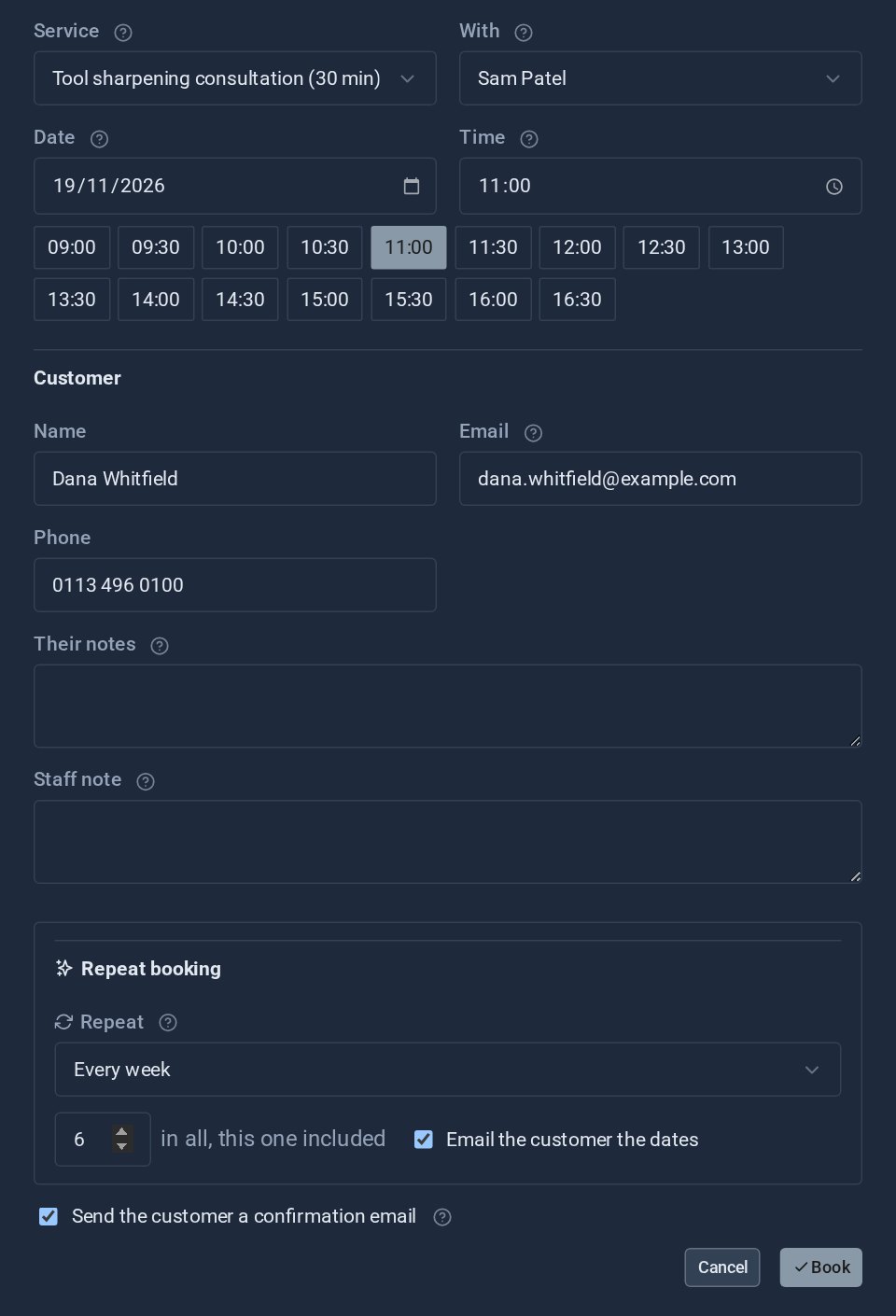
A repeat booking: the same time every week, six in all, with the dates emailed to the customer.
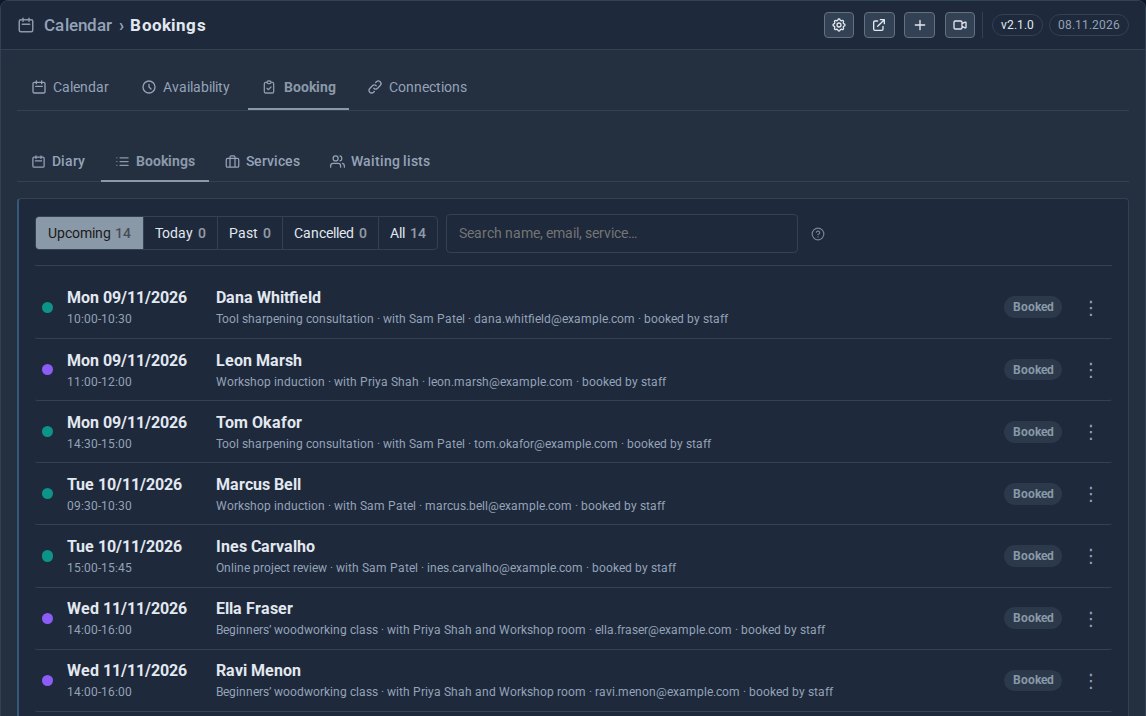
Bookings: every appointment and class place, and who it is with.
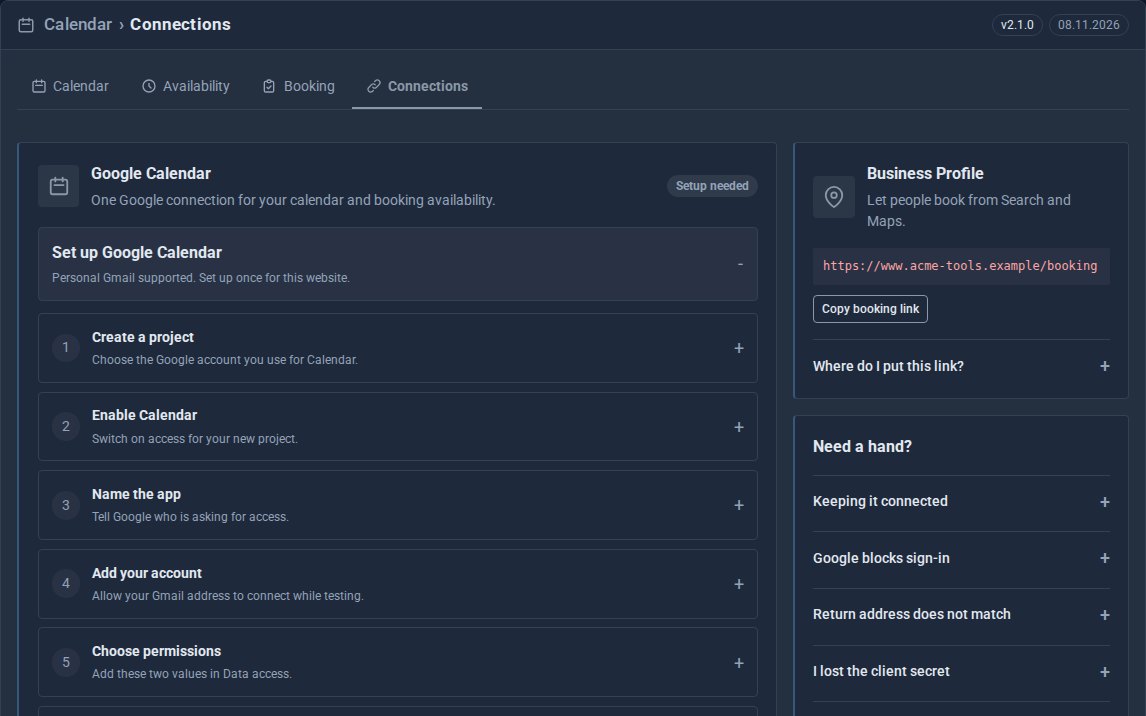
Google Calendar: a step-by-step setup, then one connection for your calendar and bookings.
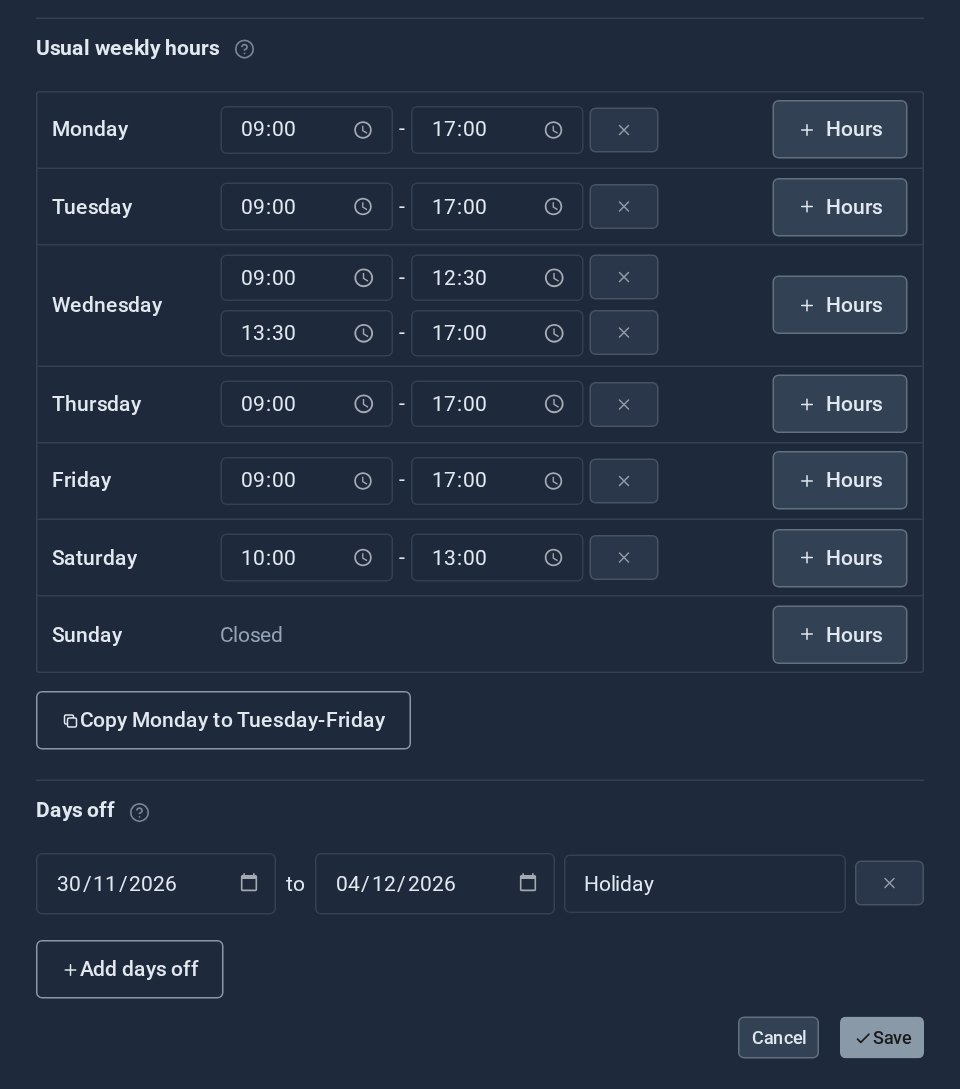
Availability: usual weekly hours, split days and holidays for each person.
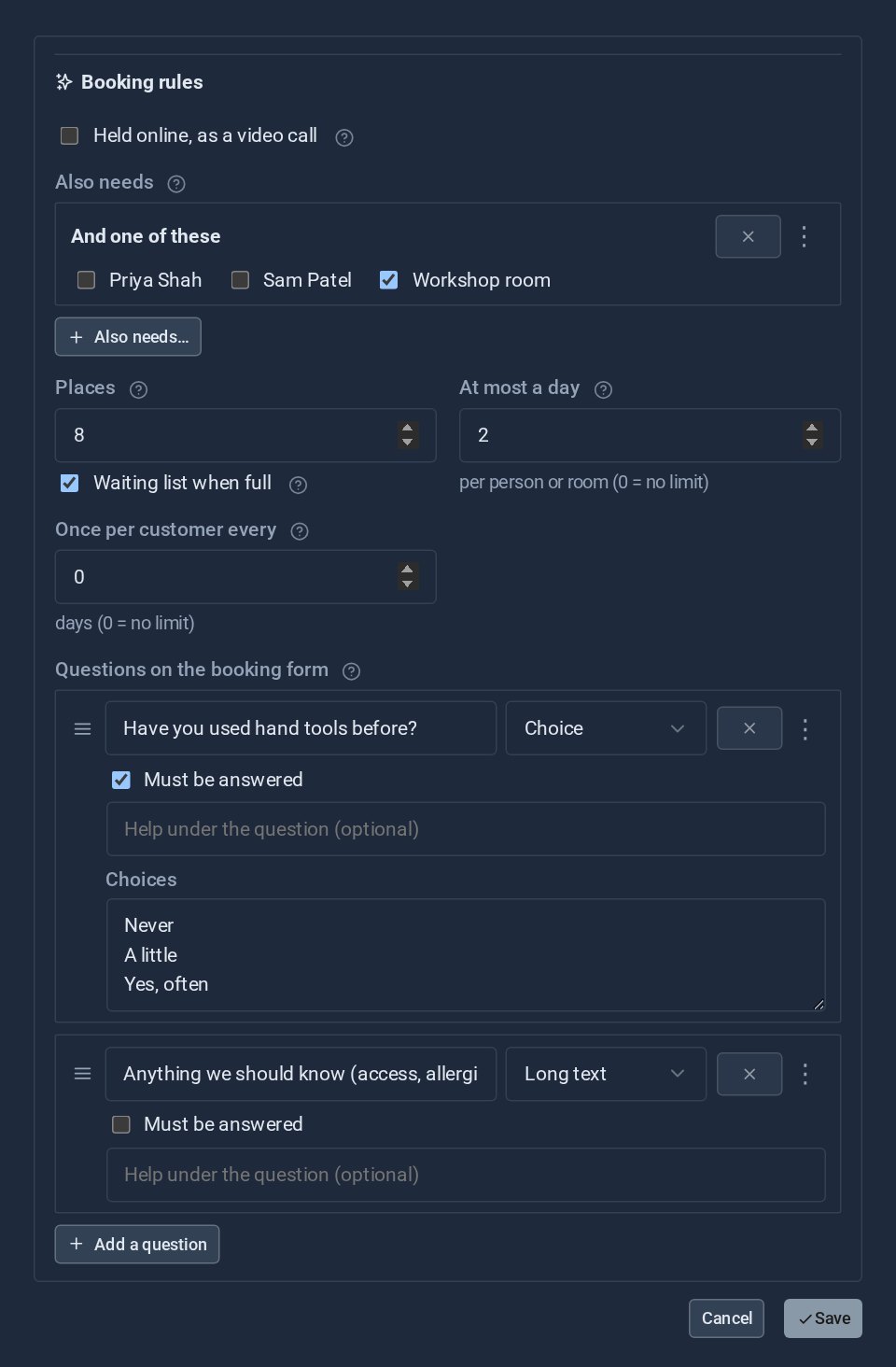
A class with eight places, a waiting list, a room it needs and questions for the booking form.
Screens from our ACME Ltd demo site. Every name in them is made up.
On this page
- What it does
- Getting started
- Screens
- Events
- From an email
- Online meetings
- The event editor
- Event types
- RSVPs
- The public calendar
- Settings
- Shortcodes
- Permissions and roles
- Sidebar badge and notifications
- Cards for events
- Tips
- Limitations
- Google Calendar connections
- Set up Calendar with a personal Gmail account
- Testing and ongoing use
- Setup troubleshooting
- Advanced booking
- WhatsApp calls
- What it looks like