Site Builder
What it does
Meet Dot, your Site Builder. Dot changes your site for you when you ask in plain words: "Add a page about our services", "Rewrite the About page, it sounds stiff", "Make the site feel warmer", "Put Contact at the end of the menu". It uses your site's own pages, blocks, menus and themes, so what it makes is ordinary Domma content you can edit by hand afterwards.
Nothing goes live until you say so
- New pages are saved as drafts.
- Changes to live pages, blocks, the menu and the theme wait in Changes waiting beside the conversation. The live site is untouched until you publish.
- Preview shows a page as it will look with the changes. Menu changes show once published.
- Publish makes everything in the list live. Undo all takes it all back.
- Published something you regret? Earlier changes has an Undo for each publish.
If someone edits the same page by hand in the meantime, their edit always wins: that one change is left out, and the list says so.
Your words
Each month you have an allowance of words: the text the AI writes on your site and in its replies. Reading your pages and anything you type do not count. The meter at the top shows what is left; it starts again on the 1st.
Good to know
- One conversation at a time is worked on; the AI can take a minute or two for a big change. You can leave the screen and come back.
- It can only use what your plan includes. Ask for something your site does not have, an online shop say, and it tells you rather than building a stand-in.
- What it may change is set by your own permissions: someone who may not change menus cannot have the AI do it.
- It needs the Pro database (MongoDB), where conversations and changes are kept.
Workspace, saved prompts and context
The overview shows the pages, draft pages, reusable blocks and navigation menus available to you. The Site & help panel has examples you can insert into the composer. Hide activity collapses the builder's tool activity while keeping its replies visible.
Saved prompts are reusable questions. Choose Only me for a personal prompt, or Everyone on this site to share it. Use prompt inserts it for editing before you send. A message's actions menu also offers Save as prompt and Remember for this site.
Site memories are short, shared instructions such as preferred spelling, tone or audience. Everyone with Site Builder access can see and edit them. They are included in future requests across conversations. Removing a memory stops adding it to future requests; text already discussed in a conversation remains in that conversation's transcript.
The Context panel shows the conversation's brief, selected pages and blocks, linked conversations and carry-forward notes. Use the brief for the goal, decisions and unfinished work. References identify the current pages or blocks the builder should read, and follow your existing access permissions.
Bring context from another conversation lets you review and edit excerpts before attaching them. Open source returns to the original conversation. Refresh offers a new excerpt for review; Detach removes it from future requests. Each conversation keeps its own changes and publish history. A linked excerpt is a dated snapshot, not a live connection or a transfer of drafts. You can attach up to three conversations. Continue in a new conversation uses the same review step and carries selected references forward.
Compact older context retains the latest four requests and their complete tool exchanges. Review the proposed excerpts and add any decisions or tasks that are missing. The approved notes replace older exchanges only in the working context sent to the builder. The original transcript and change history remain available. The Context panel indicates when the conversation is getting large. Compaction is explicit and does not make an extra AI request or use the word allowance.
What it looks like
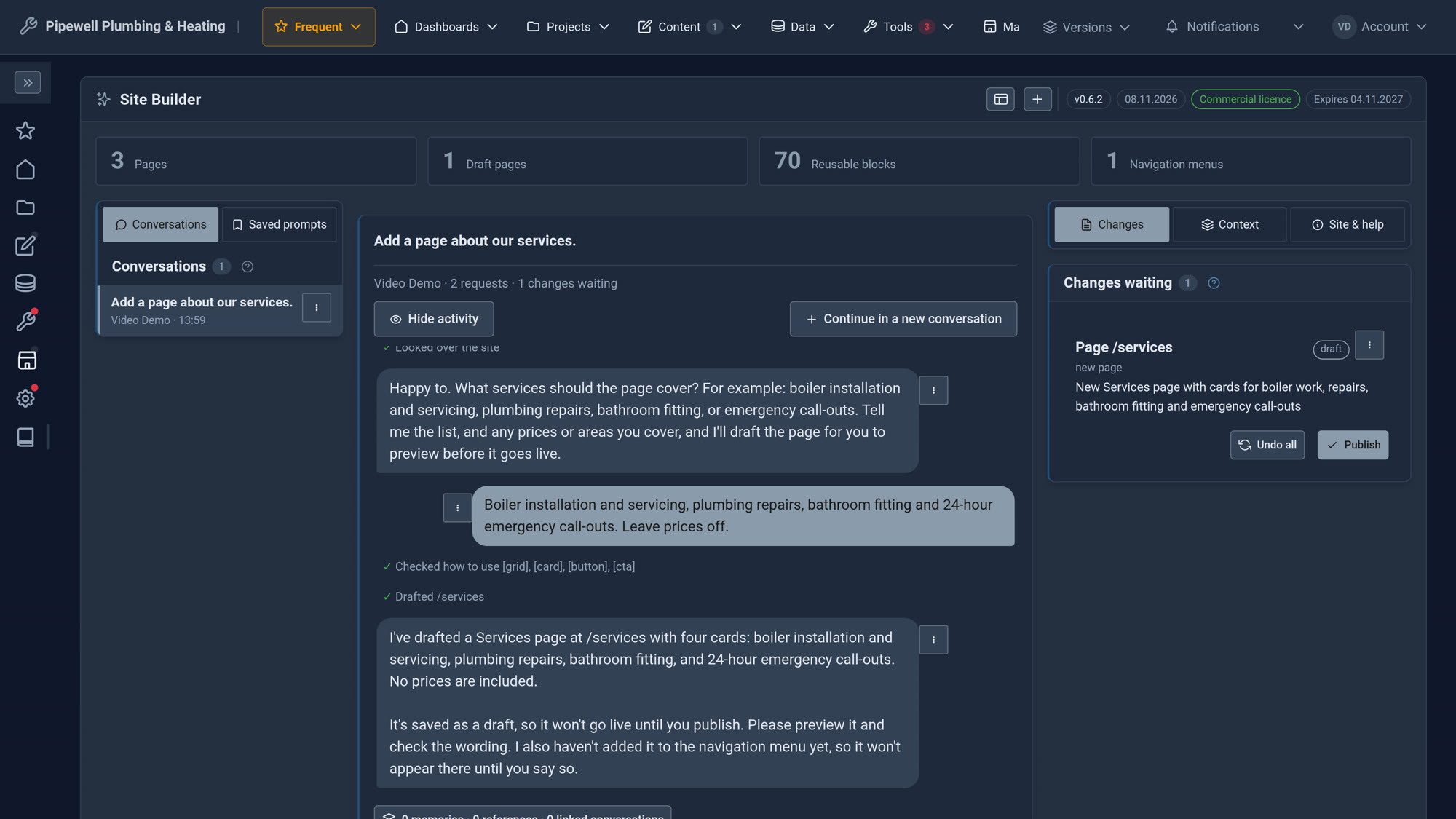
One question, then a draft waiting under Changes.
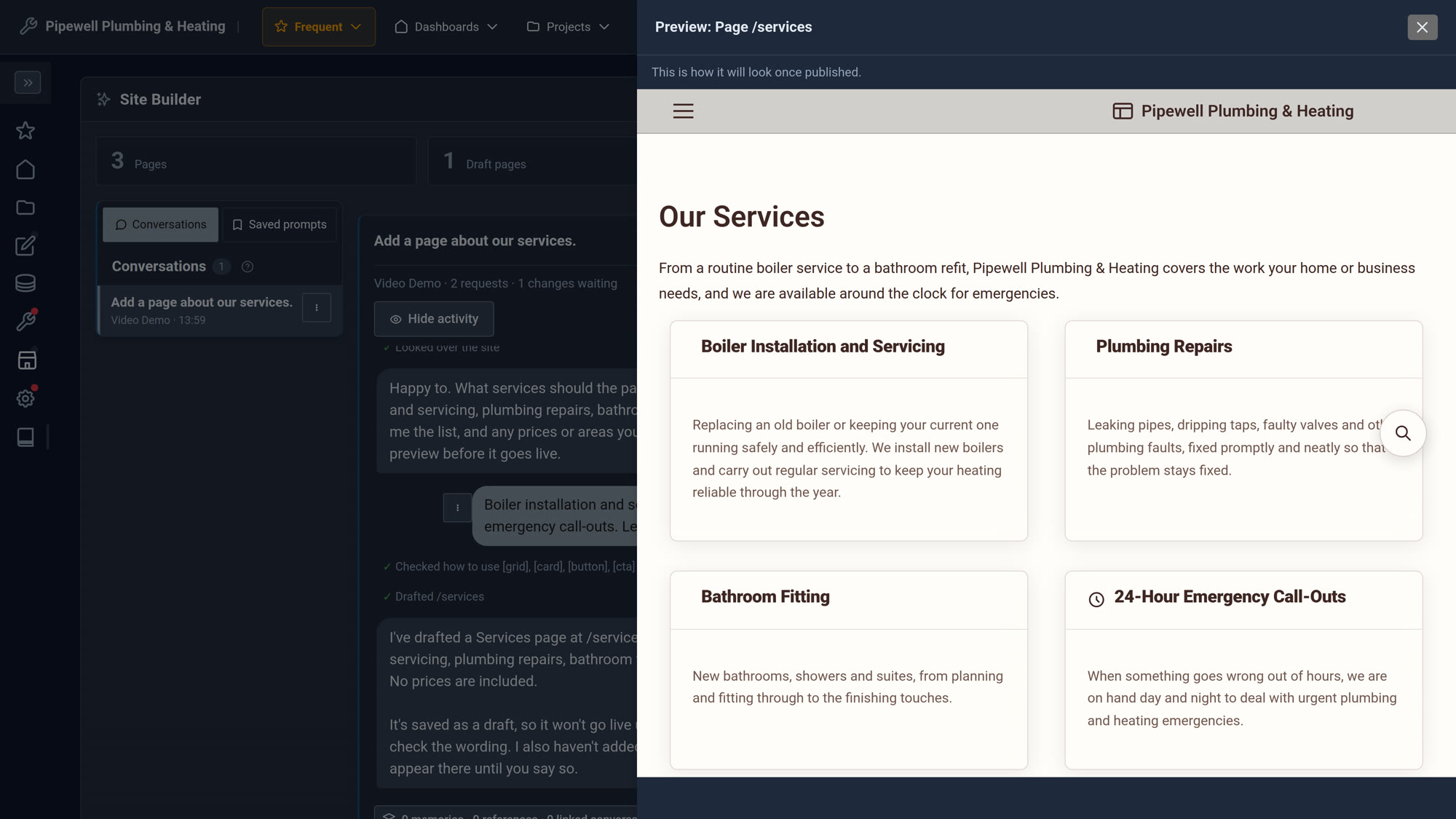
Preview it exactly as it will look.
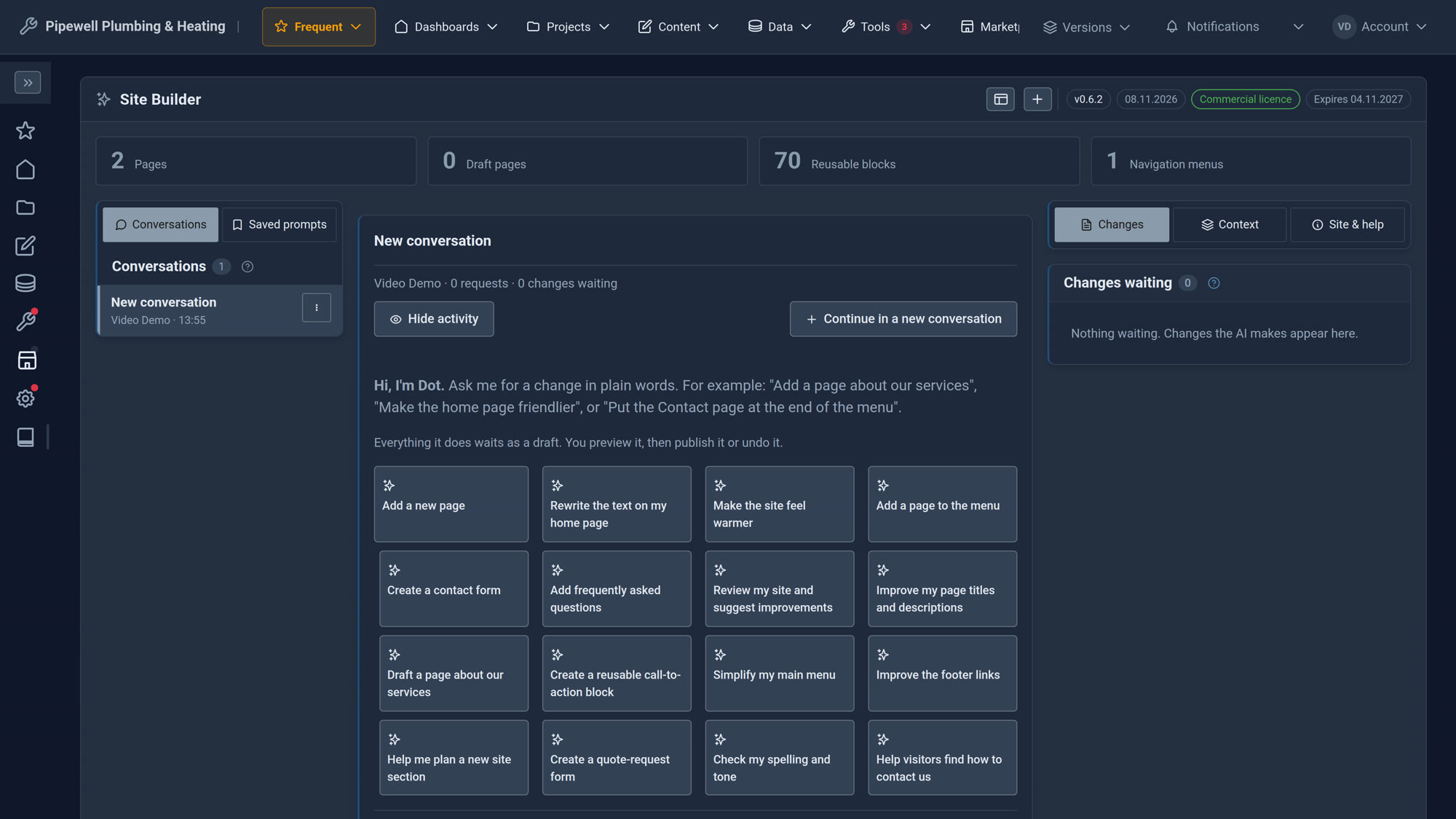
Start from a quick starter, or just type.
Screens from our ACME Ltd demo site. Every name in them is made up.