How to give a client a Dashboard that stays the way you built it
Build a board from the Tools a client actually uses, make it the default, and lock the layout, so every person who signs in sees what matters to them and nothing moves.
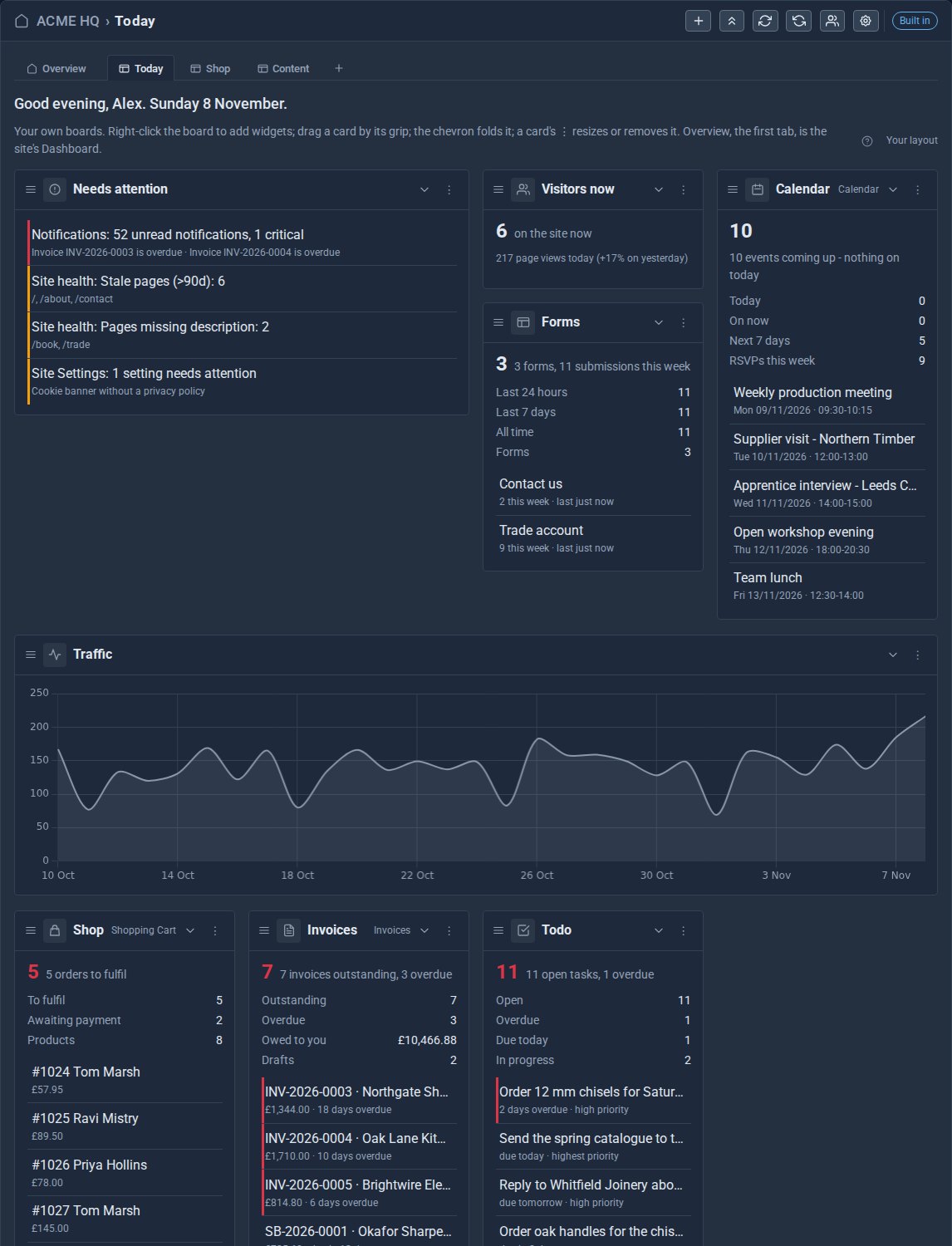
You build a site, hand it over, and a week later the client rings: "where has the orders box gone?" They dragged it off by accident, or a colleague did. With Dashboard Pro you can design the board once, make it what everyone starts from, and lock it, so it stays the way you built it.
This guide sets one up for our made-up company, ACME Ltd, a tools and workshop supplier.
1. Build the board from their Tools
Open Dashboards and add a board. Right-click it and choose Add widget. The gallery lists every widget the site can show, grouped by Tool: the built-in ones first, then each Tool's own, such as Calendar, Invoices, Shopping Cart and Support. The ones already on the board are marked, so nothing goes on twice.
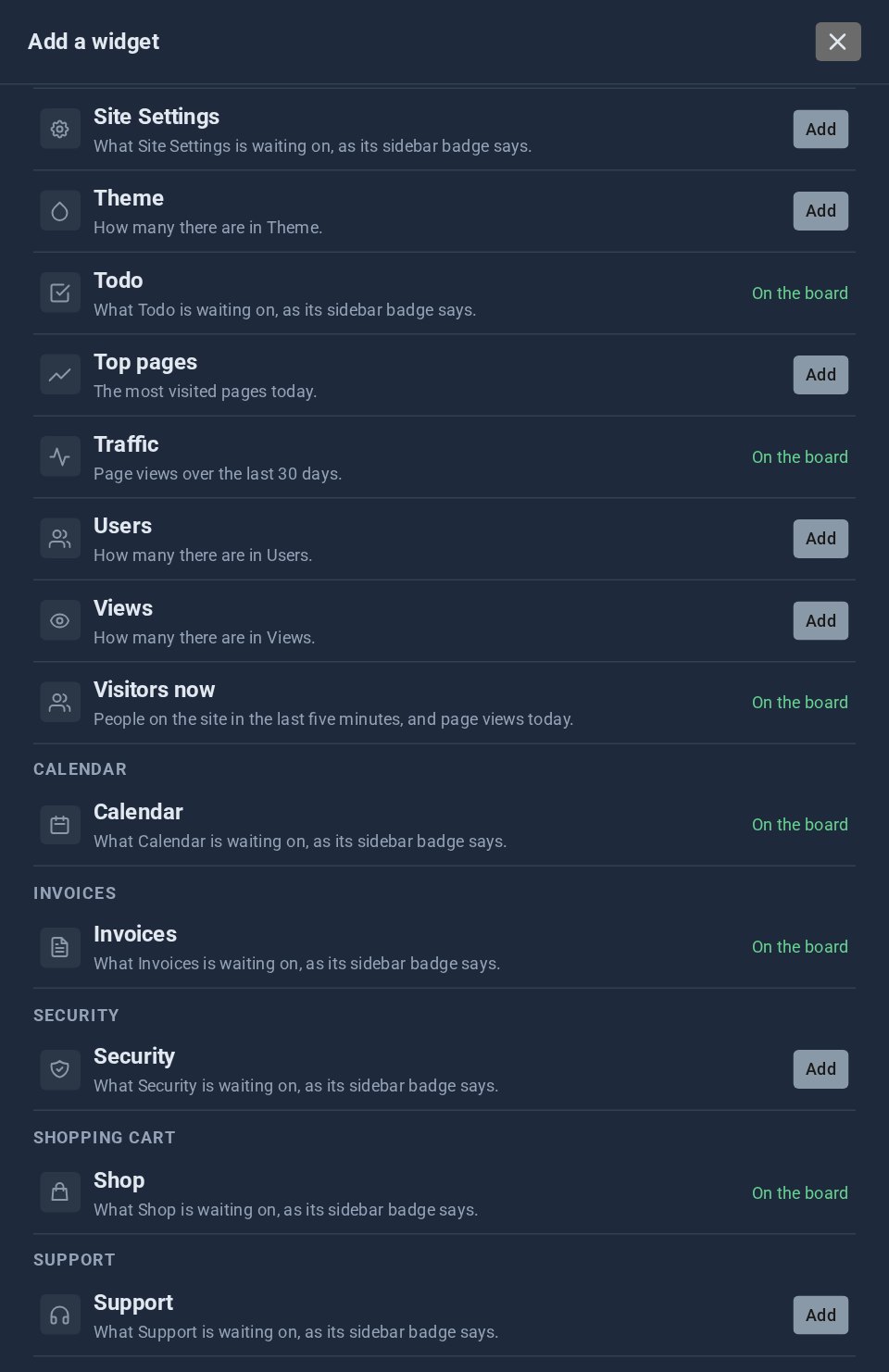
Pick what the client looks at every morning. For ACME that is what needs attention, visitors now, the week's calendar, form submissions, 30 days of traffic, orders to fulfil, invoices owed and the team's todos.
Each widget is the Tool's own figure, the same one its sidebar badge shows, so the board and the sidebar always agree.
2. Arrange it
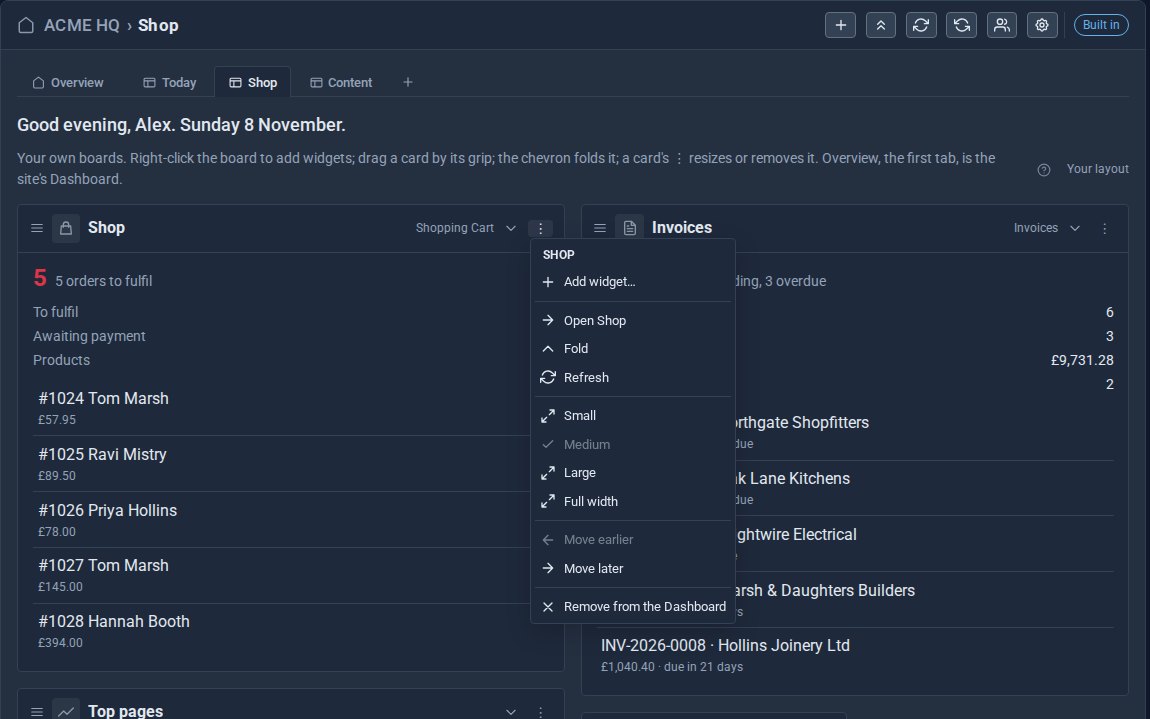
Drag a card by its grip, or open its menu to size it from Small to Full width, move it earlier or later, fold it or remove it. Cards pack upwards, so there is never a gap to tidy.
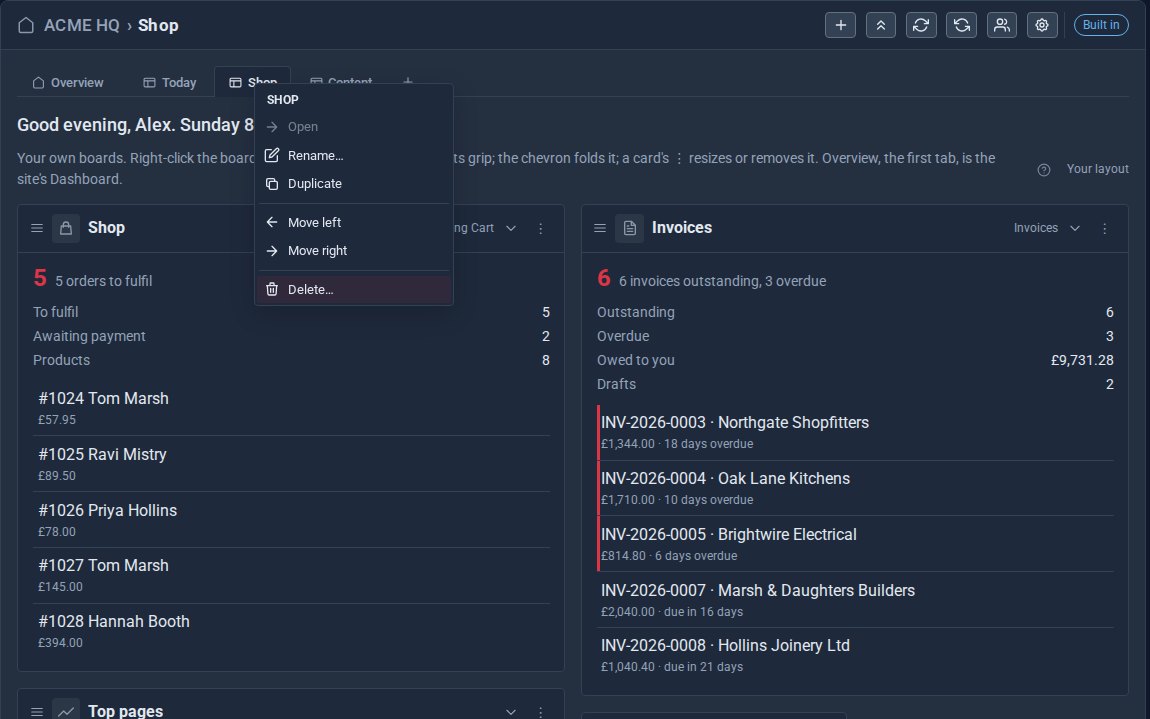
Right-click a board's tab to rename, duplicate, move or delete it. A shop might want Today, Shop and Content; give each a name the client will recognise.
3. Make it the default, and lock it
When the board looks right, choose Make this the default. Everyone now starts from it, and Reset brings anyone back to it.
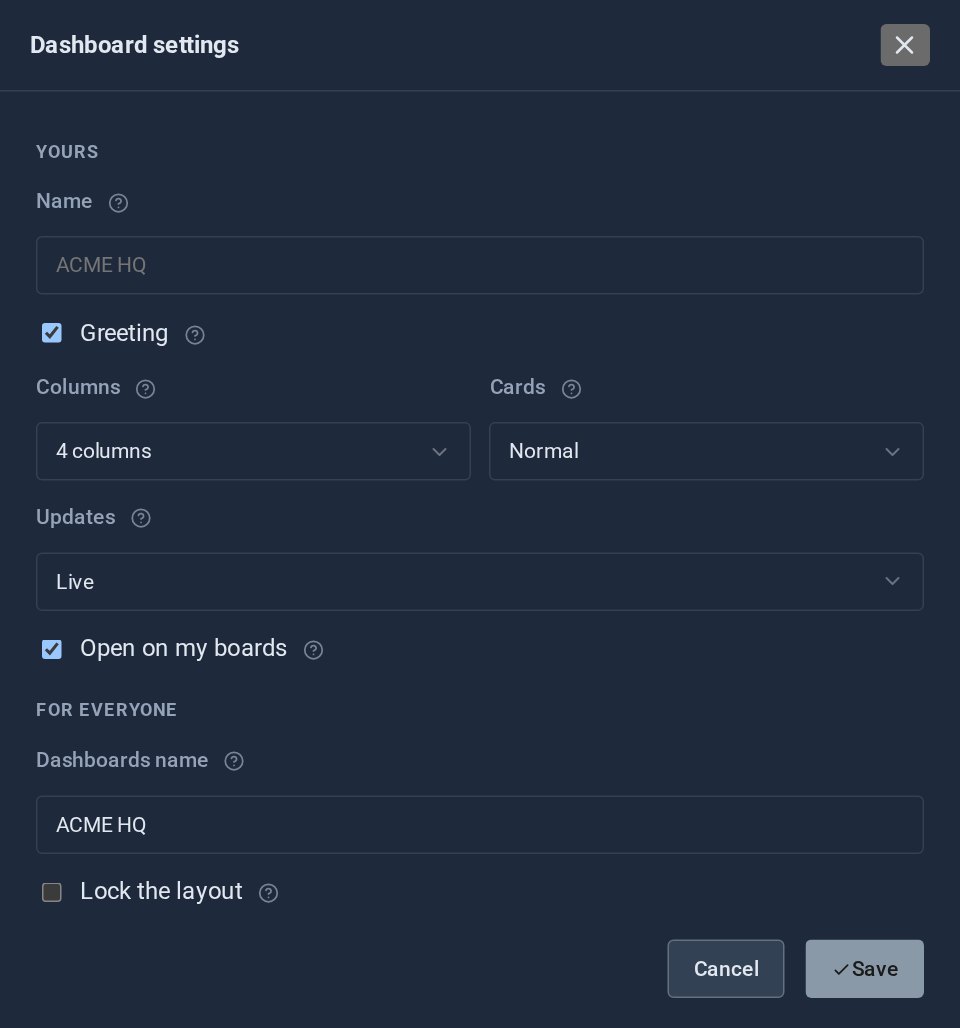
Then open the cog. Its top half is your own settings: a greeting, columns, compact cards and how often it updates. Under For everyone you name the Dashboards for the whole site and switch on Lock the layout.
4. What your client sees
With the layout locked, anyone who is not an administrator gets the board you set. They can fold a card and refresh it, and the cog still holds their own settings, but nothing can be moved, resized or removed.
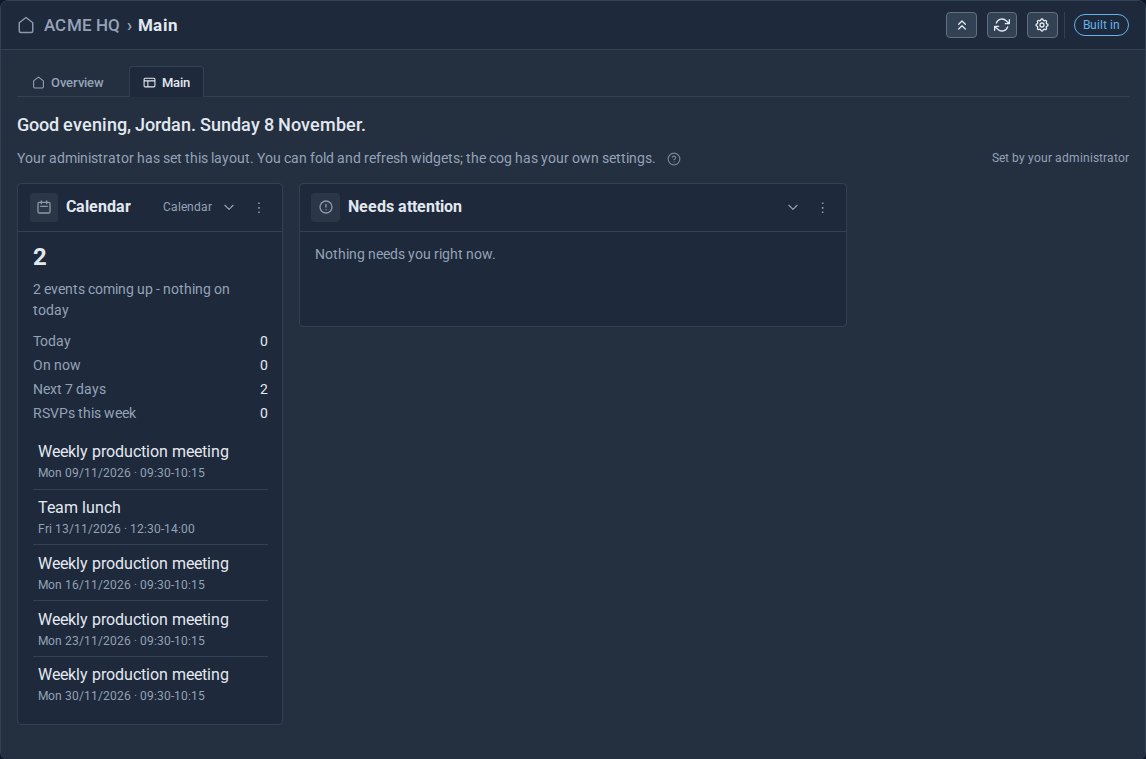
They only ever see what they may open. A widget shows to the people who can use its Tool, so Jordan, whose role does not include the shop or invoices, sees the calendar and what needs attention, and nothing else. Locking a layout never shows anyone more than their role allows.
You and the other administrators keep your own boards, unlocked, as before. Turn the lock off at any time and everyone can arrange their own again.
Quick checklist
- Add a board and fill it from the client's own Tools.
- Size and order the cards; name the boards.
- Make this the default.
- In the cog, under For everyone, Lock the layout.
- Sign in as the client once to see what they see.
Explore Dashboard Pro, or start from scratch with Build your own Dashboard.
The screens above come from our made-up demo company, ACME Ltd.
Keep reading

What happens when you sign up for a Domma CMS site
From choosing a plan to your first sign-in: what signing up for a Domma CMS site looks like, what it costs each month, and how you change your plan or Tools later without ringing anyone.
How to run a project with your client in the loop
A step-by-step guide to Waypoint Pro: set up a board with your own workflow, plan sprints, start issues from templates, keep a private project for one client, and let them follow along without being able to change a thing.

How to get your news shared and posted without logging in to five networks
A step-by-step guide to Social Media Pro: make every page look right when it is shared, add share and follow buttons, and post to Bluesky, Mastodon, LinkedIn, Facebook Pages and X from one composer, now or scheduled.