How to publish a staff handbook your team will actually read
A step-by-step guide to a staff handbook with Docs Pro: write it with your colleagues, take their suggested changes, publish it as a Space only your team can open, and keep it up to date.

Most staff handbooks live in a shared folder nobody opens: a long file, a few years out of date, with nobody quite sure which copy is the right one. Docs Pro turns the handbook into a small website of its own, a Space, that only your team can read, and that you update in one place.
This guide sets one up for our made-up company, ACME Ltd.
1. Write the pages in Docs
Put each part of the handbook in its own document in a folder: holidays and time off, expenses, health and safety, who to call. Short pages are easier to find and easier to keep current.
Share the folder with the colleagues who help write it. Make them Editors, or Suggesters if you would rather keep the pen yourself: a Suggester's changes wait for you to accept them.
2. Let colleagues suggest changes
When a Suggester edits, or an editor turns on Suggest changes, the edits arrive as suggestions instead of changing the text. Additions show in green and removals in red, each with who made it.
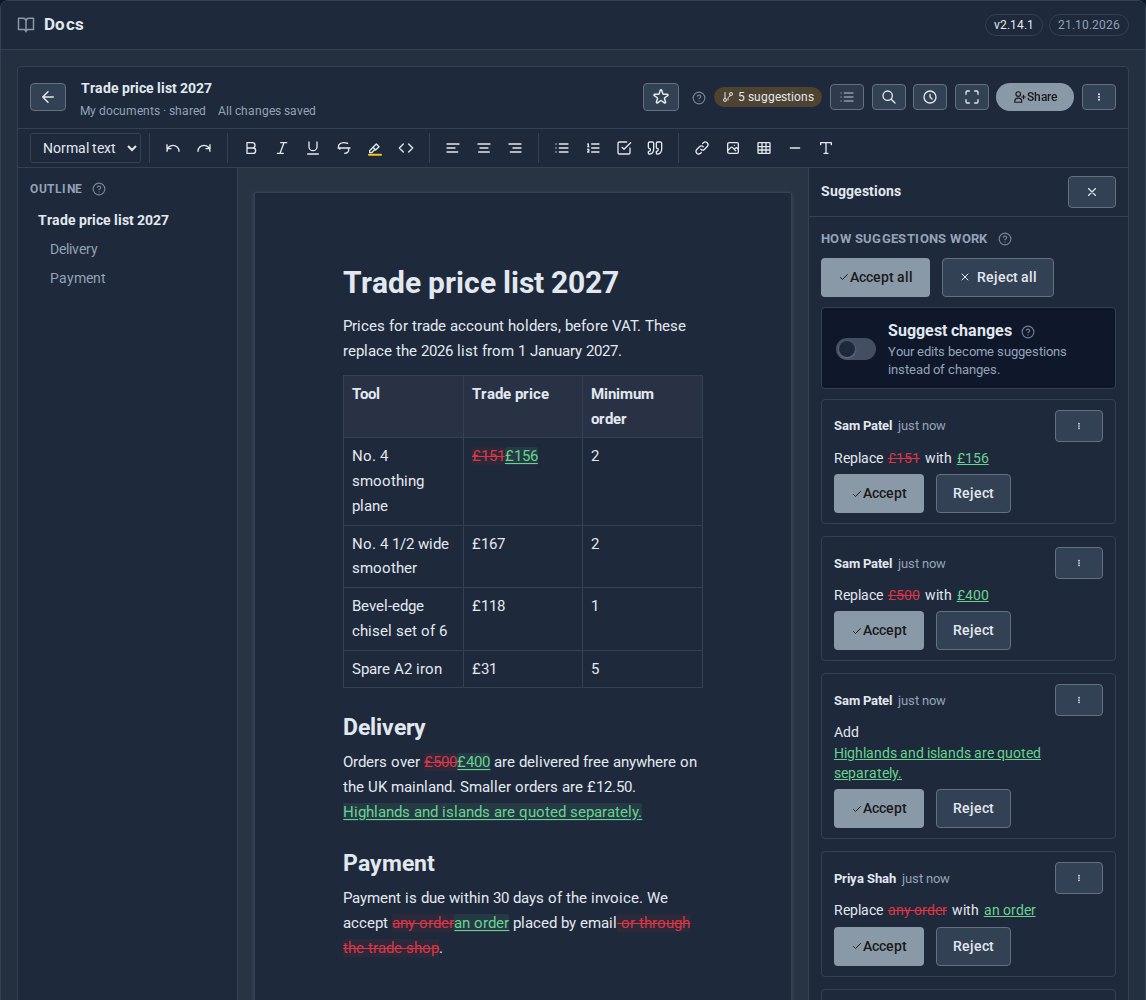
Accept or reject them one at a time, or all at once. Nothing changes until you say so.
3. Talk it through in comments
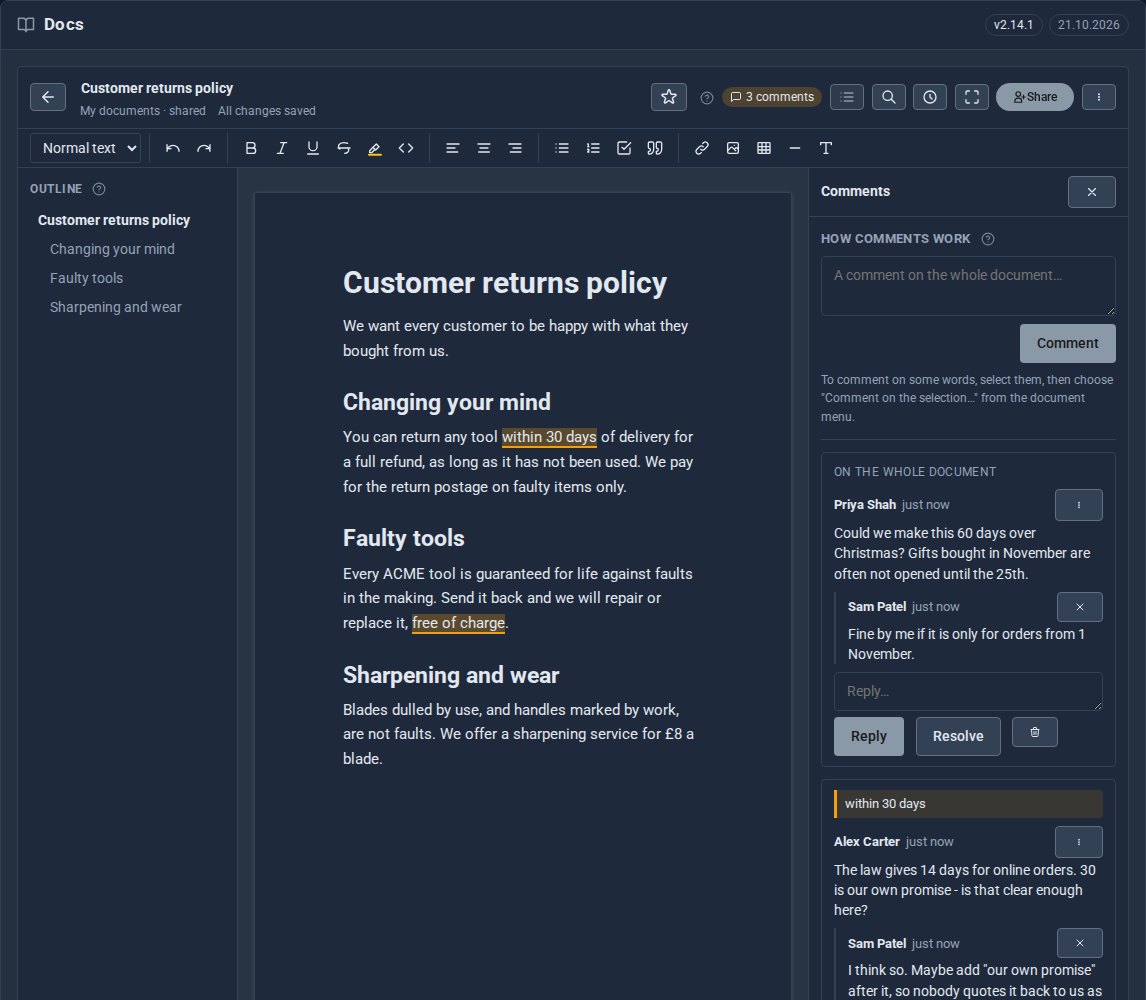
Highlight a few words and add a comment, or comment on the whole document. Colleagues reply in the thread, and you resolve it once it is settled, so the page stays clean.
4. Publish it as a Space
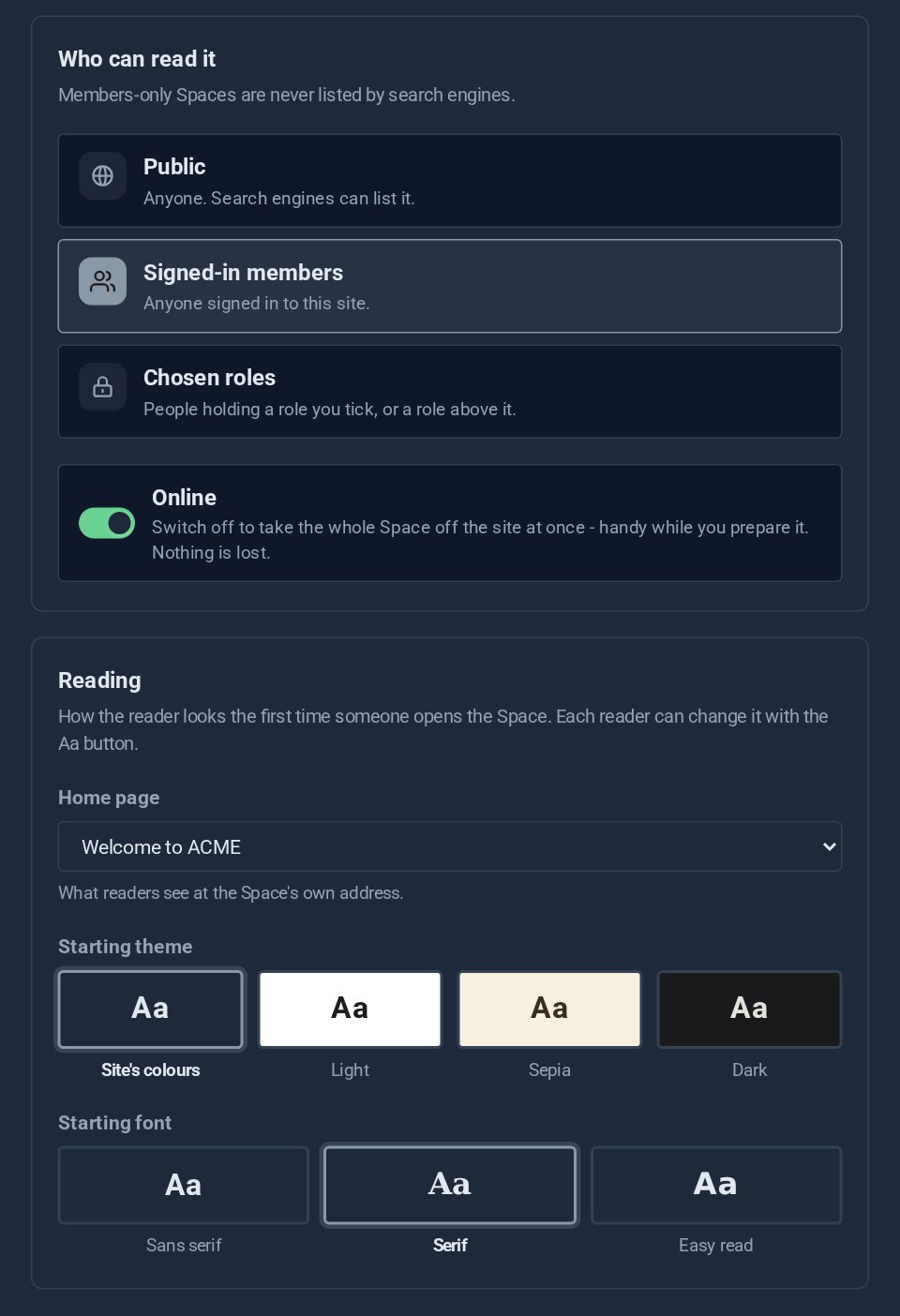
Turn the folder into a Space and choose who can read it. For a handbook, that is your signed-in members: your team, and nobody else. Pick a home page and how the reader looks the first time someone opens it.
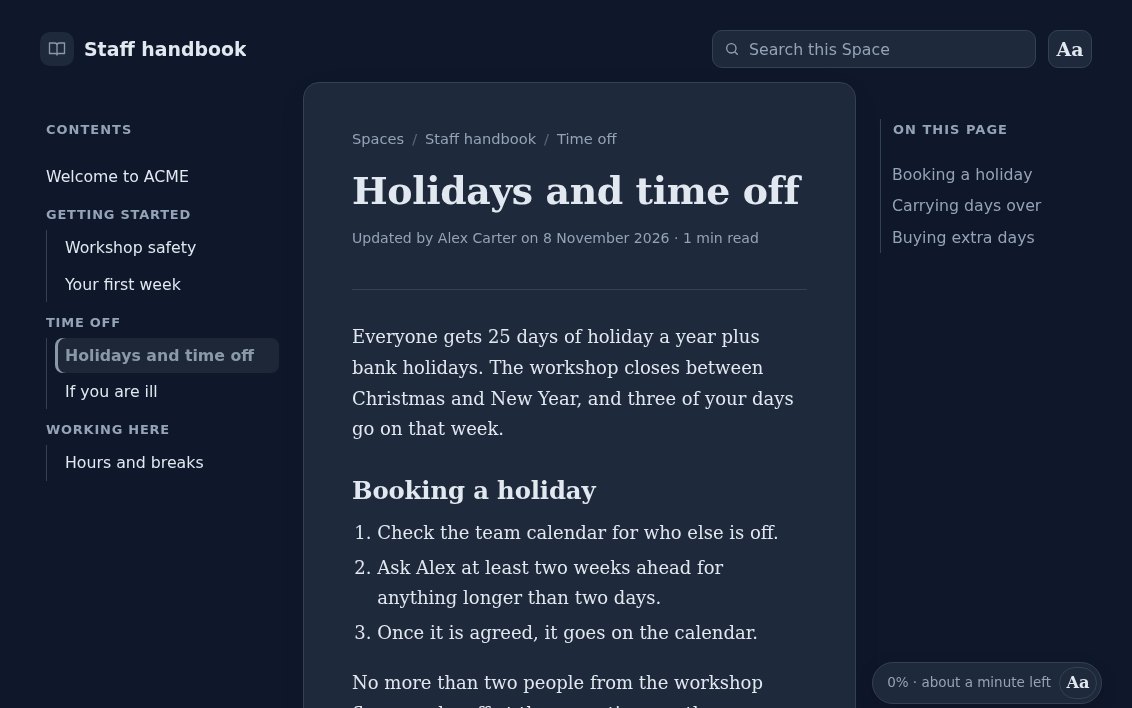
Your team gets a proper reader, with contents, search, "On this page" and their own choice of font and text size. It remembers where each person stopped.
5. Keep it up to date
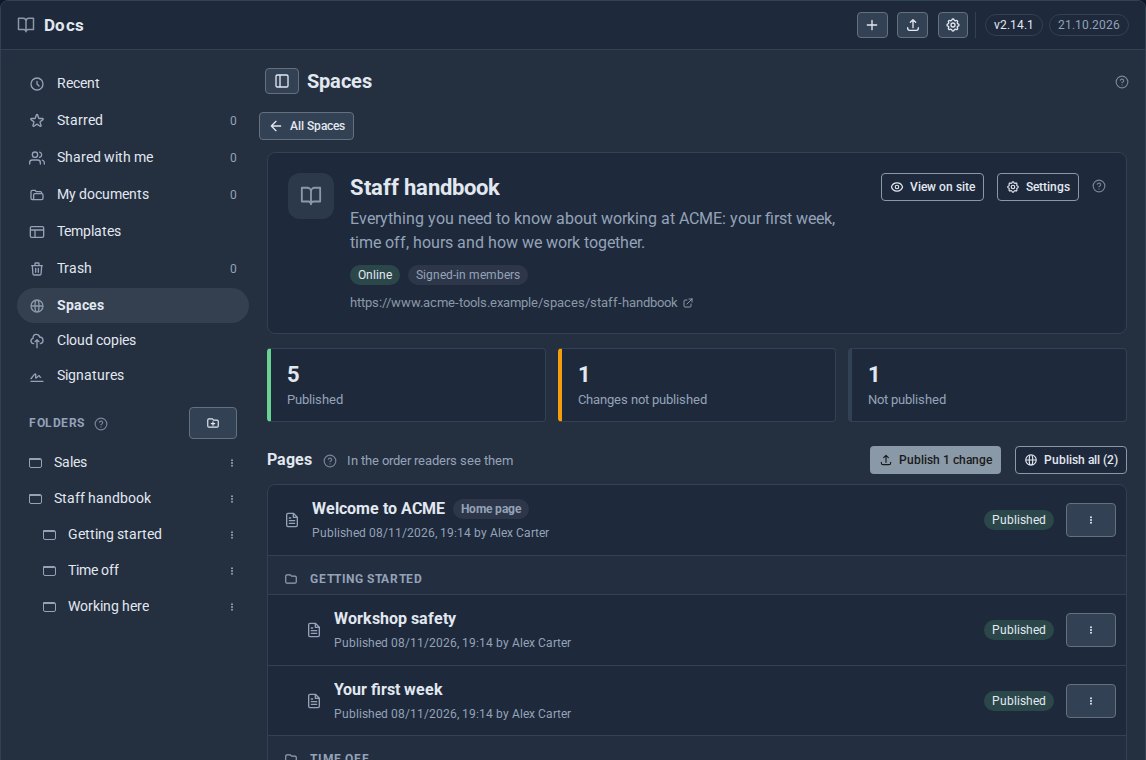
Edit a page in Docs and the Space shows you what has changed since it was last published. Publish one change, or everything, when you are ready. Your team always sees the version you have signed off.
If you want a copy outside your site as well, Docs Pro can keep one in your own cloud storage.
Quick checklist
- One short page per topic, in one folder.
- Colleagues suggest changes; you accept them.
- Settle questions in comments, then resolve them.
- Publish as a Space for signed-in members.
- Publish changes when you are happy with them.
Keep reading

What happens when you sign up for a Domma CMS site
From choosing a plan to your first sign-in: what signing up for a Domma CMS site looks like, what it costs each month, and how you change your plan or Tools later without ringing anyone.

How to run a project with your client in the loop
A step-by-step guide to Waypoint Pro: set up a board with your own workflow, plan sprints, start issues from templates, keep a private project for one client, and let them follow along without being able to change a thing.

How to get your news shared and posted without logging in to five networks
A step-by-step guide to Social Media Pro: make every page look right when it is shared, add share and follow buttons, and post to Bluesky, Mastodon, LinkedIn, Facebook Pages and X from one composer, now or scheduled.