How to sell downloads and licence keys from your shop
A step-by-step guide to selling files and software keys with Shopping Cart Pro: private download links, limits that stop sharing, a key for every sale, and what to do when a customer needs their links again.

Not everything you sell needs a parcel. Plans, guides, patterns, templates and software can all be sold from the same shop as your physical products, with Shopping Cart Pro. Customers pay at the same checkout and get their files straight away.
This guide sets up two digital products for our made-up company, ACME Ltd: a set of workbench plans and a licence for their shop-planning software.
1. Add the files to a product
Open the product and find its Downloads section. Click Upload a file, or pick one you have already uploaded. A file can be up to 500 MB.
If the product has options, choose which option gets each file. ACME's plans come in Metric and Imperial, so each option gets its own PDF, and the cutting list goes to Every option.
Under Delivery & tax, untick Needs delivering, as there is nothing to post.
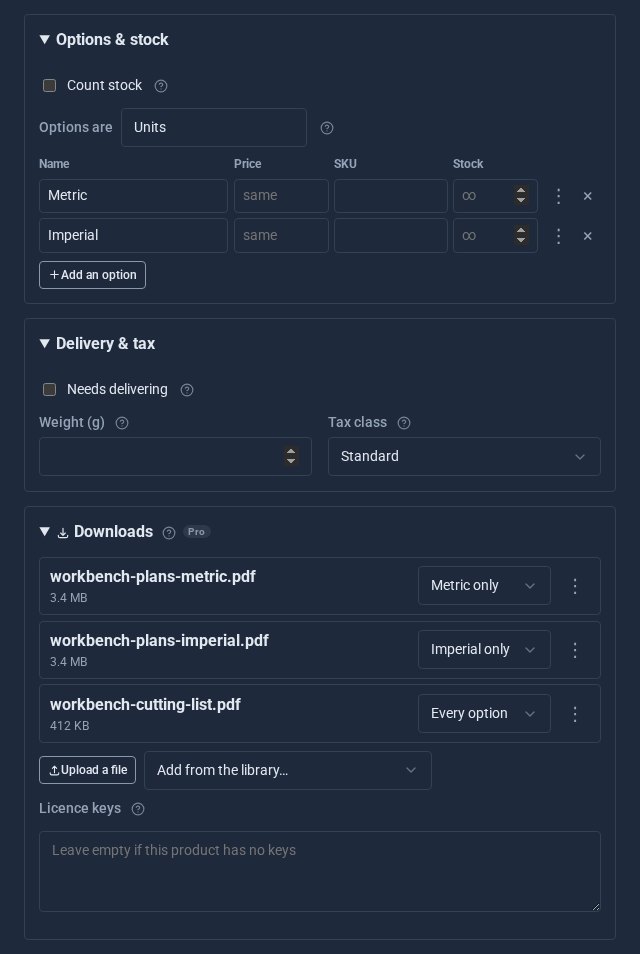
The files are kept privately on your server, never at a public address. The only way to download one is through the link an order is given.
2. Add licence keys, if you sell software
Paste your keys into Licence keys, one per line. Each sale takes the next key, and the customer sees it on their receipt and in their order confirmation.
A key that has been given out never goes back into the list, even if you paste it in again by mistake. If the keys run out, the order shows how many are owed. Add more, then click Give the owed keys on the order.
3. Choose how long links last
On the Downloads tab, set Links last (days) and Downloads per link. Unless you change them, a link works for 7 days and 5 downloads. That is plenty for a customer, and too few for a link shared on a forum. Set either to 0 for no limit.
4. What happens when someone buys
Once an order is paid:
- The receipt page shows a Download button for each file, and any keys.
- The order confirmation email lists them and links back to the receipt. It links to the receipt rather than the files because email security scanners open links, and a direct link could be used up before your customer clicks it.
- An order with nothing to post is marked fulfilled straight away, so there is nothing for you to do.
- An order paid offline gets its links when you mark it paid.
A refunded or cancelled order's links stop working.
5. When a customer needs their links again
It happens: the links have run out, or the email went to an old address. Open the order. Its Downloads section shows each link, how many times it has been used and until when it works, along with any keys.
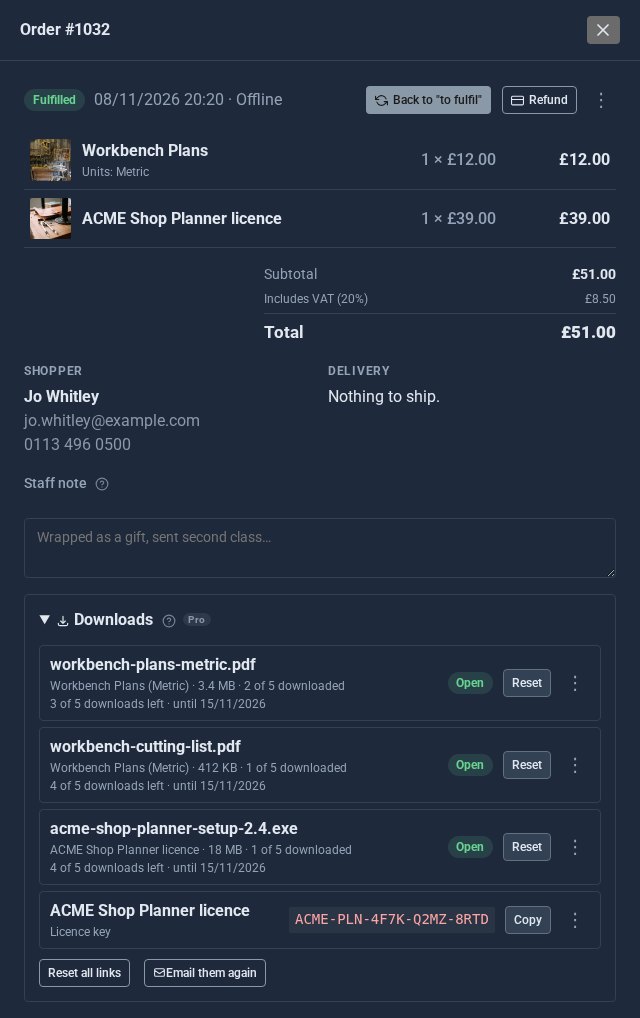
- Reset clears the count and starts the days again from today. Reset all links does every link at once.
- Email them again sends the customer the Your downloads email.
A download counts when it starts. If someone's connection drops halfway, picking it up again does not use another one.
6. Word the emails your way
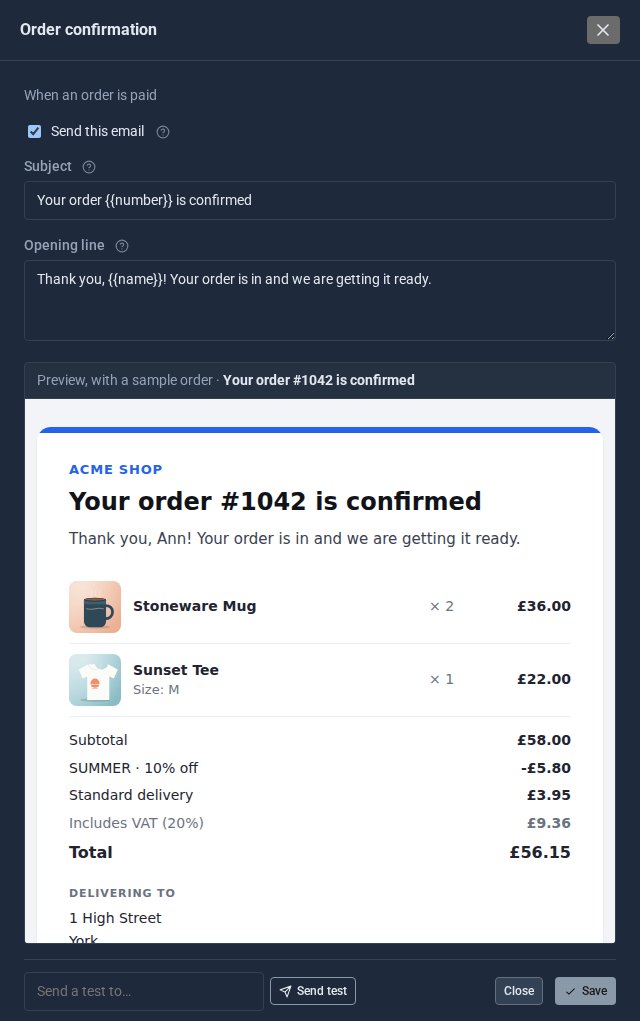
The Emails tab lists every email the shop sends, including Your downloads. Click one to change its subject and opening line, with a live preview beside it.
Quick checklist
- Upload the files to the product; match them to its options.
- Untick Needs delivering.
- Paste in licence keys, if you have them.
- Check the link limits on the Downloads tab.
- Buy one yourself to see what your customers see.
The screens above come from our made-up demo company, ACME Ltd.
Keep reading

Your first online order, from product to parcel
A step-by-step guide to selling with the free Shopping Cart: add a product with sizes and stock, set delivery, tax and payment, and follow one order from basket to tracking number.

What happens when you sign up for a Domma CMS site
From choosing a plan to your first sign-in: what signing up for a Domma CMS site looks like, what it costs each month, and how you change your plan or Tools later without ringing anyone.

How to run a project with your client in the loop
A step-by-step guide to Waypoint Pro: set up a board with your own workflow, plan sprints, start issues from templates, keep a private project for one client, and let them follow along without being able to change a thing.