How to get your news shared and posted without logging in to five networks
A step-by-step guide to Social Media Pro: make every page look right when it is shared, add share and follow buttons, and post to Bluesky, Mastodon, LinkedIn, Facebook Pages and X from one composer, now or scheduled.

A new page goes live, and then the real work starts: check how it looks when shared, write five versions of the same post, log in to five networks, and remember to do it all again next week. Social Media Pro does it from your site's admin, next to the page itself.
This guide follows our made-up company, ACME Ltd, promoting its tool hire service and weekend workshops.
1. Make every page look right when it is shared
When someone shares a link, the network shows a card: a picture, a title and a line of text. Open Share cards to see every page, and whether its card comes from your SEO settings or was changed here.
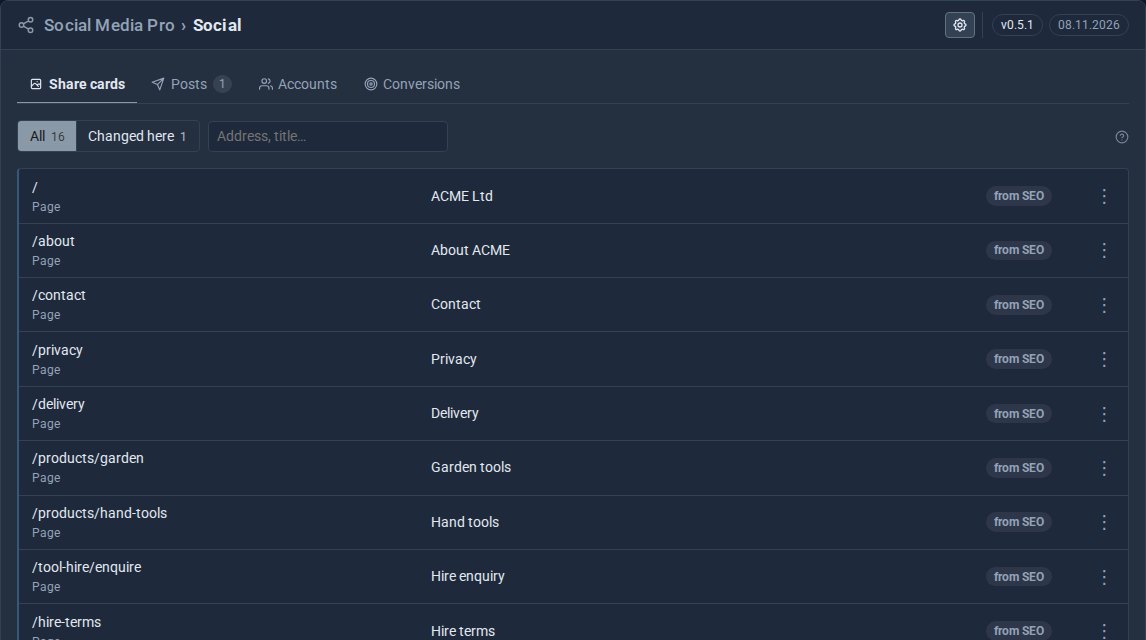
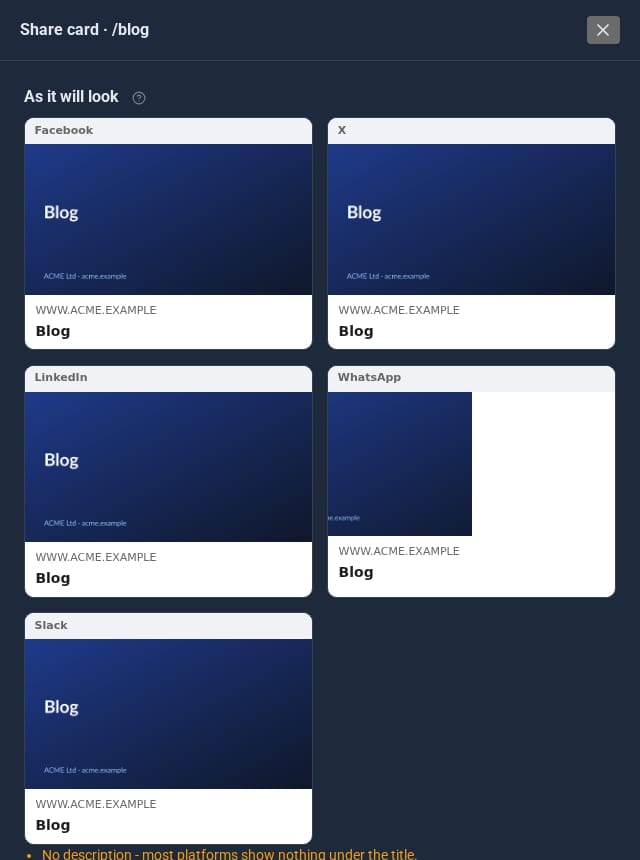
Open a page to edit its card and preview it as Facebook, X, LinkedIn and WhatsApp will show it.
2. Never share a page with no picture
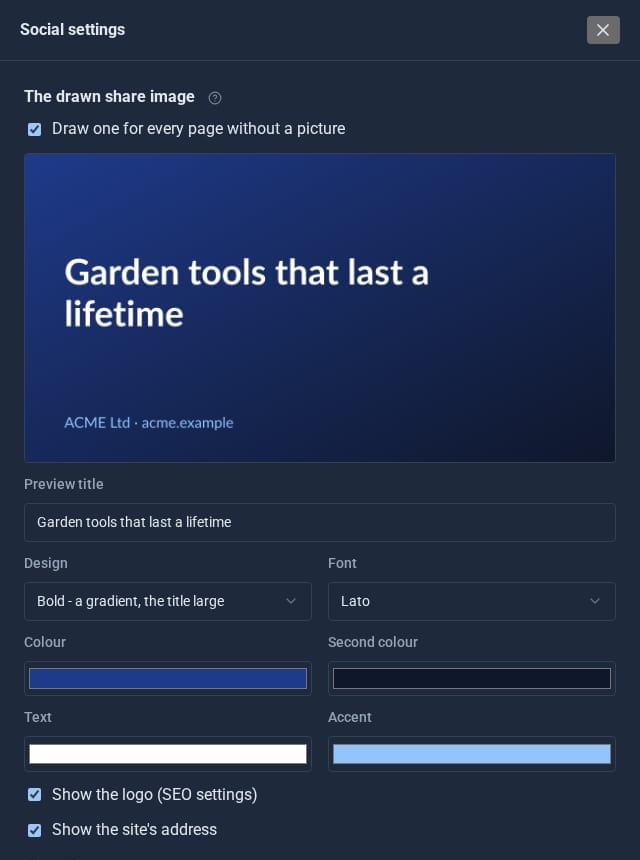
A page without its own picture gets a share image drawn for it, in your colours and font, with the page's title. Set the design once.
3. Add share and follow buttons
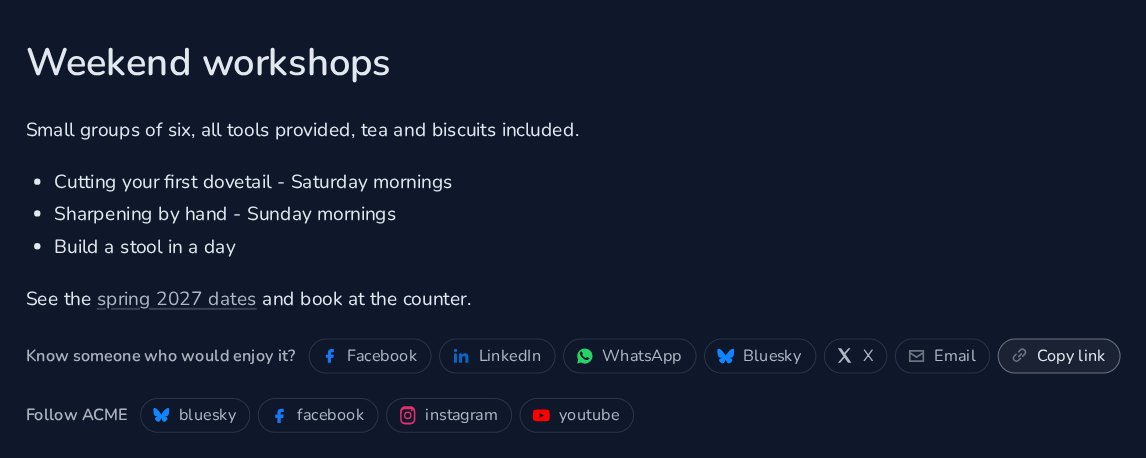
Put share buttons on the pages people should pass on, and follow links to your profiles. Visitors share straight to each network, or copy the link.
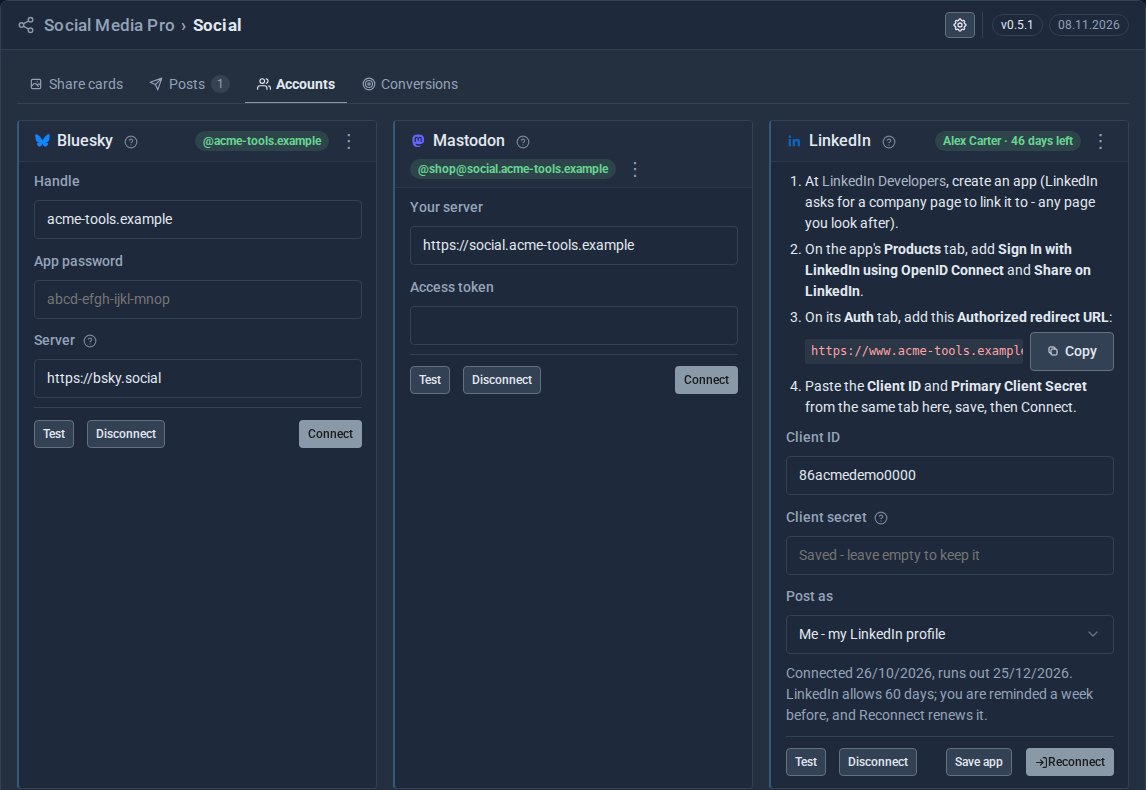
4. Connect your accounts
Under Accounts, connect the networks you use: Bluesky, Mastodon, LinkedIn (as yourself or a company page), Facebook Pages and X. Each card shows when it was connected, and when a sign-in will need renewing.
5. Write once, post everywhere
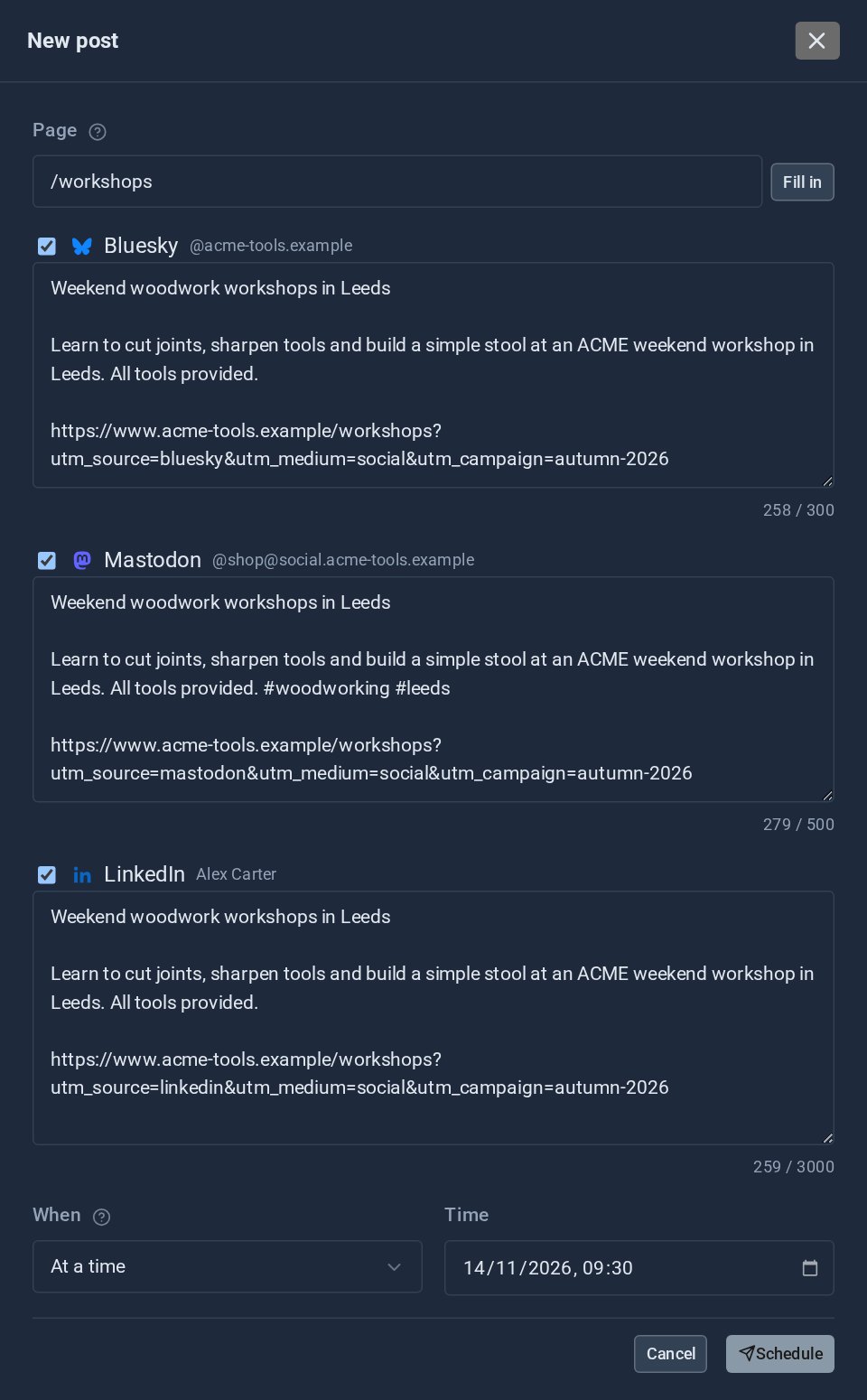
The composer starts from the page you are promoting and gives each network its own text, with a character count against that network's limit. Post now, set a time, or keep it as a draft.
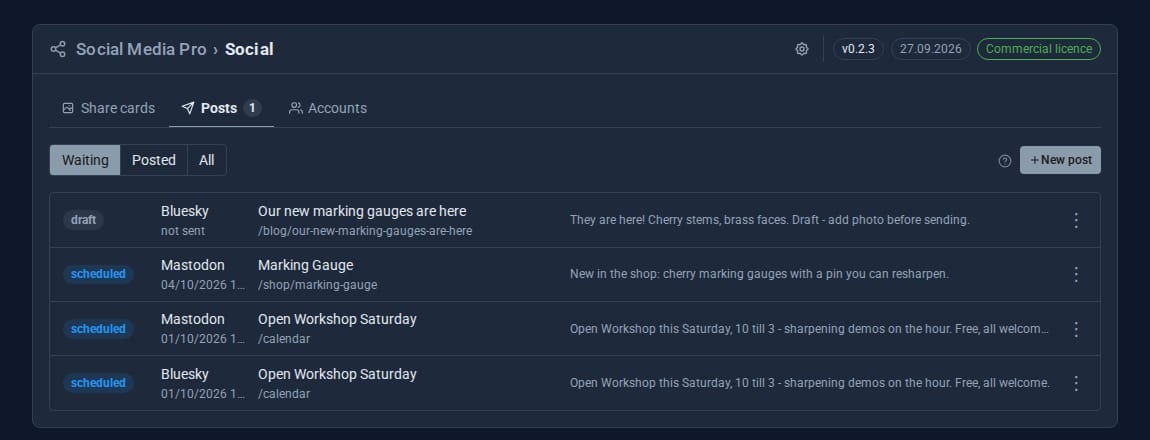
Every post is listed under Posts: scheduled, drafts and posted. Open a scheduled one to change its words or its time.
6. Let new pages draft their own posts
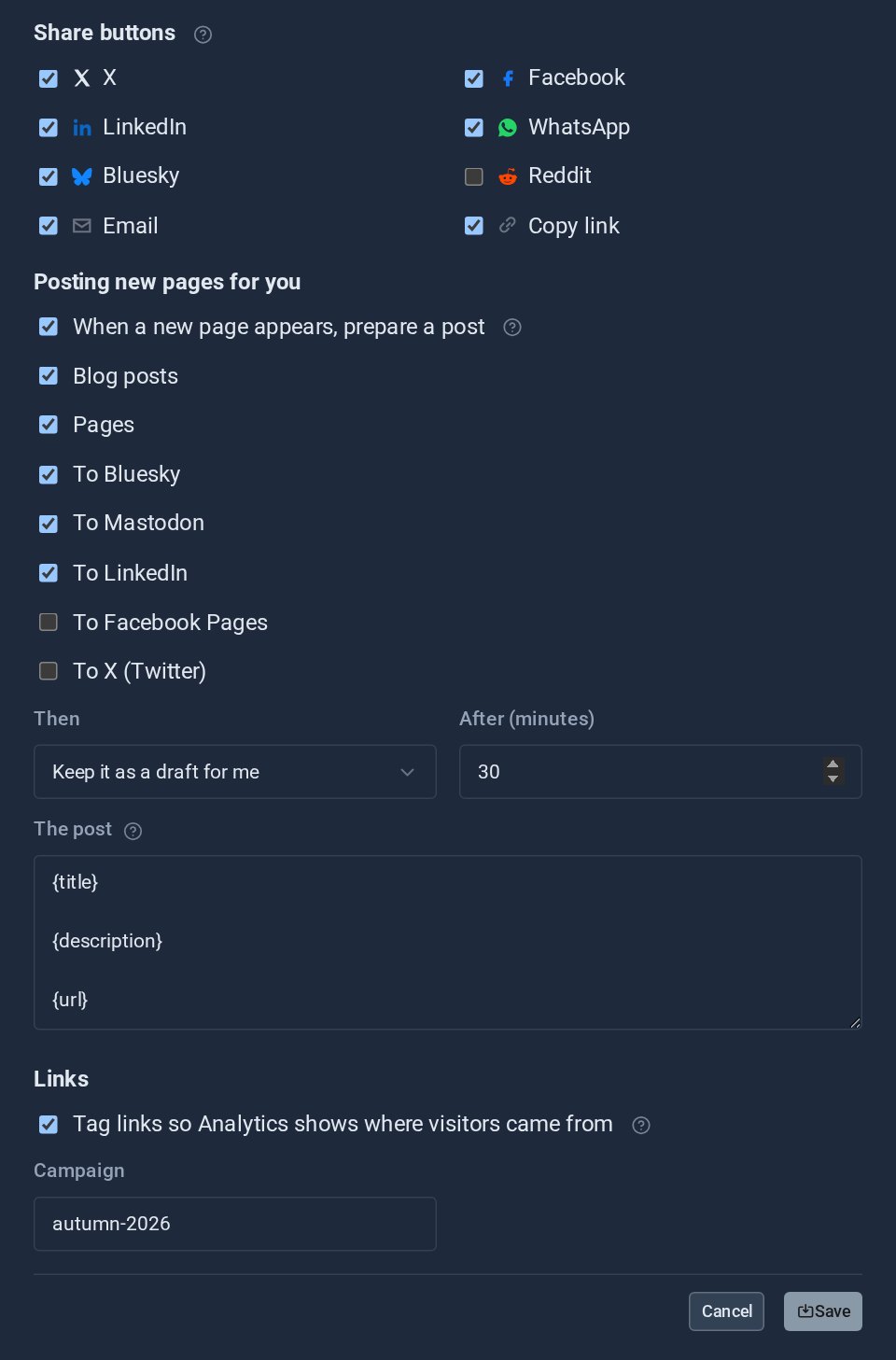
In the settings, new blog posts and pages can be drafted for you as you publish them, ready to check and send. You can also tag the links in your posts so Analytics shows which network sent each visitor.
7. Running LinkedIn ads? See which ones bring enquiries
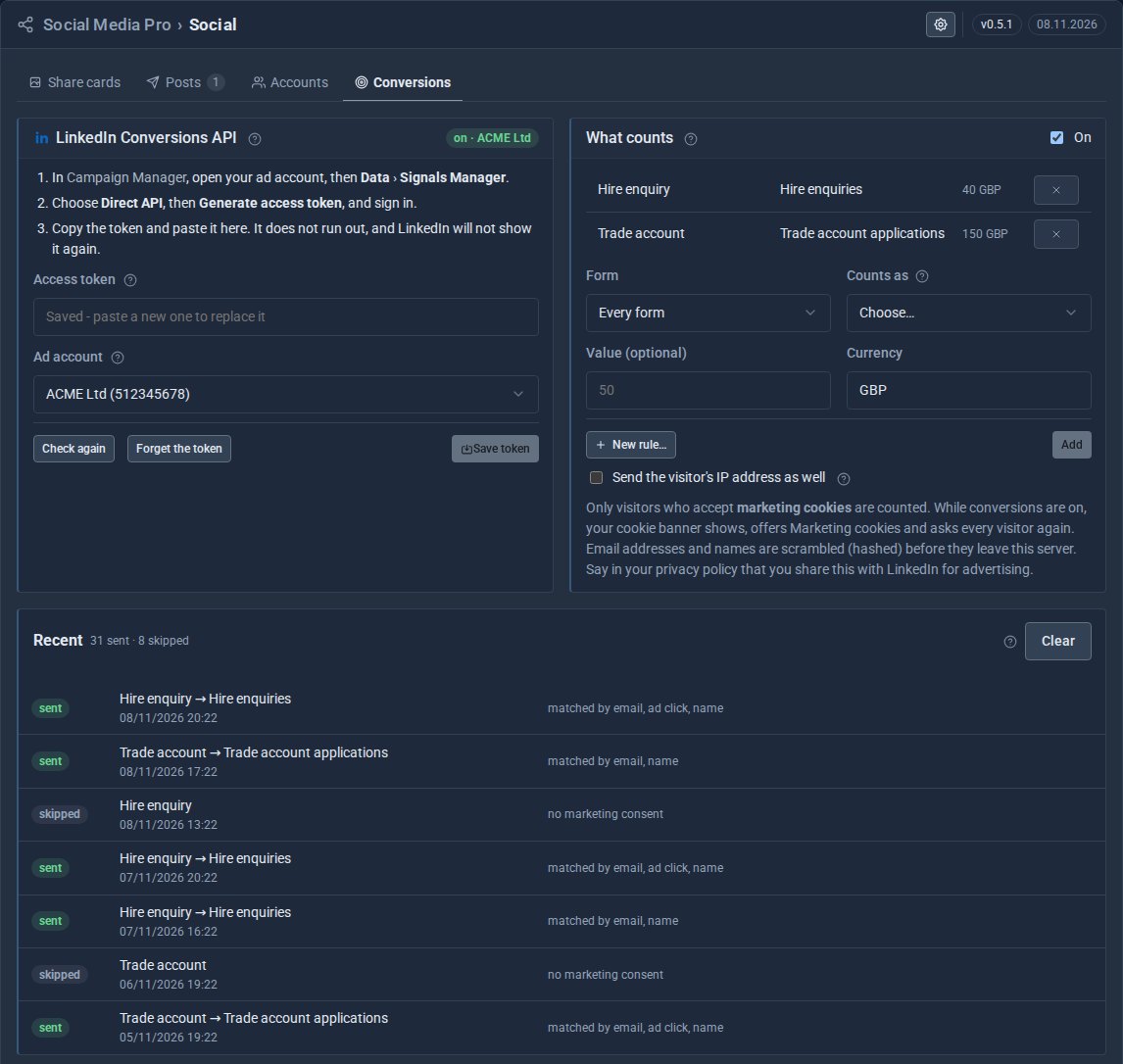
Switch on Conversions and choose the forms that count, such as a hire enquiry. When a visitor who came from your ad fills one in, LinkedIn is told, but only for visitors who accepted marketing cookies.
Quick checklist
- Check the share card of your five most important pages.
- Set the drawn share image in your colours.
- Add share buttons where people should pass a page on.
- Connect your accounts.
- Schedule next week's posts in one sitting.
Social Media Pro comes included with SEO Pro.
The screens above come from our made-up demo company, ACME Ltd.
Keep reading

What happens when you sign up for a Domma CMS site
From choosing a plan to your first sign-in: what signing up for a Domma CMS site looks like, what it costs each month, and how you change your plan or Tools later without ringing anyone.

How to run a project with your client in the loop
A step-by-step guide to Waypoint Pro: set up a board with your own workflow, plan sprints, start issues from templates, keep a private project for one client, and let them follow along without being able to change a thing.

How to welcome a new starter without the paperwork chase
A step-by-step guide to Onboard Pro: design a new starter's journey once, send each person their own link, get the contract signed and the forms filled in, and see at a glance who needs a nudge.