How to run a project with your client in the loop
A step-by-step guide to Waypoint Pro: set up a board with your own workflow, plan sprints, start issues from templates, keep a private project for one client, and let them follow along without being able to change a thing.

Clients ask "where are we with it?" because they cannot see. A separate project tool means another login for them and another subscription for you. Waypoint Pro keeps your projects inside your own site, and lets a client see their project, and only theirs, without being able to change a thing.
This guide follows our made-up company, ACME Ltd, running its website and shop alongside a printed catalogue with an outside printer.
1. Start from Home
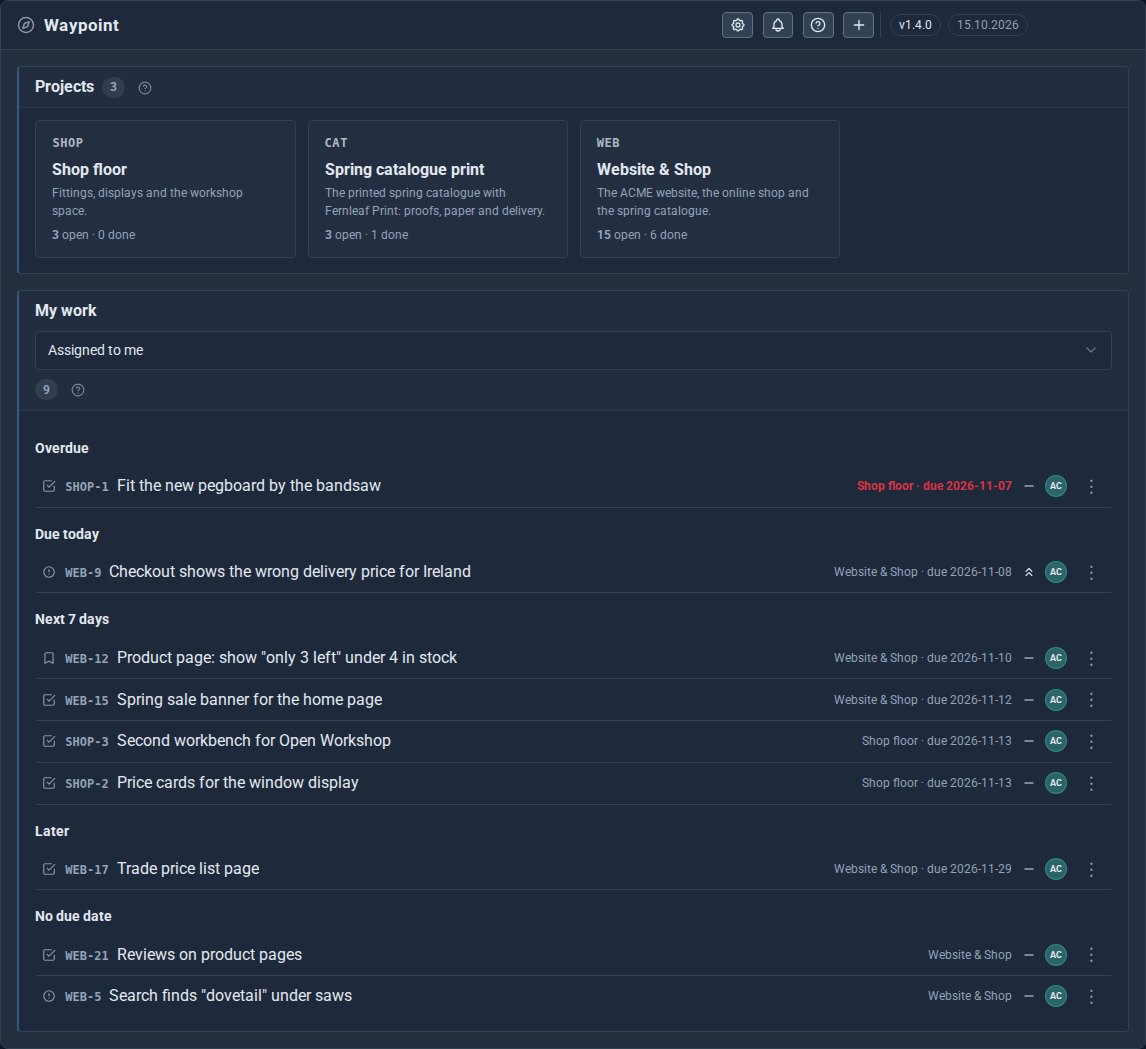
Home shows every project and My work: what is overdue, due today, in the next 7 days, later, and with no date at all.
2. Shape the workflow
In Project Settings, name your statuses, then tick which moves are allowed between them. If nothing should jump from To do straight to Done, it cannot. Set the issue types and priorities you use, too.
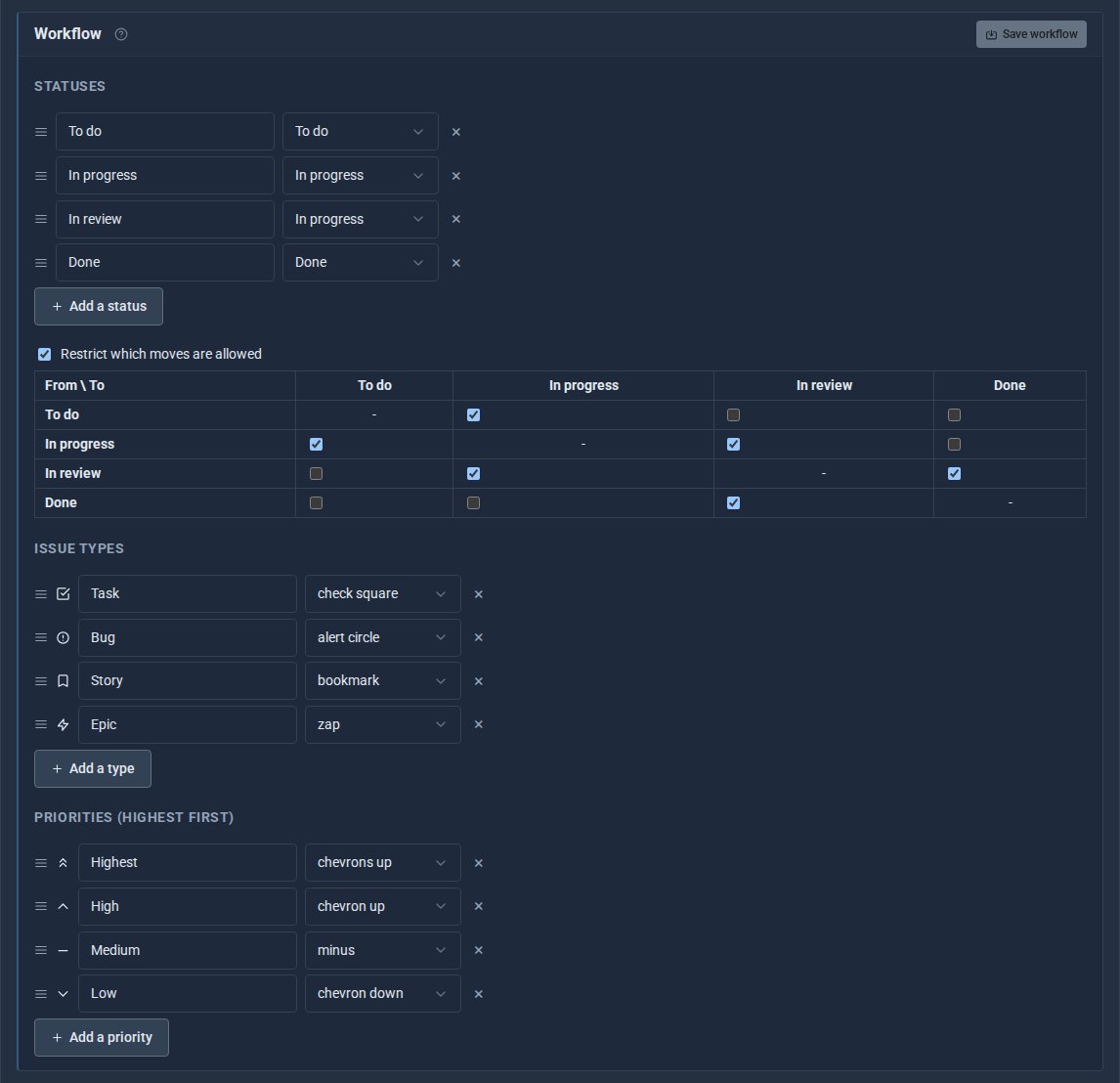
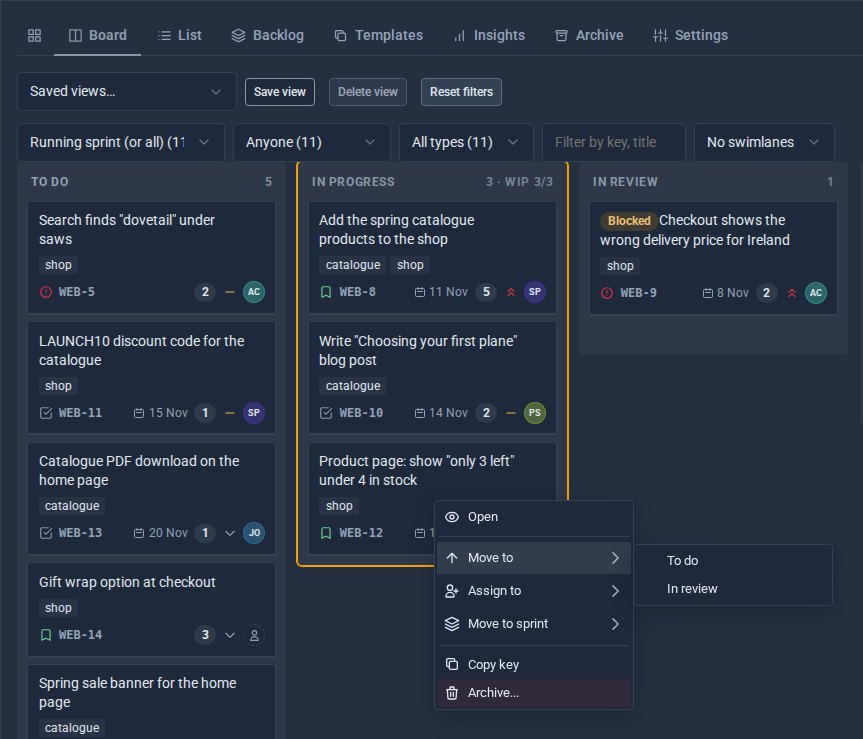
The board then only offers the moves your workflow allows.
3. Work on the board
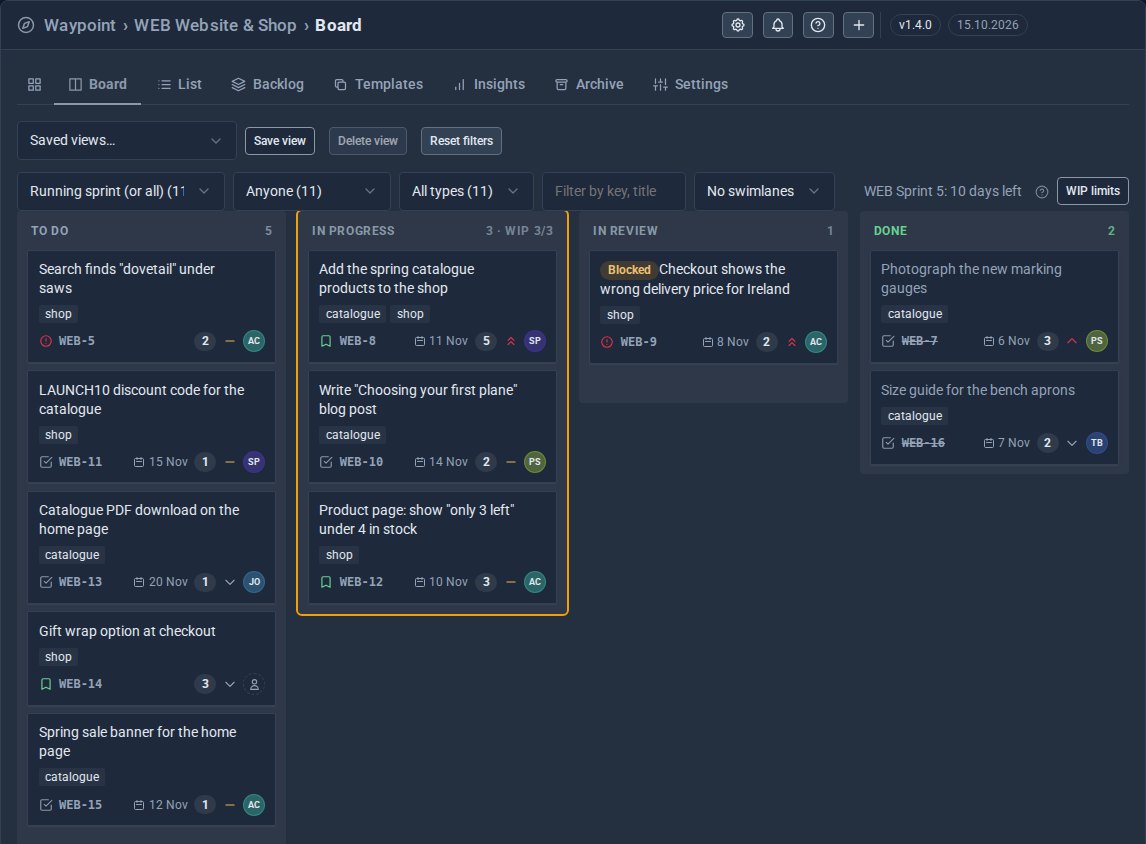
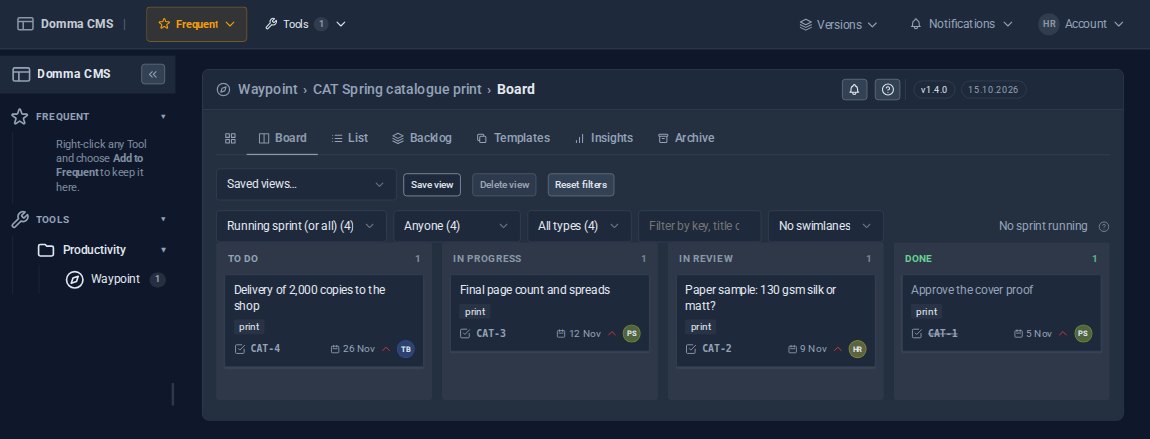
Drag cards across the board. Give a column a limit, and the board tells you when In progress is full, so work gets finished before more is started. A blocked issue stands out.
4. Start issues from templates
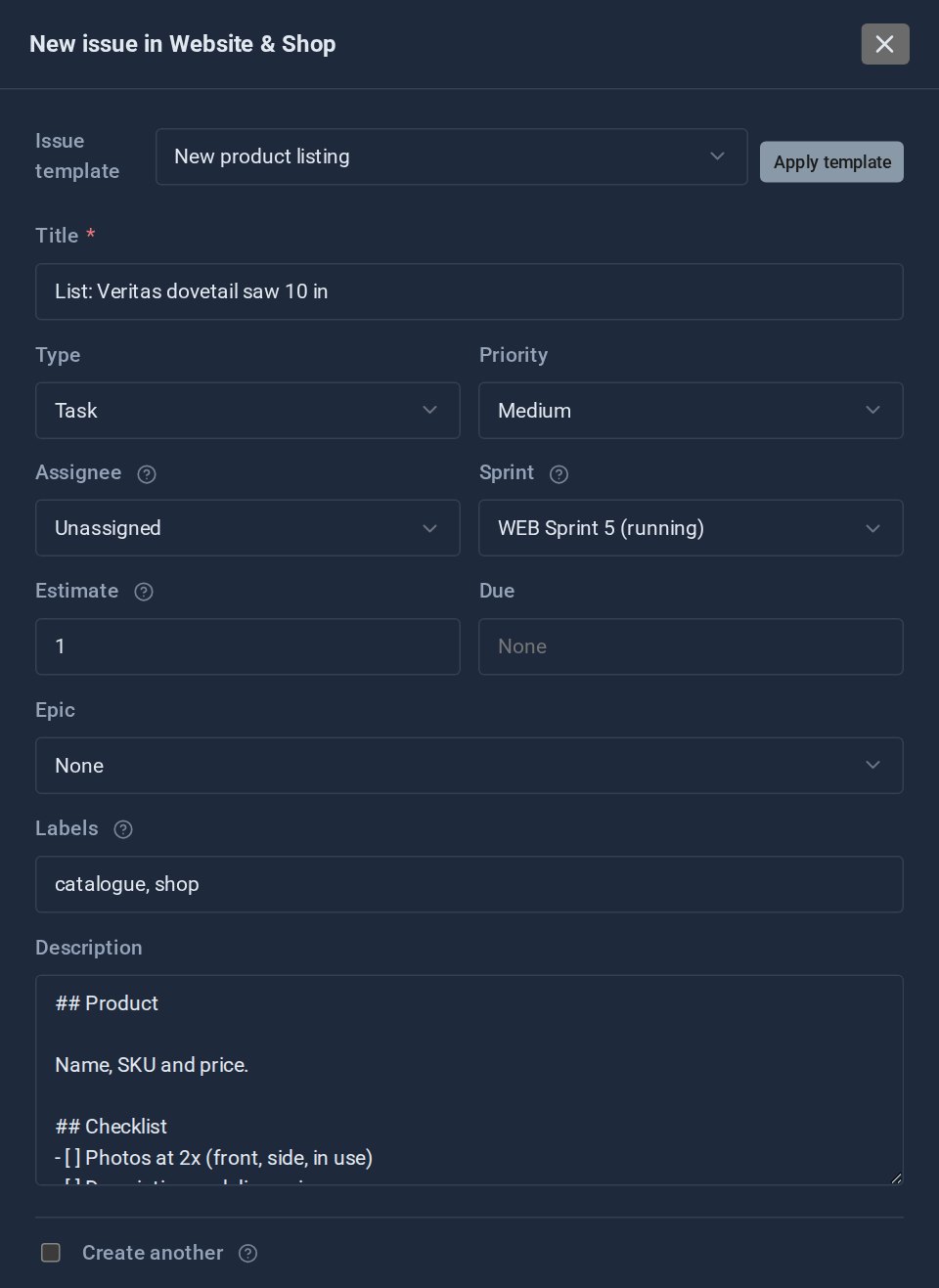
Work you repeat, such as a new product listing, deserves a template: the type, priority, labels and a checklist in the description, filled in for you.
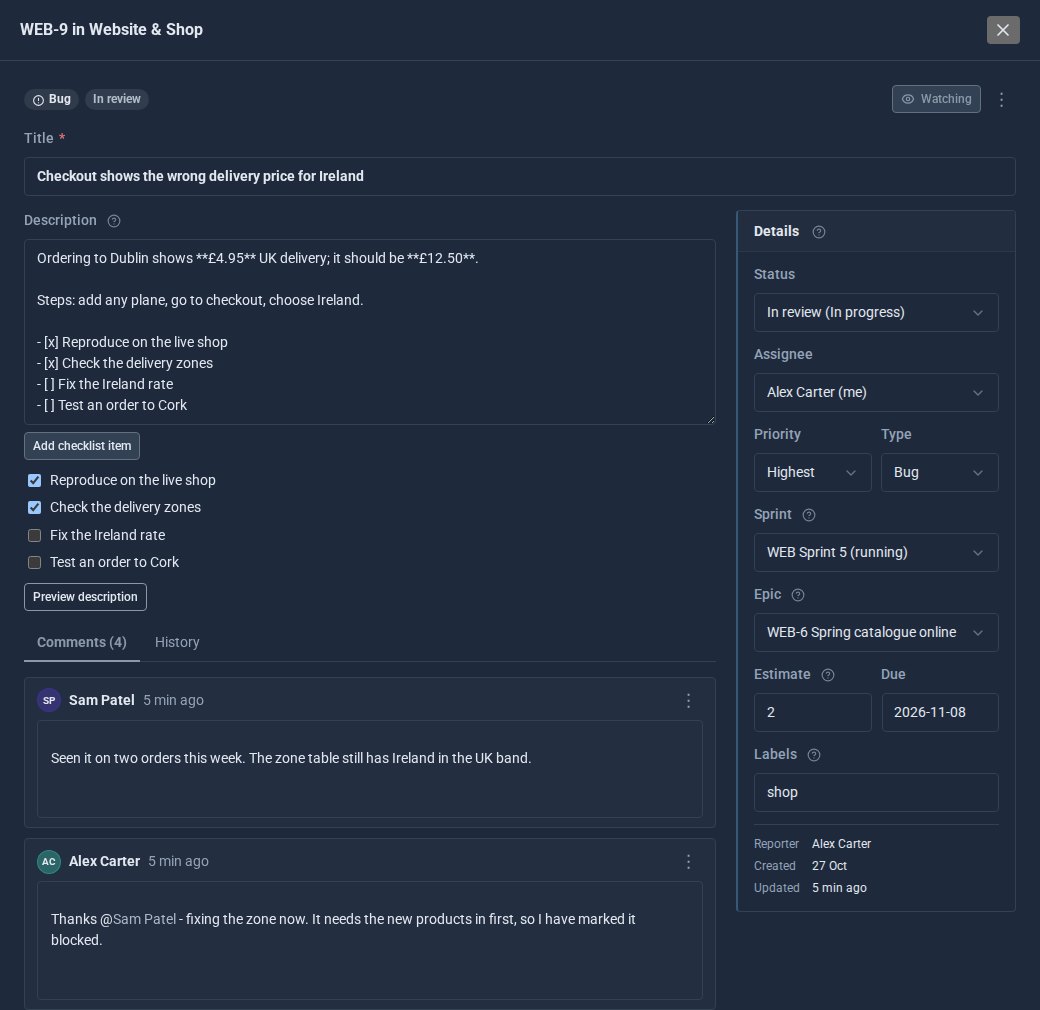
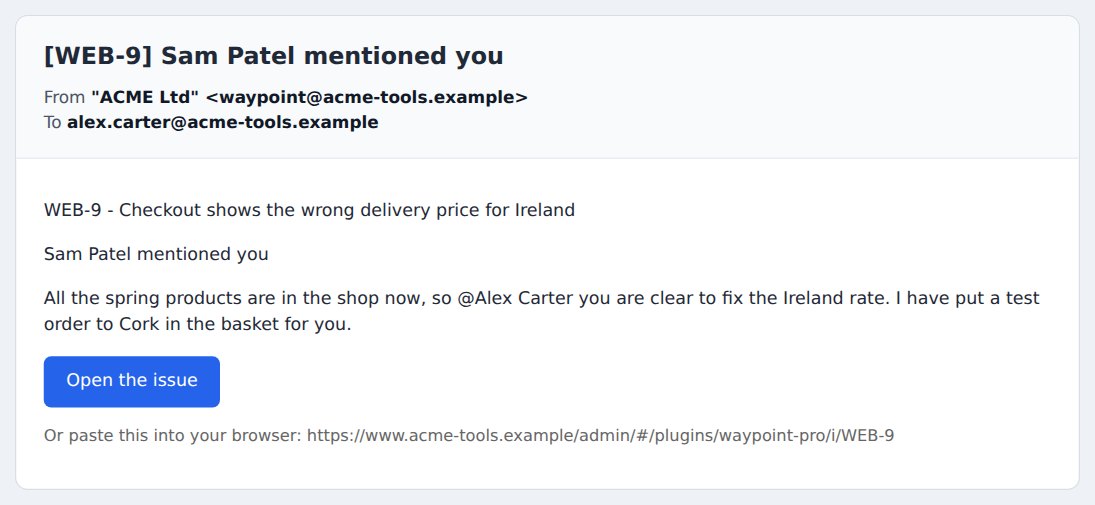
Each issue holds its description, checklist, details and the conversation about it. Mention a colleague and they are told by email.
5. Plan in sprints
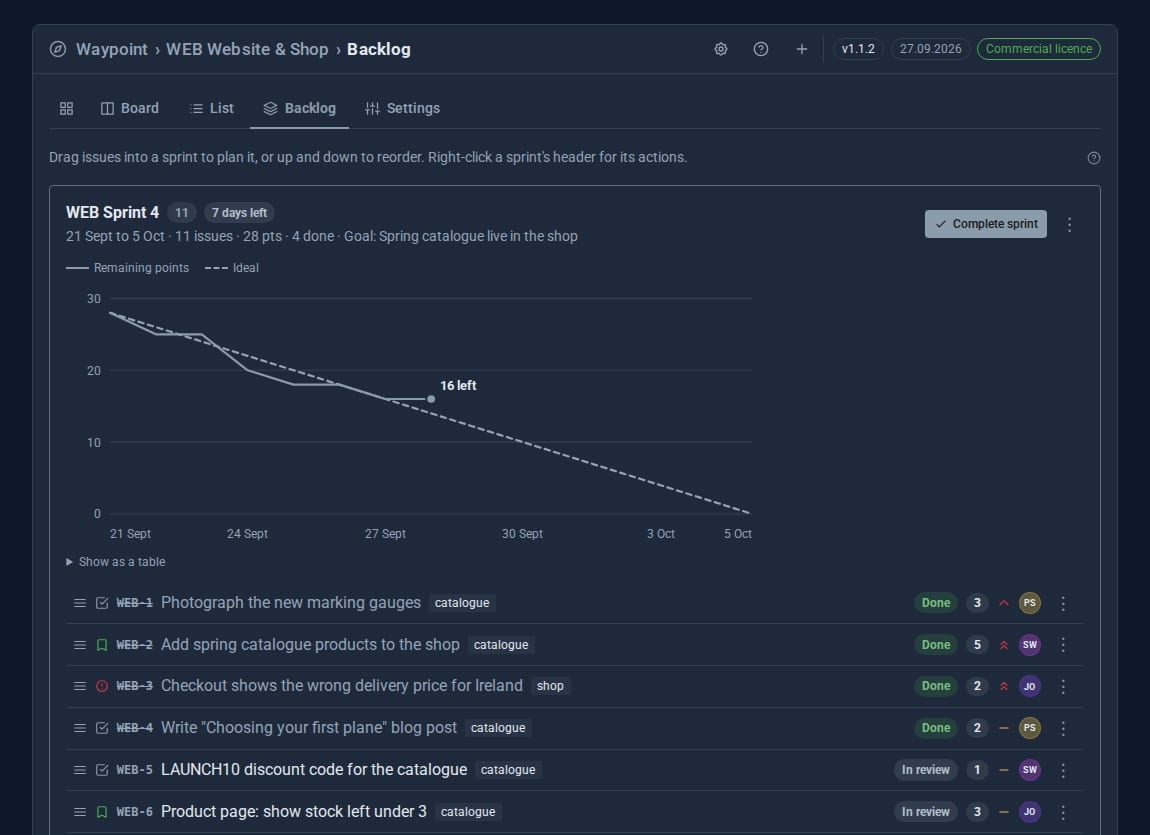
If you work in sprints, the backlog shows the running one with its goal and a burndown chart, and anything unfinished carries over to the next.
6. Keep a client's project private, and let them watch
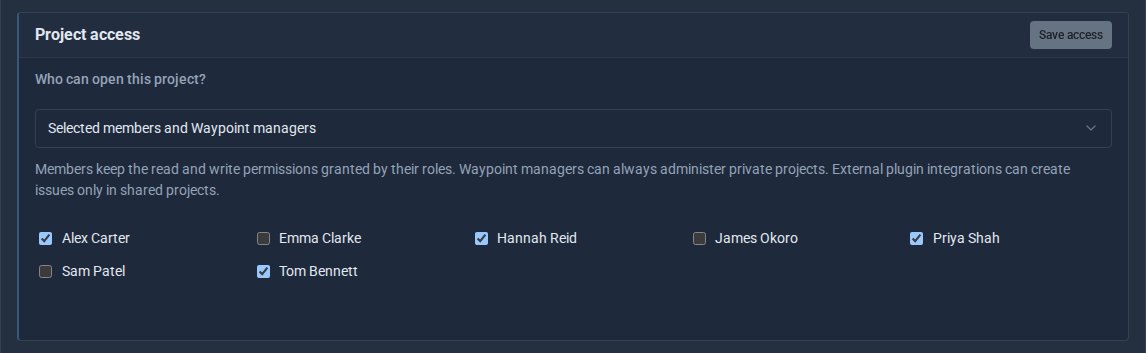
Set a project's access to selected members, and only those people see it.
Give your client an account with a see-only role, and that is all they get: Waypoint in their sidebar, their own project, and no buttons to create or change anything.
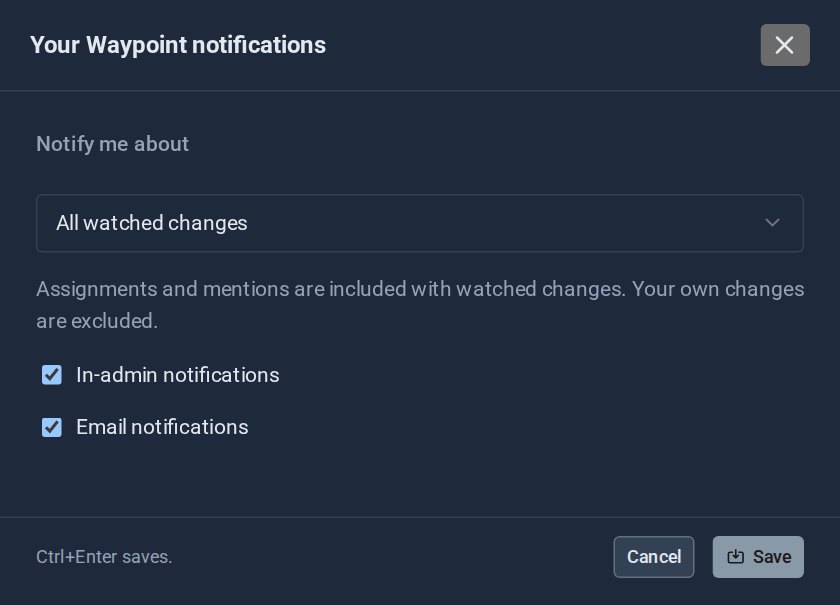
7. Hear about what matters
Each person chooses what they are told about, in the admin and by email.
And if you close an issue with changes unsaved, Waypoint offers them back next time, and warns you if someone else has changed the issue since.
Quick checklist
- Set your statuses and the moves allowed between them.
- Put a limit on In progress.
- Make templates for the work you repeat.
- Make each client's project private to its members.
- Give the client a see-only account.
The screens above come from our made-up demo company, ACME Ltd.
Keep reading

What happens when you sign up for a Domma CMS site
From choosing a plan to your first sign-in: what signing up for a Domma CMS site looks like, what it costs each month, and how you change your plan or Tools later without ringing anyone.

How to get your news shared and posted without logging in to five networks
A step-by-step guide to Social Media Pro: make every page look right when it is shared, add share and follow buttons, and post to Bluesky, Mastodon, LinkedIn, Facebook Pages and X from one composer, now or scheduled.

How to welcome a new starter without the paperwork chase
A step-by-step guide to Onboard Pro: design a new starter's journey once, send each person their own link, get the contract signed and the forms filled in, and see at a glance who needs a nudge.