What happens when you sign up for a Domma CMS site
From choosing a plan to your first sign-in: what signing up for a Domma CMS site looks like, what it costs each month, and how you change your plan or Tools later without ringing anyone.

Signing up for a website should not mean a sales call. This walks through every step of signing up for a Domma CMS site, so you know exactly what you will see and what you will pay before you start.
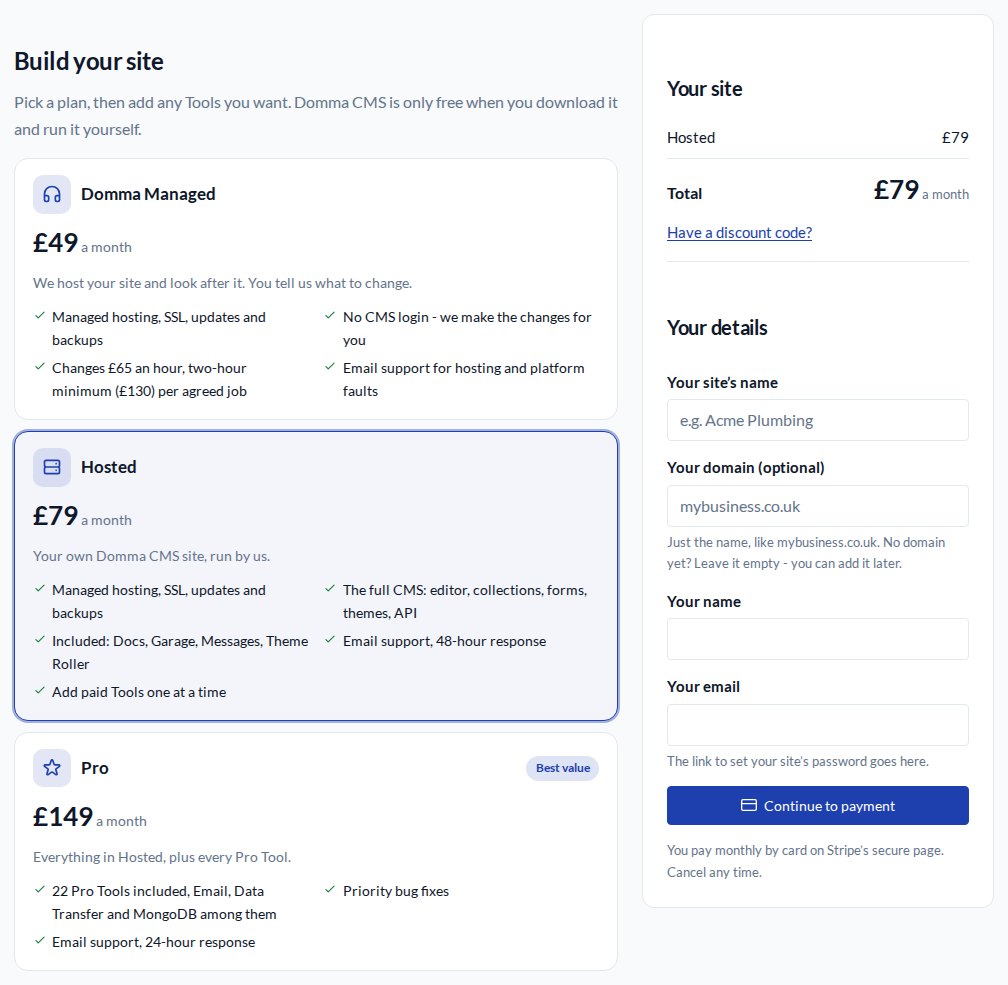
1. Choose a plan
There are three:
- Domma Managed - we host your site and look after it, and you tell us what to change.
- Hosted - your own Domma CMS site, run by us. You get the full CMS, plus Docs, Garage, Messages and Theme Roller.
- Pro - Hosted plus every Pro Tool.
Your monthly bill sits beside the plans and updates as you choose.
2. Add the Tools you want
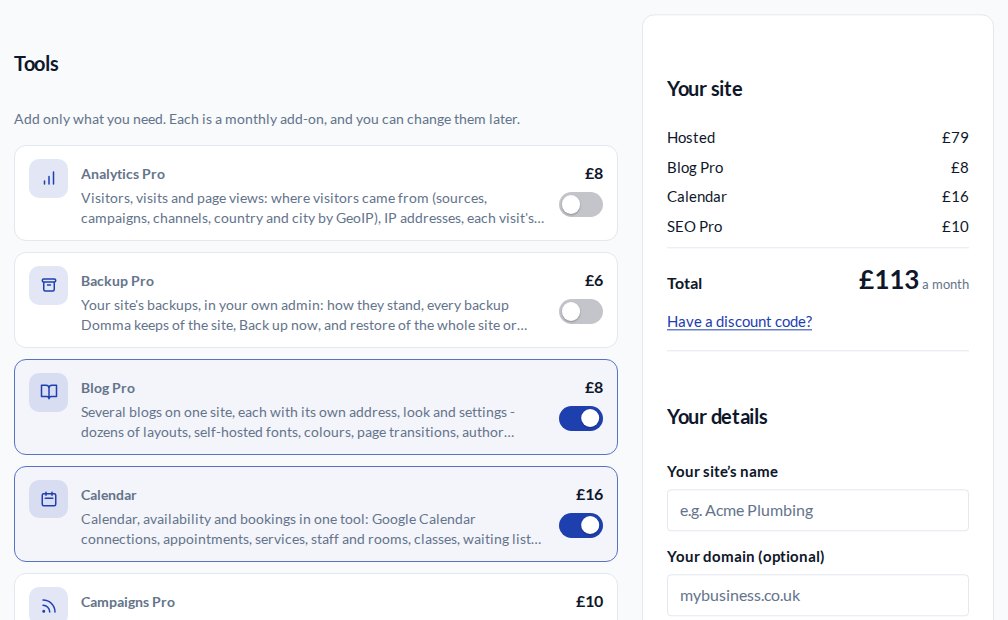
On Hosted, switch on any paid Tool you need: Blog Pro, Calendar, SEO Pro, and the rest. Each one shows its monthly price, and the bill adds them up as you go, so there are no surprises later.
3. Have a discount code?
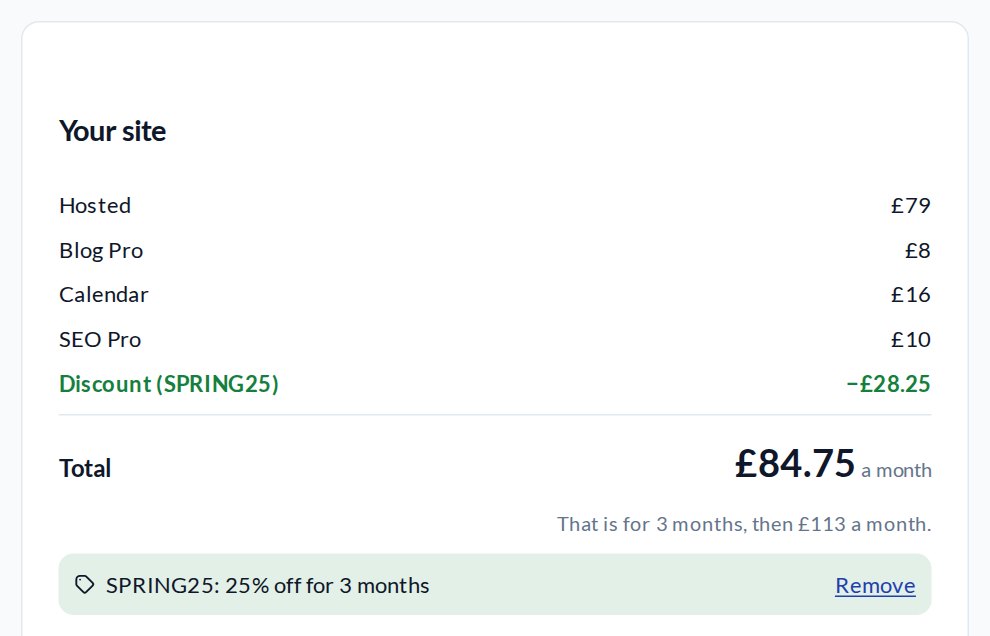
Type it under the bill and press Apply. You see the lower price, and how long it lasts, before you pay.
4. Your details, then payment
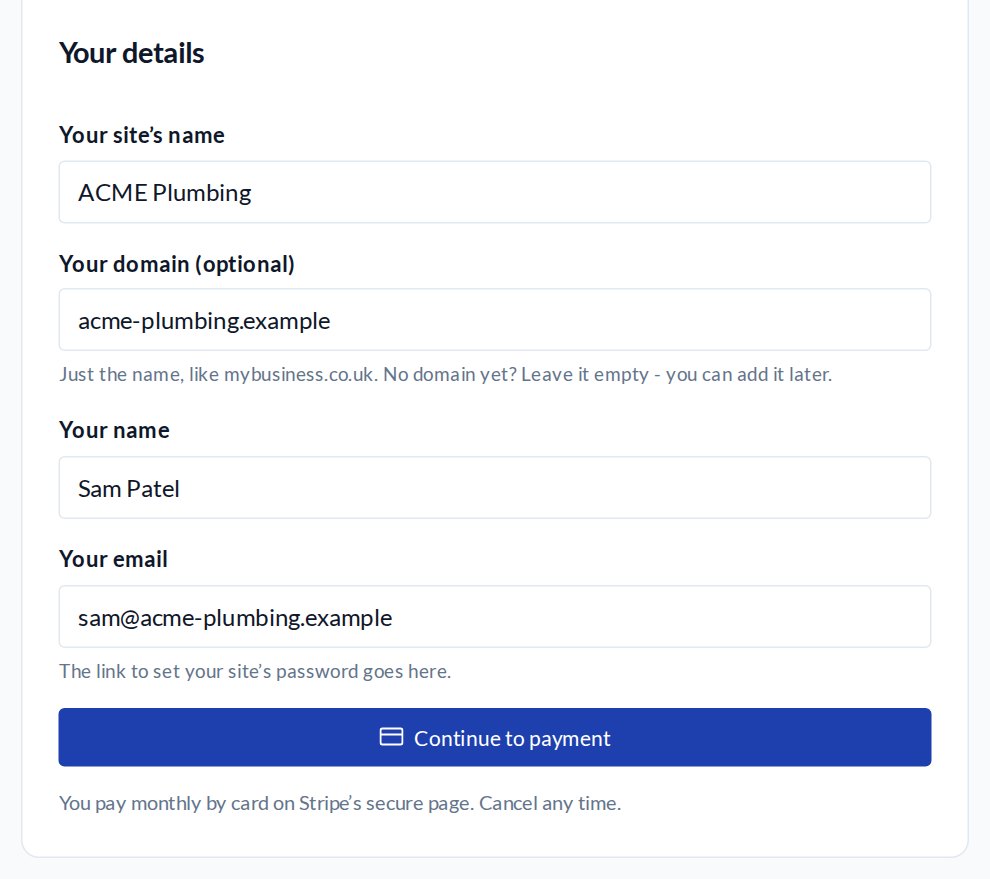
Give your site a name, add your own domain if you have one, and enter your name and email. Then Continue to payment takes you to Stripe's secure page to pay by card. You pay monthly, and you can cancel at any time.
5. Your site is ready
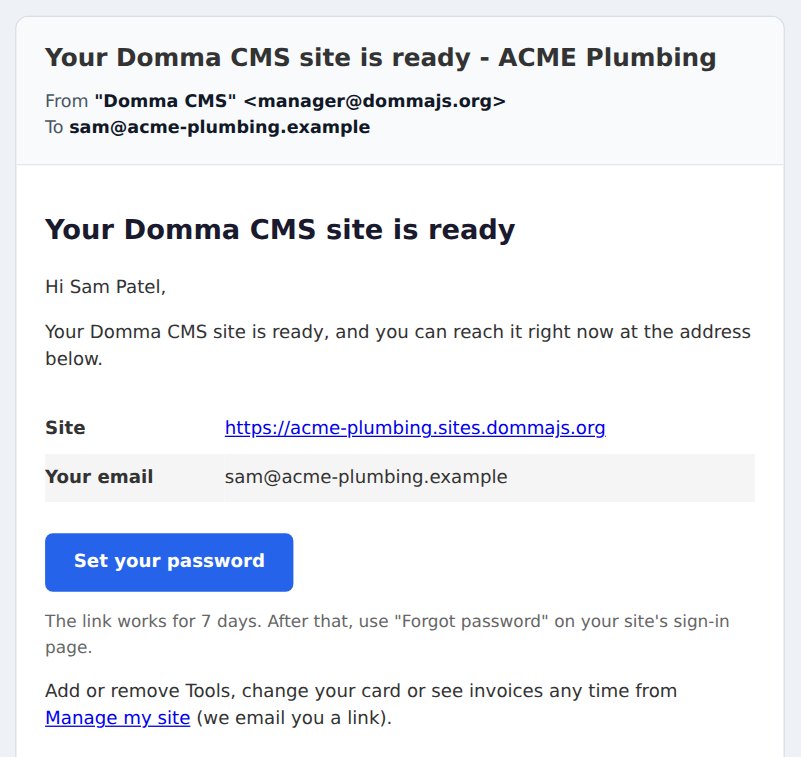
Your site is set up for you, with your Tools switched on. An email tells you it is ready, with a Set your password button that works for 7 days. There is no account to make before you pay, and no password to remember until you choose one.
6. Change anything later, yourself
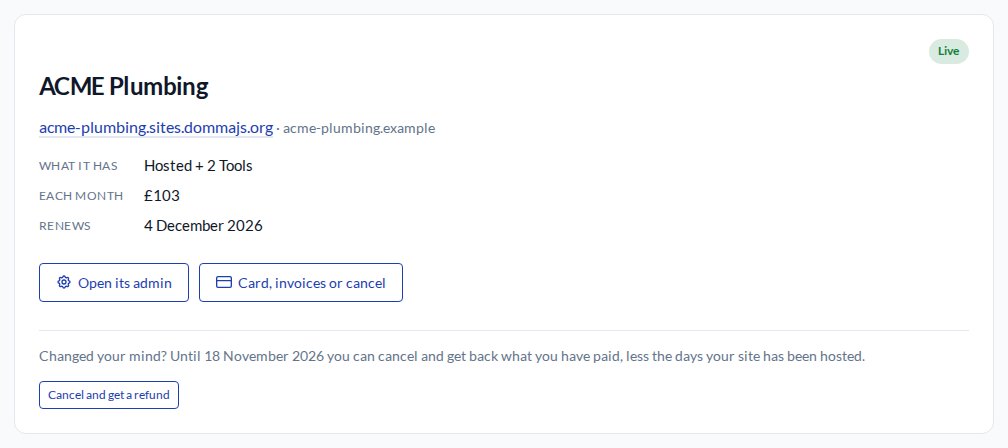
Manage my site, from a link we email you, shows what your site has, what it costs each month and when it renews. From there you can open your admin, update your card, see your invoices, or cancel.
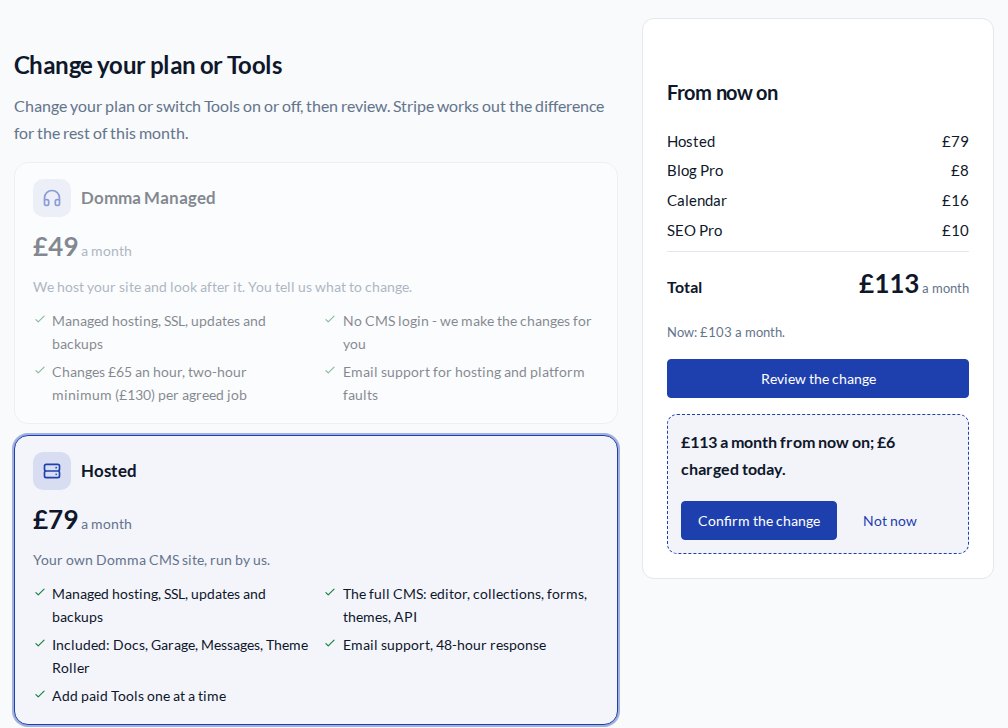
To add a Tool or change plan, pick what you want and Review the change. You see the new monthly total and anything charged today before you confirm.
In short
- Choose a plan.
- Add the Tools you need, and watch the bill.
- Apply a discount code if you have one.
- Pay monthly by card.
- Set your password from the email.
- Change plan or Tools yourself, any time.
See the plans and prices, or get started.
The screens above use a made-up customer.
Keep reading

How to run a project with your client in the loop
A step-by-step guide to Waypoint Pro: set up a board with your own workflow, plan sprints, start issues from templates, keep a private project for one client, and let them follow along without being able to change a thing.

How to get your news shared and posted without logging in to five networks
A step-by-step guide to Social Media Pro: make every page look right when it is shared, add share and follow buttons, and post to Bluesky, Mastodon, LinkedIn, Facebook Pages and X from one composer, now or scheduled.

How to welcome a new starter without the paperwork chase
A step-by-step guide to Onboard Pro: design a new starter's journey once, send each person their own link, get the contract signed and the forms filled in, and see at a glance who needs a nudge.