Your first online order, from product to parcel
A step-by-step guide to selling with the free Shopping Cart: add a product with sizes and stock, set delivery, tax and payment, and follow one order from basket to tracking number.

The first order is the one that teaches you everything. This guide follows a single order through the free Shopping Cart Tool, from adding the product to sending the parcel, so you know what each step looks like before your own customers arrive.
Our example is the made-up ACME Ltd, selling a set of ring spanners.
1. Add the product
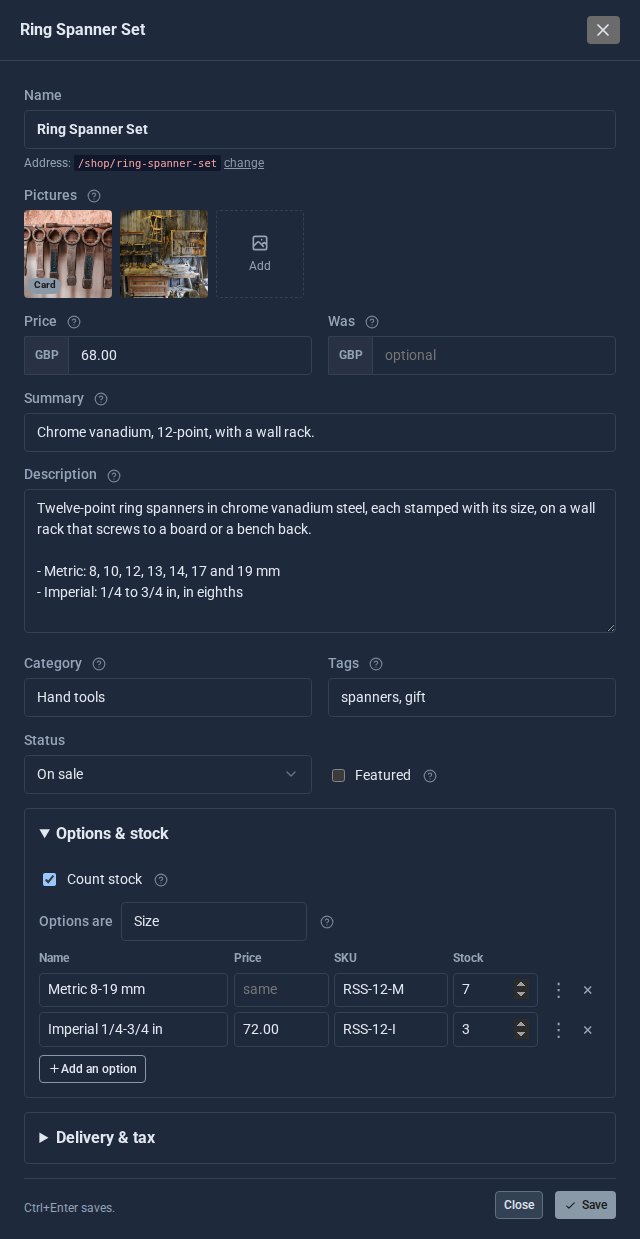
Give it a name, pictures, a price and a description, and put it in a category. If it comes in sizes, add each one with its own price, SKU and stock count. A was price shows the product as on sale.
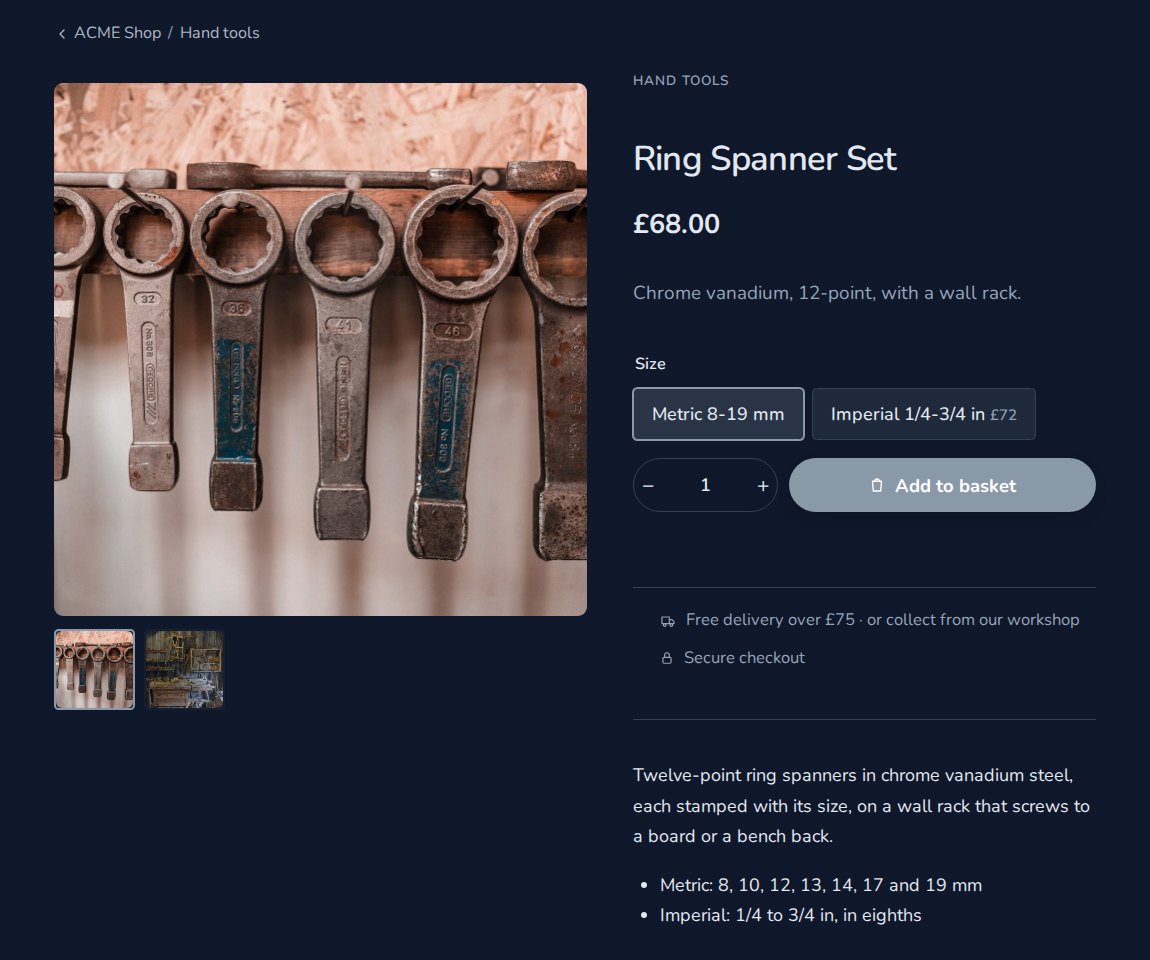
Shoppers get a proper product page: the pictures, the price, a choice of sizes, quantity and Add to basket.
2. Set delivery and tax
Under Settings > Delivery, choose the countries you deliver to, one delivery charge per order and an amount over which delivery is free. Tick Offer collection if people can pick up in person.
Under Tax, set one rate, call it VAT, and say whether your prices already include it. The receipt shows the VAT either way.
3. Choose how people pay
Turn on Stripe for cards, Apple Pay and Google Pay, PayPal, or Pay offline for bank transfer or cash on collection. You can have more than one. Your keys are kept on the server and never shown again once saved.
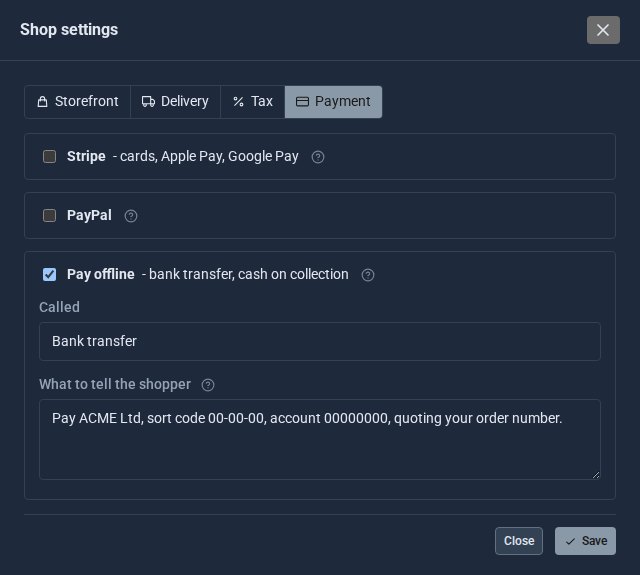
ACME starts with bank transfer, so the order is placed as Awaiting payment and nothing is charged until the money arrives.
4. The shopper's side
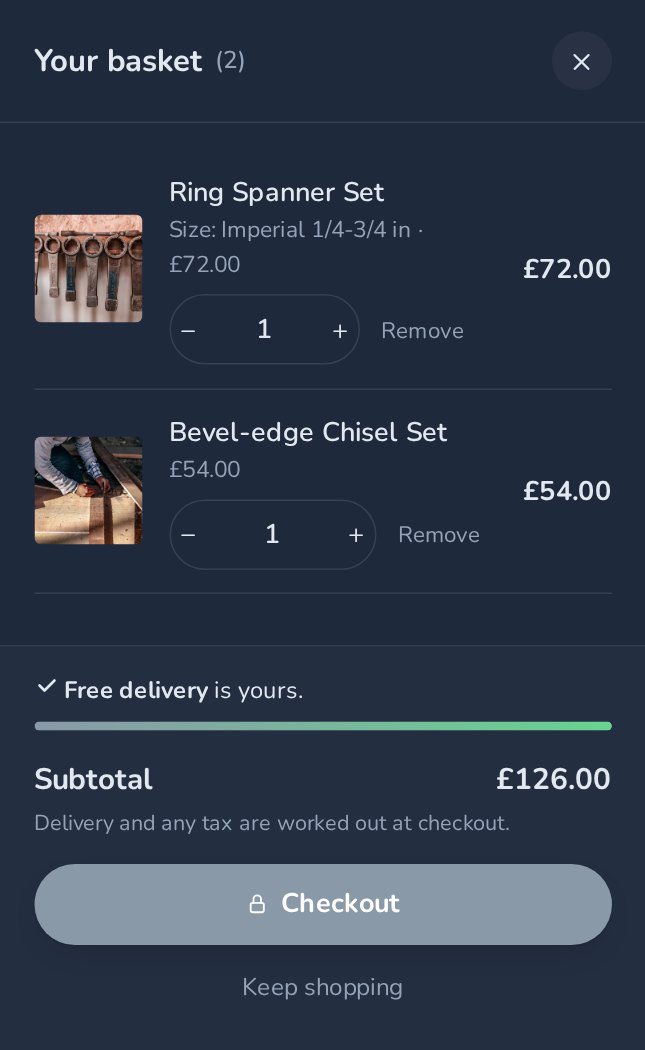
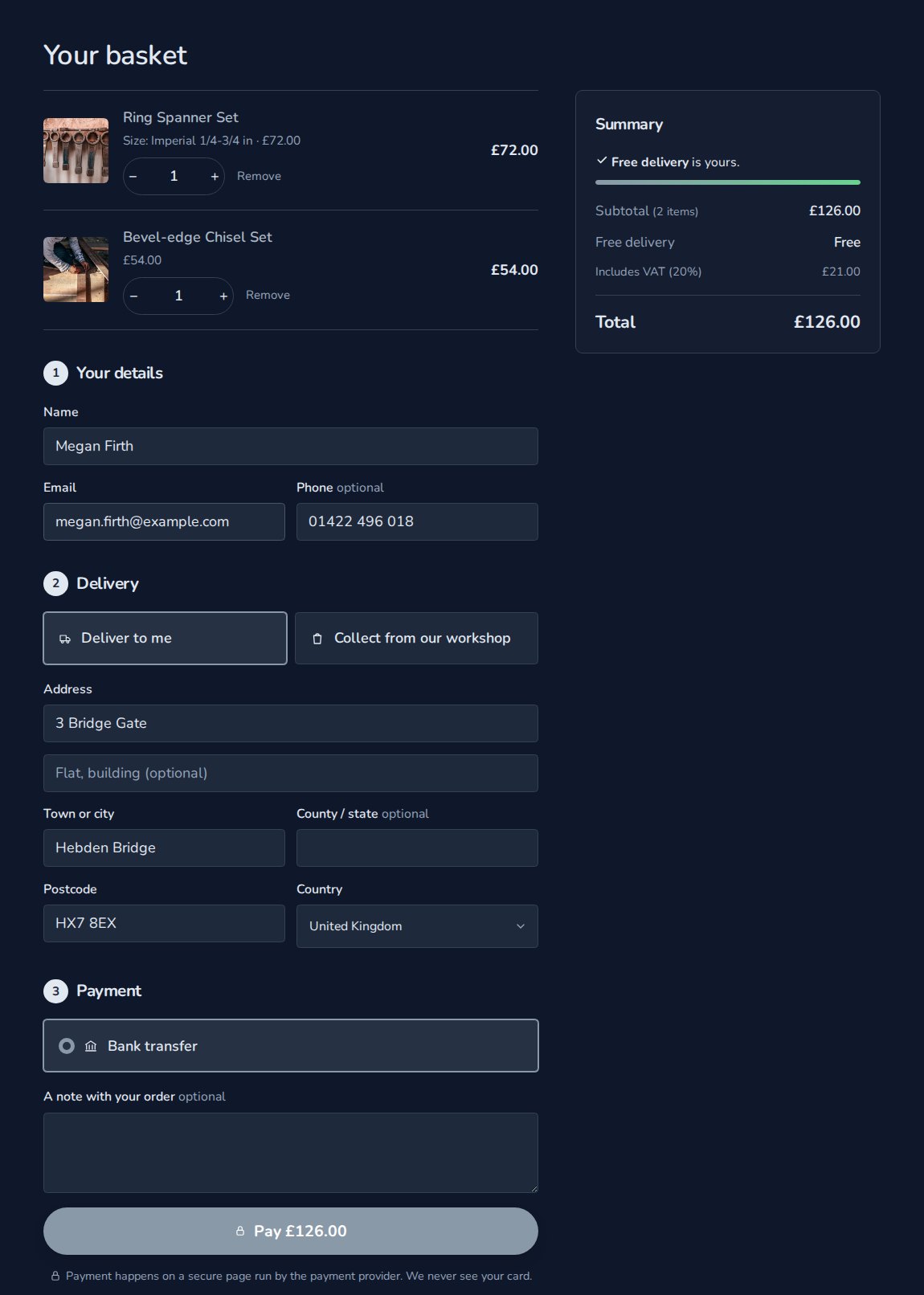
The basket slides out over the shop, and shows how close the shopper is to free delivery.
Checkout is one page: the basket, a summary with VAT, their details, deliver or collect, and how to pay.
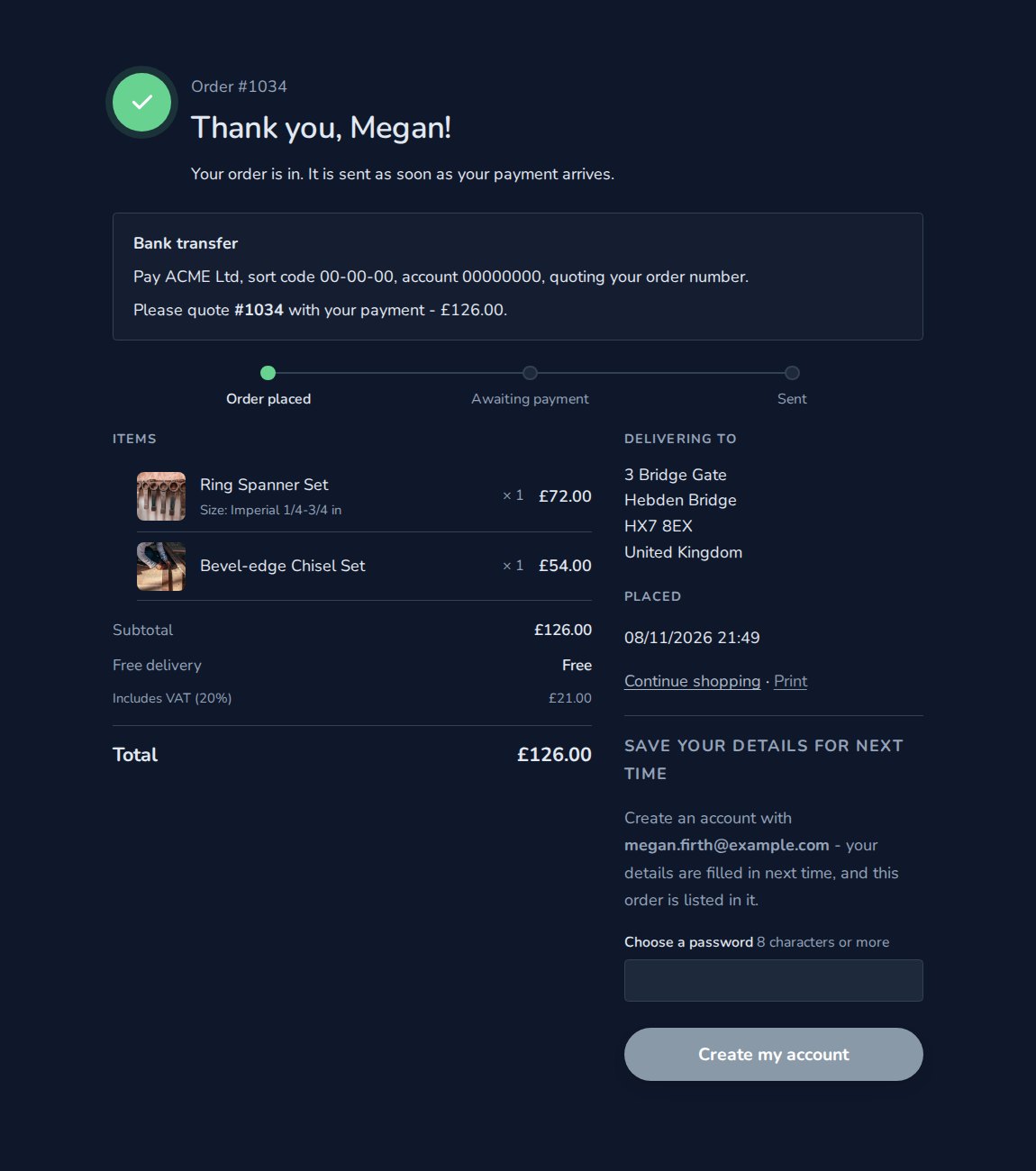
The receipt thanks them by name and, for bank transfer, shows your bank details with the order number to quote.
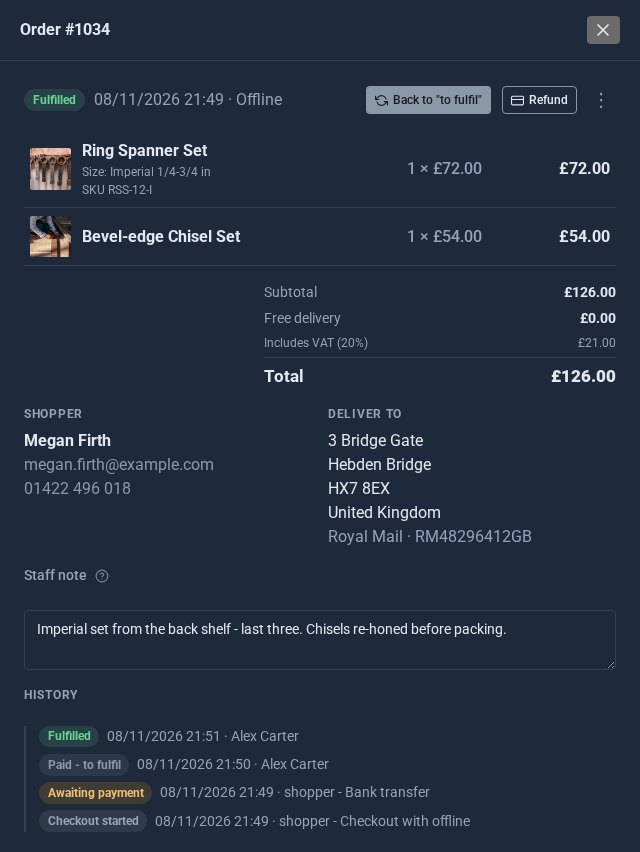
5. Your side: from paid to posted
The order is waiting under Orders. When the payment arrives, mark it paid; when the parcel goes, mark it fulfilled and add the tracking number. Leave a staff note for whoever packs it. The history shows every step.
Quick checklist
- Add one product, with its sizes and stock.
- Set delivery, free delivery and collection.
- Set your VAT rate.
- Switch on at least one way to pay.
- Place a test order yourself and take it all the way to fulfilled.
When you want discount codes, delivery zones, your own order emails or digital downloads, Shopping Cart Pro adds them.
The screens above come from our made-up demo company, ACME Ltd.
Keep reading

How to sell downloads and licence keys from your shop
A step-by-step guide to selling files and software keys with Shopping Cart Pro: private download links, limits that stop sharing, a key for every sale, and what to do when a customer needs their links again.

What happens when you sign up for a Domma CMS site
From choosing a plan to your first sign-in: what signing up for a Domma CMS site looks like, what it costs each month, and how you change your plan or Tools later without ringing anyone.

How to run a project with your client in the loop
A step-by-step guide to Waypoint Pro: set up a board with your own workflow, plan sprints, start issues from templates, keep a private project for one client, and let them follow along without being able to change a thing.