Contacts: your emails on the card, and the fields you choose
Your emails with a contact now show on their card, a click from the message itself. And Contacts Pro lets you choose which fields are columns in the list and which appear in the editor.
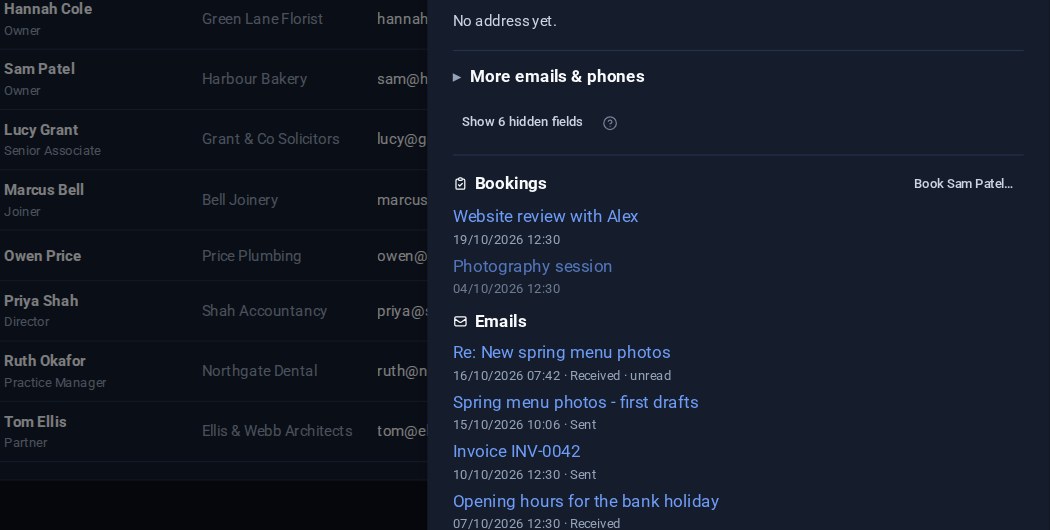
Two improvements to Contacts this week: you can see your emails with someone without leaving their card, and you decide which details Contacts shows you.
Your emails with a contact, on their card
Open a contact and look at the foot of their card. It already lists what other Tools hold about that person: their bookings, calls, events and quotes. With Email (Pro), it now lists your emails with them too.
- The ten newest emails to or from any of their addresses: their main email, their billing email and any other address you have saved for them.
- Each one says Received or Sent, says unread if you have not opened it yet, and names the mailbox if you have more than one.
- Click one to open it in Email, at that message.
The picture at the top shows it for one client: their next booking, the last five emails either way, and an accepted quote, all on the card.
It searches your own mailboxes only. Two colleagues looking at the same contact each see their own emails, never each other's. It covers the folders Email keeps a copy of (Inbox and Sent unless you have chosen more), so the list appears as soon as you open the card.
Show the fields you use, and hide the rest
Contacts holds a lot about a person: phone numbers, addresses, a company, VAT and bank details for invoicing, and any custom fields you have added. Most people use a handful of these every day. Click the cog on the Contacts screen and open Fields to choose.
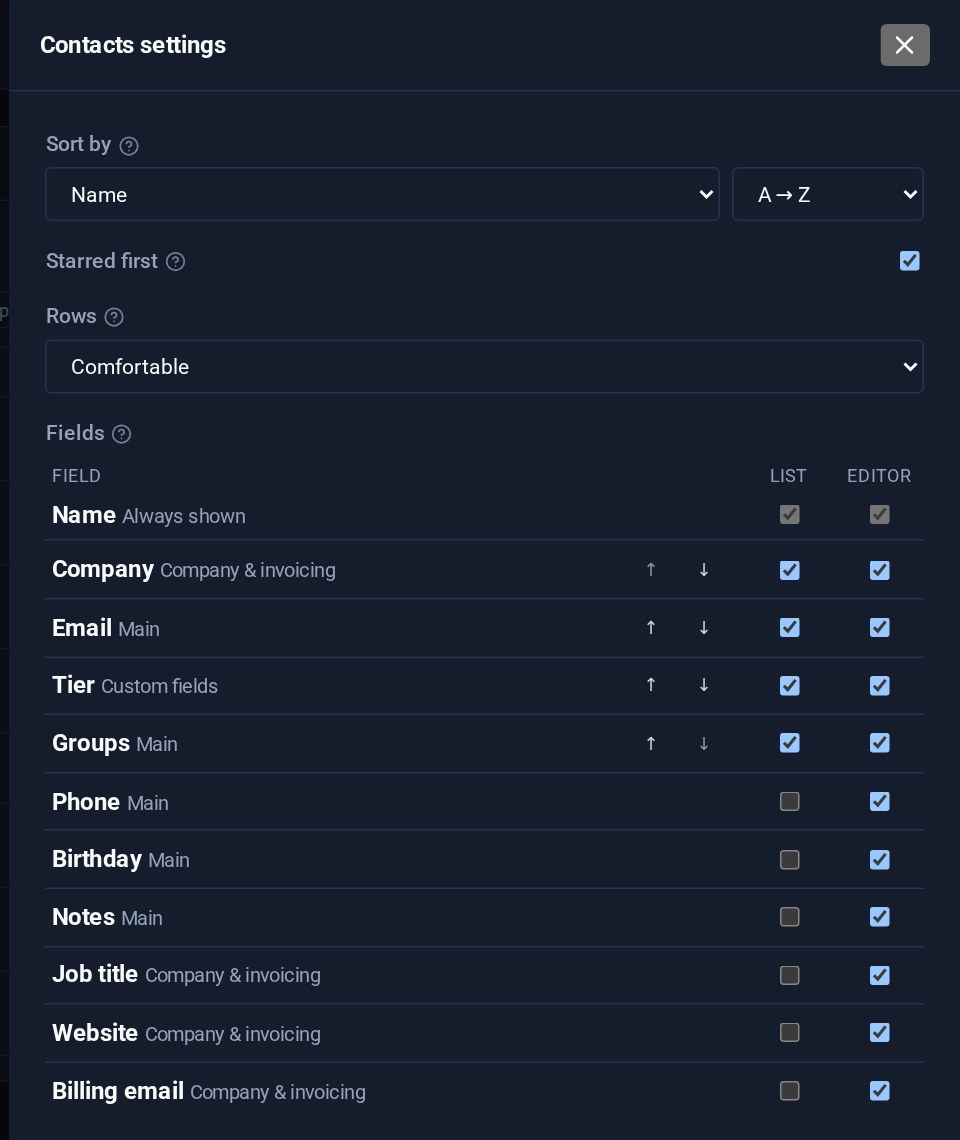
Every field has two switches:
- List adds the field as a column in your contacts list. Any field can be a column: Job title, VAT number, Their reference, More email addresses, or one of your own custom fields. The arrows set the order from left to right. Columns sort when you click their heading, and plain text ones can be edited where they are with a double-click.
- Editor shows or hides the field in the contact editor. Hide the bank details if you never invoice, and the form gets shorter. Nothing is deleted: what a hidden field holds stays on the contact. A Show hidden fields link at the bottom of the editor brings them back for one contact, and says how many of them hold something.
Name is always shown. Your choices are saved in your browser, so the people you work with can set Contacts up their own way.
Getting it
Both are in the latest update. Emails on a contact's card come with Email (Pro), and the field choices with Contacts Pro. Managed sites have already been updated. If you would like either on your site, get in touch.
Keep reading
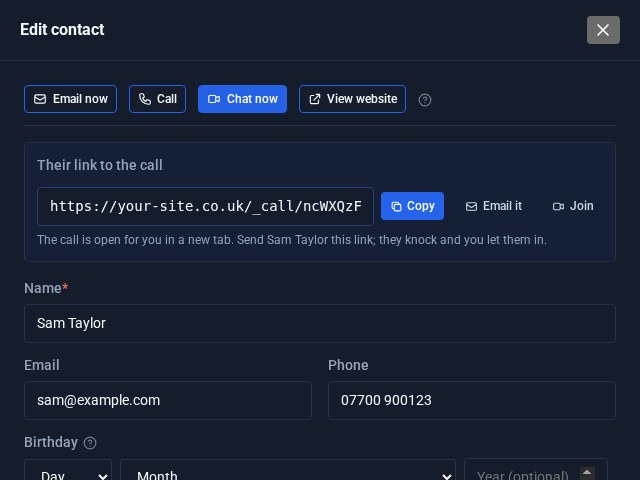
Contacts Pro: email, call or video chat in one click
Open a contact in Contacts Pro and the buttons are waiting at the top: Email now, Call, Chat now and View website. Chat now starts a video call on your own site and hands you the link to send.
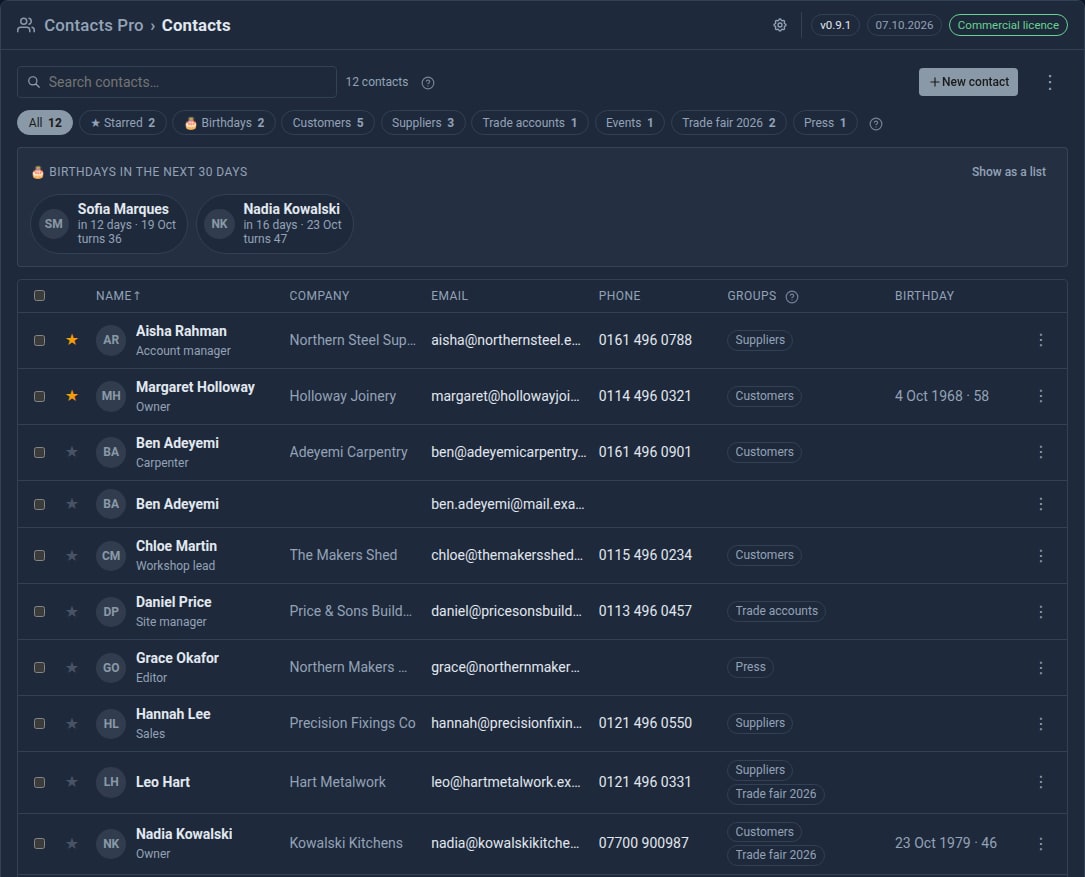
Bring your contacts in from Google
Contacts Pro 0.9 imports your address book from Google, a phone or Outlook - and merges the people you already have instead of doubling them up.
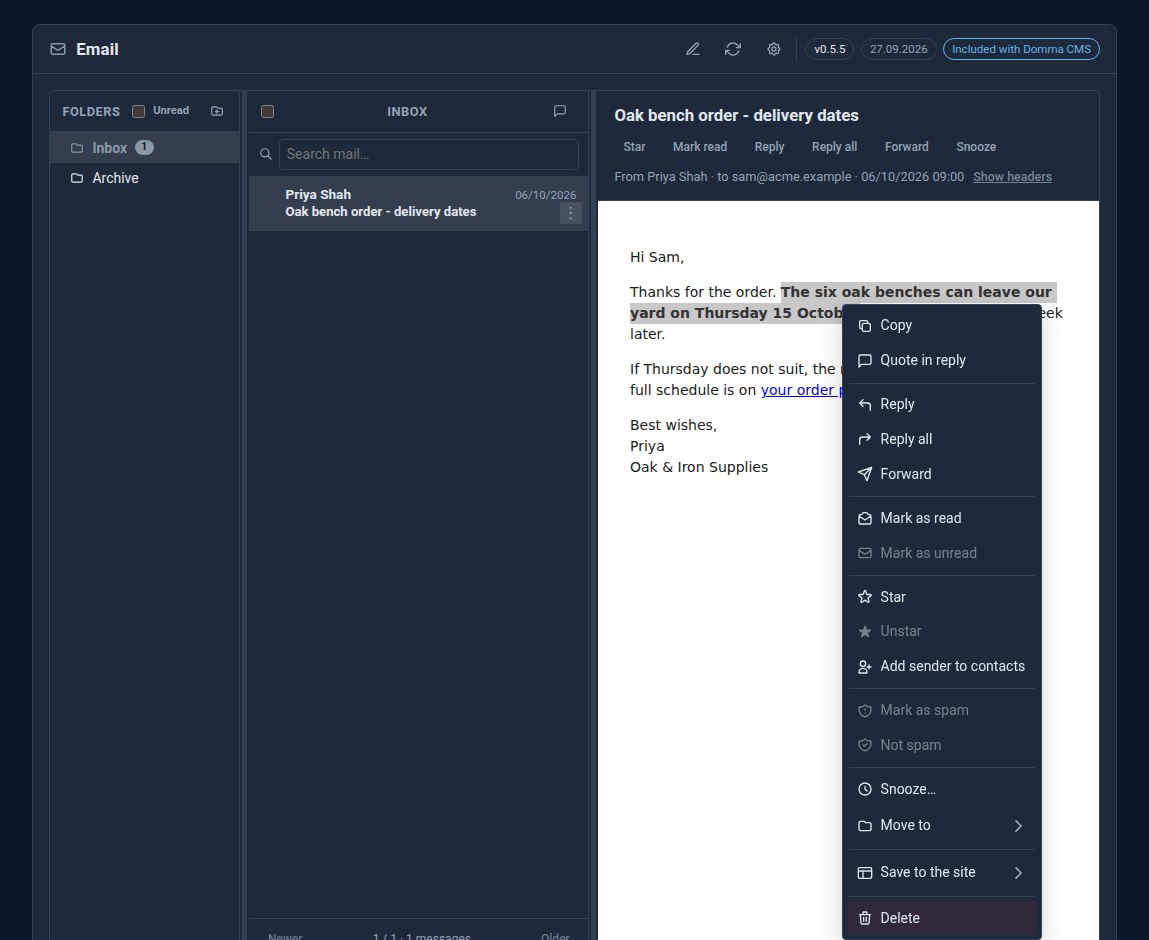
Right-click the email itself
Right-click an open email in Domma CMS for Reply, Reply all, Forward and the message's other actions - or select a sentence and quote just that in your reply.