
Tutorials Pro Tools
Connect Google Search Console
Connect Google Search Console to SEO Pro with your own Google client, see what people search for, and hand your sitemap to Google from the admin.
20 minutes IntermediatePro
You will do
Connect Google Search Console to SEO Pro on ACME's site, so its searches, clicks and positions show in the admin - and send its sitemap to Google without leaving the site.
You need
- SEO Pro on your site
- A Google account
- Access to your domain's DNS settings, if the site is not in Search Console yet
- The site's public address set in Settings > General
Why your own client
The figures go from Google straight to your site and nowhere else. The client secret and the sign-in are kept on your server and never shown in the admin.
Step 1: Put the site in Search Console
Search Console only shows a site its owner has proved is theirs. Open Search Console and add a property.
Choose Domain and enter the bare domain - acme-tools.co.uk, without www or https://. A Domain property covers every address on the domain: www., shop. and any other subdomain, on http and https.
Google gives you a TXT record. Add it in your domain's DNS settings, wait a few minutes, then go back to Search Console and click Verify. Google does not check by itself - until you click Verify, the property stays unverified and SEO Pro cannot read it.
Step 2: Make a Google client
In Google Cloud Console, pick or create a project. Then:
- Go to APIs & Services > Library and enable the Google Search Console API.
- Set up the OAuth consent screen: choose External, and add your own Google address as a test user (or publish the app).
- Go to Credentials > Create credentials > OAuth client ID and choose Web application.
Leave this tab open - the client needs one more thing from your site.
Step 3: Add your site's redirect address
In your admin, open SEO and click the Search tab. Step 3 on that tab shows your site's redirect address, for example:
https://acme-tools.co.uk/api/plugins/seo-pro/gsc/callback
Click Copy. Back in Google, add it under Authorised redirect URIs and save the client. Google shows the Client ID and Client secret.
Each site that uses the same client needs its own redirect address added to the list.
Step 4: Connect
Paste the Client ID and Client secret into the Search tab and click Save. Then click Connect Google.
Sign in with the Google account that owns the site in Search Console, and allow access. SEO Pro asks for full Search Console access: it reads the figures, and it sends your sitemap. You come straight back to the Search tab.
SEO Pro picks the property for you. It tries the site's own Domain property first, then its own address, then a parent domain's property - so shop.acme-tools.co.uk finds acme-tools.co.uk by itself. If none matches, it lists the account's properties and you choose one. Pick the one that covers the site: a property for a different site will refuse its sitemap and show that site's figures.
Step 5: Read the report
Search Console is read once a day, about two days behind Google. Click Read now to read it straight away.
- Clicks, Impressions, Click-through and Average position for the last 28 days, each against the 28 before.
- Clicks by day and Impressions by day.
- Worth working on - "title" means a page is on page one but clicked much less than its place usually gets, so a clearer title and description can win clicks. "page 2" means it is just off page one.
- Searches, Pages and Positions over time for your top 100 searches.
Right-click a page for Is it in Google? - Google's own answer on whether it is indexed and which address it treats as the real one.
A newly verified property starts at zero. The numbers build up over the next few days.
Step 6: Send your sitemap to Google
Open the Sitemap tab. With Search Console connected, each sitemap file shows when Google last read it and how many addresses it found, or not sent if Google has never been given it.
Click Send to Google. /sitemap.xml is handed to Search Console and shows as pending until Google reads it, usually within a few days. Right-click a file to send just that one; sending it again asks Google to read it again.
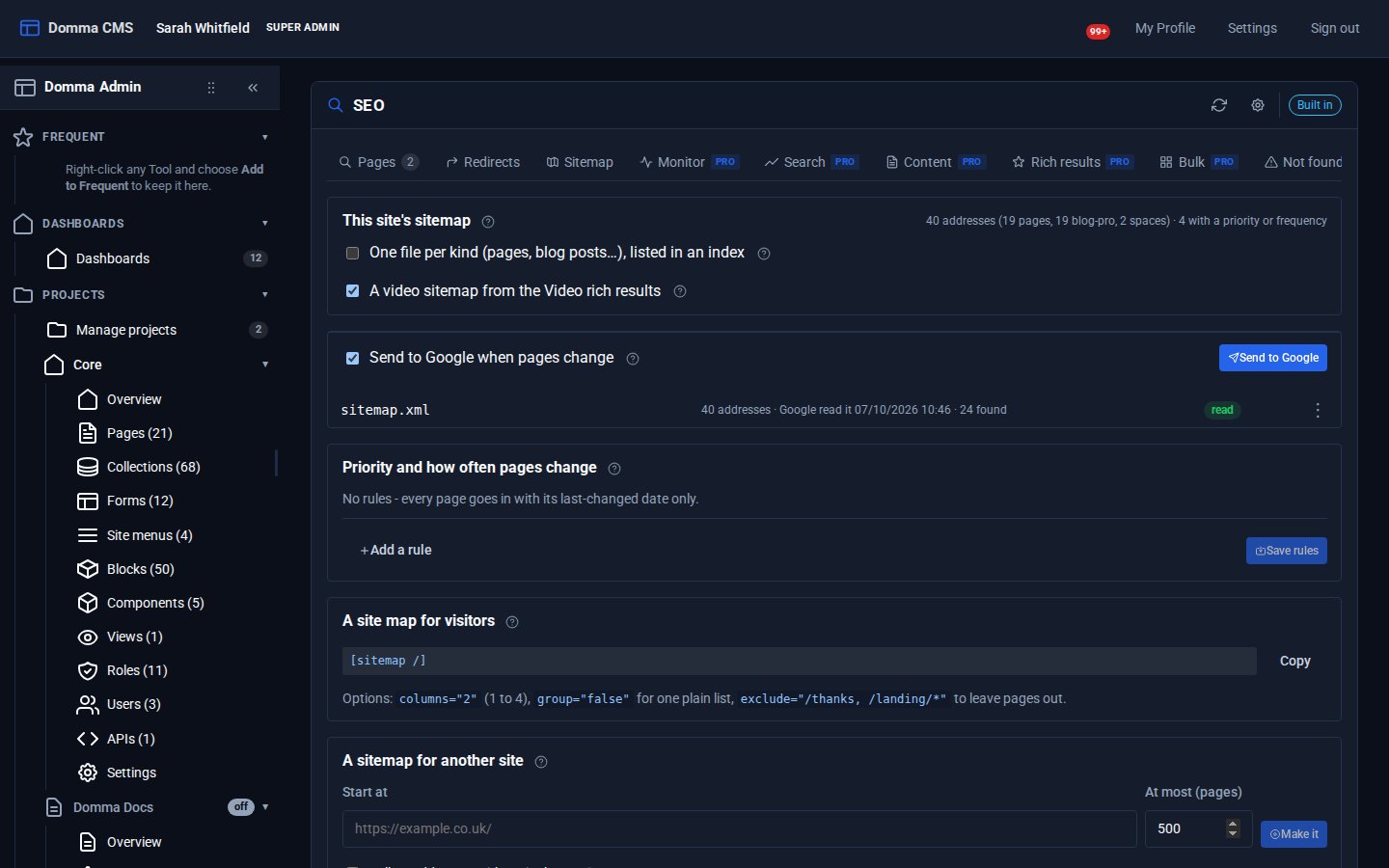
Send to Google when pages change is on unless you switch it off. After a page is published, changed, renamed or deleted, the sitemap is sent again - once a day at most. Google reads sitemaps on its own too; this asks it to look sooner.
If something goes wrong
- "Error 400: redirect_uri_mismatch" - the redirect address in Google does not match the one on the Search tab, or it was added moments ago. Check it is exactly the same, wait a few minutes, and click Connect Google again.
- Nothing happens after allowing access - you probably signed in with a Google account that is not a test user on the consent screen. Add it, or sign in with the right one.
- "This Google connection may only read" - it was connected before SEO Pro 0.6, when access was read-only. Click the gear button at the end of the Search tab's toolbar, choose Disconnect Google, then Connect Google again.
- "Could not process sitemap" - the chosen property does not cover the site. Click the gear button, choose Change the property…, and pick the right one.
- The site is not in the list of properties - it is not verified yet. Click Verify in Search Console, then Look again.
What you built
A site that reads its own search figures every day, shows which searches are worth working on, and hands its sitemap to Google whenever its pages change - with the data going from Google to your site and nowhere else.
Keep going
- Fixing broken links with SEO Pro - daily link checks and one-click redirects
- Getting found on search engines - the free SEO Tool SEO Pro builds on
- SEO Pro - also indexing, page speed, rich results, bulk titles and a weekly SEO email
Want SEO Pro on your site?
SEO Pro is a Pro Tool. Tell us about your site and we will set it up with you, Search Console included.