
Tutorials Data and forms
Approve an application with an Action
One button that marks an application approved, emails the applicant and tells the team - from the admin or from a staff page.
20 minutes IntermediateFree Needs MongoDB
You will build
ACME's Approve button for trade account applications: it sets the status, emails the applicant their welcome, and tells the office - in one click, with a confirmation first.
You need
- A collection of applications with an email field - the one your application form fills is ideal
- MongoDB, connected to the site (Step 1)
- The site's email set up (how)
What an Action is
A named list of steps that runs on one entry: update a field, send an email, notify the team, call a webhook, move or create entries. Built in the admin - no code.
Step 1: Connect MongoDB
Actions keep their settings in MongoDB, so they need a database connection - nothing to buy, just a database to point at. Without one, Data > Actions says Actions need MongoDB and offers nothing else.
Connect it from Data > Collections > Database connections, or from the site's folder on the server:
npm run pro enable
It asks for your MongoDB address and database name, saves them as the default connection in config/connections.json, and installs the driver. Restart the site afterwards.
Your collections stay where they are - connecting MongoDB moves nothing. It only becomes available.
Step 2: Give applications a status
Open the applications collection in Data > Collections, click Add field and set:
- Label:
Status, and Name:status - Type: Dropdown (select)
- Options, one per line:
pending,approved,declined
Save the collection.
Check that the collection also has the applicant's email (here email) and name (here contact_name). Your field names may differ - use yours wherever this tutorial says email or contact_name.
Step 3: Create the Action
Go to Data > Actions and click New action in the banner. On the General tab:
- Title:
Approve application- its slug,approve-application, cannot be changed later - Collection: the applications collection - the Action only ever runs on its entries
- Description: Approves the account, welcomes the applicant and tells the office.
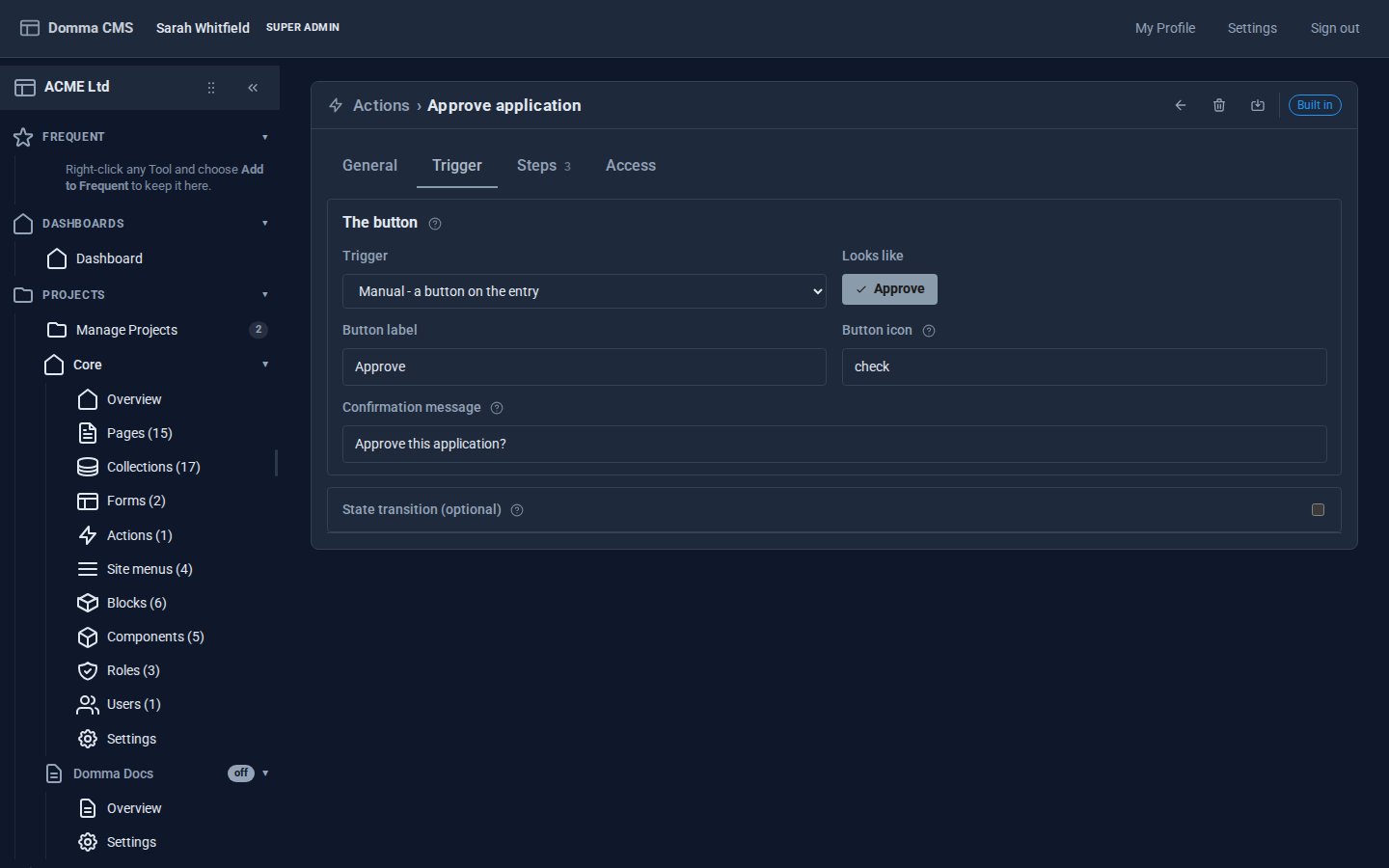
On the Trigger tab, the trigger is Manual - a button on the entry. Set:
- Button label:
Approve - Button icon:
check - Confirmation message:
Approve this application?- asked before anything happens
Step 4: Add the steps
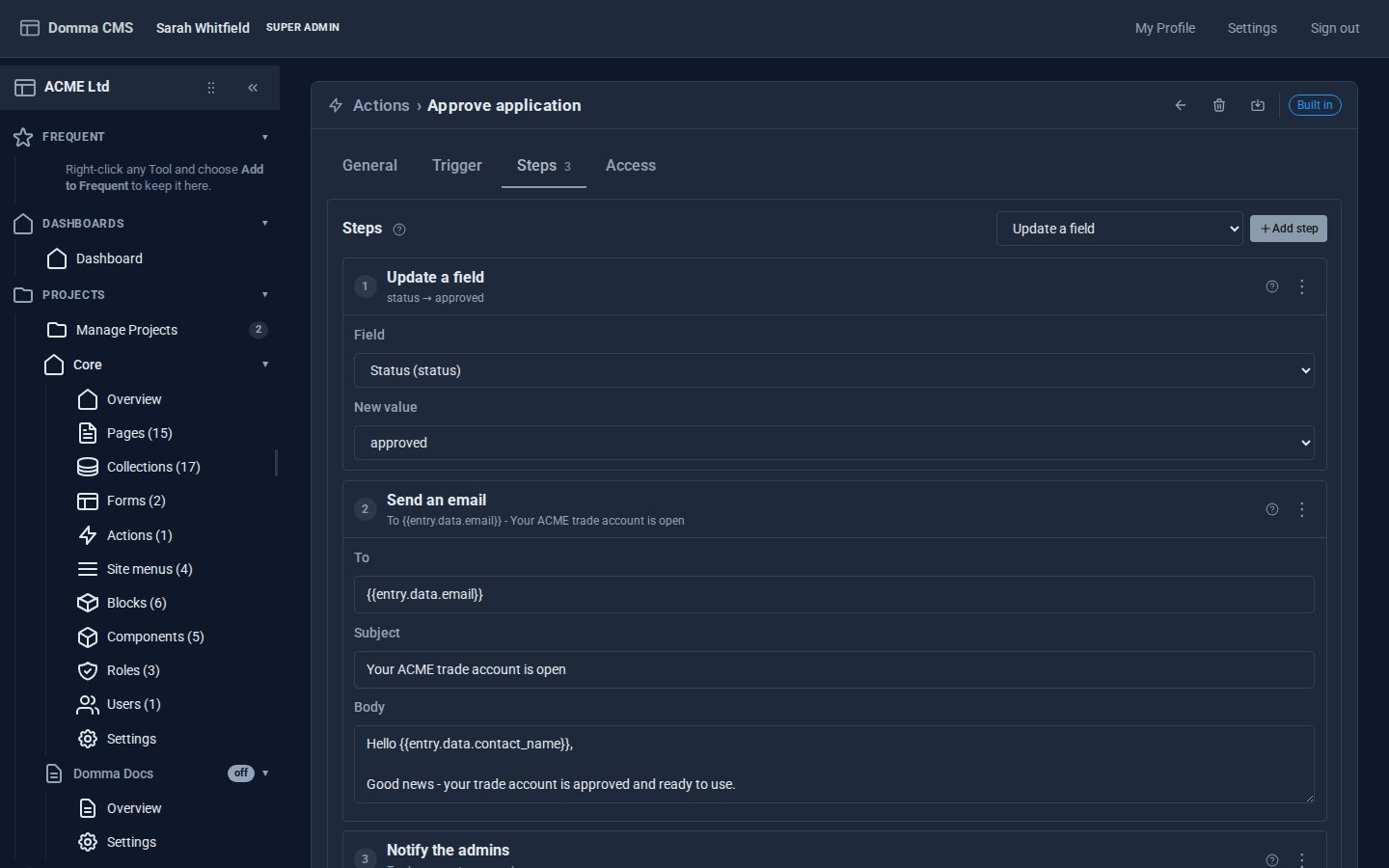
On the Steps tab, add three steps, in this order. They run top to bottom, and the first one to fail stops the rest.
1. Update a field - choose status, New value approved.
2. Send an email:
- To:
{{entry.data.email}} - Subject:
Your ACME trade account is open - Body:
Hello {{entry.data.contact_name}},

Good news - your trade account is approved and ready to use.

ACME Ltd
3. Notify the admins:
- Title:
Trade account approved - Body:
{{entry.data.contact_name}} was approved by {{user.name}}. - Severity:
success
The Template variables table under the steps lists what you can use: {{entry.data.<field>}} for any field, {{entry.id}}, {{now}}, and {{user.name}} and {{user.email}} for the person who pressed the button. A field that is empty gives an empty string.
Step 5: Decide who can press it
On the Access tab, Who can run it lists your roles. New actions start with admin. If you have a role for office staff, tick it too - a role lets in everyone more senior as well. This decides who may run it, in the admin and on pages: the admin's ⚡ menu offers it only to these roles, and the button on a page (Step 7) refuses anyone else.
Only on some entries narrows it further, for example to entries a person owns. Leave it off here.
Click Save (Ctrl+S).
Step 6: Approve from the admin
Open the applications in Data > Collections. Each row now has a ⚡ button - Run one of this collection's actions - listing the actions your role may run. Click it (or right-click the row) and choose Approve….
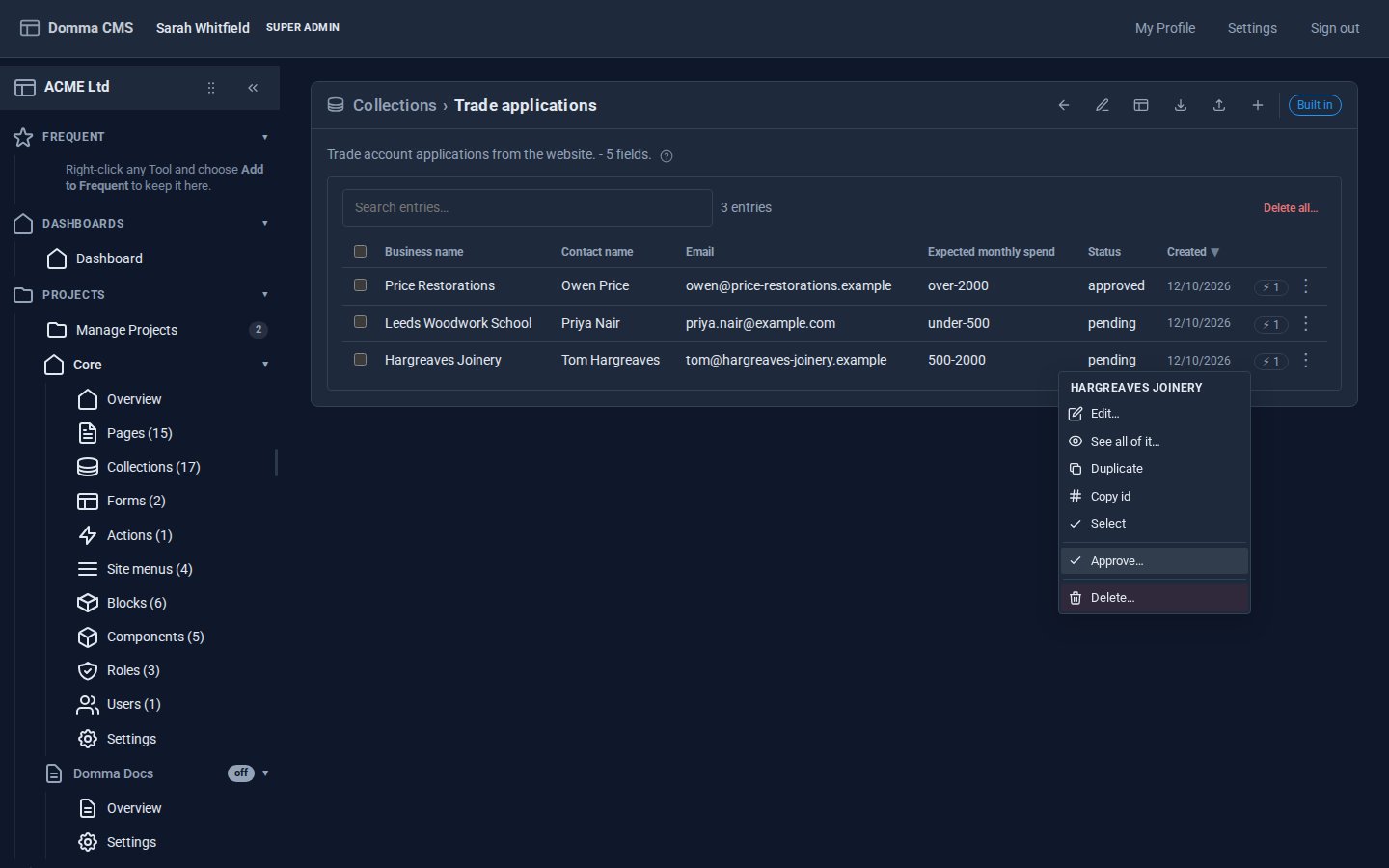
After the confirmation, the steps run: the status changes, the applicant gets their email, the office gets a notification, and the toast says Approve done (3 steps). If a step fails - say the email server is down - the toast names the step and its error, and the steps after it do not run.
Step 7: An Approve button on a staff page
Office staff should not need the admin. Make a page for them - set its visibility to your staff role, so nobody else can open it - and list the pending applications with a button on each:
[collection slug="trade-applications" where_status="pending" display="cards" cta="approve-application" cta-label="Approve" cta-icon="check" cta-confirm="Approve this application?" /]
Use your own collection's slug. The button runs the same Action, as the person signed in: someone not signed in is asked to sign in, and someone whose role is not under Who can run it is refused.
Step 8: Running an Action when a form is sent
A form can run an Action on the entry it has just stored: in the form editor's Actions tab, Action on Submit, or, from a single answer, the field trigger Run a CMS action.
A failure there never loses the submission: it is stored first, and the admins are told if the Action fails.
What you built
A one-click approval that writes the status, emails the applicant and tells the office - with a confirmation, limited to the right people, from the admin or from a staff page.
Keep going
- Reporting with Saved Views - a page of pending applications and how many were approved this month
- Build a client portal with a confined role - the staff role for Step 7
- Ship a public JSON API in five minutes
Try it on your own site
Actions are free - they need only a MongoDB database. One command gets you a site to follow along on.