How to run your business email from your own site
A step-by-step guide to Email Pro: connect your Microsoft or Google mailbox, answer with your signature and templates, snooze and schedule, let rules file the mail, and turn an email into a page or a record in one click.

Your enquiries arrive by email, your customers live in Contacts, and your price list is a page on your site. Switching between them all day is where the time goes. Email Pro brings your business mailbox into your site's admin, next to everything else, and lets an email become part of your site in one click.
This guide sets it up for our made-up company, ACME Ltd.
1. Connect your mailbox
Email Pro works with any mailbox you can reach by IMAP and SMTP. Microsoft 365, Outlook.com and Gmail can be connected by signing in with the provider rather than typing a password. You register a small app of your own with Microsoft or Google first, and the form walks you through it with your site's exact details to copy. Your mail is read with your sign-in only.
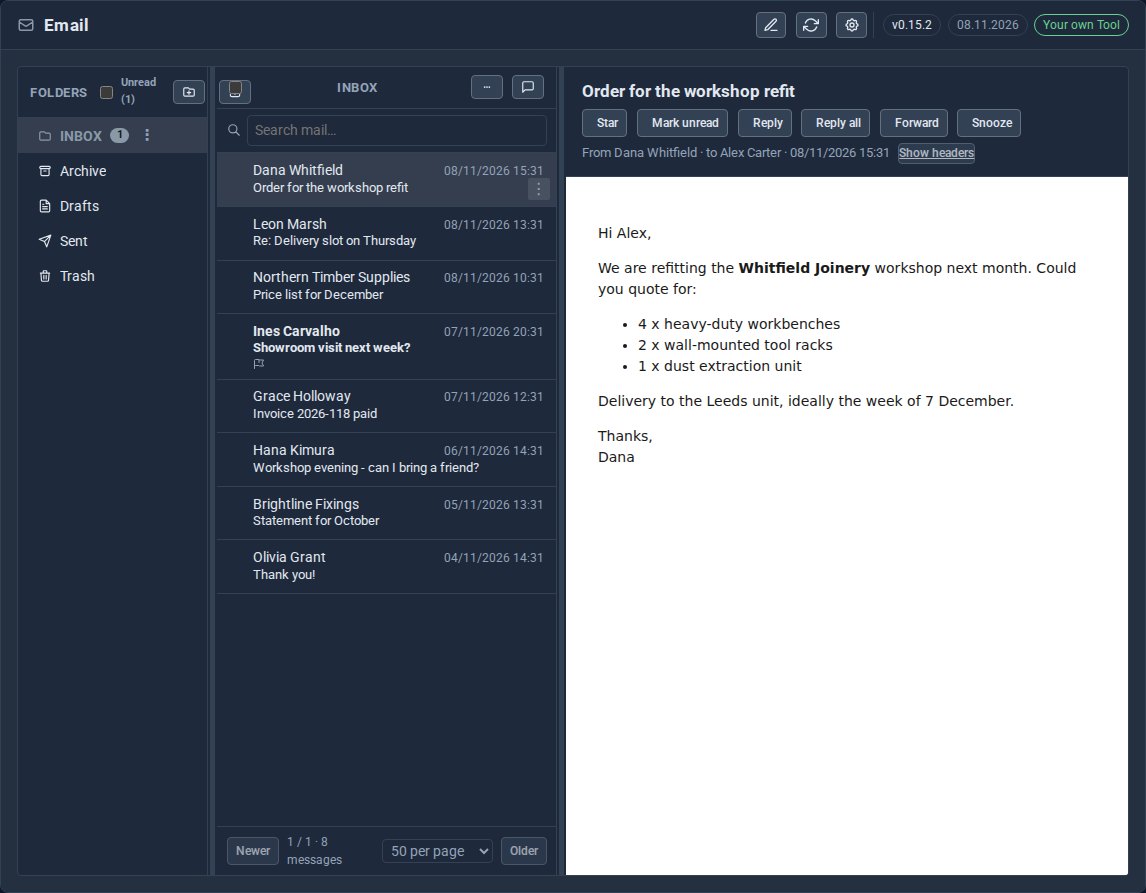
Your folders, inbox and messages then appear in the admin, with Reply, Forward and Snooze to hand.
2. Set up your signature
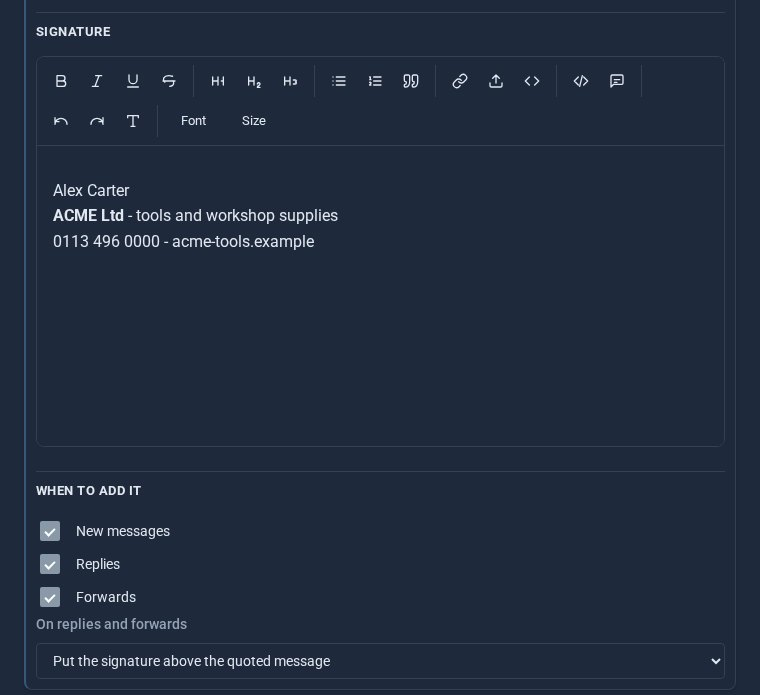
Each address you send from is an identity, with its own name and signature. Choose whether the signature goes on new messages, replies and forwards.
3. Answer faster with templates
Save the replies you write every week as templates: delivery times, opening hours, how to open a trade account. A template can fill in the person's first name, your name and today's date for you. Anything misspelt in double braces is left as written, so you spot it before you send.
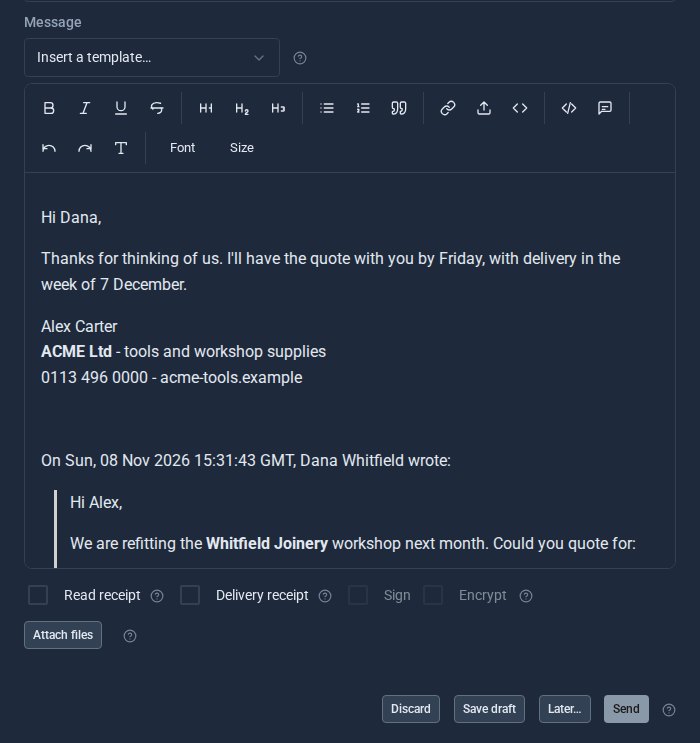
Not ready for it to go yet? Send later waits until the time you choose, and Snooze takes a message out of your inbox until you need it, on your phone too.
4. Let rules file the mail
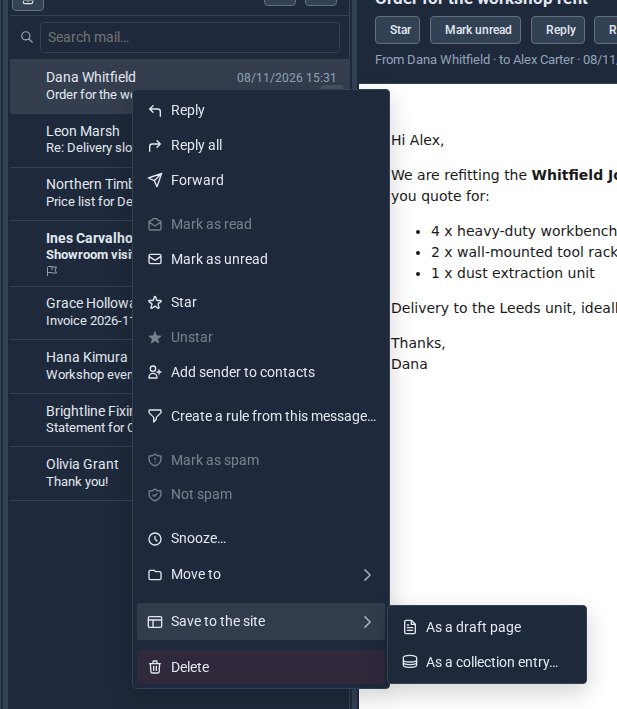
Rules sort new mail as it arrives: move it to a folder, flag it, mark it read. The quickest way to make one is from a message: right-click it and choose Create a rule from this message. Test shows what a rule would catch before you save it.
5. Turn an email into part of your site
Right-click a message for everything you can do with it. Add the sender to Contacts, or save the email to your site: an attachment into Media, the text as a draft page, or the details as an entry in a collection, such as an enquiry or a job.
On sites with MongoDB, open a contact in Contacts and their latest emails are listed on their card, beside their bookings and calls.
Search, rules, Send later and Snooze need MongoDB on your site, which comes with the MongoDB Adapter Tool on sites we host. Reading, replying and folders work without it.
Quick checklist
- Connect your mailbox, signing in with Microsoft or Google if you use them.
- Add your signature to each identity.
- Save your common replies as templates.
- Make a rule from the next newsletter you get.
- Save your next enquiry straight into a collection.
The screens above come from our made-up demo company, ACME Ltd.
Keep reading

What happens when you sign up for a Domma CMS site
From choosing a plan to your first sign-in: what signing up for a Domma CMS site looks like, what it costs each month, and how you change your plan or Tools later without ringing anyone.

How to run a project with your client in the loop
A step-by-step guide to Waypoint Pro: set up a board with your own workflow, plan sprints, start issues from templates, keep a private project for one client, and let them follow along without being able to change a thing.

How to get your news shared and posted without logging in to five networks
A step-by-step guide to Social Media Pro: make every page look right when it is shared, add share and follow buttons, and post to Bluesky, Mastodon, LinkedIn, Facebook Pages and X from one composer, now or scheduled.