Publish it, sign it, review it - without leaving Docs.
Docs Pro adds to Docs. Publish a folder of documents as a handbook or help centre with a reader built for long reading. Send a contract for signatures. Let colleagues comment and suggest changes for you to accept. Fill a letter or quote in from Contacts, bring Word files in and send them out, and keep a copy of everything in your own cloud storage. Docs stays the master copy.

What Docs Pro does for you
Domma Spaces
A Docs folder becomes a section of your site - a staff handbook, a help centre, a set of guides - with contents, search, "On this page" and Previous and Next. Public, members only, or for the roles you choose.
A reader for long reading
Text size, font (including Easy read), spacing, margins, Light, Sepia or Dark, and scroll or turn pages like an e-reader. It shows how far through a page you are and remembers where you stopped.
Signatures
Send a document for signing. Each person signs from their own emailed link, typed or drawn, in order if you like. Everyone gets the signed copy with a certificate page.
Suggested changes
Share with someone as a Suggester, or suggest changes yourself. New words are underlined, removed words struck through, and an editor accepts or rejects each one.
Comments
Comment on some words or on the whole document, reply and resolve. The owner and everyone in the thread are notified.
Merge fields
Put {{contact.name}}, {{date}} or your own fields in a letter or quote, then fill them in from a contact to make a new document. The original stays ready for next time.
Ready-made templates
Letter, quote, proposal, service agreement, meeting notes, project brief, weekly update, policy, how-to procedure, handbook page, job description and press release.
Word files
Import .docx files as documents - headings, lists, tables, links and pictures come across - and download any document as Word.
Cloud copies
Copies of your documents in Google Drive, OneDrive, Dropbox or an S3 bucket, as Markdown, HTML, text or PDF - after every save, nightly or when you say.
Protected links
Give a document's public link a password, an expiry date, or both.
A look inside
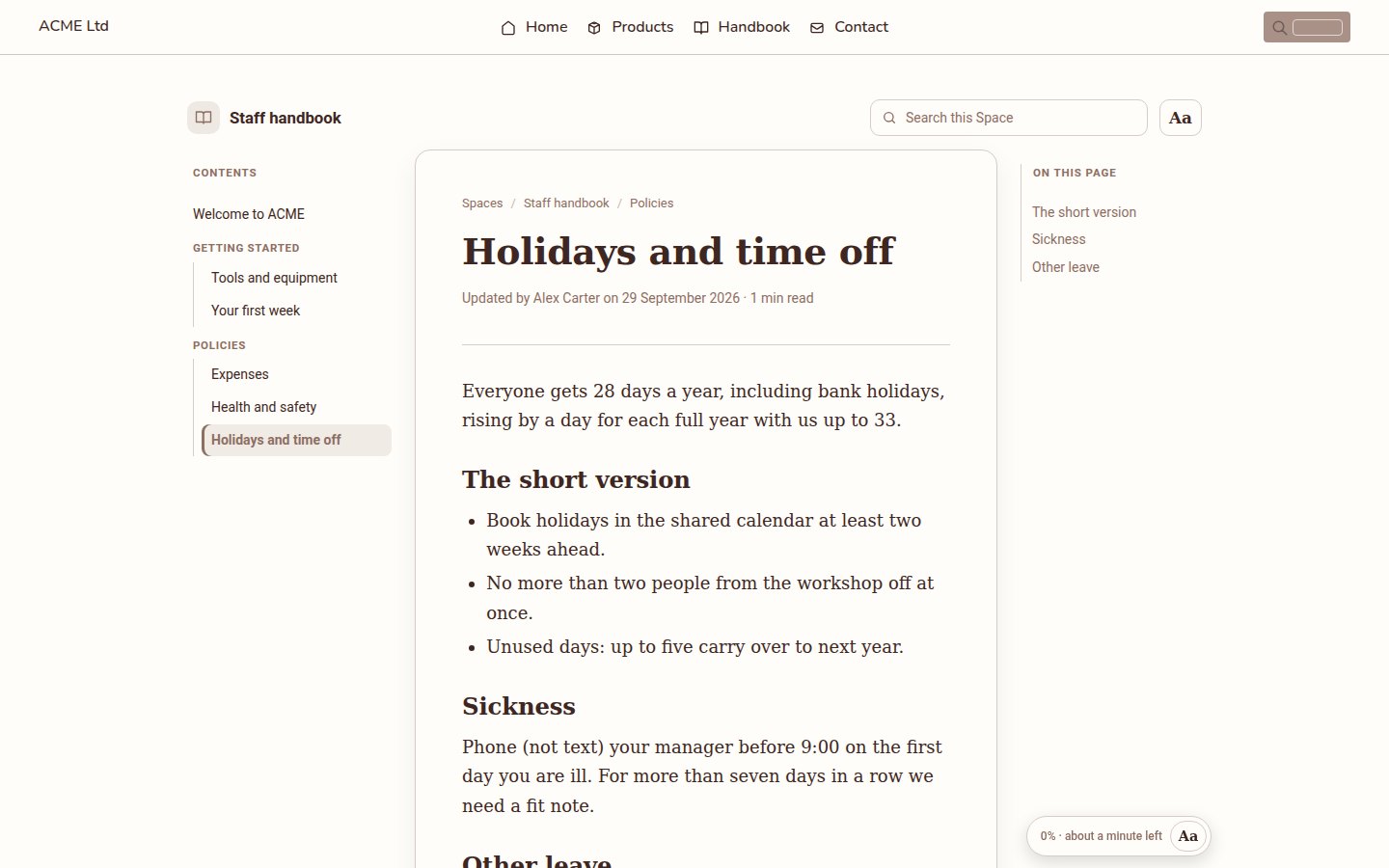
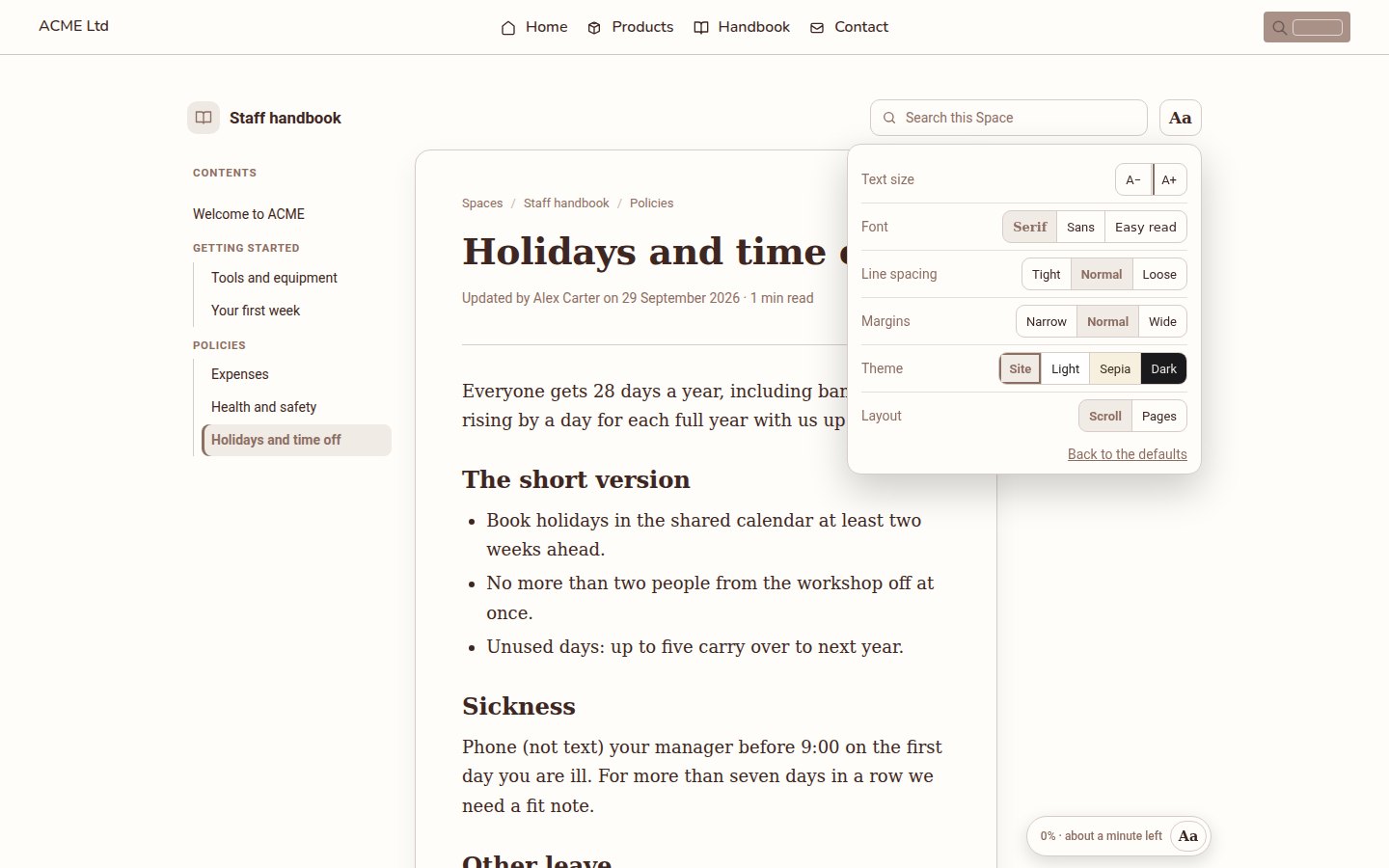
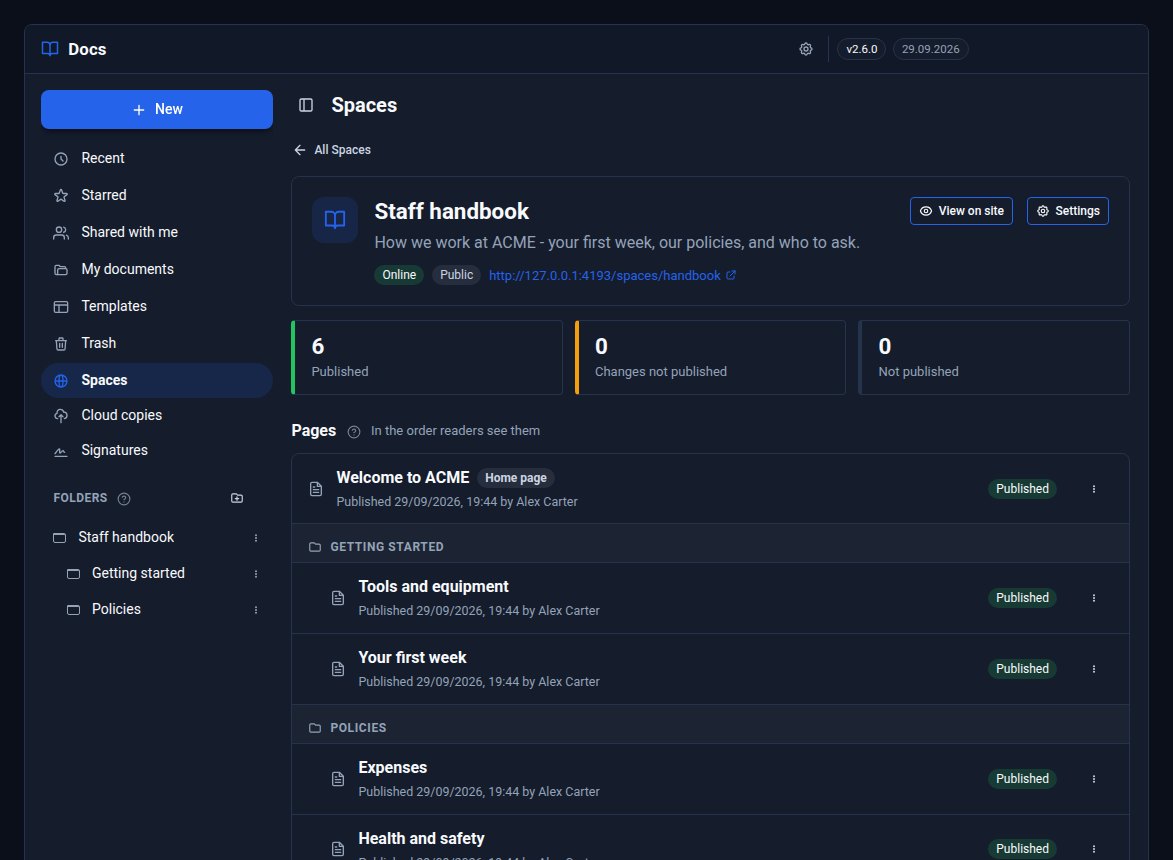
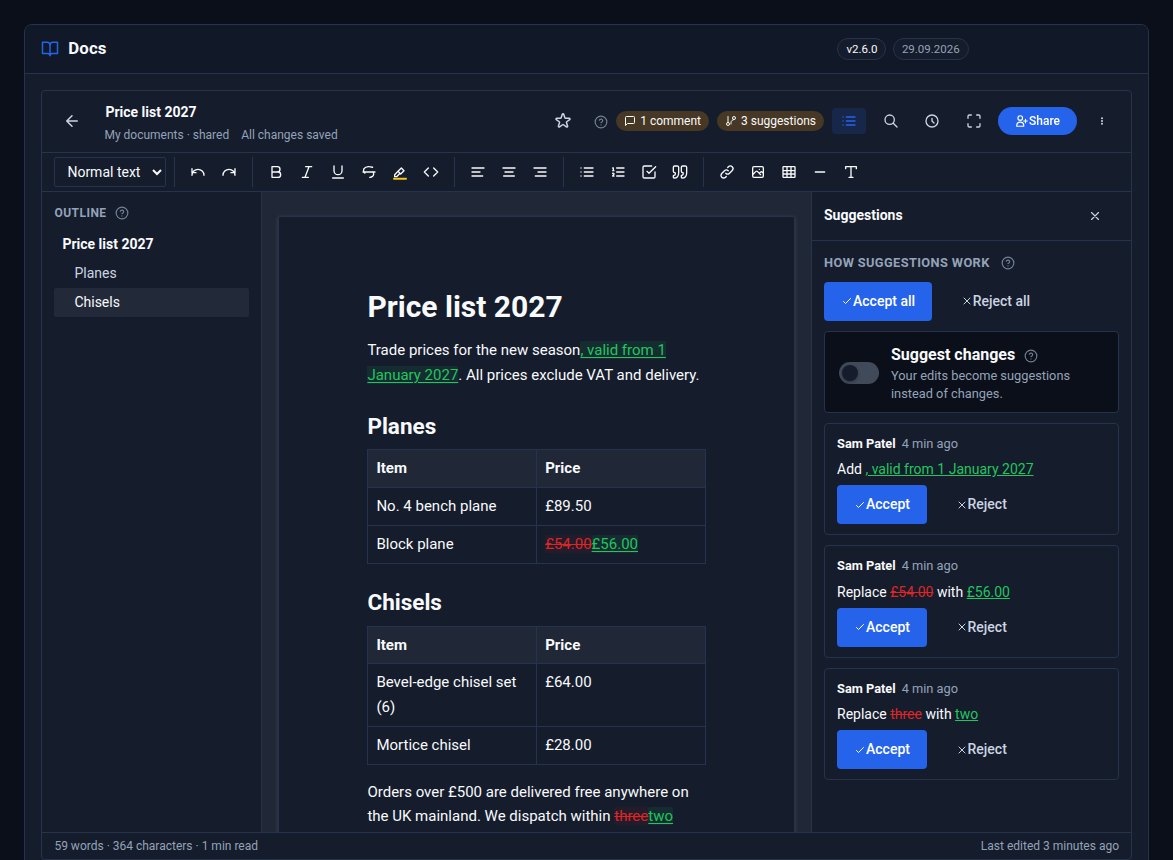
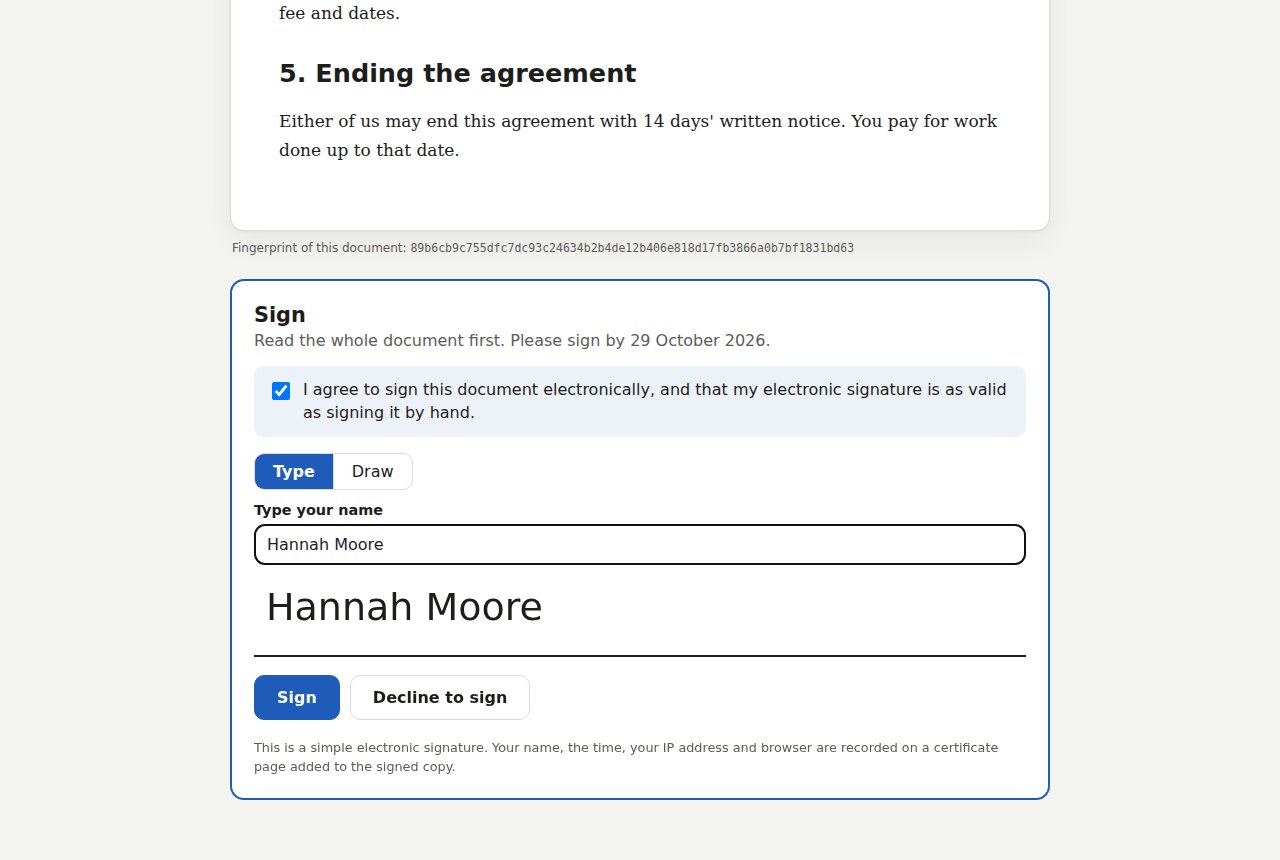
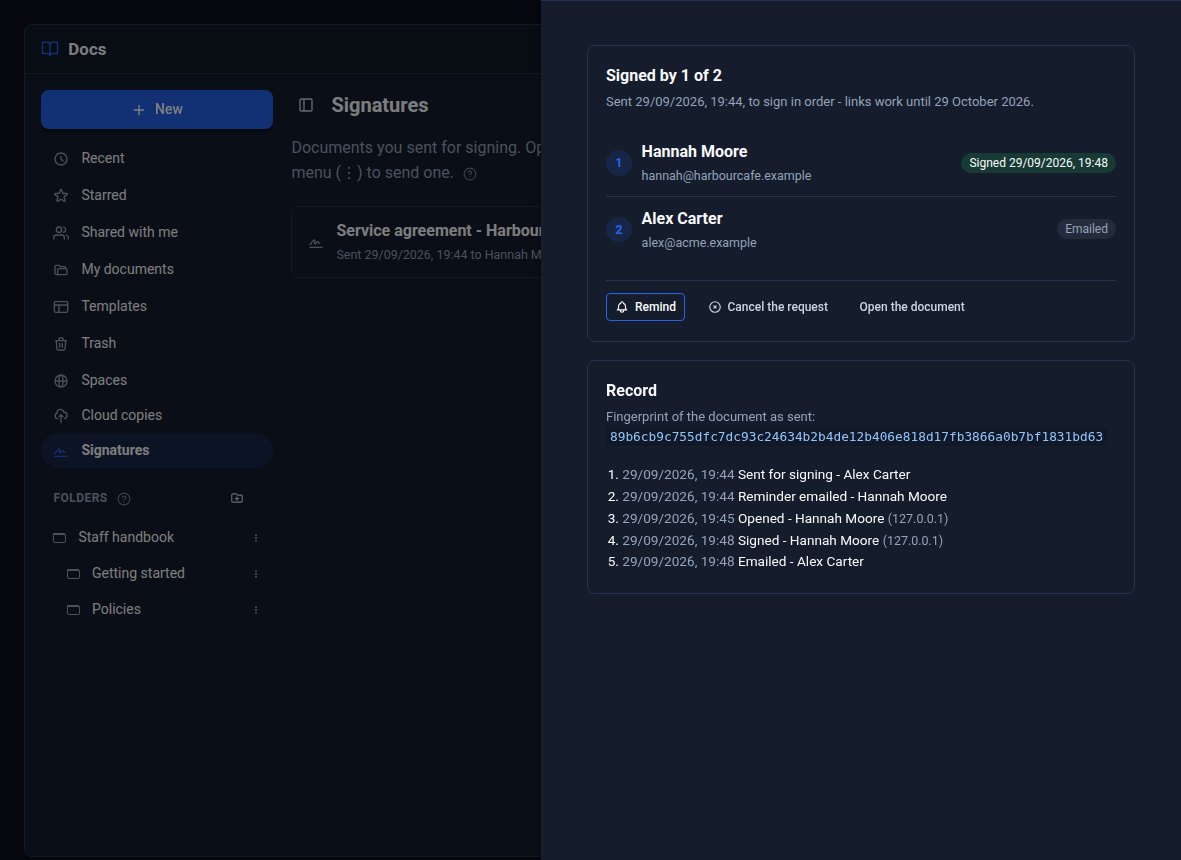
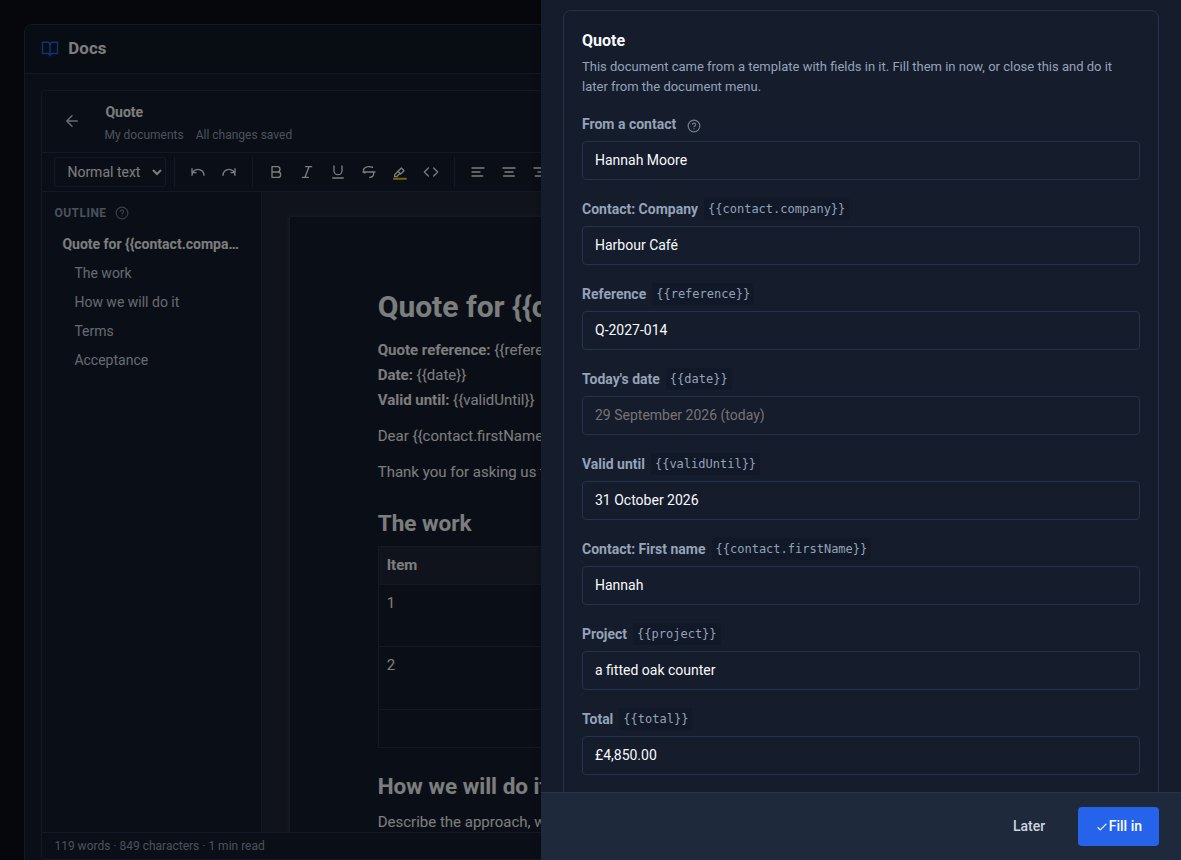
Screens from our ACME Ltd demo site. Every name in them is made up.
See it in 5 minutes
- In Docs, make a folder called Handbook with two or three documents in it.
- Click Spaces, then New Space, pick the folder and choose Publish all. Open the address it shows and try the Aa settings.
- Under Templates, choose Quote. Pick a contact and press Fill in.
- Choose Request signatures… from the quote's menu and send it to yourself. Sign it from the email.
- Share a document with a colleague as a Suggester and see their changes arrive, ready to accept or reject.
Works with the rest of your site
Docs
Docs Pro adds to Docs and needs it. Your documents stay in Docs whatever happens.
Contacts
Merge fields fill a letter or quote in from one of your contacts.
Media
Pictures in imported Word files go to your Media library.
Signing links and signed copies go out through your site's own email.
Good to know
Comments and pending suggestions stay in Docs: the public link, Spaces, downloads and copies never show them. A signed document is frozen with a fingerprint, so anyone can check a copy is the one that was signed.
What it needs
Docs 2.6 or later. Your site's email set up, for signatures. PDF copies need Chrome on the server - without it you get a web page you can print.
Questions
Every document stays in Docs, exactly as it was. Spaces go offline but are kept for when the licence is renewed, and Suggesters can still read like Viewers. Suggestions already made stay marked, and still never show publicly.
To your own Google Drive, OneDrive, Dropbox or S3 bucket - you connect your own account, and copies are made under a folder you name. Nothing is read back: Docs stays the master copy, and copies stay when a document is deleted.
It is a simple electronic signature: each person signs from a link emailed to them alone, agrees to sign electronically, and the certificate page records who signed and when. That suits most agreements - tenancy agreements, contracts for services, consent forms. It is not for deeds, wills or anything that must be witnessed.
No. Until someone who can edit accepts them, the public link, Spaces, downloads, Word and cloud copies all show the document as it was.
Yes - Save as template works on any document, and yours are listed first. The ready-made ones cannot be changed, but you can start from one, change it and save it as your own.
Goes well with
Add Docs Pro to your site
Docs Pro is a Pro Tool. Tell us about your site and we will set it up with you.