Forms that make an entrance
Give a form an entrance: fade, slide, drop or bubble-pop into view as a visitor scrolls to it. Fields that show and hide get the same seventeen animations.
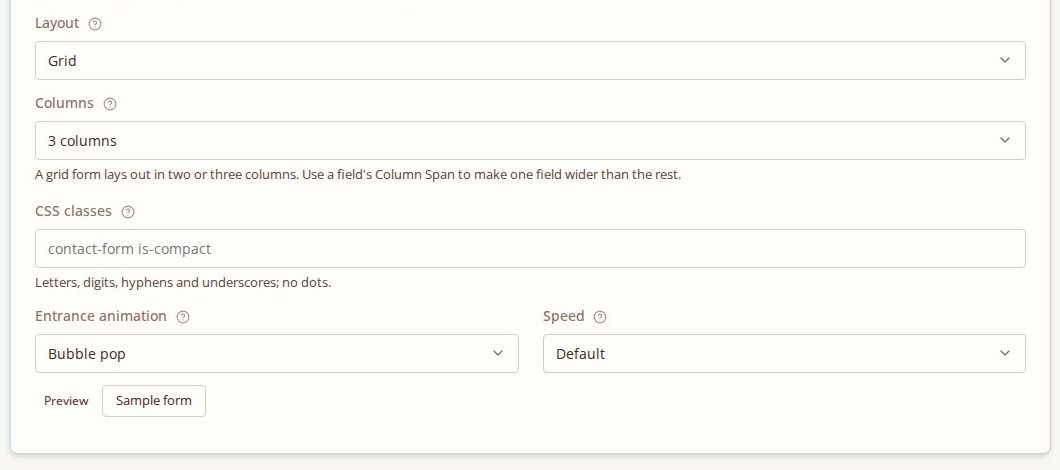
Forms can now make an entrance. Pick an animation and the whole form arrives with it as a visitor scrolls down to it: it fades in, slides up, drops in or pops like a bubble. The fields inside a form got the same set of animations for when they show and hide.
Give a form an entrance
- Open the form in Data > Forms and go to the Settings tab.
- Choose an Entrance animation.
- Set the Speed, or leave it on Default to use the animation's own timing.
- Click Preview to watch it on a sample, then Save.
That's it. The form plays its entrance once, when it first scrolls into view. On a multi-step form it plays as the form arrives, not again on every step. Choose None to have it simply appear.
Seventeen ways in
The same list works for the whole form and for single fields:
- Gentle: Fade, Slide (open and close), Scale, Blur
- From a side: Slide up, Slide down, Slide in from right, Slide in from left
- With some bounce: Zoom, Bubble pop, Bounce, Drop in, Elastic
- With a turn: Flip, Rotate, Swing, Unfold
Fields that show and hide
A field can appear or disappear depending on another answer: show "Company name" only to people who tick "I'm a business", say. Click the field's ⚡ (logic) button, and in the Visibility section pick a Transition from the same list, with a Speed and a Preview. Instead of a field blinking into place, it slides or pops in where the visitor will notice it.
Kind to everyone
Some people find movement on screen uncomfortable. Every form and field animation is skipped for a visitor whose device asks for reduced motion: the form is simply there.
Get it
Form entrances need Domma CMS 1.27.0 or later, and field animations 1.26.0. Both are free and already live on our hosting.
Keep reading

Forms that take files: drop areas, several files, and forms you can copy
File fields on your forms are now drop areas that take several files and check them before they are sent. Forms export and import between sites, and every option in the Forms editor explains itself.

Domma CMS 1.0
Domma CMS is 1.0. Nothing changes when you update - what changes is the promise that your site and your Tools keep working until a new major version says otherwise.

Pictures on cards, sixteen new gradients, and blocks from a selection
Domma CMS 1.23 to 1.25: put a picture and overlay text on any card, choose from sixteen more text gradients, and turn part of a page into a reusable block with one right-click.