Your first Scraper recipe, step by step
Build a working Scraper recipe in about ten minutes: pick the items, choose the columns, follow the pages, and show the results on your site.
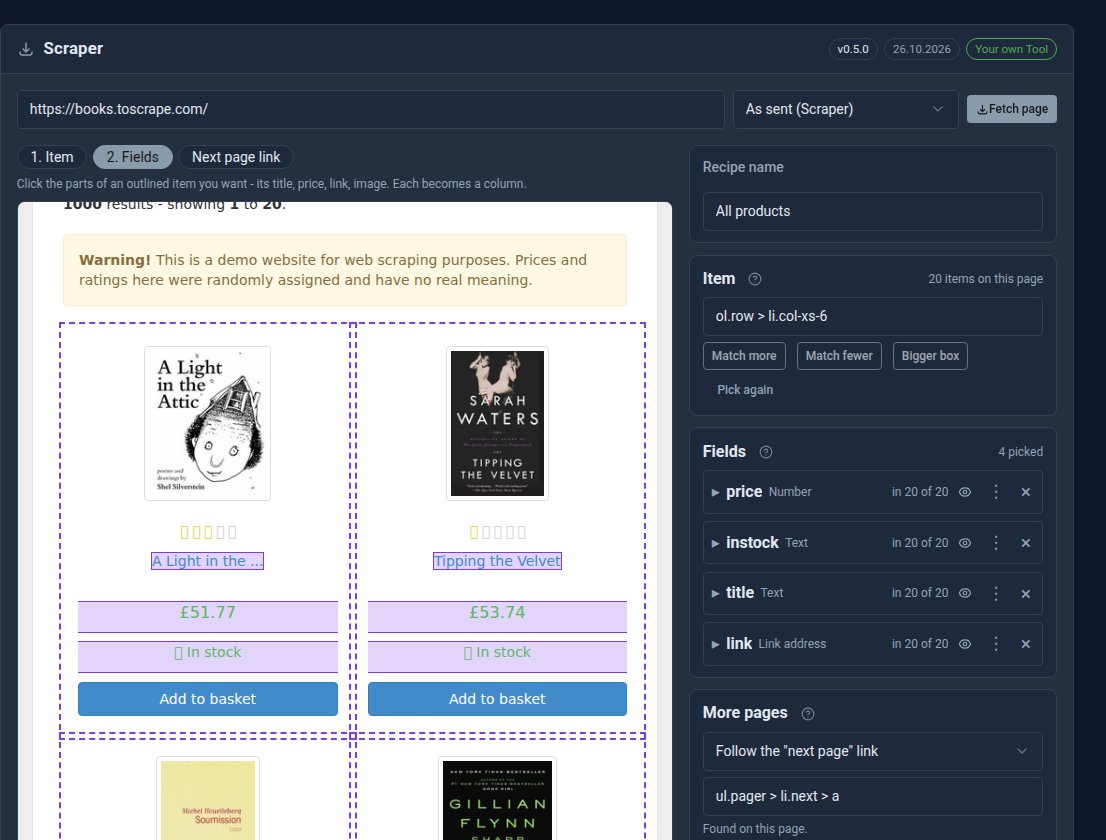
The Scraper collects lists from other websites into a collection on yours. This walkthrough builds a real recipe from start to finish in about ten minutes. Follow along on your own site: we use books.toscrape.com, a practice bookshop made for learning to scrape, so you can't upset anyone.
1. Start a recipe
Open Scraper from the admin sidebar and click New recipe in the bar at the top. Type https://books.toscrape.com/ and click Fetch page. The shop appears in the picker with its scripts switched off. Some icons may show as empty squares; that only affects the picker.
2. Pick one book
Under Item, click one book on the page. Every book gets an outline, which tells you the Scraper has found the pattern. If only part of the book is outlined (just its title, say), click Bigger box until the whole book is.
Picked too many or too few? Match more and Match fewer adjust it, and Pick again starts over.
3. Choose the columns
Under Fields, click the parts of one book you want to keep:
- The title. Clicking the link's text takes its address too, which you will want in step 5.
- The price. It is stored as a number, so you can sort and total it.
- "In stock". That gives you an availability column.
Each click adds a column. Rename one by clicking its name. A note like in 18 of 20 means two books on the page do not have that part.
4. Read every page, not just the first
The shop has 50 pages of books. Click Next page link, then the shop's own next button at the foot of the page. The Scraper will now follow it from page to page. Set At most this many pages a run to 10 for a first try.
5. Tell it how to spot a book it already has
In Match rows on a re-run by, choose the title's link: every book has a different one, and it never changes. When the recipe runs again, a book it already has is updated instead of added twice. Leave On a re-run on Update rows by key.
6. Check, save and run
The Preview shows exactly what a run will store, before anything is written. If it looks right, name the recipe ("Books") and click Save and run. You can leave the screen: a line at the top shows progress, with a Stop button. Our ten pages took 19 seconds, because the Scraper waits politely between pages.
7. Put it on a page
The rows land in a collection named after the recipe, here scrape-books. Add it to any page with one line:
[collection slug="scrape-books" display="table" sort="title" page-size="15" /]
Visitors get a table they can search and sort. Swap table for cards or list for another look, or use a View to group and total the rows.
8. Keep it fresh
Open the recipe again and set Run to every hour, day or week. Each run leaves a report under Runs on the recipe's menu: pages read, rows new or changed, and any pages that failed. The sidebar badge turns red if a run fails.
Taking it further
- Export the recipe from its menu and import it on another site. Imported recipes start with their schedule off.
- Deleting a recipe keeps the rows; delete the collection too if you want them gone.
- If a site builds its content with JavaScript and the picker shows nothing, Scraper Pro reads pages as a browser shows them.
Before you scrape a real site, check its terms and only collect what you are allowed to. The Scraper respects each site's robots.txt by default.
Keep reading
Meet the Scraper: other websites' lists, in your collections
The new free Scraper Tool collects products, prices and listings from other websites into a collection on yours. Click what you want once, and let it run by hand or on a schedule.

Every Pro Tool price, on the Pricing page
The Pricing page now lists every Pro Tool and its monthly price, read live from the page you buy on.

Cards and Cards Pro are now one Tool
Cards and Cards Pro are now one Tool, Cards Pro, with card credits built in and switched on when you want them.