Tutorials Running your site
Run Domma CMS in production with PM2
Keep your site running after you close the terminal, give it a secure address, and establish a routine for backups and updates.
60 minutes, plus server setup and DNSIntermediateFree CMS
Before you start
This walkthrough uses a Linux server with systemd, a normal user account with sudo access, Node.js 24 or later, npm, and a domain you control. You need SSH access and permission to change DNS and firewall settings. Server rental and your domain are separate costs.
Install Node using your provider's supported method, then check:
node --version
npm --version
Run Domma CMS and PM2 as your normal server user. Use sudo for system services only. The example site belongs at /home/domma/sites/my-site; replace that path with your actual user's directory throughout.
The arrangement is:
Visitor → Caddy (HTTPS, ports 80/443) → Domma CMS (127.0.0.1:4096)
                                          ↑
                                   PM2 manages the process
Use this on a server where you can configure the web server. If Apache or Nginx already handles your domains, add the equivalent reverse proxy there instead of installing a second service on the same ports.
Step 1: Put your site on the server
For a fresh site, run these as your normal user:
mkdir -p ~/sites
cd ~/sites
npx domma-cms@latest my-site
cd my-site
Complete the setup wizard. It creates your admin account and secrets. Follow Your first 15 minutes for the initial admin settings.
Already have a local site? Stop its development server before taking a copy. Transfer the whole project to the server over SSH, including hidden files such as .env and .domma, excluding node_modules and disposable logs. Keep the original copy. Then run npm install inside the transferred project. This preserves your content, settings, media, users and custom Tools; creating a fresh site alone would not move them. If you use MongoDB, migrate its database separately and update the connection settings.
Keep .env private and preserve the existing secrets when moving a site:
chmod 600 .env
Do not run the setup wizard over an existing site merely to change its public address. Change that in Site Settings later.
Step 2: Keep the CMS port local
Edit config/server.json. Change only the host and port fields, leaving its other settings in place:
"host": "127.0.0.1",
"port": 4096
Those lines are a fragment of the existing JSON object, not a replacement file. Check that it still parses:
node -e "JSON.parse(require('fs').readFileSync('config/server.json','utf8')); console.log('Server config OK')"
The CMS reads these settings for its listener; a PORT environment variable overrides the configured port. Keep the port consistent between PM2, the CMS configuration and your proxy. Choose another unused port if 4096 is occupied, and use that same port in the proxy configuration below.
Step 3: Start one production process with PM2
Install PM2 using your normal user's Node installation:
npm install -g pm2
pm2 --version
If npm reports a permissions error, fix your user's Node/npm installation rather than running the site under root.
Create production.config.cjs in the project. Use your real absolute path for cwd:
module.exports = {
  apps: [{
    name: 'my-site',
    cwd: '/home/domma/sites/my-site',
    script: 'server/server.js',
    instances: 1,
    exec_mode: 'fork',
    watch: false,
    env: {
      NODE_ENV: 'production',
      TRUST_PROXY: 'loopback'
    },
    exp_backoff_restart_delay: 100,
    max_restarts: 10,
    min_uptime: 5000,
    kill_timeout: 5000,
    time: true
  }]
};
Keep the name ending in .config.cjs: that is how PM2 recognises a configuration file - a file named any other way is run as a script instead, and the site never starts. The .cjs extension keeps it compatible with the site's ES module package. TRUST_PROXY: 'loopback' fits the local reverse proxy in this guide, allowing the CMS to recognise visitor addresses. Different proxy arrangements need an appropriate trusted-proxy setting.
Keep one instance. File storage and other site state must not have several processes writing concurrently. Adding MongoDB does not, by itself, establish that every part of a site is ready for clustering.
Stop any manually started development server with Ctrl+C before starting PM2:
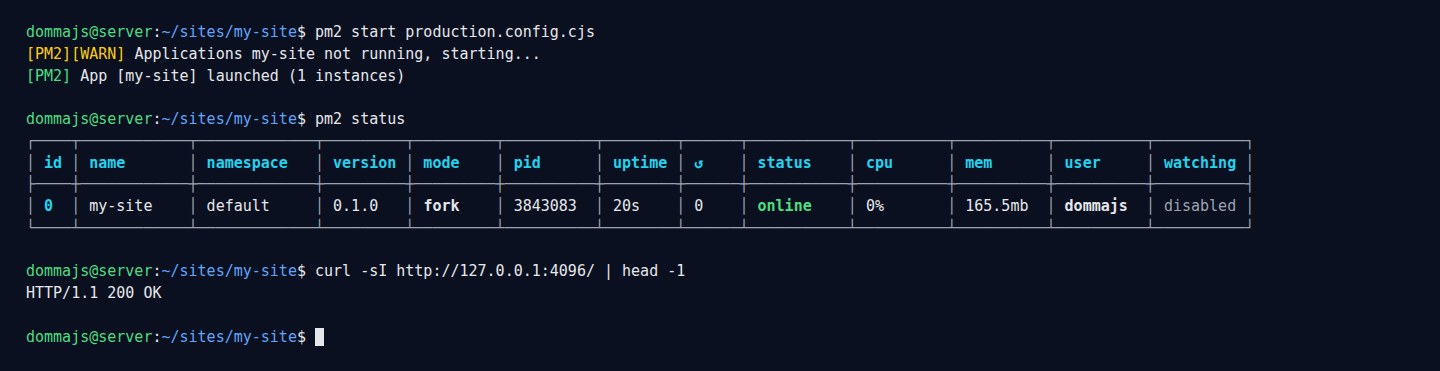
pm2 start production.config.cjs
pm2 status
pm2 logs my-site --lines 50
Press Ctrl+C to leave the log viewer; the managed site keeps running. Check it locally:
curl -I http://127.0.0.1:4096/
Expect a successful HTTP response. For configuration options, see the PM2 ecosystem reference.
Step 4: Start again after a reboot
As the same user that started the site, run:
pm2 startup
Execute the sudo command PM2 prints for your machine, then save the running process list:
pm2 save
Plan a reboot during a maintenance window. Afterwards reconnect over SSH, run pm2 status, and repeat the local HTTP check. Refresh startup configuration after changing your Node installation path. PM2 documents this in its startup guide.
Step 5: Give the site a domain and HTTPS
Point your domain's DNS A record to the server's public IPv4 address. Add an AAAA record only if IPv6 is configured and reachable. This example uses cms.example.com; replace it with your domain.
Allow inbound TCP ports 80 and 443 in the provider firewall and the server firewall. Keep your SSH access allowed. Leave the CMS port private.
Install Caddy using its official instructions for your distribution. On Debian/Ubuntu, the official package installs a systemd service. Edit /etc/caddy/Caddyfile with sudo and add:
cms.example.com {
    reverse_proxy 127.0.0.1:4096
}
On an existing Caddy installation, retain its other domain blocks. Validate before reloading:
sudo caddy validate --config /etc/caddy/Caddyfile --adapter caddyfile
sudo systemctl reload caddy
sudo systemctl status caddy
With public DNS and the required ports reachable, Caddy obtains and renews HTTPS certificates. Its proxy also supports WebSocket connections. See the reverse proxy guide and proxy reference.
Open https://cms.example.com/ and https://cms.example.com/admin/. If HTTPS fails, check DNS, firewall rules and Caddy's logs:
sudo journalctl -u caddy --since "15 minutes ago"
Step 6: Finish the public-site settings
In System > Site Settings, set the Site URL to your complete HTTPS address. Configure SMTP, save it and send a test email. Password reset and form notifications need working mail.
Check a published page, admin sign-in, an image upload and a form submission through the public address. If you use calls or other realtime features, test those through the proxy too. Run the free Security Tool's health check and resolve the findings.
Step 7: Back up the whole site
A restart cannot recover deleted content or a failed disk. Arrange scheduled, protected backups away from this server, and practise restoring one.
For a manual snapshot of a file-backed site, stop it briefly so the archive is consistent. Create the archive outside the project and restrict access:
cd /home/domma/sites
mkdir -p ~/site-backups
chmod 700 ~/site-backups
pm2 stop my-site
tar --exclude='my-site/node_modules' --exclude='my-site/logs' --exclude='my-site/.domma-backups' -czf "$HOME/site-backups/my-site-$(date -u +%Y%m%dT%H%M%SZ).tar.gz" my-site
pm2 start my-site
Restart the site even if the archive command fails, then investigate the error. These commands make a local snapshot, not an off-server backup. Copy it securely to separate storage. It contains credentials and user data: encrypt it, restrict access and set a retention policy.
For MongoDB sites, also back up the database while writes are stopped. A folder archive does not contain the database. A restore needs the project, its secrets and any external database; reinstall dependencies with npm install, then test on an isolated server before relying on the backup.
Step 8: Update with a short maintenance window
Take a complete backup first. In the project directory, inspect the update:
cd /home/domma/sites/my-site
npx domma-cms@latest update --dry-run
When ready, stop writes, update and start again:
pm2 stop my-site
npx domma-cms@latest update
pm2 start production.config.cjs
pm2 save
curl -I http://127.0.0.1:4096/
The updater preserves your site content and configuration while replacing the engine. Its own update backup does not replace your complete site and database backup. If the update fails, inspect the error before restarting a partially updated installation; restore your tested snapshot if necessary.
Check the public homepage, admin and key business flows again. Expect a brief outage during this routine; a single file-backed process does not provide a zero-downtime deployment.
Everyday checks and common problems
| Task | Command or check |
|---|---|
| Process state and restart count | pm2 status |
| Recent app output | pm2 logs my-site --lines 100 |
| Restart after changing configuration | pm2 restart production.config.cjs |
| Inspect process details | pm2 describe my-site |
| Proxy errors | sudo journalctl -u caddy --since "15 minutes ago" |
| 502 from the proxy | Check PM2 status, the app port and cwd |
| Address already in use | Stop the duplicate process or choose an unused port |
| Site disappears after reboot | Check the startup service and saved PM2 list for the correct user |
| Disk fills with logs | Configure rotation for PM2 and any separate application log files |
For PM2 log rotation, see its log management documentation. Add an external uptime check and alerts so a stopped process or unreachable server gets your attention.
What you now have
A Domma CMS site served over HTTPS, managed by PM2, with verified reboot behaviour and a repeatable backup and update routine. Keep the operating system, Node, PM2 and proxy maintained alongside the CMS.
Read the supporting article From a local Domma CMS site to production, or ask about managed hosting if you would prefer us to run the server.