How to welcome a new starter without the paperwork chase
A step-by-step guide to Onboard Pro: design a new starter's journey once, send each person their own link, get the contract signed and the forms filled in, and see at a glance who needs a nudge.

A new starter's first week usually begins with a chase: has she read the handbook, sent her bank details, signed the contract, picked up her badge? Onboard Pro turns all of that into one journey. You design it once, each person gets their own link, and you see everyone's progress on one screen.
This guide follows our made-up company, ACME Ltd, welcoming new workshop staff.
1. Design the journey once
Create a journey, give it a welcome note and a completion message, and add the steps. ACME's has eight:
- Read the staff handbook - a page on the site, confirmed with "I have read this".
- Your details - phone and the like, saved to their contact.
- Kit and uniform sizes - one of your forms, filled in right on their page.
- Sign your contract - sent for signing through Docs Pro.
- Workshop safety induction - they confirm it, and you countersign.
- Collect your badge - ticked off by you.
- Your staff account - an account on the site, approved by you.
- An optional page to finish.
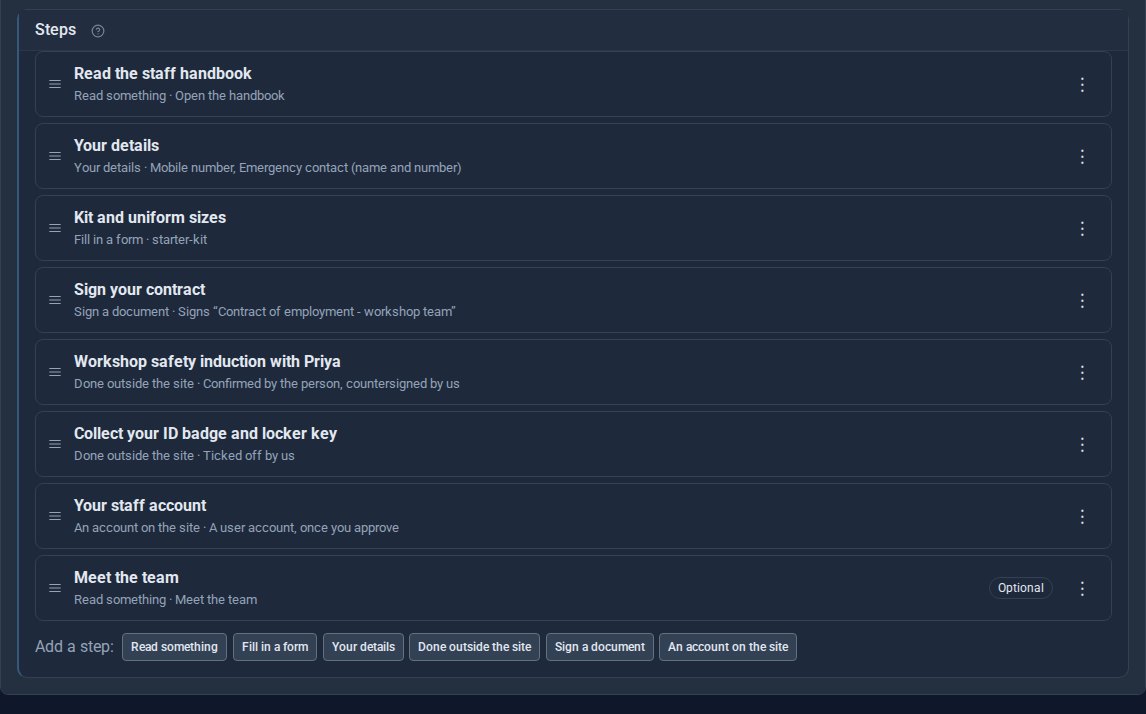
Drag steps to reorder them, and mark the ones that are optional.
2. Enrol your new starters
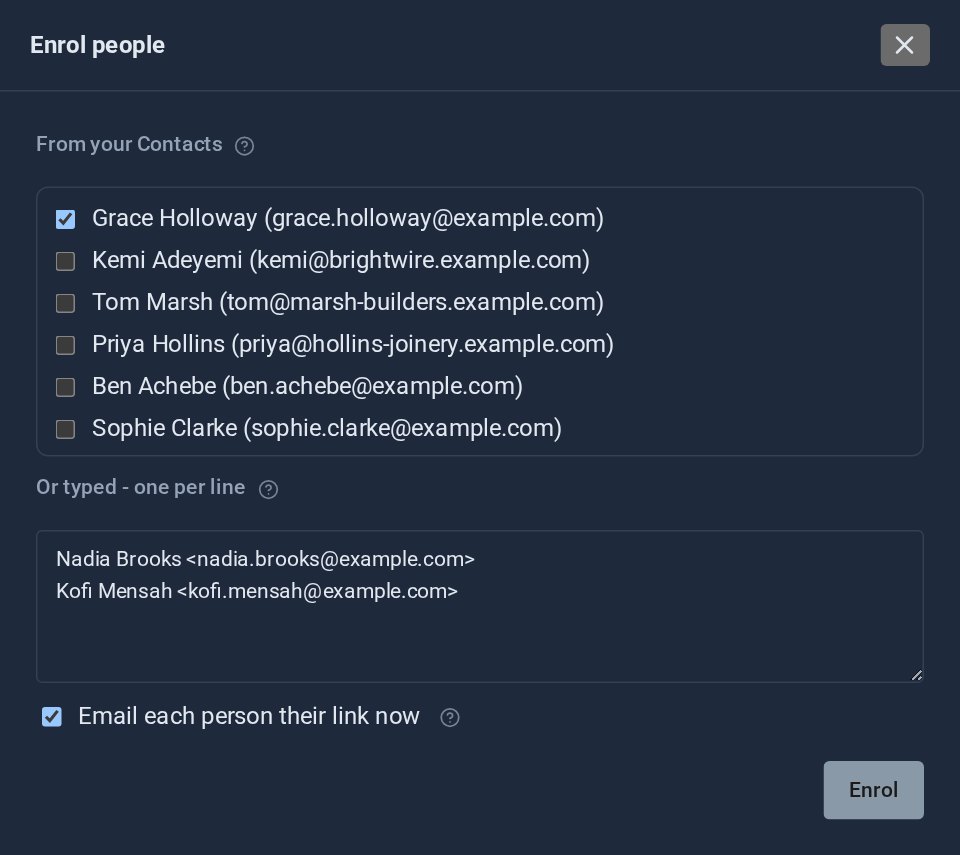
Open the journey's Progress screen and choose Enrol people. Tick them from your Contacts or type their addresses, and each is emailed a personal link. The link is their key: no password to set up on day one.
3. What your new starter sees
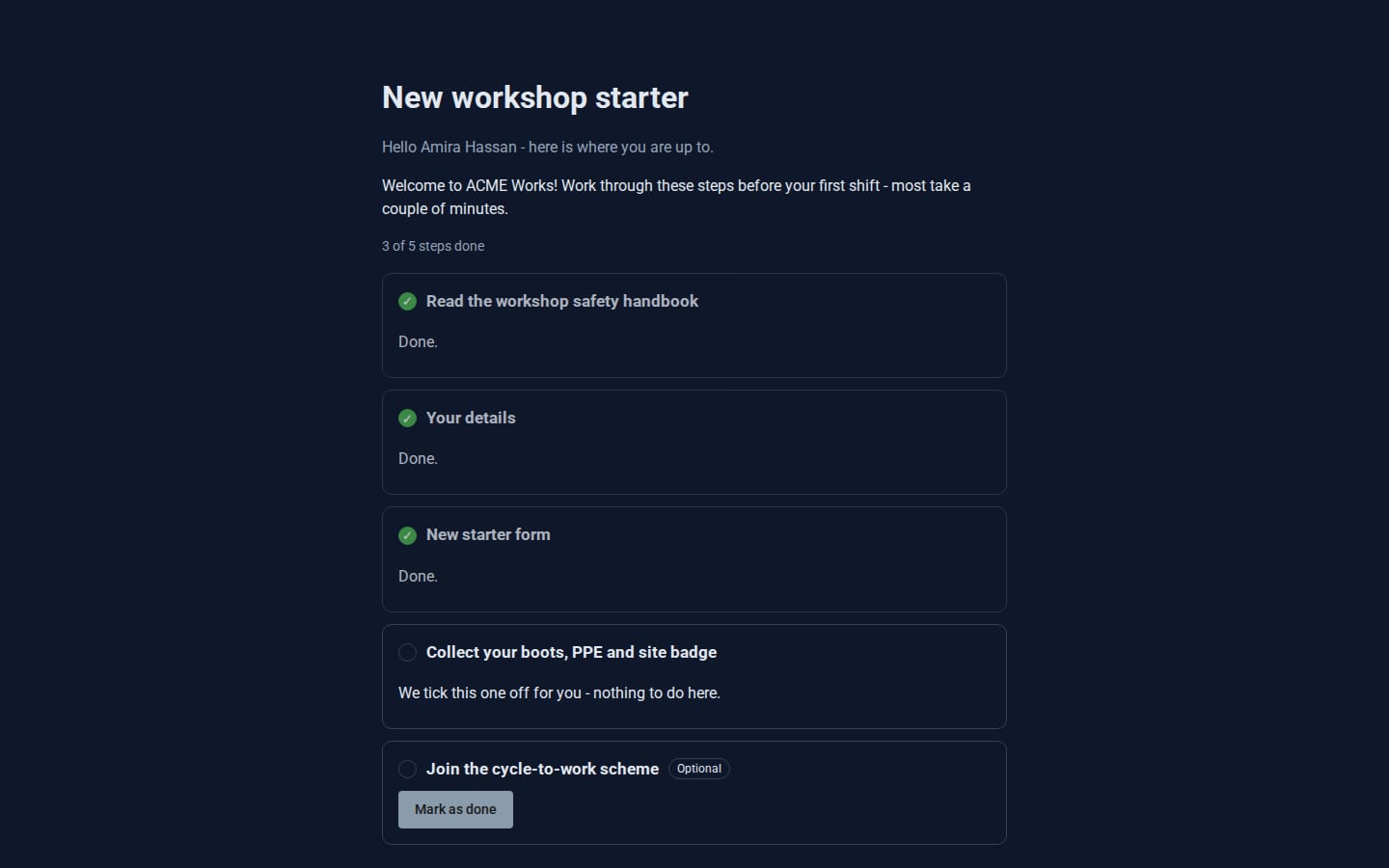
Their link opens their journey: what is done, what is next, and forms they fill in right there.
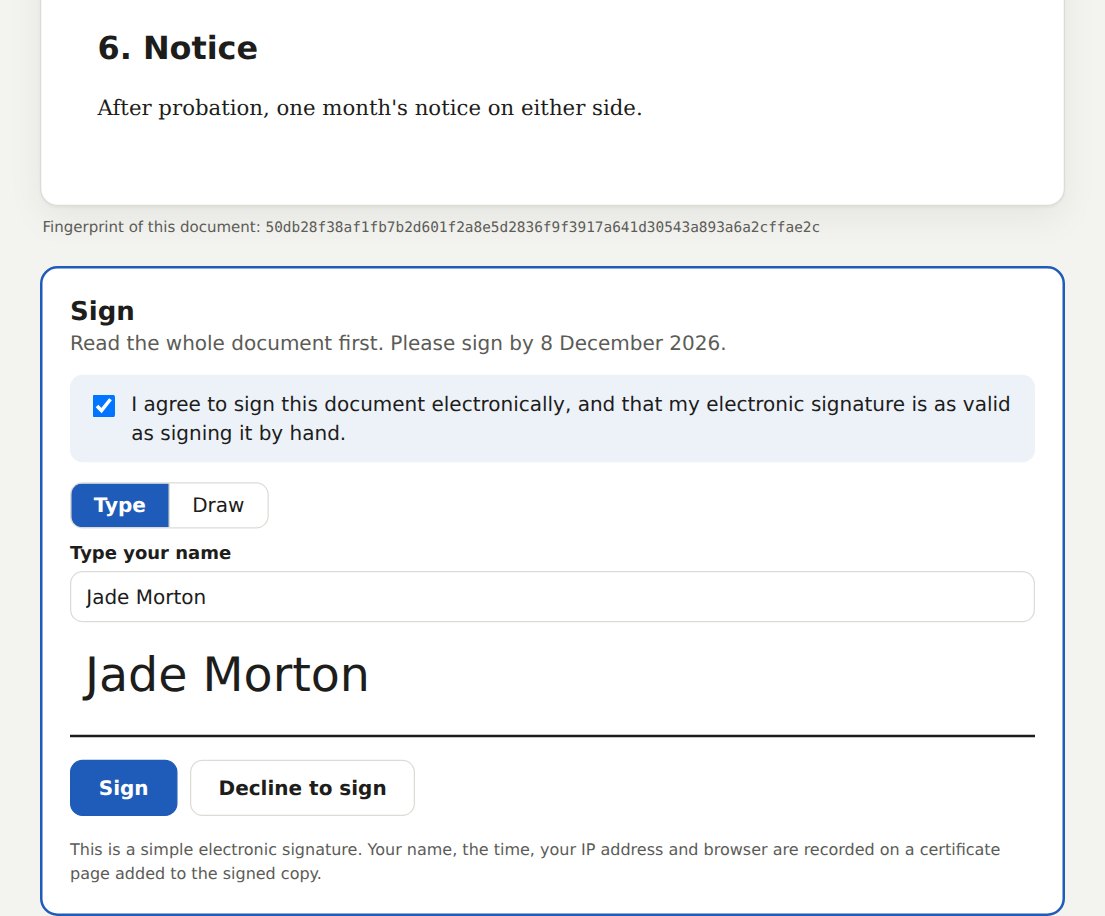
When they reach the contract, the signing link is emailed to them, and the step ticks itself once they sign.
4. See everyone at a glance
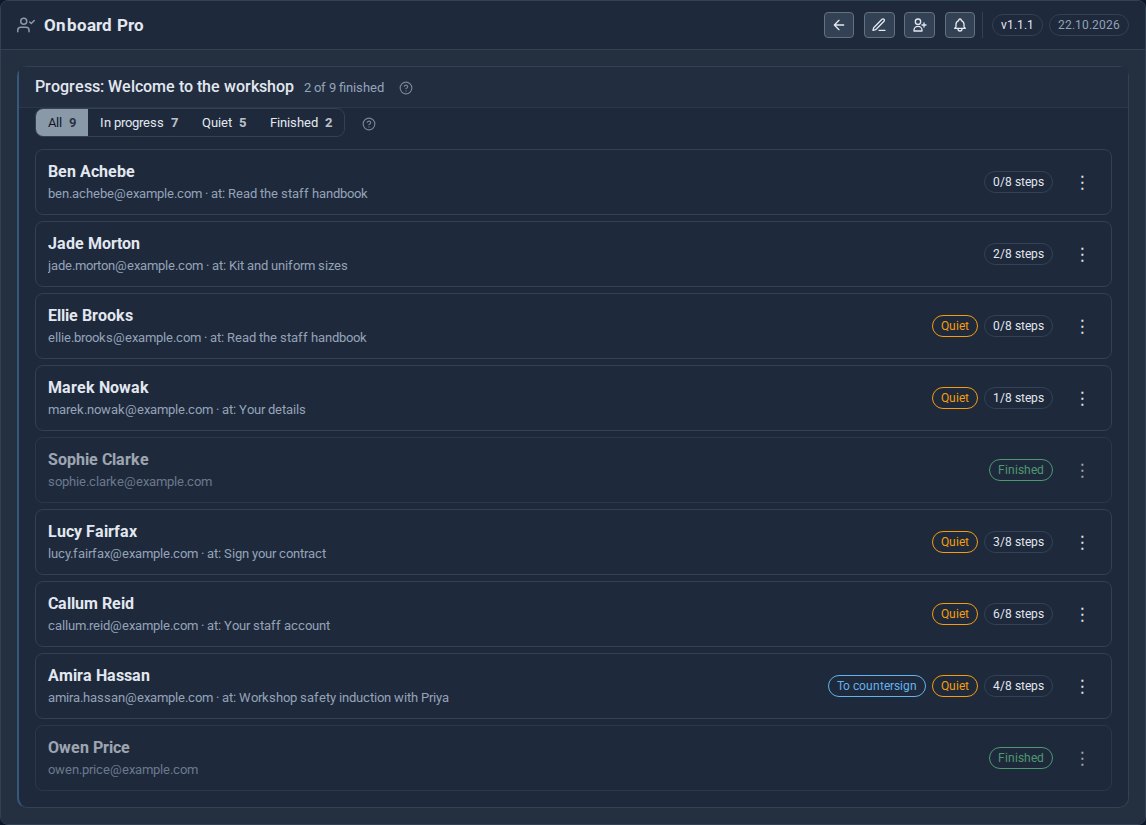
Progress lists everyone on the journey, the step each person is on, who has gone quiet, and what is waiting for you to countersign.
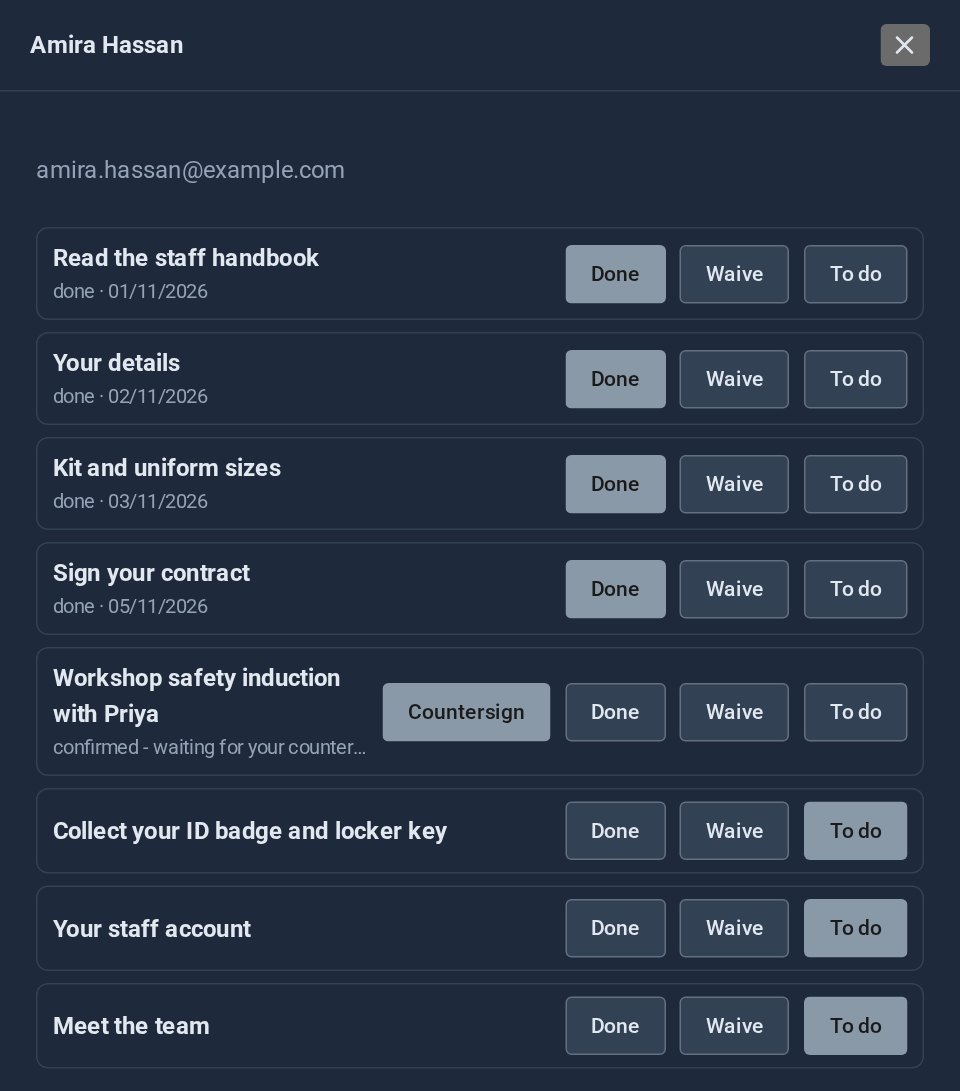
Open one person to tick, waive or reset any step, and countersign an induction they have confirmed.
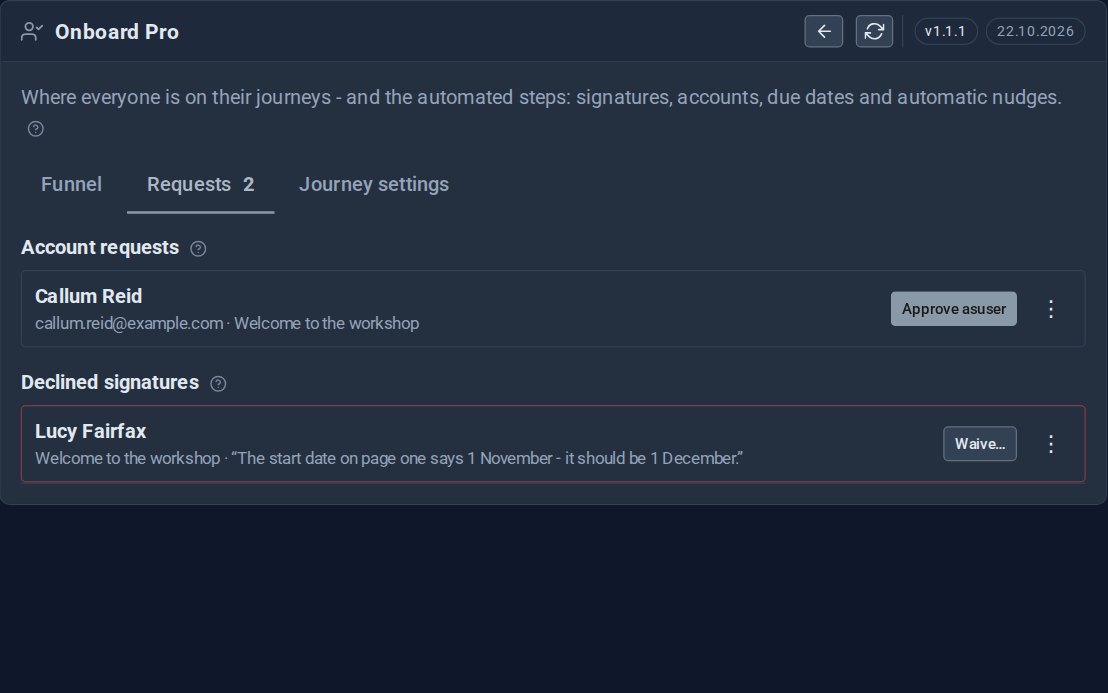
Accounts waiting for your approval, and any declined signature with the person's reason, are under Requests.
5. Let the reminders do the chasing
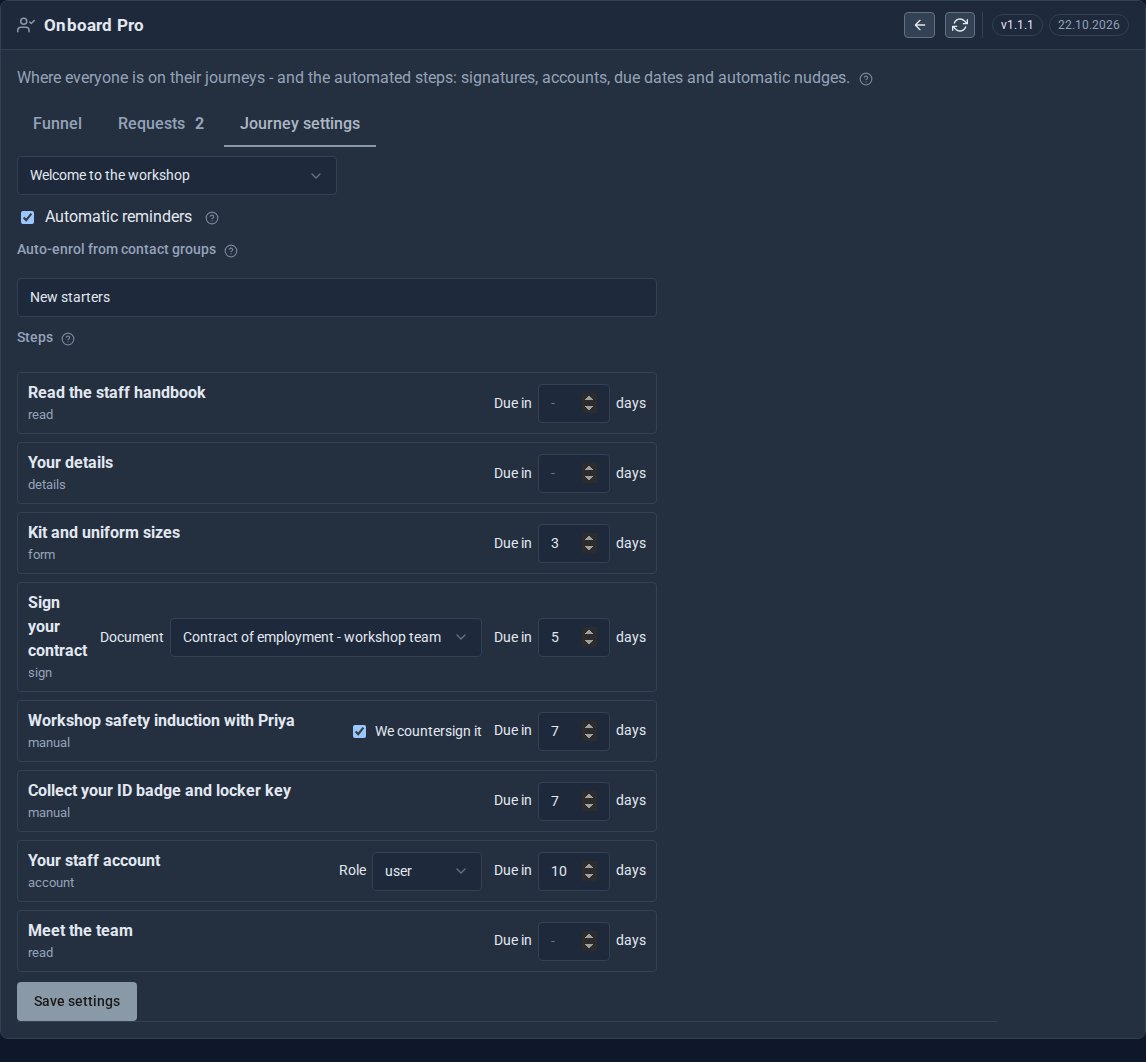
Switch on automatic reminders in the journey's settings, and anyone who goes quiet gets a fresh link, with an unsubscribe link at the foot. You can also give steps due dates, enrol everyone added to a contact group automatically, and choose the role their account gets.
6. See where people get stuck
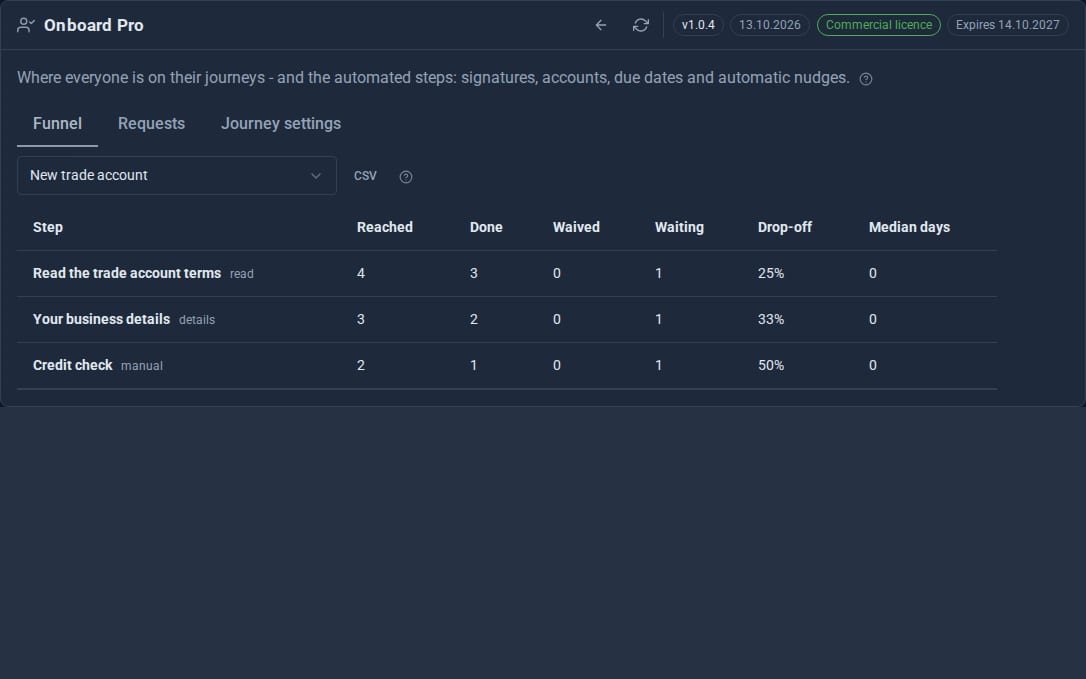
Insights shows the funnel: how many reached each step, finished it or are still waiting, and the median days each step takes. If everyone stalls at the same step, that step needs rewording.
Quick checklist
- Design the journey once, with a step for everything you chase.
- Enrol each starter; they get their own link.
- Countersign what needs your say-so.
- Switch on reminders.
- Check Insights after the first few starters.
It works just as well for new clients or new members as for new staff.
The screens above come from our made-up demo company, ACME Ltd.
Keep reading

What happens when you sign up for a Domma CMS site
From choosing a plan to your first sign-in: what signing up for a Domma CMS site looks like, what it costs each month, and how you change your plan or Tools later without ringing anyone.

How to run a project with your client in the loop
A step-by-step guide to Waypoint Pro: set up a board with your own workflow, plan sprints, start issues from templates, keep a private project for one client, and let them follow along without being able to change a thing.

How to get your news shared and posted without logging in to five networks
A step-by-step guide to Social Media Pro: make every page look right when it is shared, add share and follow buttons, and post to Bluesky, Mastodon, LinkedIn, Facebook Pages and X from one composer, now or scheduled.