How to run a customer feedback survey that people finish
A step-by-step guide to a short, three-page customer survey in Domma CMS: split it into pages, give it a look of its own, share one link, and read the results section by section.

Most customer surveys fail in the same way: they are one long page, people scroll, lose heart and close the tab. A survey split into a few short pages is finished far more often, and it is easier to read afterwards too.
This guide builds a three-page feedback survey for a made-up company, ACME Ltd, using Surveys in Domma CMS. It takes about ten minutes.
1. Write the questions in pages
Build the survey as a form in Data > Forms. Add a Page break wherever a new page should start, and give each one a title and a short description. Ours has three pages:
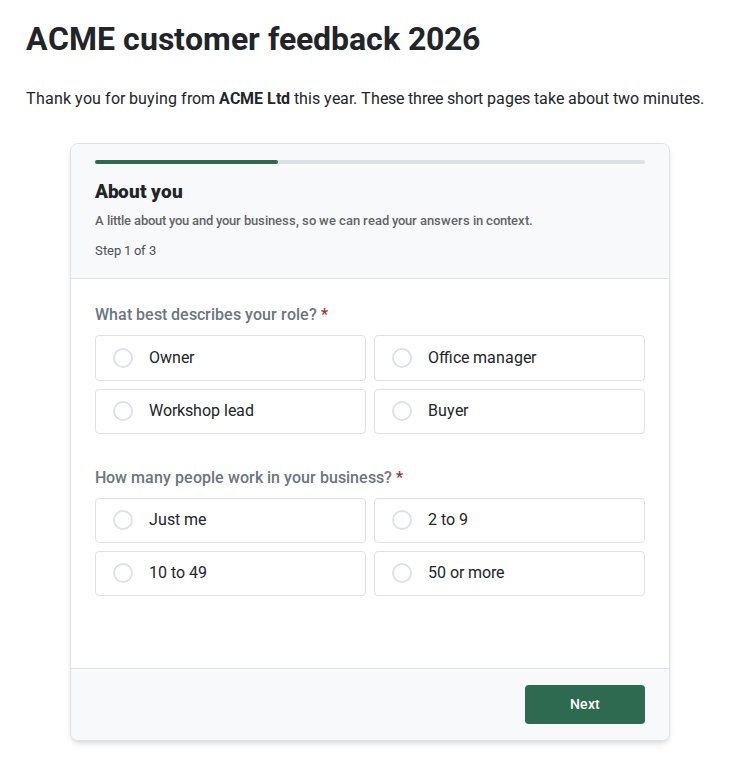
- About you: role and business size.
- Your last order: delivery, a 0 to 10 score, and what they liked.
- Ideas for next year: one choice and an open question.
Keep each page to two or three questions. People can see how far they have to go, and every Next takes them back to the top of the next page.
2. Give the survey its own look
Create the survey in Surveys with New survey and choose your form. Under Survey page, add a short intro and footer, then choose a Theme.
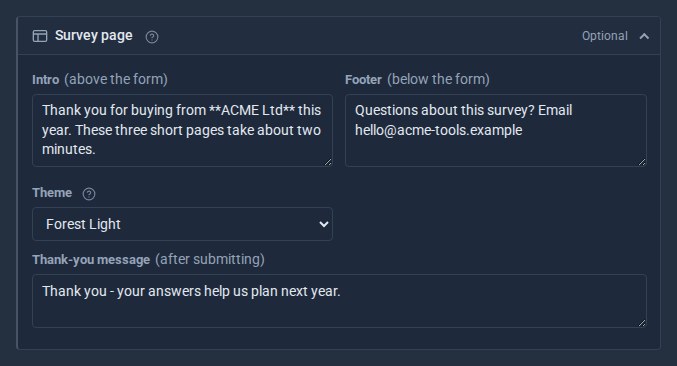
Leave it on Use site theme and the survey matches your website. Pick another theme when a survey should stand apart: a seasonal campaign, a client's own colours, or a custom theme you made with Theme Roller. Our survey uses Forest Light, even though the ACME site itself is dark:
3. Choose who can answer
Under Who can respond, pick one of two options:
- Invitation only: each person gets a personal link by email, good for one response. Use it for a customer list, so you can send reminders to the people who have not answered.
- Anyone with the link: share one address in a newsletter, on a receipt or on social media.
Set Status to Open, save, and send your invitations or share the link.
4. Read the results section by section
Open the survey's Results. With Split into sections on, the answers follow the same pages your customers saw, and each section shows how many of its questions were answered. Jump to buttons take you straight to a section.
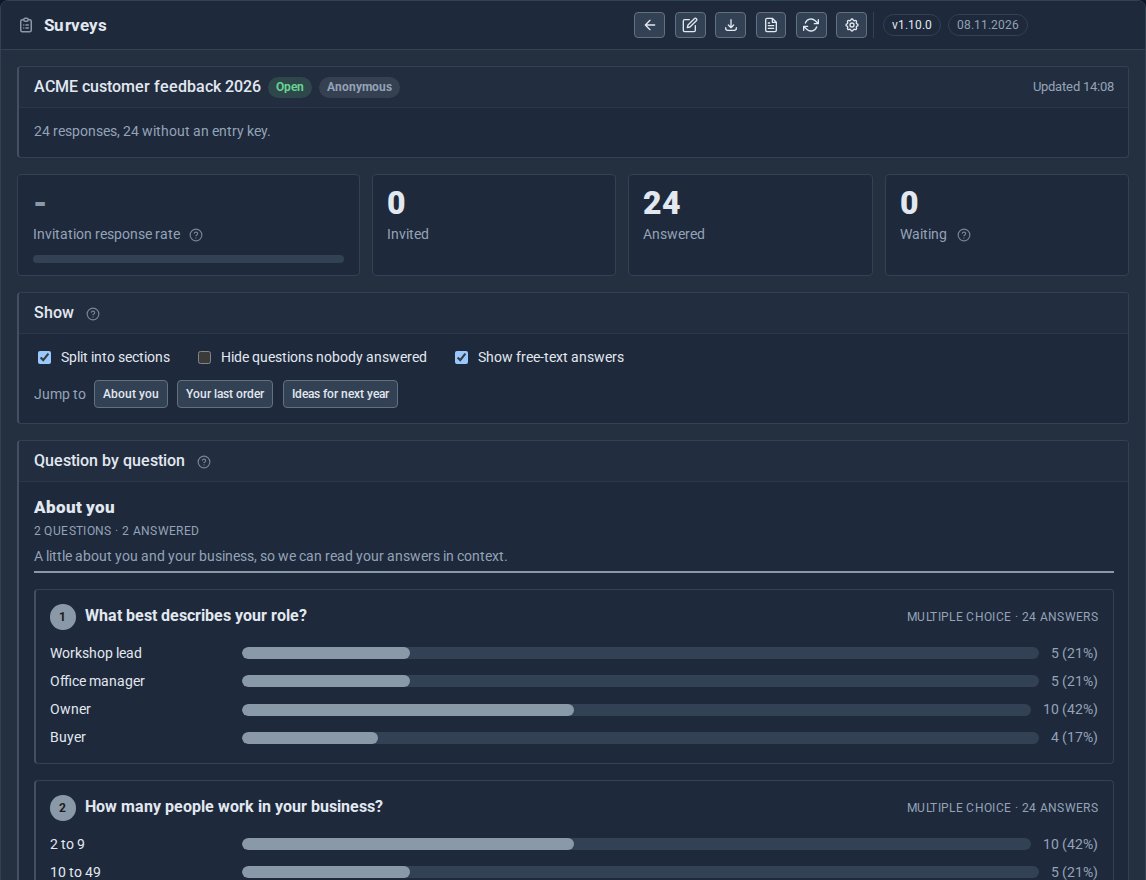
Two more switches help when you share your screen in a meeting. Hide questions nobody answered clears empty questions away, and switching off Show free-text answers leaves only the figures.
5. Take the results with you
Export CSV opens in any spreadsheet, with a column for when each response arrived and the questions as column headings. Export JSON keeps the complete results in one file, for your records or another program.
Quick checklist
- Three pages or fewer, two or three questions on each.
- A page title that tells people what that page is about.
- A theme that fits the people you are asking.
- One link, or personal invitations with a reminder a week later.
- Read the results section by section, then export them.
Keep reading

What happens when you sign up for a Domma CMS site
From choosing a plan to your first sign-in: what signing up for a Domma CMS site looks like, what it costs each month, and how you change your plan or Tools later without ringing anyone.

How to run a project with your client in the loop
A step-by-step guide to Waypoint Pro: set up a board with your own workflow, plan sprints, start issues from templates, keep a private project for one client, and let them follow along without being able to change a thing.

How to get your news shared and posted without logging in to five networks
A step-by-step guide to Social Media Pro: make every page look right when it is shared, add share and follow buttons, and post to Bluesky, Mastodon, LinkedIn, Facebook Pages and X from one composer, now or scheduled.