How to turn your address book into a customer list with Contacts Pro
A step-by-step guide to setting up Contacts Pro for a small business: bring your contacts in, add the fields you track, give groups a look, never miss a birthday, and share customers with your team.

Most small businesses keep their customers in three places at once: a phone, a spreadsheet and someone's memory. Contacts Pro brings them into one list in your Domma CMS admin, with the details you actually track. This guide sets one up for a made-up company, ACME Ltd, in about fifteen minutes.
1. Bring everyone in
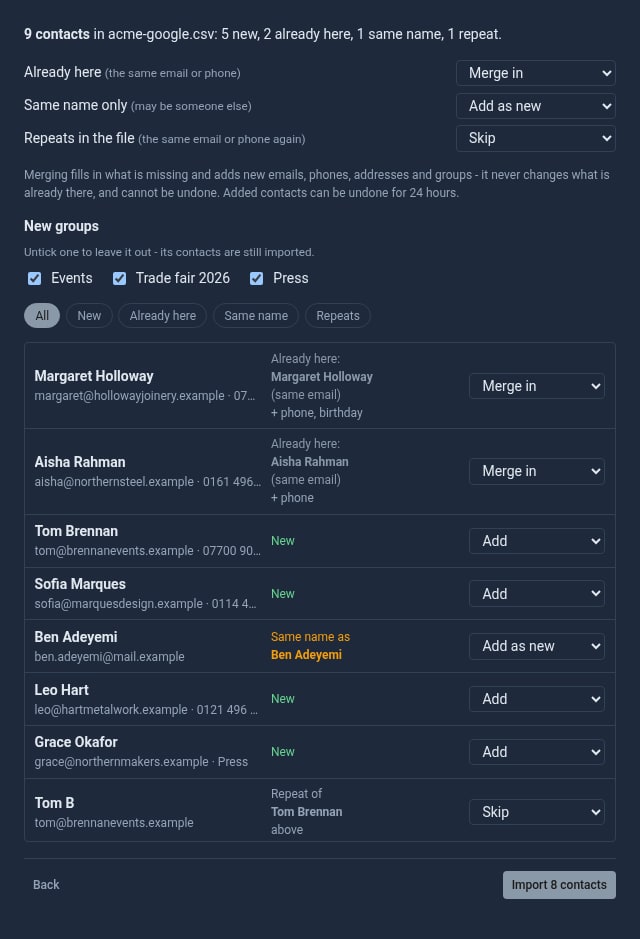
Export your contacts from Google Contacts, an iPhone, an Android phone or Outlook, or save a spreadsheet as CSV. In Contacts, open the menu and choose Import contacts, then drop the file in.
Before anything is saved, the preview shows who is new, who is already in your list and will be merged, and who appears twice in the file. Merging only fills in what is missing, so nothing you already have is overwritten. Your Google labels arrive as groups, and for 24 hours the contacts an import added can be removed again with one click.
2. Add the fields you track
Every business tracks something the standard fields do not have: an account tier, a renewal date, who looks after the customer. Open the menu and choose Custom fields to add your own, as text, numbers, dates, yes/no, a choice from a list, links, emails or phones.
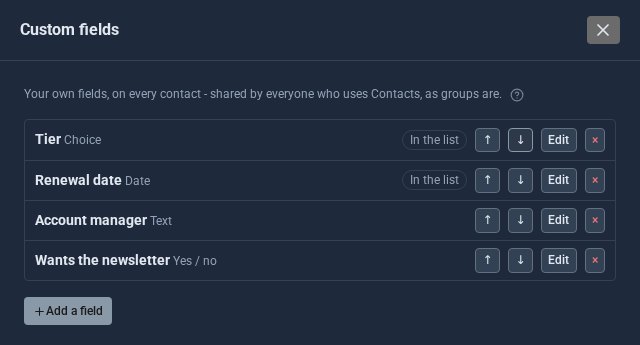
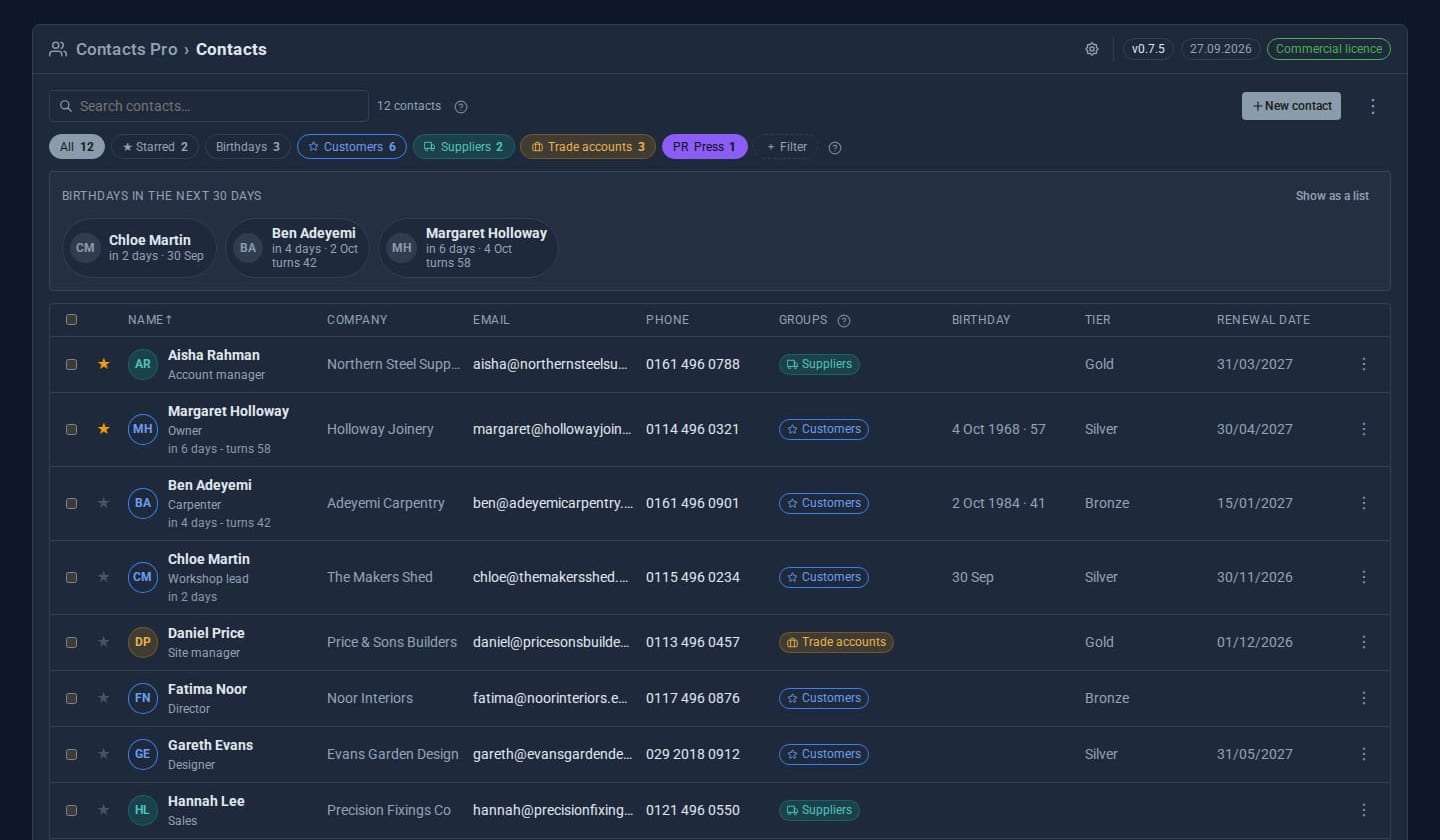
Turn on Show in the list by default for the ones you want as columns. ACME shows Tier and Renewal date, so the list answers "who renews next month?" at a glance, and you can filter by any of them.
3. Give your groups a look
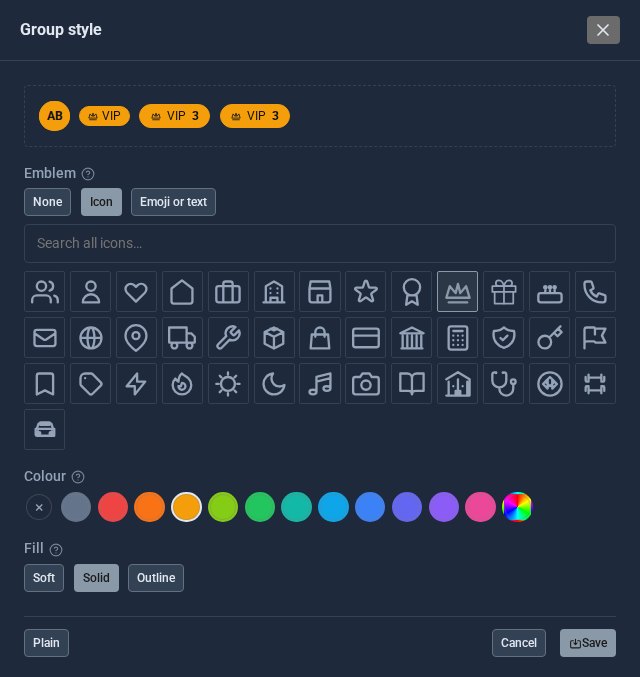
Right-click a group's chip and choose Style. Pick an emblem, a colour and a soft, solid or outline fill. VIPs in gold and suppliers in orange are easy to tell apart before you read a word.
4. Never miss a birthday
Add a date of birth to a contact, with or without the year. The list shows who has a birthday in the next 30 days, the Contacts entry in the sidebar counts the week's birthdays, and you get a notice on the day. With the Calendar Tool on, birthdays appear on your calendar too.
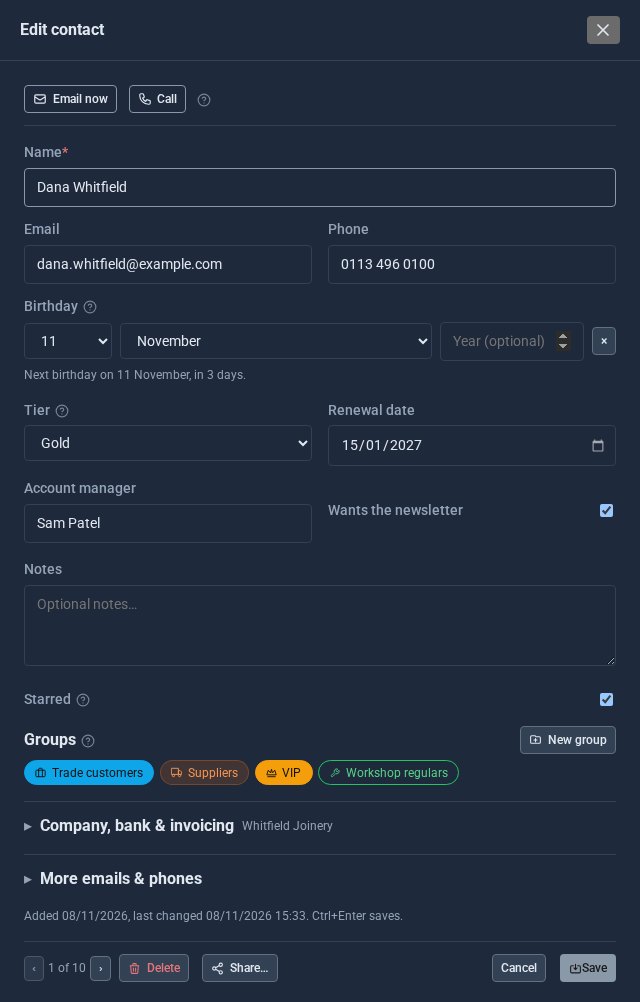
Every contact also has Email now and Call at the top, so a quick hello is one click away.
5. Share customers with your team
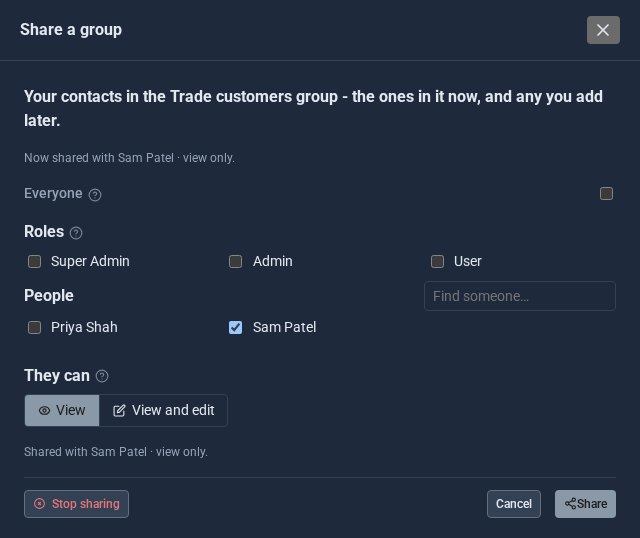
Your contacts are yours until you share them. Right-click a group and choose Share this group to share everyone in it, now and in future, with everyone, a role or named colleagues. Choose whether they can only view or can edit too.
The result
One list, with the fields you care about as columns, groups you can tell apart at a glance, birthdays you will not forget, and customers your team can see.
With Campaigns Pro, any group or selection is one click from an email campaign. Right-click it and choose Send a campaign.
Explore Contacts Pro or read about campaign emails with your letterhead, pictures and surveys.
Keep reading

How to take bookings and RSVPs without the back-and-forth
A step-by-step guide to Calendar: set your hours, put a booking form and a class with limited places on your site, run an event people can RSVP to, and see it all in one place.

What happens when you sign up for a Domma CMS site
From choosing a plan to your first sign-in: what signing up for a Domma CMS site looks like, what it costs each month, and how you change your plan or Tools later without ringing anyone.

How to run a project with your client in the loop
A step-by-step guide to Waypoint Pro: set up a board with your own workflow, plan sprints, start issues from templates, keep a private project for one client, and let them follow along without being able to change a thing.