You will build
A Find a stockist page where customers search ACME's stockists, filter by region and type, sort, and share what they found.
You need
- A collection with a few entries (make one) - here,
stockistswith name, town, region, type, phone and website
No code
One shortcode. The search box, filter panel, paging, saved searches and export come with it.
Step 1: Start from a plain display
On a new page called Find a stockist, show the collection as cards:
[collection slug="stockists" display="cards" columns="3" title-field="name" fields="town,region,type,phone,website" /]
This is a static list: fine for ten entries, hard work for a hundred.
Step 2: Make it searchable
Add searchable, sortable and a page size:
[collection slug="stockists" display="cards" columns="3" title-field="name" fields="town,region,type,phone,website" searchable sortable page-size="9" /]
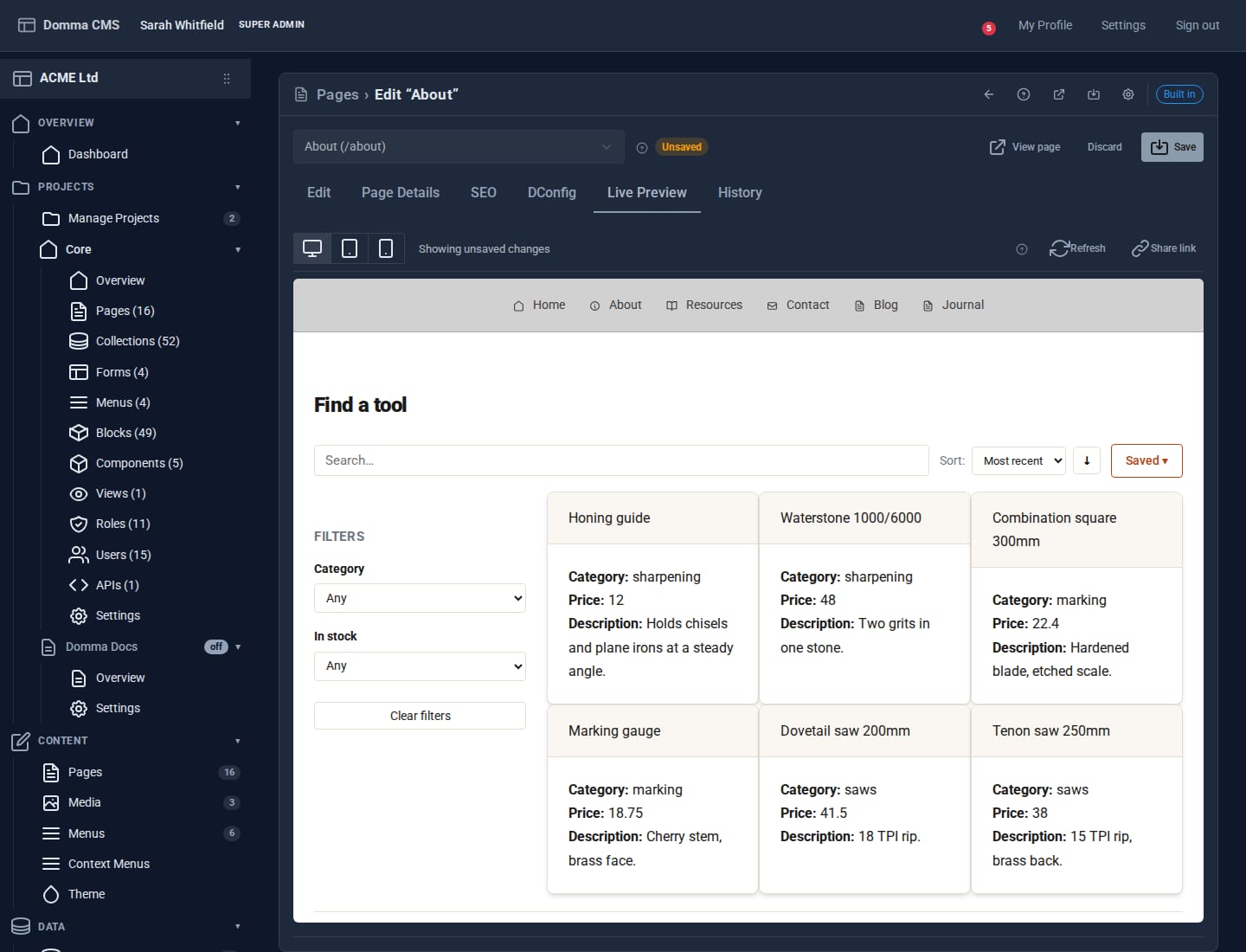
Adding any of searchable, sortable, filterable or paginate turns the display into the Collection Browser: a search box, a sort menu and pages of nine. Search matches as you type and ranks the best matches first. Visitors can press / to jump to the search box and use the arrow keys to change page.
Step 3: Add filters
Name the fields visitors can filter on:
[collection slug="stockists" display="cards" columns="3" title-field="name" fields="town,region,type,phone,website" searchable sortable filterable="region,type" page-size="9" /]
A filter panel appears beside the results. Its controls come from each field's type - a dropdown field gets a list of its options with a count beside each, a number field gets a range, a date field gets from and to. On phones the panel becomes a drawer.
Step 4: Fix what the page is for
Filters you write into the shortcode with where_ are locked in. Visitors can narrow within them but never see past them. For a Trade counters page:
[collection slug="stockists" display="cards" title-field="name" fields="town,region,phone" searchable filterable="region" where_type="trade-counter" /]
Step 5: Let people share and keep what they found
Nothing extra to switch on:
- The address follows the search. Search for
Leedsand filter to Retailers, and the address bar updates. Copy it and whoever opens it sees the same results. - Saved searches keep a visitor's favourite searches in their own browser.
- Right-click any card for quick filters on the value you clicked, sorting, grouping, copying the visible entries as CSV, JSON or Markdown, printing just this list and Copy link to this view.
Add exportable to the shortcode to give visitors a CSV download button as well.
Step 6: Handle a big directory
The browser loads every entry into the page, so filtering is instant. Past 1,000 entries it switches itself to fetching one page at a time from the server, so large directories stay quick. Set mode="server" to use that from the start, or pagination="scroll" for infinite scroll instead of pages.
What you built
A proper directory: live search, filters built from your fields, sorting, paging, shareable links, saved searches and export - from one shortcode over a collection your team already edits in the admin.
Keep going
- One collection, eight looks
- Reporting with Saved Views - totals and groups rather than lists
- Ship a public JSON API in five minutes
Try it on your own site
Everything in this tutorial is free. One command gets you a site to follow along on.