Tutorials Pro Tools
Build a page by asking Dot
Ask Dot, the Site Builder, for a new page in plain words, answer one question, preview the draft, ask for a change and publish it.
10 minutes BeginnerPro
You will do
Give Pipewell Plumbing & Heating, our made-up plumbing firm, a Services page with a card for each service, without writing a word of it yourself.
You need
- A site Domma hosts on the Pro plan, which includes Site Builder
- An admin account that may edit pages
Why it matters
The page is ordinary Domma content, built from your own theme and blocks, and nothing goes live until you have seen it.
Step 1: Open Site Builder
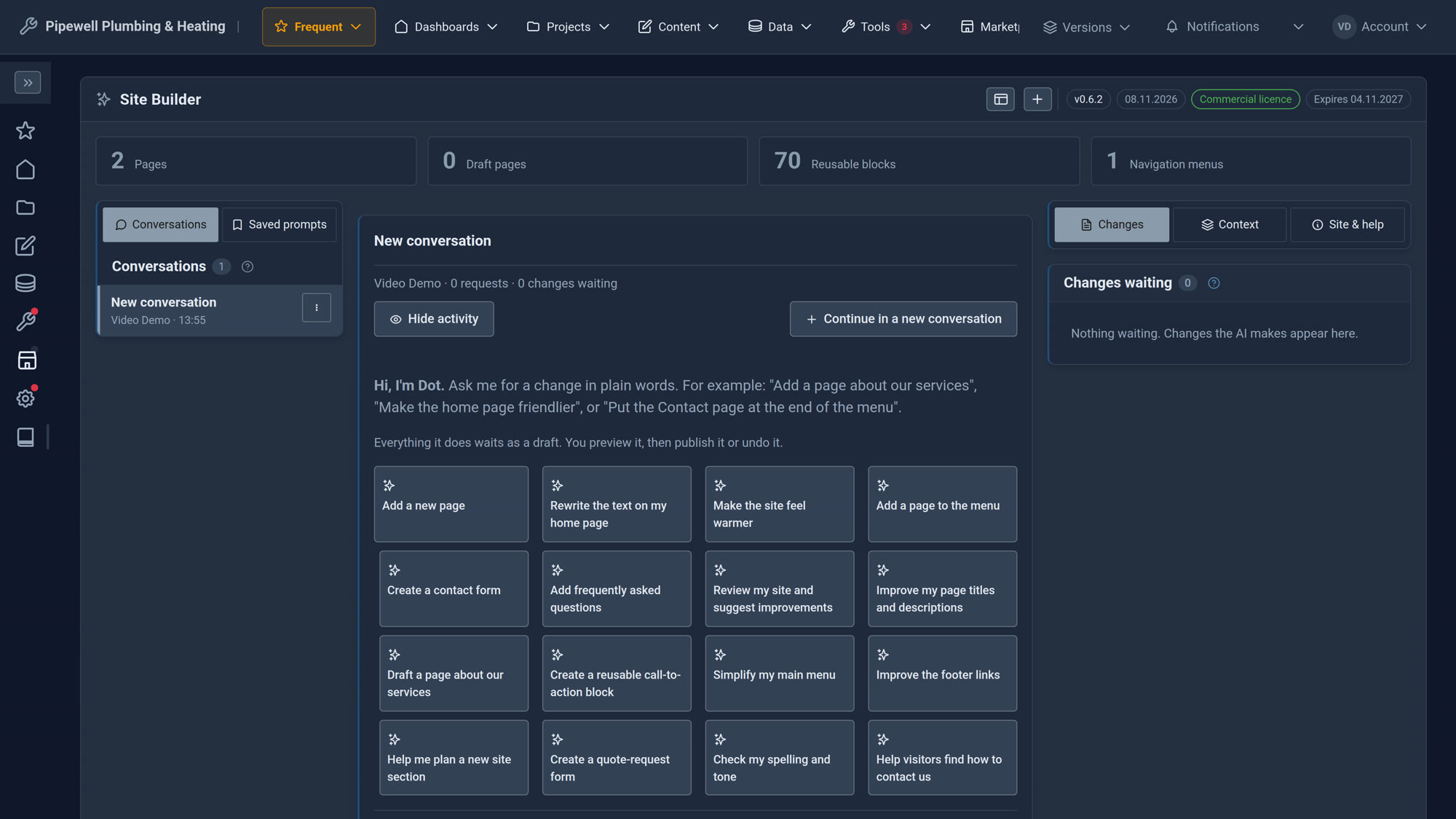
Choose Site Builder in the sidebar. You are met by Dot: "Hi, I'm Dot. Ask me for a change in plain words." Quick starters such as Add a new page and Make the site feel warmer fill the box for you, or you can type your own.
Step 2: Ask for the page
Type Add a page about our services. and press Send (or Ctrl+Enter). While Dot works you see "Dot is working on your request"; you can leave the screen and come back.
Step 3: Answer Dot's question
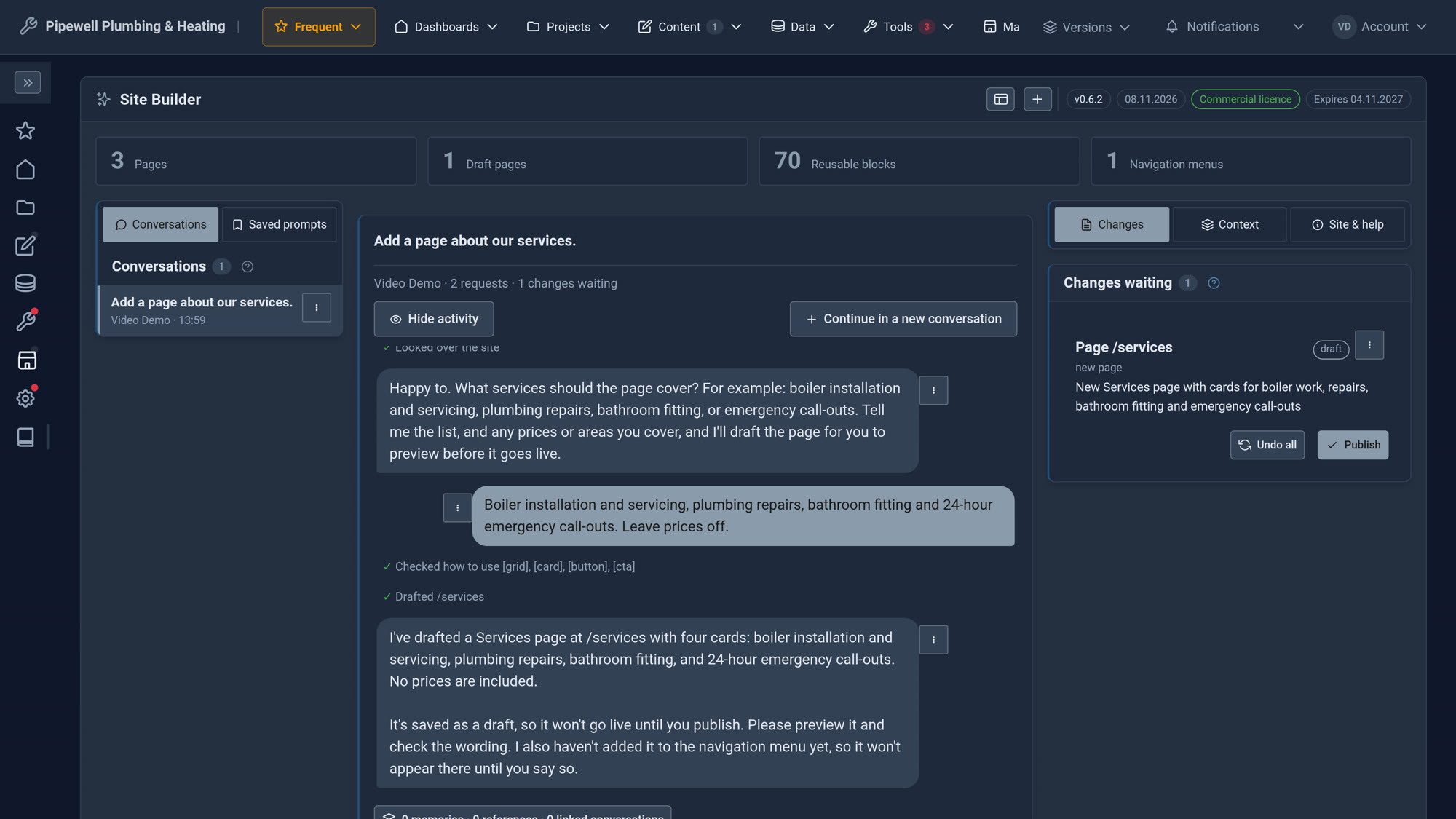
If something that matters is unclear, Dot asks one short question rather than guessing. For Pipewell it asked which services to cover. The answer was: Boiler installation and servicing, plumbing repairs, bathroom fitting and 24-hour emergency call-outs. Leave prices off.
Dot then drafts the page and says so plainly: it is saved as a draft and will not go live until you publish.
Step 4: Preview the draft
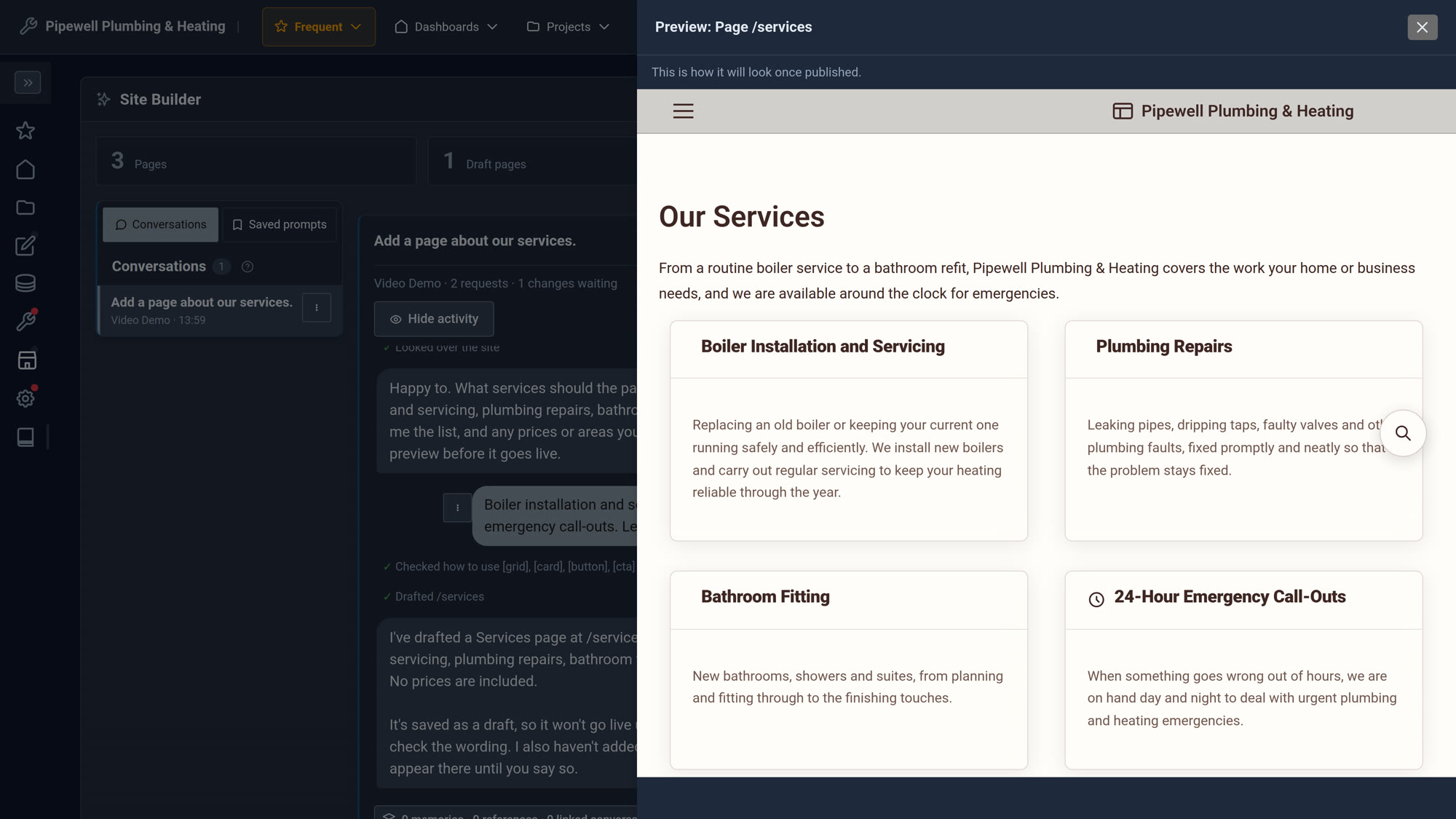
The new page waits under Changes, on the right. Press Preview to see it exactly as visitors will, with your theme, menus and fonts.
Step 5: Ask for a change
Not quite right? Ask in the same words, for example Make the cards shorter or Add a line about free quotes. Dot changes the draft, and the preview follows.
Step 6: Publish, or undo
Press Publish and the page is live. Change your mind later and Undo takes the publish back. Everything Dot made is an ordinary page, so you can also open it in the page editor and change it by hand.
What you built
A real page, from one sentence and one answer: drafted with your own blocks, checked in a preview, changed in plain words and published when you said so.
Keep going
- Make a Tool of your own with Daisy - when your business needs something no Tool quite does
- Draft, review and publish - share a private preview before you publish
Put Dot to work on your site
Site Builder comes with the Pro plan, on sites Domma hosts. It is not available to self-hosted sites.