You will build
ACME's Tool catalogue shown eight ways - and a design of your own for the eighth.
You need
- A collection with entries - we use
tool-cataloguefrom Your first collection
The idea
Enter the data once, in the admin. Choose how it looks page by page with one word: display.
Every example below is one line in a page. They all accept the same filters (where_...), sort, order, limit and fields, and every one has the right-click menu for filtering, sorting and exporting.
1. Table - the default
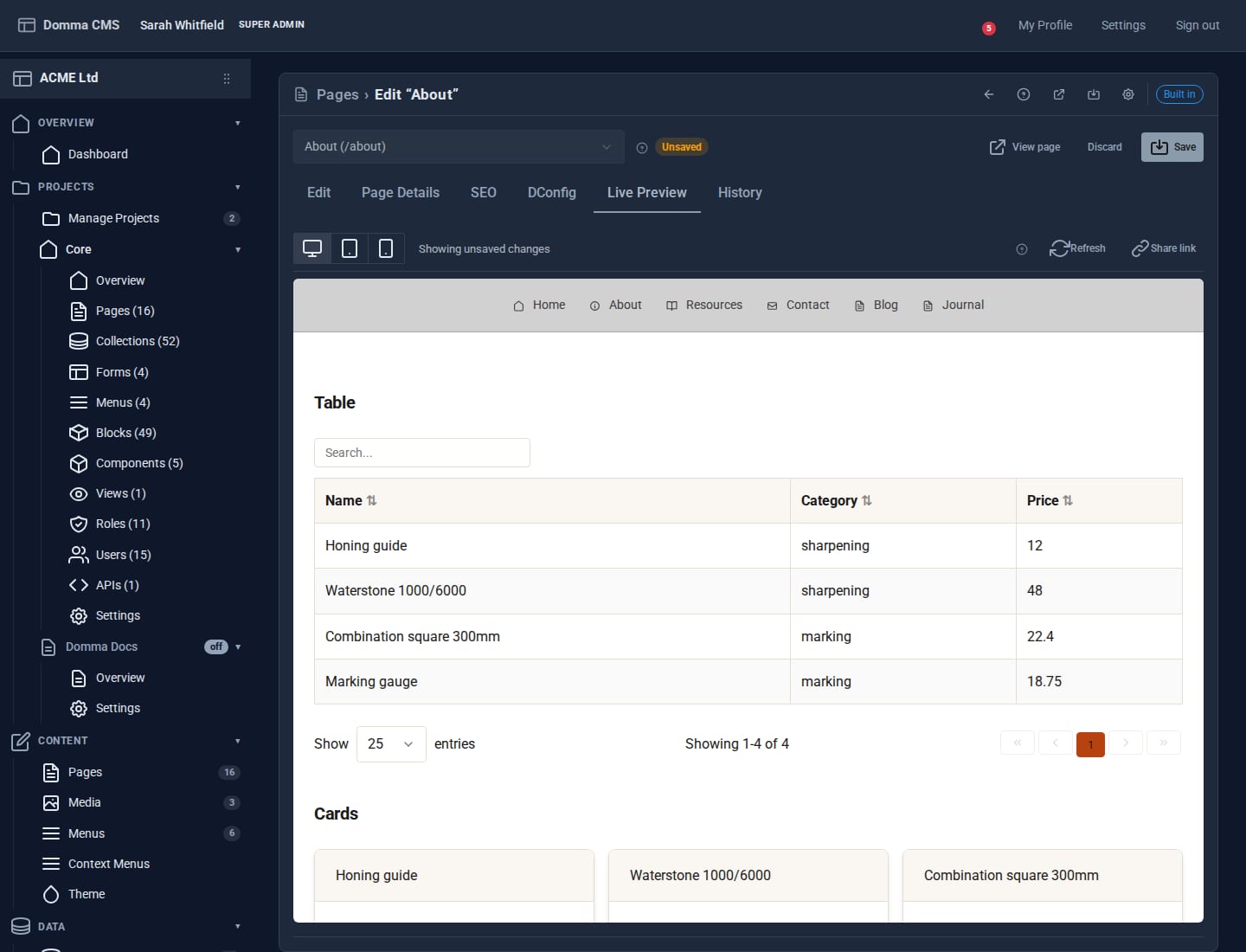
[collection slug="tool-catalogue" fields="name,category,price" exportable="true" /]
A proper data table with search, sortable columns, paging (25 rows a page; change with page-size) and a column chooser. exportable adds a download button. Leave out display and this is what you get.
2. Cards
[collection slug="tool-catalogue" display="cards" columns="3" title-field="name" fields="price,description" /]
A card per entry, columns wide. The workhorse for products, people and places.
3. List
[collection slug="tool-catalogue" display="list" title-field="name" fields="category,price" /]
A compact list - good in a sidebar or a narrow column.
4. Accordion
[collection slug="tool-catalogue" display="accordion" title-field="name" body-field="description" /]
Each entry becomes a heading that opens to show its body-field. Ideal for FAQs: make a collection with question and answer fields and this is your FAQ page. Add multiple="true" to allow several open at once.
5. Timeline
[collection slug="tool-catalogue" display="timeline" title-field="name" date-field="launched" body-field="description" layout="centred" sort="launched" order="asc" /]
Entries along a timeline by their date-field. Choose a layout (vertical, centred, horizontal) and a theme (minimal, corporate, modern). With mode="roadmap" and a status-field, the same display becomes a product roadmap.
6. Carousel
[collection slug="tool-catalogue" display="carousel" title-field="name" image-field="photo" body-field="description" autoplay="true" /]
A slideshow, one entry per slide. It needs a field holding an image address (photo here - add one to the collection first). Set interval, loop and the animation to taste.
7. List group
[collection slug="tool-catalogue" display="listgroup" title-field="name" variant="numbered" /]
A Domma list group: flush, numbered or horizontal, with optional colour per item (itemvariant) and hover styling (action="true"). Tidy for top-ten lists and links.
8. Your own design with a block
When none of those fits, design the entry yourself. Go to Data > Blocks and create a block called tool-tile:
<div class="tool-tile">
<span class="tool-tile-cat">{{category}}</span>
<h3>{{name}}</h3>
<p>{{description}}</p>
<strong>£{{price}}</strong>
</div>
Each {{field}} is filled from the entry (safely escaped). Put the block's styling in its Custom CSS pane - it is scoped to this block automatically, so it cannot leak into the rest of the site. The block editor's sample values table drives a live preview exactly as the site will draw it.
Then use it:
[collection slug="tool-catalogue" display="block" block="tool-tile" cols="3" /]
cols sets 2 to 6 columns that stack on phones. The same block= also works for carousel and list group entries. Dates can be formatted in the template: {{launched:DD MMM YYYY}}.
Make any of them interactive
Add searchable, sortable or filterable="category" to cards, list, block and the rest and they gain the search box and filter panel from Build a searchable directory.
What you built
One set of data, eight presentations, each a single line you can change without touching the data. Your team edits entries in the admin; every page showing them updates by itself.
Keep going
- Build a searchable directory
- Reporting with Saved Views - show grouped totals with the same displays
- A landing page in 15 minutes
Try it on your own site
Everything in this tutorial is free. One command gets you a site to follow along on.