You will build
ACME's Tool catalogue: a collection of products with a name, category, price and stock flag, shown on a page as cards.
You need
- A Domma CMS site you can sign in to
- A list of things you want to show - products, team members, events, anything
What is a collection?
A named set of entries that share the same fields - like a spreadsheet tab with rules. Stored as a file, so there is no database to set up.
Step 1: Create the collection
Go to Data > Collections and click the + (New collection) button in the banner. Type the title Tool catalogue and press Enter. Domma CMS makes the slug (tool-catalogue) from the title and opens the collection editor.
It also creates a matching form with the same slug, so the collection can take submissions straight away if you ever want it to.
Step 2: Add the fields
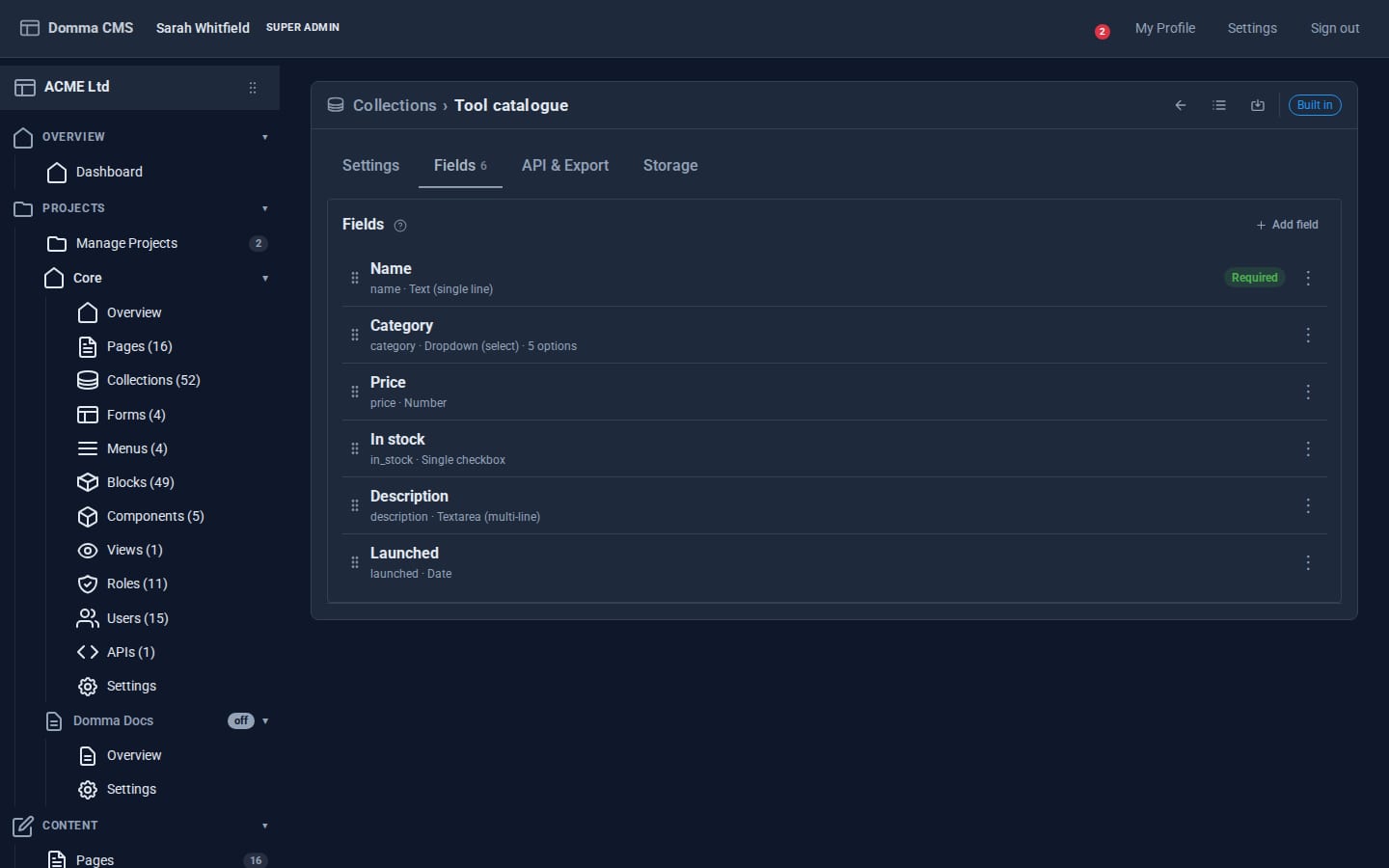
Open the Fields tab and click Add field for each of these. Each opens in a side panel with Label, Name (made from the label - "In stock" becomes in_stock), Type, Required and more.
| Label | Type | Notes |
|---|---|---|
| Name | Text (single line) | Required |
| Category | Dropdown (select) | Options, one per line: chisels: Chisels, planes: Planes, saws: Saws |
| Price | Number | Stored as a real number, so it sorts and filters properly |
| In stock | Single checkbox | |
| Description | Textarea (multi-line) | |
| Launched | Date |
Drag the rows to put them in the order you want. There are 13 field types in the picker, including Email, Phone, URL, Radio buttons, Checkbox group and Time.
On the Settings tab, set Layout to a grid of 2 columns so the entry form is compact. Save with Ctrl+S.
Step 3: Add some entries
Click Open entries in the banner, then Add entry. The form uses the fields and layout you just defined. Add two or three products by hand.
For more, use Import. Paste a JSON list like this, or choose a .json file:
[
  {"data": {"name": "Bevel-edge chisel 12mm", "category": "chisels", "price": 34, "in_stock": true}},
  {"data": {"name": "No. 4 smoothing plane", "category": "planes", "price": 185, "in_stock": true}},
  {"data": {"name": "Dovetail saw", "category": "saws", "price": 72, "in_stock": false}}
]
Each item becomes a new entry. Rows missing a required field are skipped and counted, so a bad line never spoils the rest. Export gives you the whole collection back as JSON or CSV at any time.
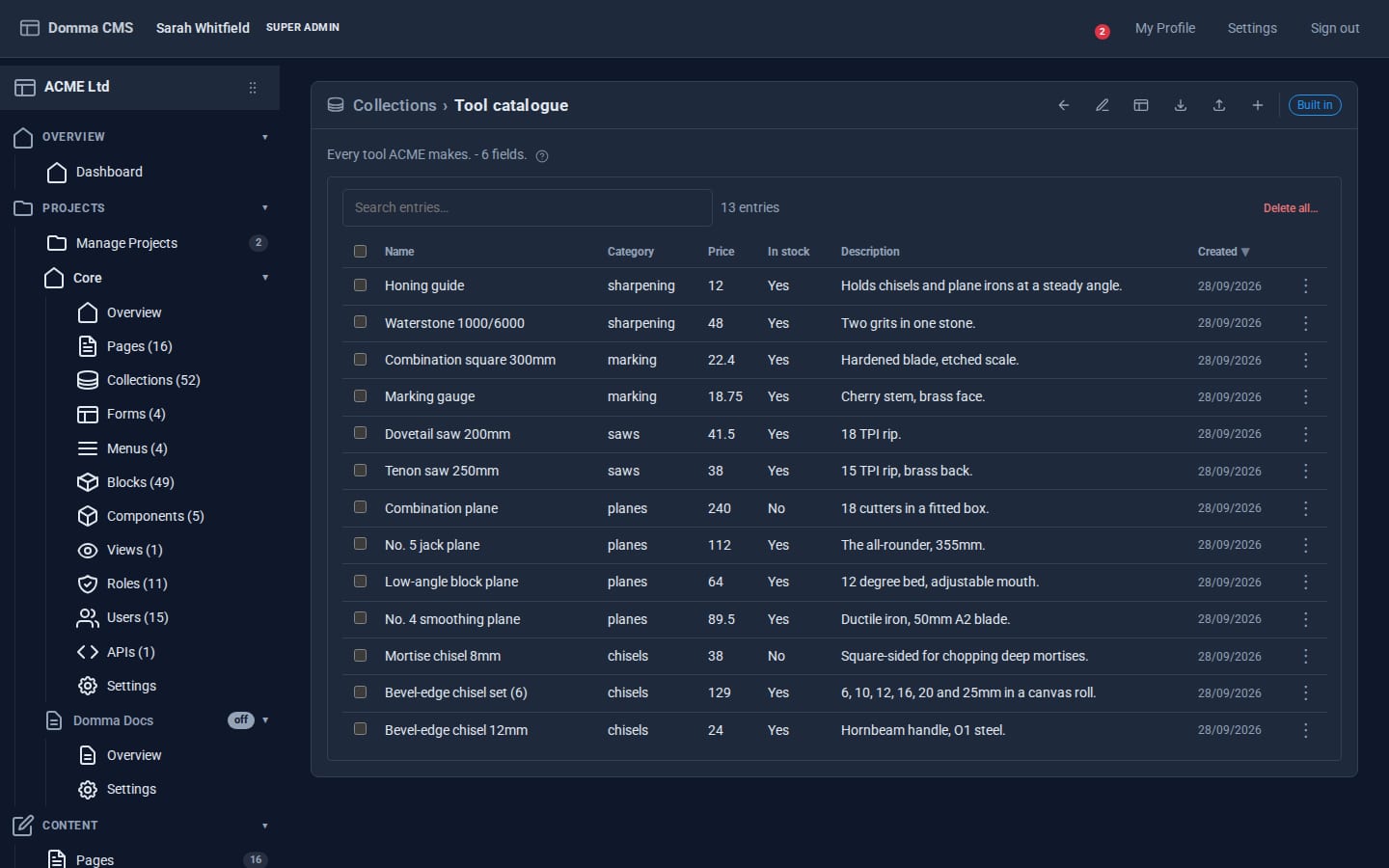
The entries screen is quick to work in: search, click a row to edit it, right-click a value to filter by it, tick rows to delete several at once.
Step 4: Show it on a page
Open any page in the editor and add one line:
[collection slug="tool-catalogue" display="cards" columns="3" title-field="name" fields="category,price,description" /]
display="cards"draws a card per entry. Seven other displays are covered in One collection, eight looks.title-fieldis the field used as each card's heading, andfieldspicks what else to show.
You do not have to remember the attributes: the Insert menu's Data group has a form for this tag, and right-clicking inside it lets you change any attribute later.
Step 5: Filter and sort it
Show only chisels, cheapest first:
[collection slug="tool-catalogue" display="cards" columns="3" title-field="name" fields="price,description" where_category="chisels" sort="price" order="asc" /]
The where_ filters take operators as suffixes: where_price_lte="50" (50 or less), where_name_contains="plane", where_category_in="planes,saws". They work the same whether the collection is stored in a file or, later, in MongoDB.
Save the page. When you add or change an entry, every page showing the collection updates by itself.
What you built
A structured catalogue your whole team can edit through a form, imported in one go, and shown on the site as filtered, sorted cards - with no database and no code.
Keep going
- Build a searchable directory - let visitors search and filter it themselves
- One collection, eight looks
- Ship a public JSON API in five minutes
Try it on your own site
Everything in this tutorial is free. One command gets you a site to follow along on.