Surveys that look like yours
Each survey can now have its own colour theme, and survey pages follow your site's theme by default. Longer surveys also take people back to the top at every new page.
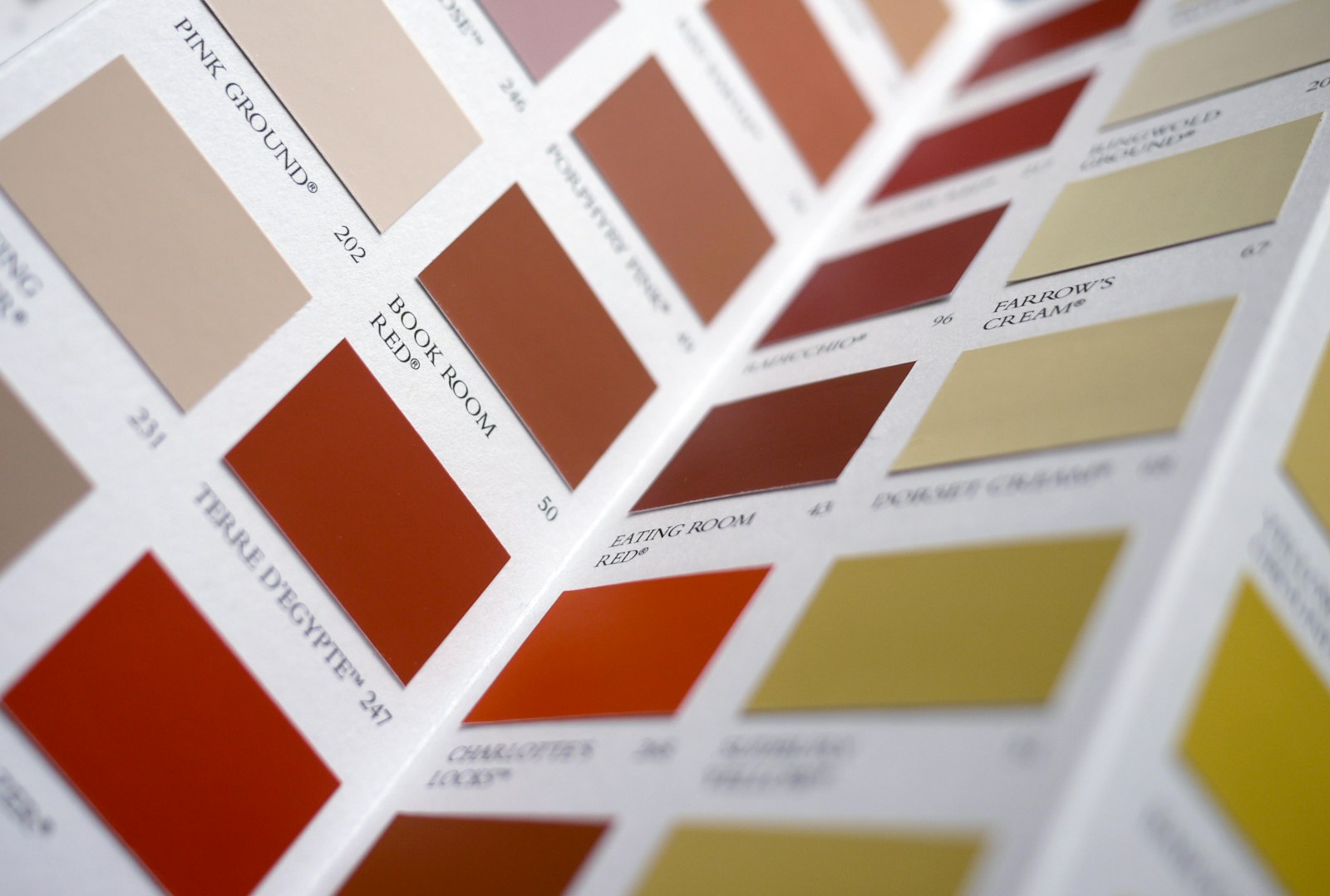
A survey is often the first thing someone sees from you after they leave your website. It arrives as a link in an email, they tap it, and the page should feel like it came from you. Two changes to Surveys make that happen.
Your theme, on every survey page
Your survey page now uses the same colour theme as the rest of your site. If your site is set to Ocean Light, so is your survey. You do not need to set anything up.
You can also give a survey a theme of its own. A Christmas feedback survey can be red and green. A survey for a wedding client can use the Wedding theme. A survey for one brand can match that brand, even when your main site looks different.
To choose a theme:
- Open Surveys and edit your survey.
- Open the Survey page section.
- Pick a theme from Theme, or leave it on Use site theme.
- Save.
Every built-in theme is in the list, and so are any custom themes you have made with Theme Roller. If you put a survey inside one of your pages with the survey shortcode, it uses that page's theme, so it always fits around your content.
Back to the top at every page
Longer surveys can be split into pages, so people answer a few questions at a time. Until now, pressing Next kept you where you were on the screen. On a phone that often meant landing halfway down the next page, past its first questions.
Now each Next or Back takes people to the top of the survey. They start every page at its first question, and fewer answers get skipped by accident. This works on your survey page and in a survey on one of your pages too.
Available now
Both changes are in Surveys 1.9.0. If you already use Surveys, you have them now. Survey pages follow your site theme straight away. Choose a theme only when you want a survey to look different.
Explore Surveys or compare plans.
Survey results, section by section
A long survey is easier to answer when it is split into pages. Now it is easier to read the answers too. Surveys shows your results in the same sections your respondents saw, and the exports have been improved.
Results that follow your survey
If your survey has several pages, the Results screen groups the questions under each page's title and description. Each section shows how many of its questions were answered, so you can see where people engaged and where they skipped ahead.
Jump to buttons along the top take you straight to any section. That makes a 13-page survey as easy to read as a short one.
Switches for how results show
Three switches sit above your results:
- Split into sections groups the questions by page, or shows them as one list.
- Hide questions nobody answered takes empty questions out of the way.
- Show free-text answers can be switched off to show only the figures, which is handy when you are sharing your screen in a meeting.
The switches are saved with each survey, so everyone on your team sees the same layout. You choose whether new surveys start split into sections in the Surveys settings.
Exports you can use straight away
Export CSV now opens in a spreadsheet with a column for when each response arrived, and each column is headed with the question itself rather than an internal name. When your results are split into sections, each heading starts with its section, such as "About you: Your role".
Export JSON now gives you the complete results in one file: the survey's details, the response figures, every question's counts, percentages and averages, and every response with its answers. Use it to keep a record or to load your results into another program.
Available now
These changes are in Surveys 1.10.0. If you already use Surveys, you have them now: open any survey's Results to try the new switches.
Keep reading
Domma CMS 1.0
Domma CMS is 1.0. Nothing changes when you update - what changes is the promise that your site and your Tools keep working until a new major version says otherwise.
Campaign emails with your letterhead, pictures and surveys
Campaigns Pro emails can now carry your own letterhead and footer, pictures from your Media and proper formatting. A campaign can also invite people to a survey, with a personal link for each person.
Calendar and Booking, together
Calendar now includes Booking and every Booking Pro feature. Manage appointments, available hours and Google Calendar in one place, at the same combined price.