Sieve in Email Pro: server filters, one-click conversion and a new Rules list
Email Pro now edits the Sieve filter scripts on your mail server, converts them into Email rules in one go, and shows your rules as a searchable list you can drag into order. Rules can also tidy mail you already have.

Email Pro can now work with Sieve, the filter scripts many mail servers keep for you. If you already sort your mail with Sieve, you can carry on, edit your scripts from your admin, or turn them into Email rules in one go.
Sieve on your mail server
Open Email > Settings > Sieve. Enter the Sieve server your mail provider gives you (usually port 4190), then Test and save connection.
Scripts on the server lists every script and shows which one is active. From there you can:
- Open a script to edit it, then Validate and Save script,
- Activate a script, or start a New script,
- Delete a script you no longer need,
- Deactivate server filtering to switch the active script off.
Sieve runs on the mail server, so it sorts mail even when your website is not open, and it needs no database. Your unsaved edits are kept as a draft.
While a Sieve script is active, Email's own rules and away replies are paused, so the same message is never filed twice. Switch server filtering off and they carry on where they left off.
Convert from Sieve
Moving the other way? On the Rules tab, Convert from Sieve... reads the scripts on your server and turns them into Email rules.
- Filters made in SnappyMail or RainLoop come across exactly, from the settings those programs save inside the script.
- Hand-written scripts work too, for the common shapes: tests on From, To, Subject, mailing list and size, then file into a folder, flag, discard or stop.
- A filter that matches any of more than ten things is split into numbered rules, which together catch exactly the same mail.
- Anything a rule cannot do exactly (body searches, regular expressions, forwarding, away replies) is skipped and listed with the reason, rather than guessed at.
Check the result, then Save. You are asked whether to switch server filtering off, so the server and Email do not both file the same mail.
A new look for Rules
The Rules tab is now a tidy list, one line per rule, under its group heading and in the order the rules run. Each line has its switch, its name and what it does in a plain sentence.
- Search finds rules by name, sender, subject or folder.
- Edit (or Enter on a line) opens the rule in its own window, with conditions, actions and Test.
- Drag a rule to change its order, or drop it on a group heading to move it into that group.
- Right-click a rule for Edit, Switch off, Run earlier, Run later, Move to group, Duplicate and Remove.
- Groups fold away, and a group's switch turns all its rules on or off at once.
- A rule that files into a folder that no longer exists is marked Check folder, so it cannot quietly fail.
- A dot on a Settings tab means it has changes you have not saved yet.
Run rules on mail you already have
Rules normally sort new mail as it arrives. Now you can tidy what is already there: right-click a folder and choose Run rules on this folder.... Your switched-on rules run over the mail in that folder straight away, and you are told how many messages matched and moved.
Also new
- Pictures in mail from people in your contacts load by themselves, when your mail server has confirmed the message really came from them. Anything it could not confirm stays blocked.
- Hold dragged mail over a closed folder for a moment and the folder opens.
New to rules? Start with Email: rules, receipts and new-mail alerts.
Keep reading
Email: rules, receipts and new-mail alerts
Email Pro now sorts your mail with rules you can group and switch on and off, asks for read receipts, signs and encrypts, moves folders and empties Trash. New-mail alerts reach the free Mail Reader too.
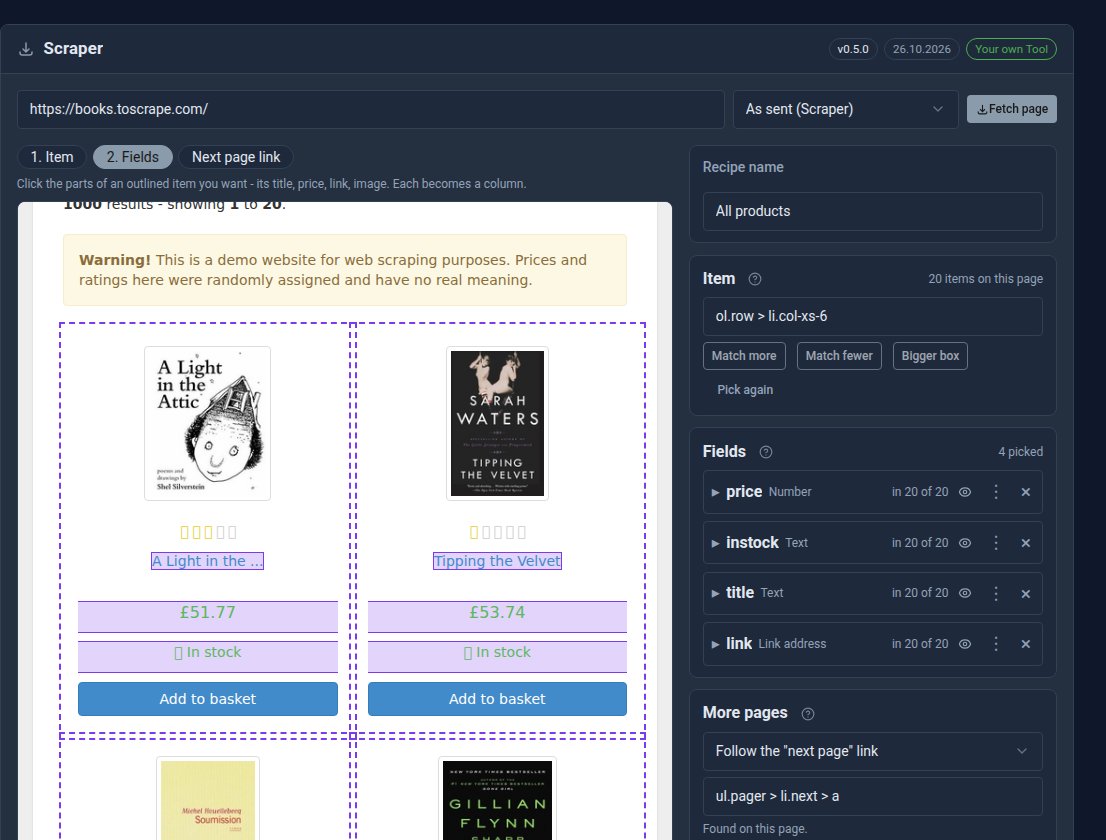
Meet the Scraper: other websites' lists, in your collections
The new free Scraper Tool collects products, prices and listings from other websites into a collection on yours. Click what you want once, and let it run by hand or on a schedule.
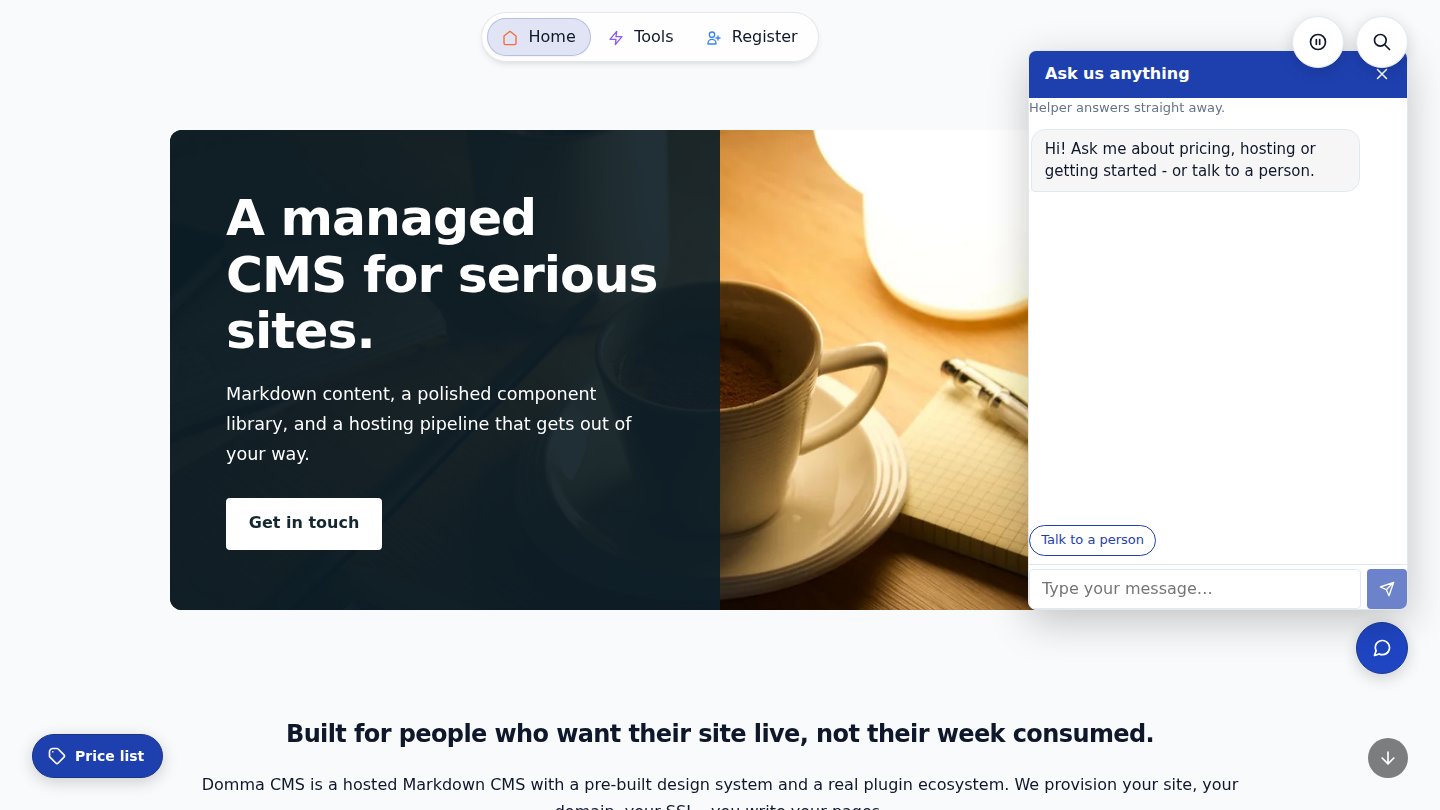
Launchers: pop-ups, slide-ins and a chat that answers
Pin buttons to any page that open a page, form or block in a pop-up or slide-in, or a chat whose bot answers from your own Knowledge. Open them from your menu too. Free in Domma CMS 1.28.