Tutorials Pro Tools
Quotes and letters from templates
Start a quote from a ready-made template, fill in the customer's details from Contacts in one go, and keep your own templates for next time.
15 minutes BeginnerPro
You will make
A quote for Harbour Café for a fitted oak counter - then a letter template of ACME's own that fills itself in for any customer.
You need
- Docs and Docs Pro on your site
- A customer or two in Contacts
Why
Type a customer's name, address and company once - in Contacts - and never again. Every quote and letter comes out the same shape.
Step 1: Pick a ready-made template
Open Docs and click Templates in the rail. Docs Pro adds twelve ready-made templates after any of your own, each marked with its category: Letter, Quote, Proposal, Simple service agreement, Meeting notes, Project brief, Weekly update, Policy, How-to procedure, Handbook page, Job description and Press release. Type in the search box to find one by name or category.
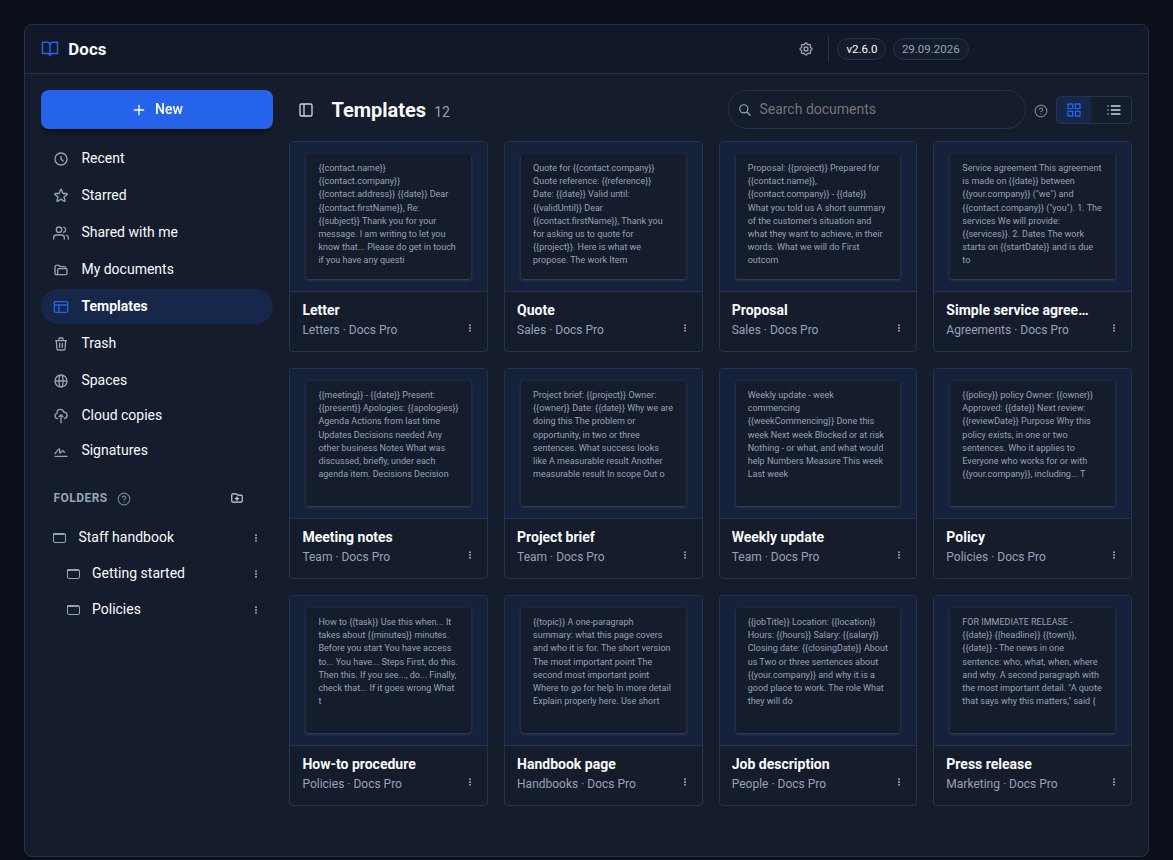
Click Quote. A new document of yours is made from it and opens.
Step 2: Fill in the fields
The quote is full of merge fields - markers like {{contact.company}}, {{validUntil}} and {{total}}. Because it came from a template, Fill in the fields opens straight away:
- From a contact - start typing
Hann, pick Hannah Moore, and every contact field (name, first name, company, address, email, phone...) fills in from her card. - Type the rest: the reference, what the work is, the total, how many days to pay.
- Today's date fills itself in unless you type a date. Your name starts as yours.
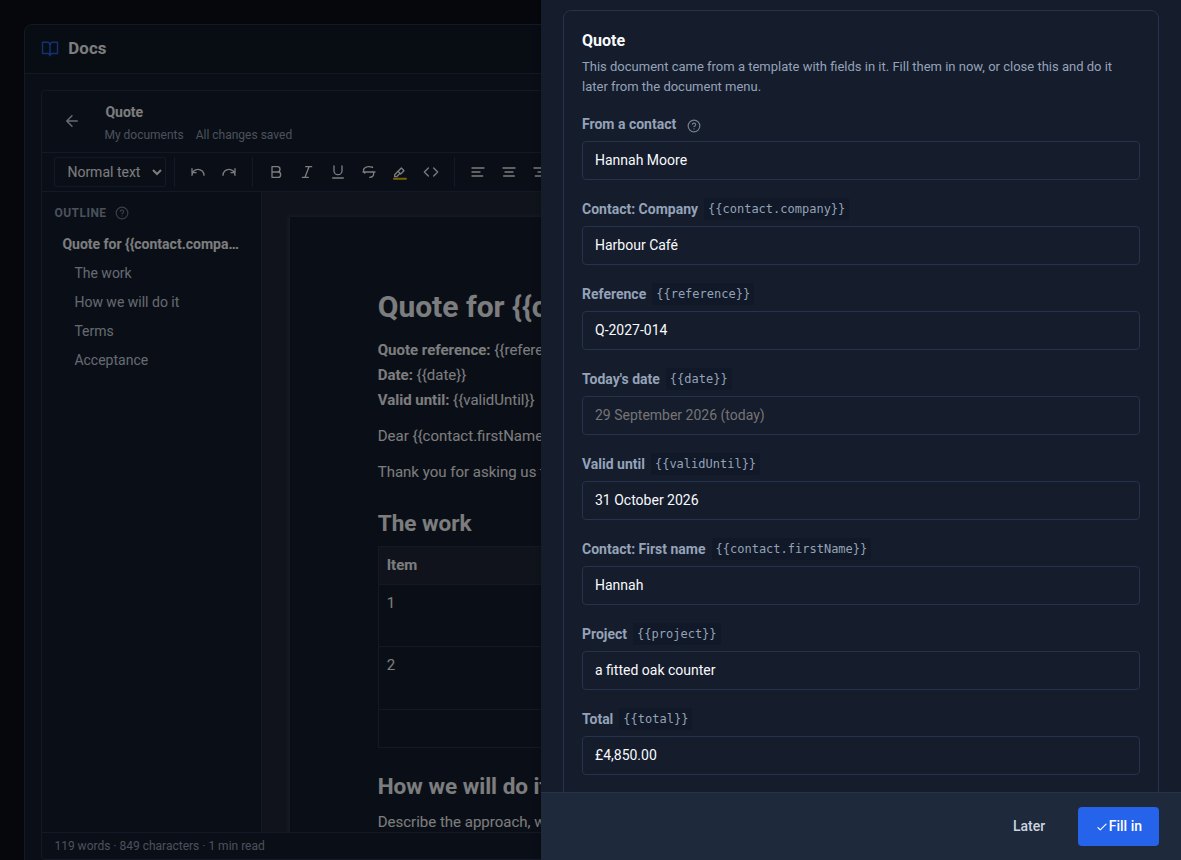
Press Fill in. A field you left empty stays as it is - still showing {{price}} - so you can see what is left to do. Pressed Later? Choose Fill in the fields... from the document menu (⋮) whenever you are ready.
The contacts are your own, from the Contacts Tool. Someone whose role cannot read Contacts simply types the details instead.
Step 3: Finish and send it
Change anything you like - the price table, the terms - it is an ordinary document now. Then send it the way the customer wants it:
- Download as Word (.docx) from the document menu, for customers who live in Word.
- Print or save as PDF..., or Send to > Email... straight from Docs.
- Or, for a signed yes, Request signatures... - see Get a contract signed.
Step 4: Put fields in your own documents
Fields work in any document. Open one, start editing, put the cursor where a detail goes and choose Insert a field from the document menu: a contact's name, first name, company, job title, email, phone, address, website or reference, Today's date, Your name, Your company - or Your own field..., which asks for a short name such as price and shows as {{price}}. You can also type a field yourself.
Fields work in the title too: a document called Letter to {{contact.company}} is named after the customer when filled in.
Step 5: Keep it as a template
When the letter is how you want it, choose Save as template... from its menu. It is listed under Templates with your own, above the ready-made ones - and like them it asks for its fields the moment you use it.
To change a ready-made template, start a document from it, change it and save that as your own template. The ready-made ones cannot be changed or deleted.
Step 6: Fill in a copy, keep the original
On a document that is not fresh from a template, Fill in the fields... does something slightly different: it makes a new document of your own with the fields filled in, and opens it. The original keeps its fields, ready for the next customer. Handy for a price list or standard letter you keep in a shared folder.
What you built
A quote filled in from a contact in seconds, a letter template of your own with fields in it, and a way to turn any document into a form you fill once per customer.
Keep going
- Get a contract signed - the Simple service agreement template, signed online
- Review a document with comments and suggestions
- Docs Pro and Contacts
On sites we host, Dot builds pages and Daisy makes Tools.
Want Docs Pro on your site?
Docs Pro is a Pro Tool. Tell us about your site and we will set it up with you.