You will build
An About us page for ACME Ltd at /about, published and linked from the navigation bar.
You need
- A Domma CMS site you can sign in to (set one up)
- Something to say about your business
Good to know
Every page is a Markdown file. Save it and the next visitor sees the change - there is no build or deploy step.
Step 1: Start a new page
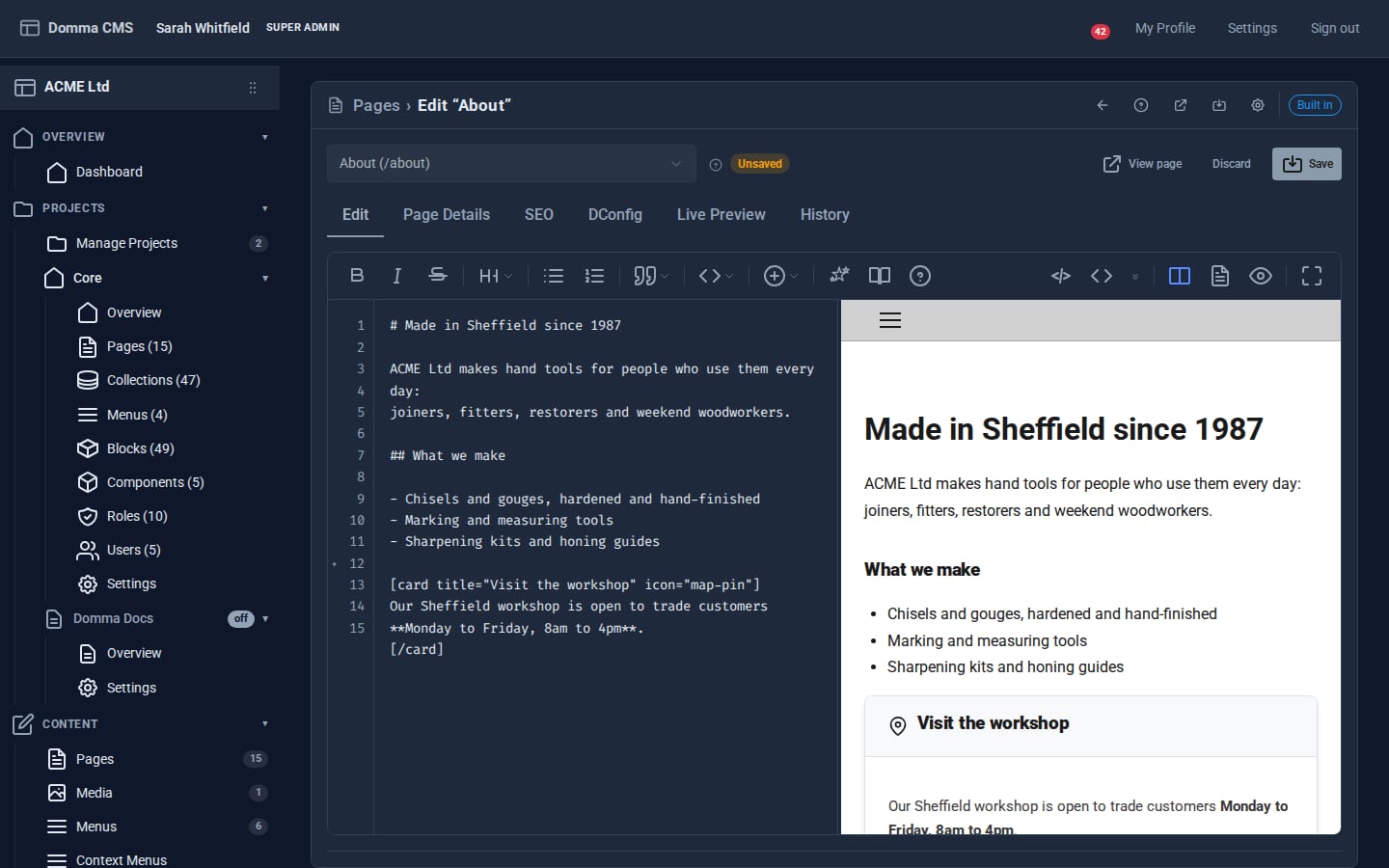
In the admin go to Content > Pages and click the + (New page) button in the banner. The page editor opens on its Edit tab: Markdown on the left, the page as the site will draw it on the right.
Step 2: Give it an address and a title
Open the Page Details tab and fill in:
- URL Path -
/about. The path is the address:/aboutis saved asabout.md, and/services/sharpeningwould live in aservicesfolder. - Title -
About ACME Ltd. - Layout - leave it on Default. Layouts decide the width and whether the page has the navbar, footer and sidebar.
- Status - leave it on Draft for now. A draft is invisible to the public (they get a 404), but you can still see it.
Step 3: Write the page
Back on the Edit tab, write in plain Markdown. Headings start with #, lists with -, and bold is **bold**:
# Made in Sheffield since 1987

ACME Ltd makes hand tools for people who use them every day:
joiners, fitters, restorers and weekend woodworkers.

## What we make

- Chisels and gouges, hardened and hand-finished
- Marking and measuring tools
- Sharpening kits and honing guides
The preview on the right updates as you type. Use the toolbar for bold, italic, lists, links (Ctrl+K) and code, and switch between Split view, Write only and Preview only with the buttons at its right-hand end.
Step 4: Add something richer with a shortcode
Shortcodes are tags in square brackets that the CMS turns into designed components. Put a highlighted card under your list:
[card title="Visit the workshop" icon="map-pin"]
Our Sheffield workshop is open to trade customers **Monday to Friday, 8am to 4pm**.
[/card]
You do not have to remember the syntax. The Insert menu in the toolbar lists every shortcode, grouped by Layout, Content, Components, Data and Media, and opens a form with a live preview of the tag it will insert. Right-click inside a shortcode you have already written to change its settings.
Step 5: Check it at phone width
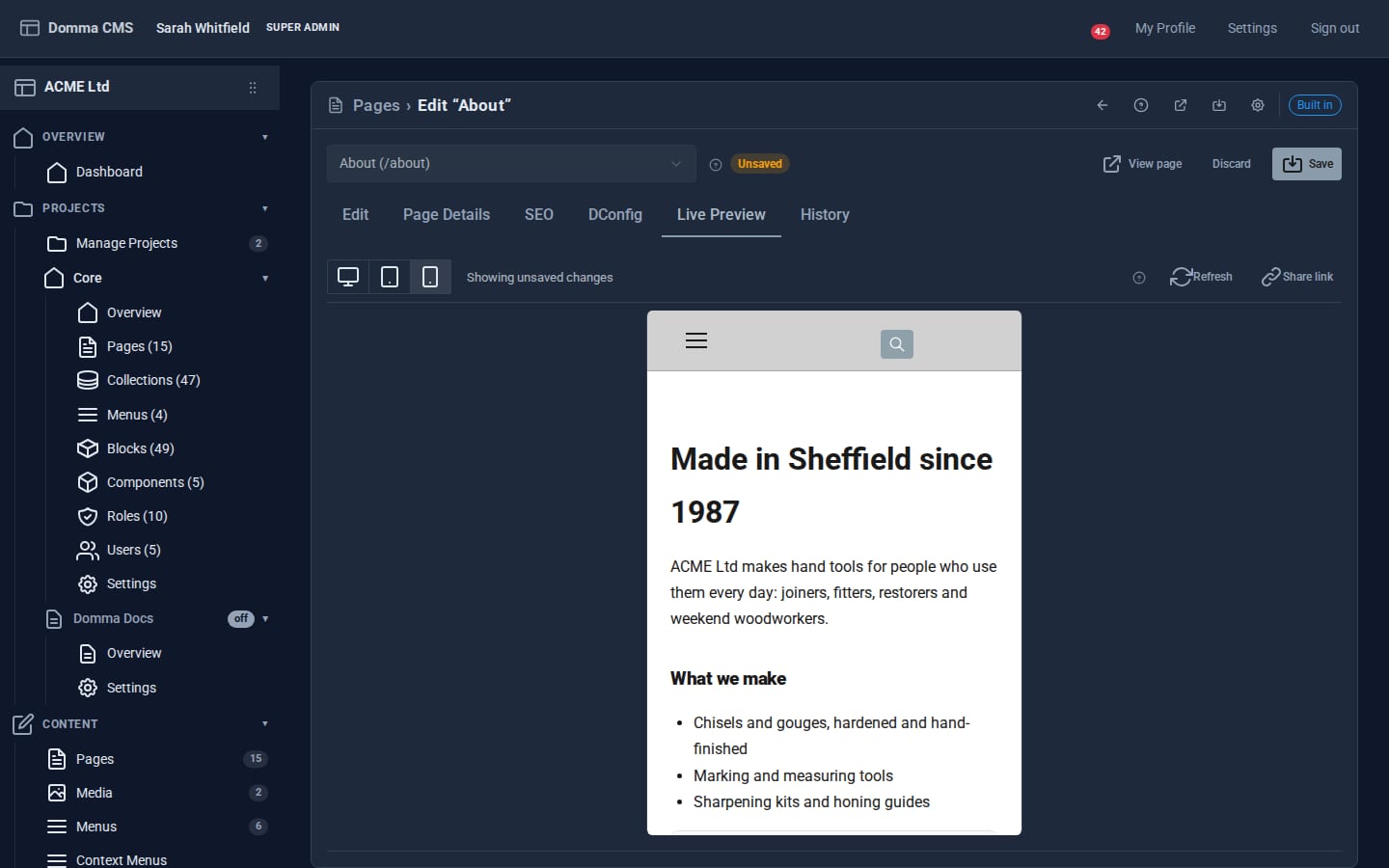
Open the Live Preview tab. It draws the whole page - navbar, footer, theme - from what is in the editor now, before you save. Use the width buttons to see it at Tablet (1024px) and Mobile (390px).
Step 6: Publish
Go back to Page Details, set Status to Published, and click Save (or press Ctrl+S). Then click View page to open /about as a visitor sees it.
Step 7: Put it in the navigation
Pages do not add themselves to the menu - you decide what goes there. Go to Content > Menus, open the menu used for the navbar, click Add item, set Label to About and URL to /about, then drag the new row to where you want it and save.
What you built
A published page at /about, written in Markdown with a designed card, checked at phone width and linked from the navbar. Every save also kept a version of the page in its History tab, so you can compare with or go back to any earlier state.
Keep going
- Draft, review and publish - get a page signed off before it goes live
- A landing page in 15 minutes
- Theming a brand
Try it on your own site
Everything in this tutorial is free. One command gets you a site to follow along on.