You will do
Get ACME's new Trade accounts page approved by the managing director before anyone else can see it.
You need
- A page you are working on (build one)
- Someone to review it - they need no account
Why it matters
Nothing half-finished reaches the public, search engines or your sitemap, and sign-off happens on the real page, not a screenshot.
Step 1: Keep the page a draft
In the page editor, open Page Details and check Status is Draft (new pages start as drafts). Save.
A draft is locked away properly. Visitors who try its address get the same 404 as a page that does not exist, it is left out of the sitemap, site search and the page cache, and it is sent with headers telling search engines not to index it.
Step 2: See it on the real site
You do not need a separate preview mode. While you are signed in, open the page at its real address, for example /trade-accounts. You see the page exactly as it will look - navbar, theme, menus and your custom CSS - with a striped Draft banner along the bottom.
The banner has Edit page to jump back into the editor and Publish to put it live. It never prints and you can dismiss it.
Step 3: Send a private preview link
Your reviewer does not have an account, and should not need one. In the page editor open the Live Preview tab and click Share link.
- Choose how long it lasts in Expires after: 1 hour, 24 hours, 7 days or 30 days.
- Add a Note so you remember who it was for, such as
For Sarah - trade page sign-off. - Click Create link, then Copy link, and send it by email or chat.
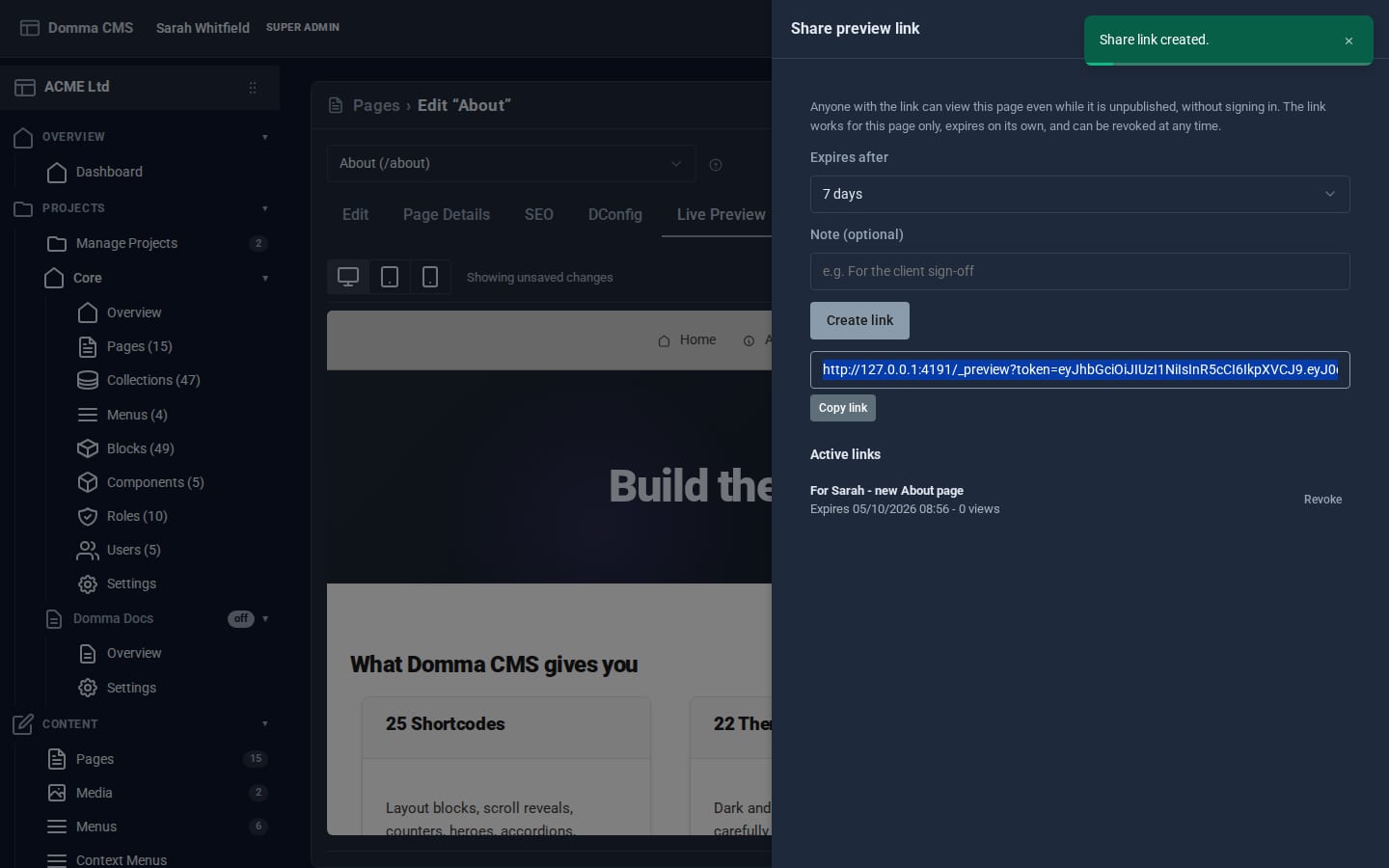
Whoever opens it sees that one page, rendered as a normal visitor would see it, with a Shared preview banner saying when the link runs out. It works for that page only, and it tells search engines to stay away.
Step 4: Make the changes
When the feedback comes back, edit the page as usual. The link always shows the latest saved version, so your reviewer can simply refresh.
Before a big rewrite, open the History tab and click Save Named Version - for example Before Sarah's changes. Named versions are never pruned, and you can compare any version with what is in the editor and restore it.
Step 5: Tidy up the link
Back in Live Preview > Share link, the Active links list shows each link with its expiry and how many times it has been opened. Click Revoke and anyone holding it loses access at once. Links you do not revoke simply expire.
Step 6: Publish
Publish from wherever you are:
- on the page itself, with Publish in the draft banner, or
- in the editor, by setting Status to Published on Page Details and saving.
The page goes live straight away, joins the sitemap and becomes searchable. The Pages list sidebar badge counts your drafts, so you can see at a glance what is still waiting.
What you built
A review routine with no staging server: drafts that stay private, a preview on the real site for you, an expiring link for your client, a named restore point and a one-click publish.
Keep going
- Getting found on search engines - fill in the SEO fields before you publish
- Build a client portal with a confined role - when reviewers need accounts after all
Try it on your own site
Everything in this tutorial is free. One command gets you a site to follow along on.