Showcase / Domma CMS User Manual
Read it live · Docs and Docs ProDomma CMS User Manual
A comfortable place to get to know your CMS. Everyday tasks, practical tutorials, components and the API reference, gathered into one searchable manual. Open a chapter, settle into the Reader and make it yours.
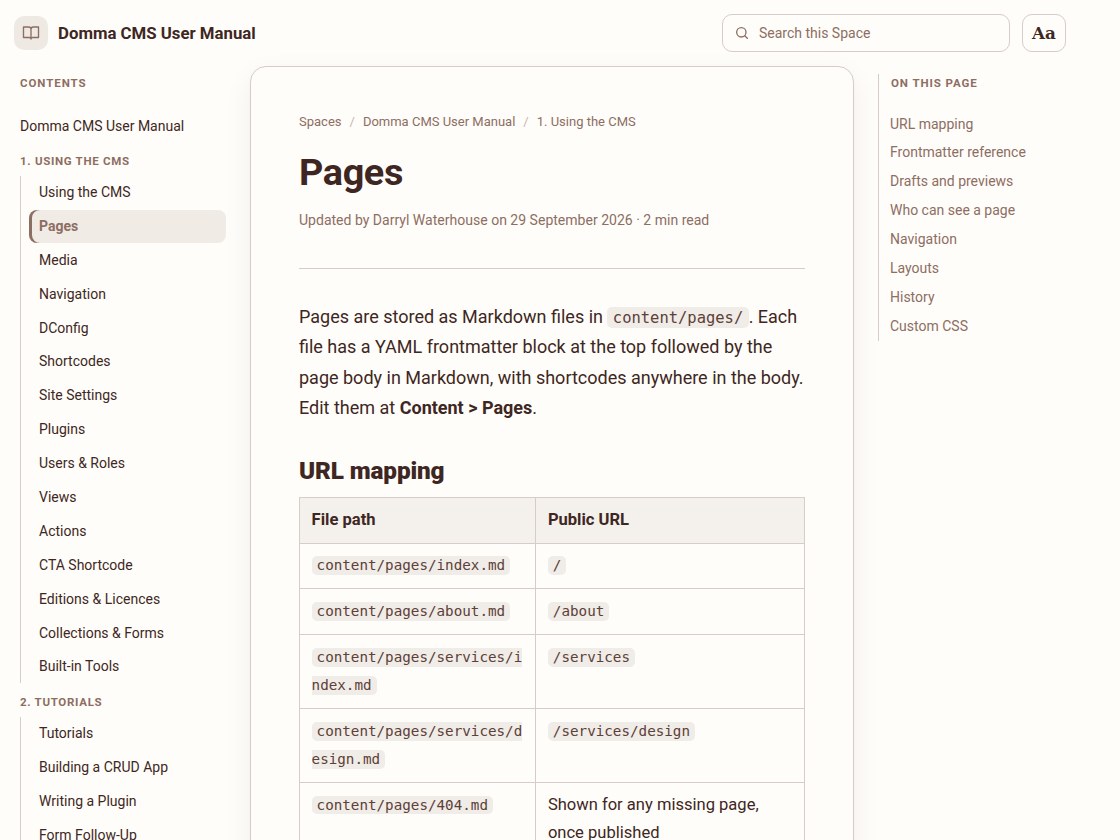
One manual. Five ways in.
Start with the work you want to do. Every chapter is part of the same Space, with contents, search and a clear route to the next page.
Using the CMS
Pages, media, menus, forms, settings and the people who look after your site.
Explore the everyday tasks →Tutorials
Build a CRUD app, write a plugin and set up what happens after a form submission.
Follow a tutorial →Components
A walkthrough, practical recipes, a reference and the rules for reusable page components.
Get to know components →API Reference
Authentication, permissions and endpoints for connecting your own applications.
Open the API reference →Tools
Guides to the Tools you add to your site, such as Booking, Booking Pro and Calendar: what each does and how to set it up.
Read the Tool guides →From documentation to a place to read.
A folder becomes a Space
The manual lives in a Docs folder called Domma CMS User Manual. Its five subfolders become sections in the contents. Docs Pro publishes those documents into a public Space with the same name, and a welcome document becomes its homepage.
The chapters come from the documentation included with Domma CMS, and the Tool guides from the Tools themselves. Their tables, code examples and cross-references carry across; headings become an On this page index. Updated chapters are published when ready.
Your own reading style
Open Aa to adjust text size, font, spacing, margins and colours. Choose Sepia or Dark, switch between scrolling and page turns, and return to where you stopped.
Search stays within the manual. Contents, Previous and Next keep the chapters close by, and the contents fold into a menu on your phone.
The same setup works for a staff handbook, a product guide, a course or a customer knowledge base.
Take a chapter for a spin.
Try the Pages guide, search for a topic or change the Reader to suit you.