One Brand Kit for your whole site
Your name, logo, colours, fonts and contact details in one place under Site Settings > Branding. Every email picks it up, SVG logos included.
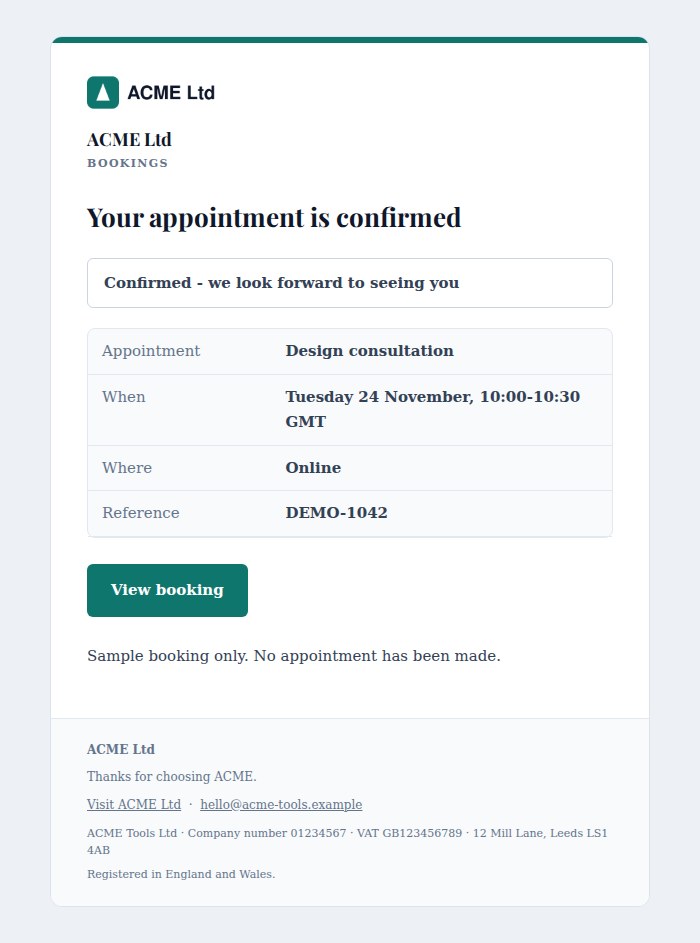
Your business name, logo, colours, fonts and contact details now live in one place: the Brand Kit. Fill it in once and every email your site sends picks it up, down to the company number in the footer.
Why one place
Until now, your site's identity was spread around. The name and logo sat under Branding, email had its own copy under SMTP, and some Tools kept their own too. Change your logo and you had to remember every spot.
The Brand Kit is the one copy. It comes with the Pro plan, and it never changes your theme: your site keeps looking exactly as it does until you change the theme yourself.
What goes in it
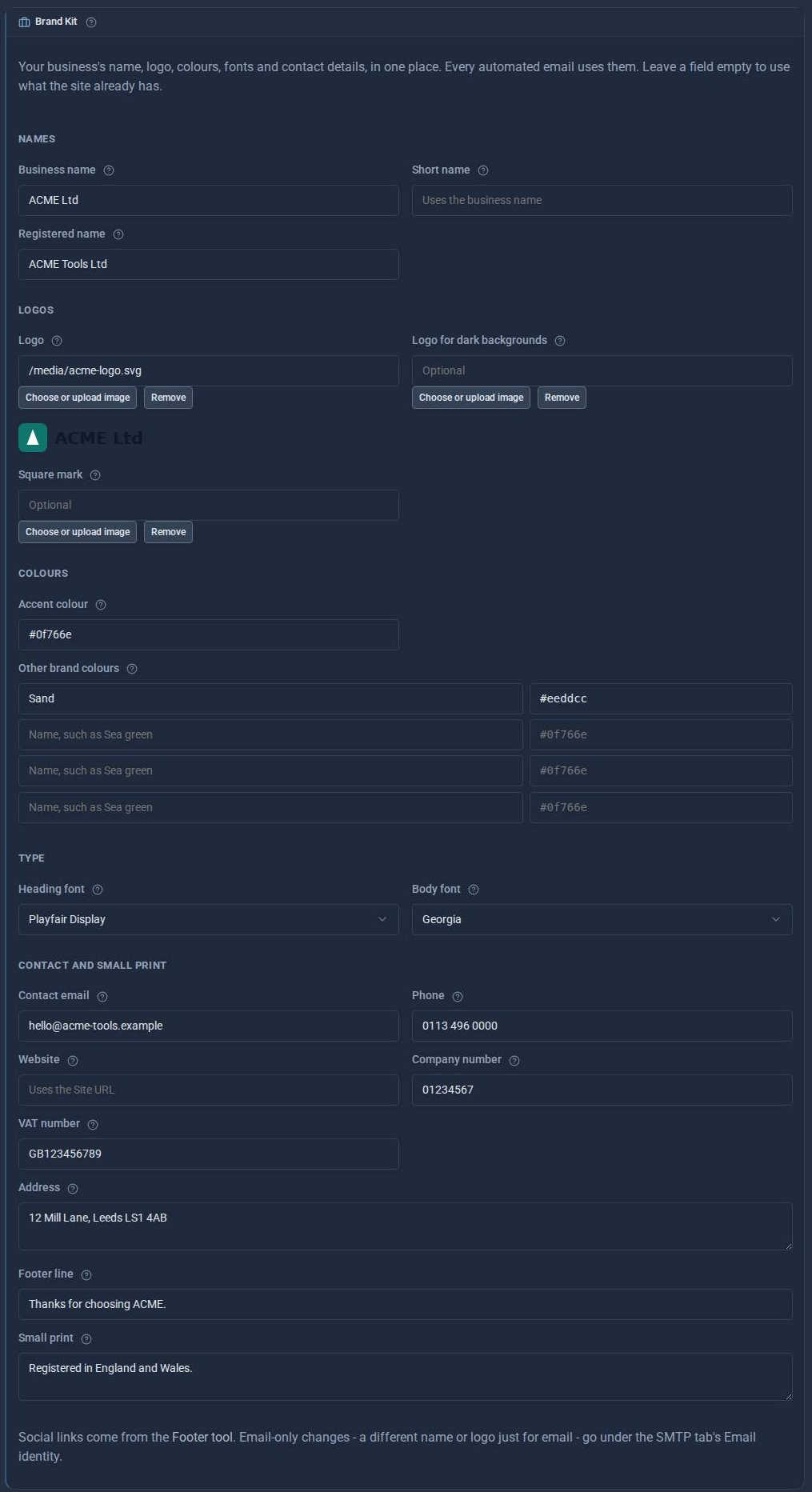
- Names: your business name, the registered (legal) name, and a short name for tight spaces.
- Logos: your main logo, a version for dark backgrounds and a square mark.
- Colours: an accent colour and up to four named brand colours.
- Type: a heading font and a body font, from a list of safe and Google fonts.
- Contact and small print: contact email, phone, website, address, company and VAT numbers, a footer line and any legal small print.
Every field is optional. Leave one empty and the site carries on using what it already had, so nothing changes the moment you upgrade.
What it changes today
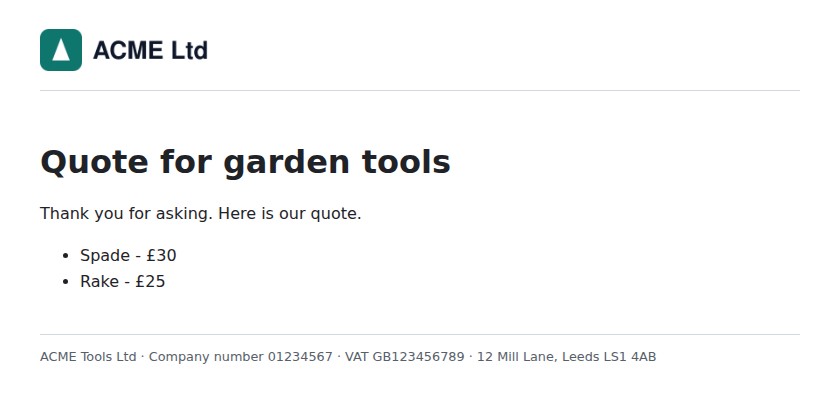
Every automated email (password resets, booking confirmations, orders, invoices, Tool notifications) now reads the Brand Kit:
- your logo and name at the top, in your fonts
- buttons and the top line in your accent colour
- a footer with your contact email, footer line, and a legal line built from your registered name, company number, VAT number and address
- your small print underneath
SVG logos now work in email. Many mail programs cannot show SVG pictures, so before now an SVG logo was swapped for your name. The site now makes a PNG copy of it automatically, as long as the logo is in Media and your Site URL is set.
Set it up
- Open Site Settings > Branding. The Brand Kit card is at the top.
- Fill in what you have. The help icons beside each field explain what it is used for.
- Save, then open Site Settings > SMTP and use the Email preview gallery to see an email in your brand. You can send yourself a test.
If you want email to look different from the rest of the site (say, a different name), the Email identity fields under SMTP still override the Kit for email only.
If Site Settings shows Needs attention: SVG logo and no Site URL, set the Site URL under General. Emails need it to link to your logo; without it they show your name instead.
What comes next
The Brand Kit is the start. Next, Email Pro gets a ready-made Site branding drawn from the Kit, and any Email Pro branding you like can be copied into the Kit with Use as site brand. After that, the sign-in page, chat, invoices, surveys and other Tools will take their defaults from it.
For developers: the public part of the Kit is available at /api/brand-kit on every site with the Pro plan. It contains only what the site already shows the world.
Keep reading
Your Brand Kit on your website
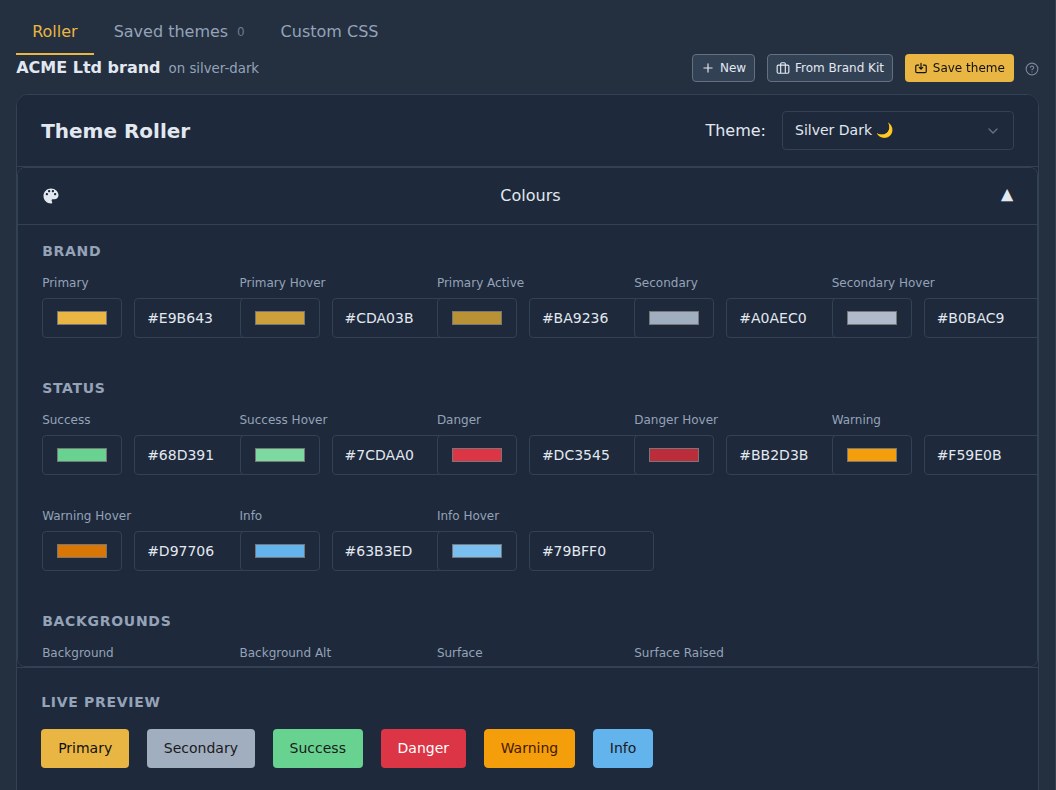
Once your Brand Kit is saved, the browser icon, navbar, sign-in screen, chat and link previews fill their gaps from it, and Theme Roller can start a theme in your colours.
Every email your site sends, in your brand
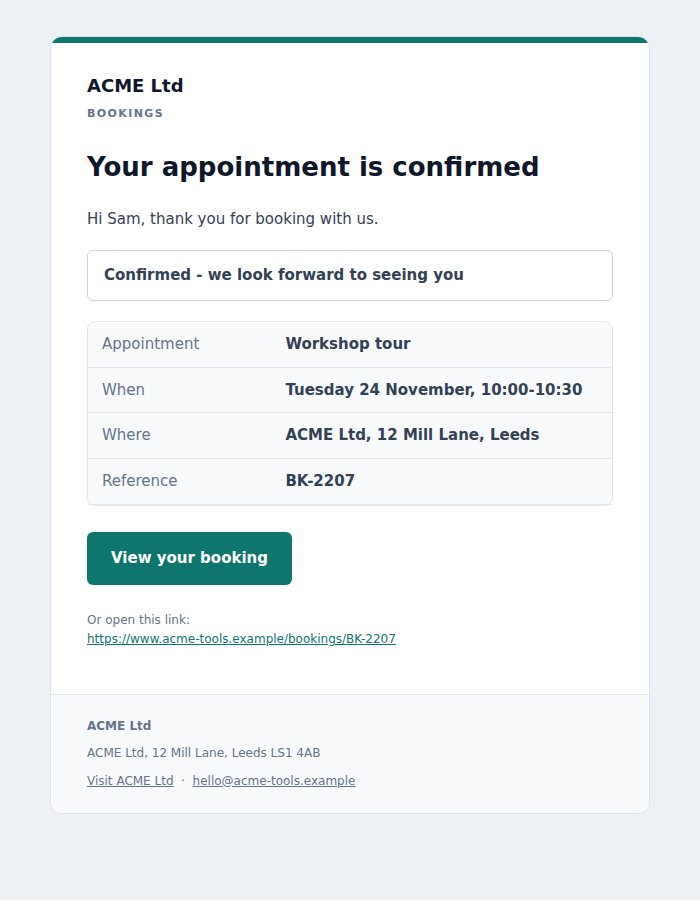
Password resets, bookings, orders, invoices and Tool notifications now go out in one layout with your name, logo and colour. Set it up under Site Settings > SMTP in two minutes.
Your Brand Kit in six more Tools
Job Board, Surveys, Campaigns, Ecards, Docs and Invoices now take their name, logo and details from your Brand Kit, including a letterhead in Docs.