You will do
Find out whether ACME's autumn newsletter and trade-magazine advert actually brought visitors - and what those visitors did.
You need
- Analytics Pro on your site
- A campaign to measure: a newsletter, an advert, a social post
Cookieless
Analytics Pro counts visits on your own server with no cookies and no tracking script, so there is no cookie banner to add for it.
Step 1: Tag your links
Add three tags to every link you share in the campaign:
https://acme.example/shop/chisels?utm_source=newsletter&utm_medium=email&utm_campaign=autumn-2026
https://acme.example/shop/chisels?utm_source=woodwork-monthly&utm_medium=print&utm_campaign=autumn-2026
utm_source- who sent the visitor (the newsletter, the magazine)utm_medium- how (email, print, social, paid)utm_campaign- the campaign's name, the same on every link
A visitor who arrives from a new campaign link starts a new visit, so each campaign gets the credit it earned.
Step 2: See where visits came from
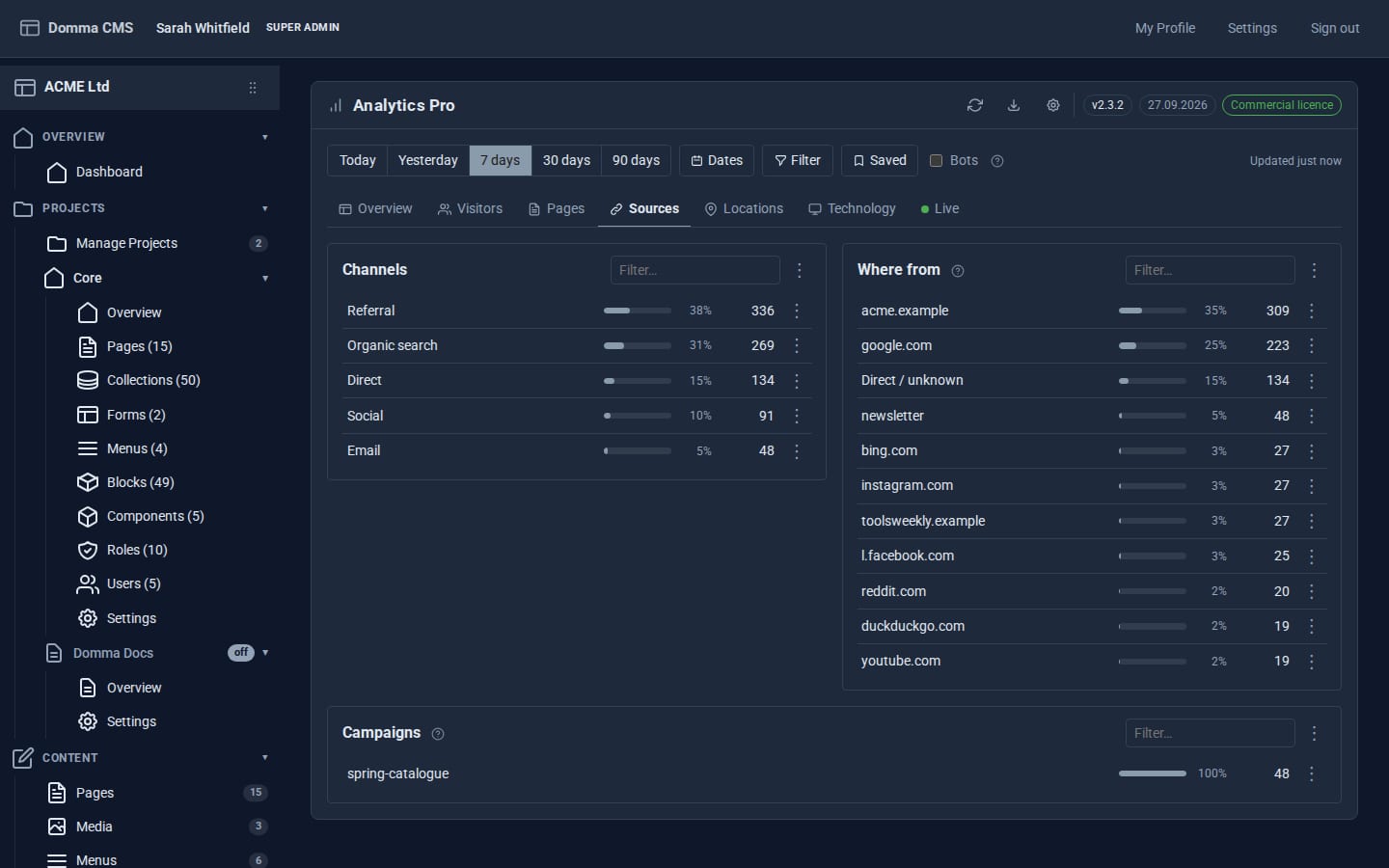
Open Analytics Pro in the sidebar and choose a period - 7 days, 30 days, or Dates for the exact weeks of your campaign. Open the Sources tab:
- Channels - every visit sorted into Direct, Organic search, Social, Email, Paid, Referral or Campaign
- Where from - the sites that sent visitors
- Campaigns - your
utm_campaignnames, with their visitors and visits
Step 3: Narrow everything to one campaign
Click autumn-2026 in the Campaigns list. The whole dashboard now shows only those visits: which pages they read, where they were, what devices they used, their busiest times. The filter appears as a chip under Showing only.
For more precise questions, click Filter and combine up to 20 conditions - Campaign is autumn-2026 and Landing page starts with /shop, say, or Pages in the visit more than 2. Use Saved > Save these filters... to bring the set back with one click next time.
Step 4: Follow real visits
Open the Visitors tab to see each campaign visit with its pages in order - did they go from the chisel page to the basket? Right-click a visit to filter to that visitor or where they came from. The Live tab shows who is on the site right now, handy on the morning the newsletter goes out.
Step 5: Share the figures
Click Export and print in the banner:
- Printable report - print it or save it as a PDF for the team
- Every visit, Summary figures, Traffic by day or A breakdown - as CSV for a spreadsheet, or JSON
Exports cover the period and filters on screen, so the campaign filter carries through. Want the marketing team to see the figures without admin rights? Give their role the Analytics Pro permission in System > Roles; IP addresses and tracking settings stay with admins.
What you built
A measured campaign: tagged links, visits credited to the right source, the whole dashboard narrowed to one campaign, a saved filter for next time and a report to share.
Keep going
- Analytics Pro - locations, devices, busiest times and privacy controls
- Getting found on search engines
Want Analytics Pro on your site?
Analytics Pro is a Pro Tool. Tell us about your site and we will set it up with you.