Use your blocks, buttons and cards in campaign emails
Campaigns Pro can now put your site's blocks, and buttons, cards, banners and columns, into a campaign email. Each one becomes proper email layout in your site's colours when it is sent.

Your pages are built from pieces: a button here, a card there, a banner, a couple of columns, one of your own blocks. Until now a campaign email had none of them. Campaigns Pro can now use the same pieces, and turns each one into proper email layout when the campaign is sent.
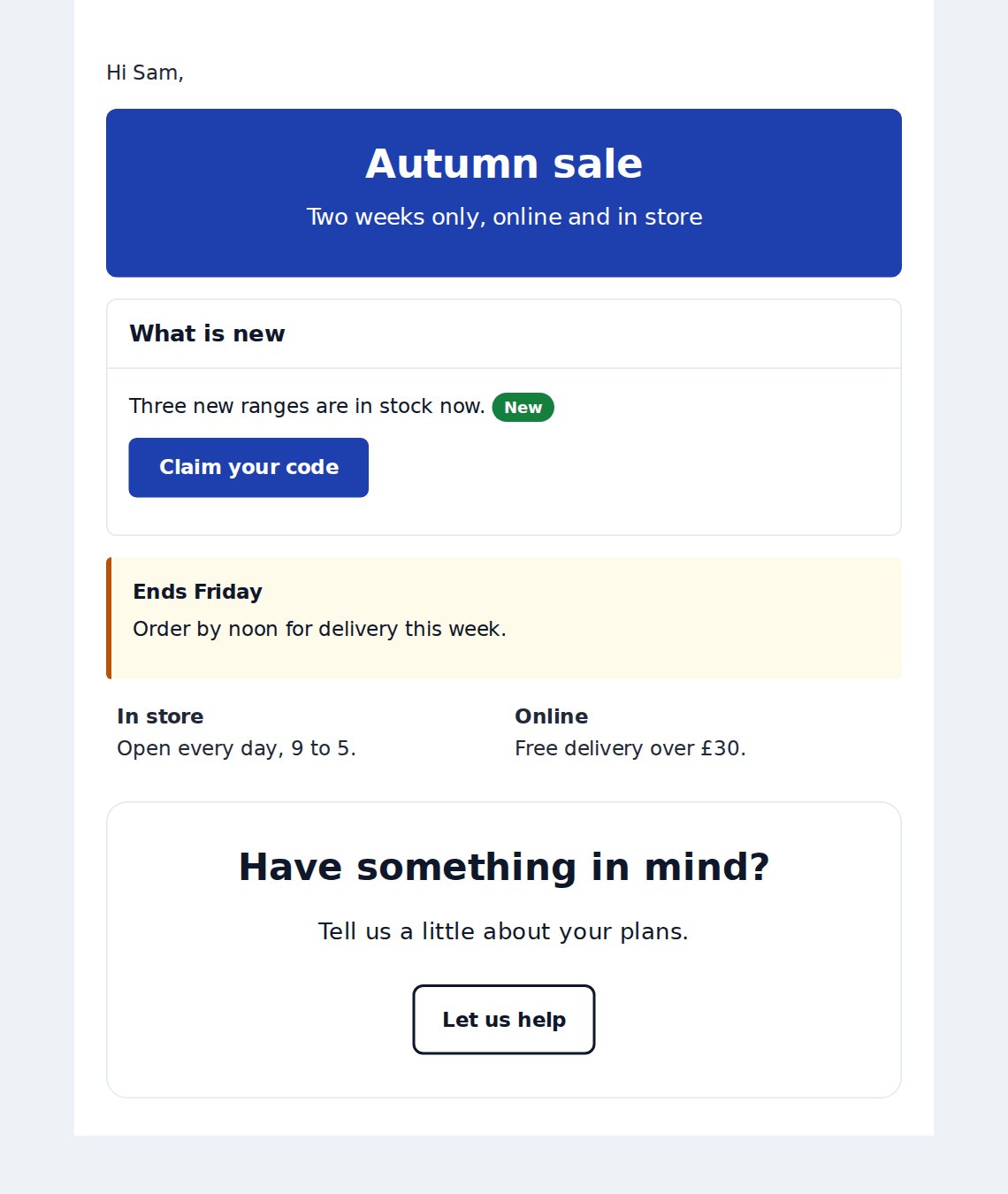
Everything in that email is a block or a tag. Nobody designed it twice.
Insert a block or tag
In the campaign editor, click where the piece should go and press Insert block or tag. The button is on the body, the header and the footer.
Pick what you want and fill in its form, exactly as you would on a page. It goes into your message as a short tag in square brackets:
[button href="{{link}}" variant="primary" label="Claim your code" /]
You can change the tag by hand afterwards, or delete it like any other text. If you select some words first, a piece with an opening and a closing half, such as a card, wraps around them.
What you can use
- Layout and content: button, link, card, box, banner, badge, columns (grid and row), spacer, center, text, hero, table and list group.
- Your blocks: every block on your site under Content > Blocks, including the Domma block pack.
For a button or link that should go to each person's own link, their claim page or survey, type {{link}} as its link. {{name}}, {{email}} and {{code}} work inside tags too.
See it before you send it
Preview email shows every block and tag as the finished piece, in your site's colours, with your header and footer. Test send to me puts a real copy in your own inbox. Do both before a big send: an inbox is fussier than a web page.
What an inbox cannot do
An email is not a web page, and it helps to know where the line is.
- Nothing that moves or responds: tabs, carousels, forms, countdowns and animations are not offered. If you type one by hand it stays as plain text.
- Emails are read on a light background, so a site with a dark theme uses its light colours here.
- Columns stay side by side on a phone instead of stacking. Keep to two or three, with short text.
- Shadows, hover effects, background pictures and icons are dropped. A block built for a full-width page may look simpler in an email.
Change a picture you have already inserted
One more thing in the same release. Right-click a picture in your message, or double-click it, and choose Edit picture. The same panel opens with its description, width, alignment, caption and link filled in. Change what you need and press Save picture. Remove picture takes it out.
Where to find it
Open Campaigns Pro, start or edit a campaign, and look at the Insert row above the message. The user manual has the full guide.
Keep reading
Pictures and files from Media and the File Store in your campaign emails
Campaigns Pro can now take pictures from Media or the File Store, and link to a brochure or price list in either. Links, not attachments, so the email stays small and every click is counted.
Campaign emails with your letterhead, pictures and surveys
Campaigns Pro emails can now carry your own letterhead and footer, pictures from your Media and proper formatting. A campaign can also invite people to a survey, with a personal link for each person.
Backdrops, button links and fonts in your campaign emails
Put a colour, gradient or picture behind your campaign emails, set fonts and sizes, turn links into buttons and pills, add people by hand and send tests to your colleagues.