Backdrops, button links and fonts in your campaign emails
Put a colour, gradient or picture behind your campaign emails, set fonts and sizes, turn links into buttons and pills, add people by hand and send tests to your colleagues.
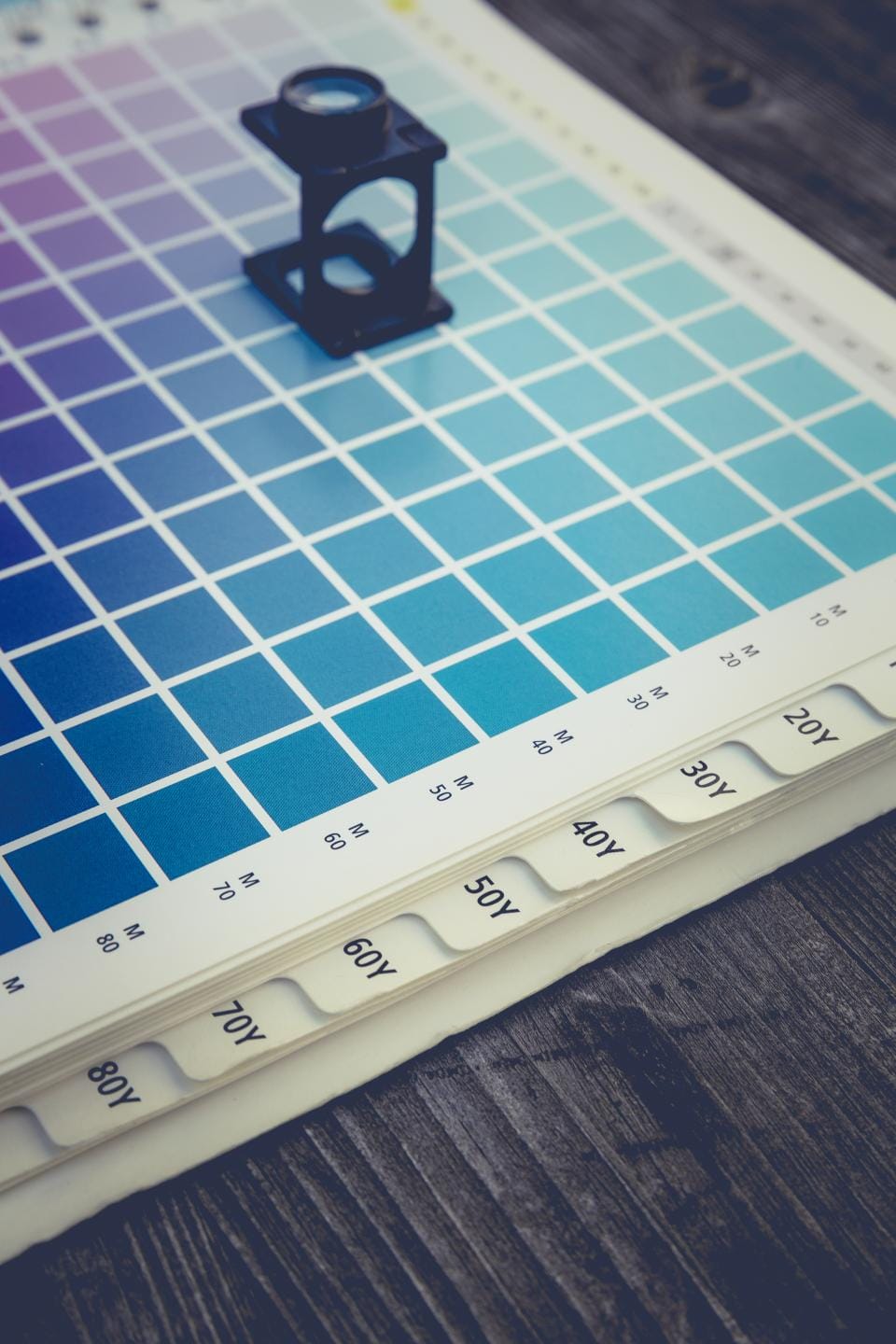
Campaign emails in Domma CMS can now look a lot more like your brand. Campaigns Pro 1.10.0 and 1.11.0 add a backdrop behind the message, fonts and sizes for your words, links that look like buttons, and a quicker way to send tests to the people who need to see them. The campaign editor has also been tidied into sections, the same way as the Surveys editor.
A tidier editor
Open a campaign and the settings now sit in clear sections, each with its own icon: Campaign, Status & schedule, Audience, Send from and Message. The optional parts fold away until you need them: Header & footer, Backdrop, Survey and Offer. Click a section's title to open or close it.
A section the campaign already uses opens by itself. If you press Save and something needs fixing in a folded section, that section opens and shows you what is wrong.
A backdrop behind your message
Open the new Backdrop section and choose what shows around your email:
- a Solid colour,
- a Gradient, the same eight as the Surveys Tool, or
- a Picture from Media or the File Store, either filling the space or tiled.
Your message sits on a Message panel in the middle. It is white unless you pick another colour. On a dark panel the text turns light by itself, or tick Own text colour to choose your own. A small preview beside the settings updates as you go, and Preview email shows the whole thing.
Some mail apps, Outlook on Windows among them, do not show a gradient or a picture behind an email. They show a plain colour instead. For a gradient that colour is picked for you. For a picture, choose a Colour behind the picture that suits it.
Fonts, sizes and weights
Above the body, header and footer editors there is now a row with Font, Size and Weight. Select some words, then choose from a list: a heading in Georgia, a line of small print, a word in bold. The fonts on offer are ones every mail app has, so what you choose is what people see.
Links as buttons and pills
Put the cursor in a link, or right-click it, and choose Link style…. You can show it as a Button, a Pill or an Outline pill, and pick its colour, text colour and size. Automatic text colour chooses black or white, whichever reads better. Text link turns it back into an ordinary link. Opens and clicks are counted exactly as before.
The same font, size, weight and link styles work in the header and footer editors of Surveys. A shared header with a pill button looks the same on a survey and on a campaign.
Add people by hand
Sometimes one person needs the campaign who is not in any group. Under Audience, use Add someone: type their email (and name if you like) and press Add. They join this Tool's own audience list, so they get the unsubscribe link and their opens and clicks are counted like anyone else's. Someone already on the list is used again, not added twice. Click their name to take them off the campaign.
Test sends to colleagues
Test send… in the editor's banner now opens a small panel. Type up to ten addresses, one per line or separated by commas: a colleague who signs it off, a Gmail address, an Outlook address. Each one gets their own copy marked [Test]. Leave it empty to send just to yourself. The list is remembered for next time, and a test is never counted or added to the audience.
Pictures in webmail
One more fix came first. Pictures in campaign and survey emails could show as just their description in webmail, even though they looked right in the preview. Pictures from Media, File Store public links and the open-tracking image now load wherever an email is read. Your private files are still kept private.
Where to find it
Open Campaigns Pro and edit a campaign. The user manual has the full guide, and the Campaigns Pro page shows what else the Tool can do. For the earlier additions, see Use your blocks, buttons and cards in campaign emails.
Keep reading

Put your own header and footer on a survey
Give a survey a banner or logo across the top and your details at the bottom, on its page, wherever it is embedded and in its invitations. Pictures come from Media or the File Store, and shared headers work with Campaigns Pro too.

Surveys get NPS, quizzes and a QR code
Show questions as NPS, stars or smileys, mark a survey as a quiz, close it when it is full, filter and print results, and share it with a QR code.

End your survey with a celebration
Fireworks, confetti or a sparkler thank-you when someone finishes your survey. Plus a Save and resume button you can place anywhere, and optional headers and footers.