You will do
Trim ACME's admin to what the team uses, see what depends on what before you switch anything, and arrange the sidebar the way the team works.
You need
- An admin account on a Domma CMS site
Nothing is lost
A Tool that is off keeps all its data. Switch it back on and everything is where you left it.
Step 1: See what you have
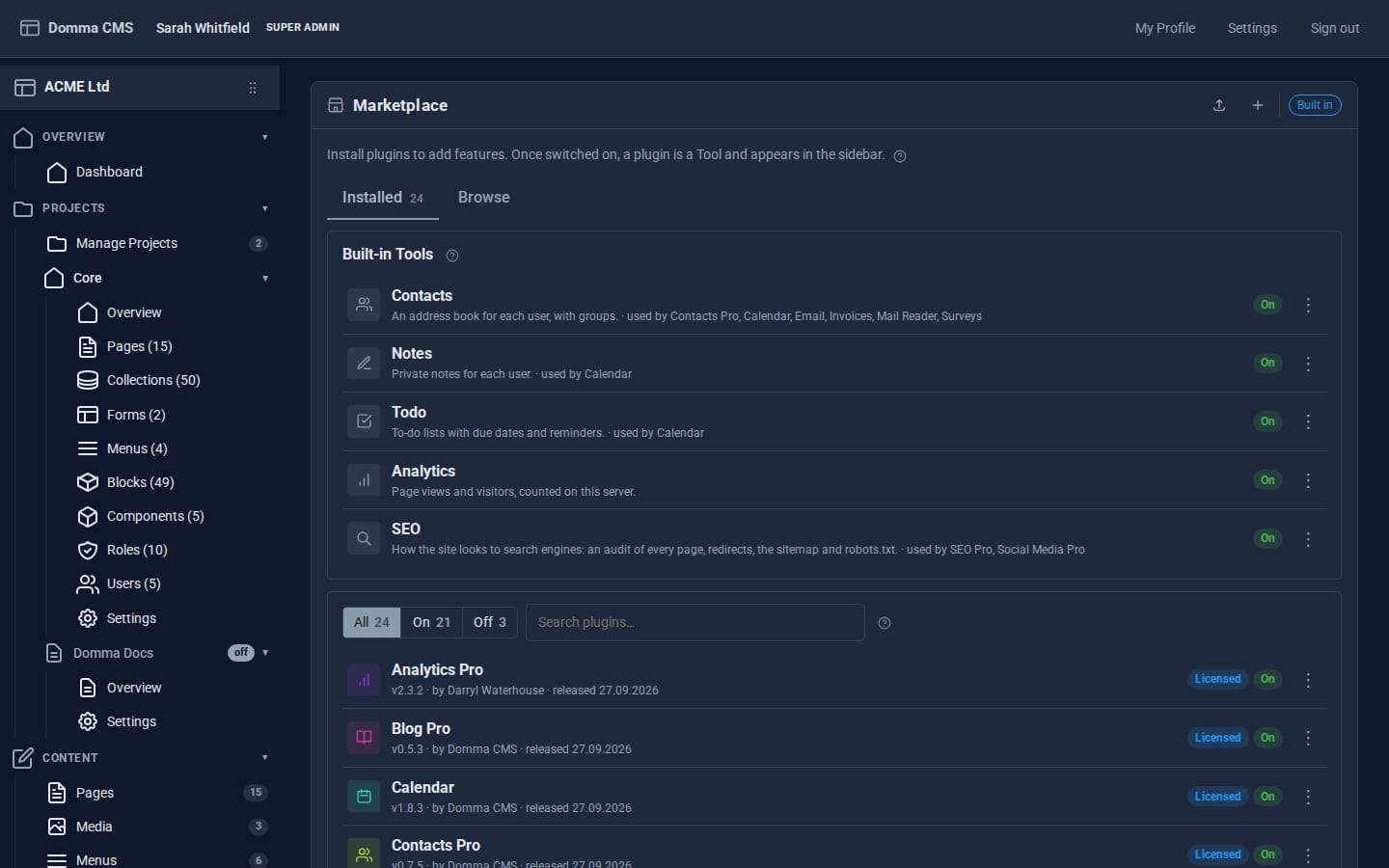
Open Marketplace at the top of the sidebar. The Installed tab starts with Built-in Tools - the Tools that are part of Domma CMS itself:
- Analytics - privacy-friendly page views and visitors, counted on your own server
- Contacts - an address book for each user, with shared groups
- Notes - private notes with categories
- Todo - to-do lists with priorities, due dates and a daily reminder
- SEO - the audit, redirects and sitemap
Below them are the Tools you have added from the Marketplace, each with its version, whether it is on, and its licence if it is a Pro Tool. Filter to On, Off or Needs attention, or search.
Step 2: Switch one off
ACME's team keeps notes elsewhere, so switch Notes off. When a Tool is off:
- it leaves the sidebar and its screens stop,
- its API answers "not found",
- anything it feeds stops too - notifications, calendar layers, related items,
- and its data stays exactly where it was.
Switching takes effect after a restart, which Domma CMS does for you when it runs under a process manager - the screen waits for the site to come back. Several switches in a row cost just one restart.
Step 3: Read the plan before you confirm
Some Tools need others. Contacts Pro requires Contacts; the Calendar uses Contacts to invite people and groups. Try switching Contacts off on a site with those installed and, before anything changes, you are shown the plan:
Switching Contacts off also means:
- Contacts Pro is switched off too - it needs Contacts.
- Calendar stays on without Contacts, but loses: Invite contacts and contact groups to events; add people who RSVP to the organiser's contacts.
Confirm and it all happens together; cancel and nothing changes. Switching on a Tool whose requirement is off offers to switch the requirement on too. Nothing is ever left half-working.
Step 4: Know what "Locked" means
If your site is run by a Domma manager (a managed or hosted site), some switches may show Locked. Those are held by the manager - usually because of a licence or a service agreement - and only it can change them.
Step 5: Arrange the sidebar
Everyone's list of Tools is different. Click the six-dot Arrange the sidebar button at the top of the sidebar:
- Drag an item to move it; drop it on the middle of a folder to put it inside.
- Click the eye to hide an item you never use. Dashboard, Menus, Users and My Profile can be moved but never hidden, so nobody can lose the way back.
- Click Done to save it for everyone, or Cancel to leave it as it was.
Hiding is not the same as switching off: a hidden Tool still works, and anyone can reach it by its address. Labels, icons and per-role visibility are edited in Content > Menus > Admin sidebar.
Step 6: Choose where the admin opens
In System > Site Settings > General, set Admin home to the screen your team starts from each day - the dashboard, Todo, the Shop's orders. If someone cannot use that screen, they get the dashboard instead.
What you built
An admin that fits your team: only the Tools you use, switched safely with a clear plan of what else changes, arranged in the order you work, and opening where your day starts.
Keep going
- Locking down sign-in - the Security Tool is on from the start
- Build a client portal with a confined role
- Browse every Tool
Try it on your own site
Everything in this tutorial is free. One command gets you a site to follow along on.